
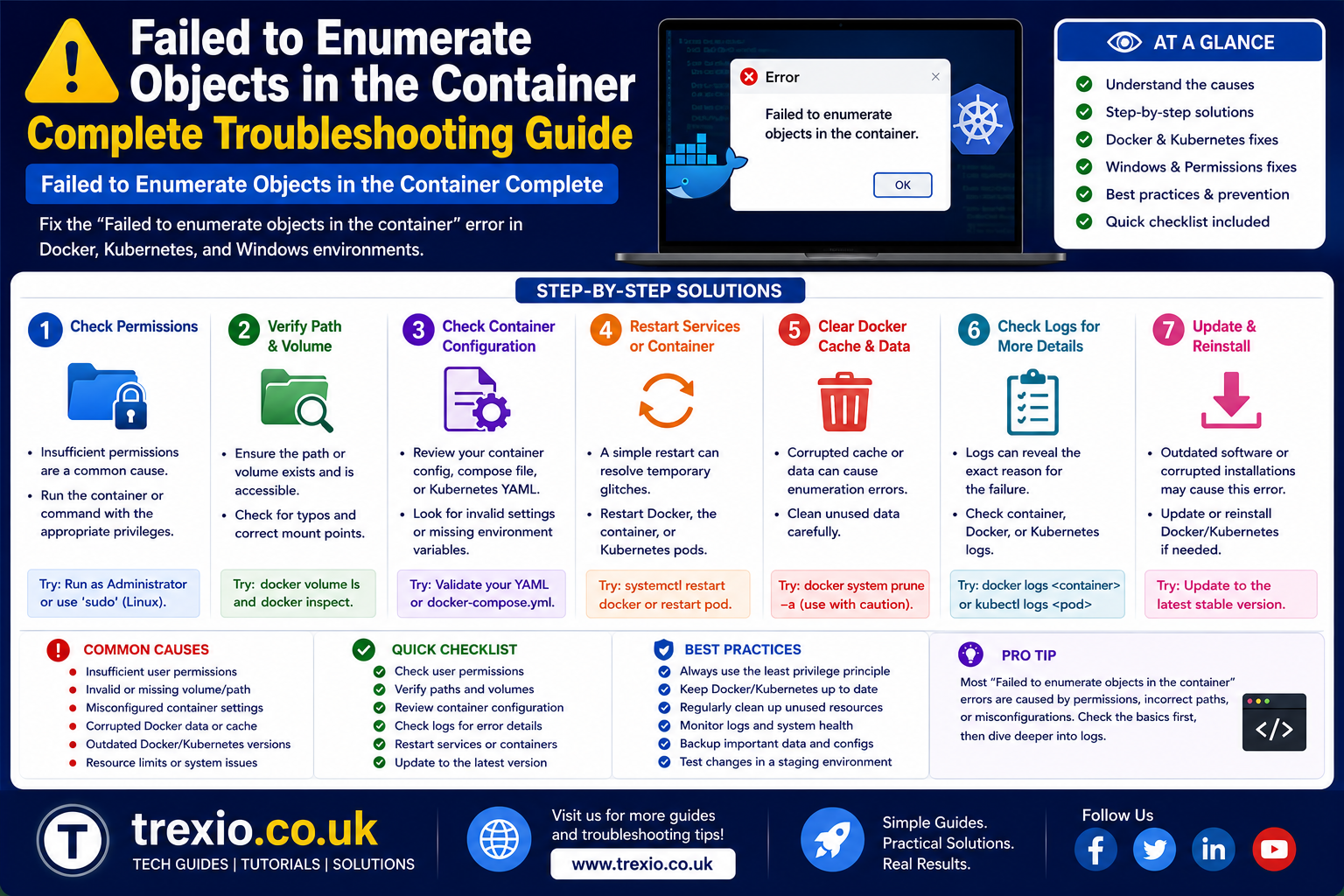
The failed to enumerate objects in the container error is one of the most frustrating permission-related issues Windows users encounter. Whether you are trying to change folder permissions, delete protected files, access system directories, or manage shared folders, this error can suddenly prevent you from making any changes. In many cases, it appears alongside messages about access being denied, insufficient permissions, or an inability to save security settings. While the message may look intimidating, it usually points to a problem involving ownership, inherited permissions, corrupted security entries, or administrative privileges. Understanding the real cause of the failed to enumerate objects in the container error is essential before attempting any fix. Randomly changing permissions without knowing what they do can lead to additional security problems or even make important files inaccessible. Fortunately, Windows includes several built-in tools that allow users to repair permissions safely. This guide explains everything you need to know, beginning with the most common causes and the safest solutions for both Windows 10 and Windows 11.
Quick Answer
If you receive the failed to enumerate objects in the container error, the problem is usually caused by incorrect ownership, damaged security permissions, or missing administrator rights. The quickest solution is to open the folder’s Properties, navigate to Security, select Advanced, change the folder owner to your administrator account, enable inheritance if necessary, and then apply the changes. If Windows still reports failed to enumerate objects in the container, you may need to use an elevated Command Prompt with the takeown and icacls commands to repair ownership and permissions. In some situations, Safe Mode, Windows Security settings, or third-party antivirus software may also affect folder access. Most users can resolve the issue without reinstalling Windows once the correct ownership and permissions are restored.
What Does Failed to Enumerate Objects in the Container Mean?
The failed to enumerate objects in the container message means Windows cannot successfully read, update, or apply permissions to every object inside a folder. The word “container” refers to a folder that contains files and subfolders, while “enumerate objects” simply means Windows is attempting to process each item individually. When one or more files have corrupted permissions, restricted ownership, or conflicting security settings, Windows stops the operation and displays this error instead of completing the requested changes. This commonly occurs while changing NTFS permissions, modifying security settings, or attempting to grant full control over protected directories. The error does not necessarily indicate that the folder is damaged, but rather that Windows cannot safely update all security entries. Since Windows prioritizes file security, it blocks permission changes whenever inconsistencies are detected. Understanding this behavior makes troubleshooting the failed to enumerate objects in the container problem much easier because the focus shifts toward repairing permissions rather than assuming hardware failure.
How Windows Permissions Work
Windows protects files using the NTFS permission system. Every file and folder has an owner and a list of users or groups with different permission levels. When Windows detects missing ownership, broken inheritance, or conflicting Access Control Lists (ACLs), permission changes may fail. This security design prevents unauthorized modifications but sometimes results in the failed to enumerate objects in the container error after system updates, software installations, or file transfers between computers.
Why Enumeration Is Important
Enumeration allows Windows to examine every file inside a folder before applying new permissions. If Windows encounters an object with damaged metadata or inaccessible security information, the process stops immediately. Instead of applying permissions partially, Windows generates the failed to enumerate objects in the container message to avoid inconsistent security settings throughout the folder structure.
Common Causes of Failed to Enumerate Objects in the Container
Several different issues can trigger the failed to enumerate objects in the container error. Although the message remains the same, the underlying cause varies depending on the folder, user account, and Windows configuration. Identifying the exact reason saves considerable troubleshooting time and prevents unnecessary system changes. Below are the most common causes.
Incorrect Folder Ownership
Ownership problems are the leading cause of the failed to enumerate objects in the container error. Every Windows file has an assigned owner responsible for controlling permissions. If another user account, the TrustedInstaller service, or an unavailable account owns the folder, Windows may refuse permission changes. This frequently happens after restoring backups, cloning drives, reinstalling Windows, or copying files from another computer. Without ownership, administrative accounts cannot always modify security settings even when they appear to have full privileges. Taking ownership usually resolves this issue quickly.
Corrupted Security Permissions
Damaged NTFS permissions can prevent Windows from processing folder contents correctly. Security descriptors occasionally become corrupted due to unexpected shutdowns, disk errors, interrupted updates, or third-party software conflicts. When Windows encounters invalid Access Control Entries during permission changes, it displays failed to enumerate objects in the container instead of completing the operation. Repairing permissions often restores normal access without affecting the actual files.
Disabled Permission Inheritance
Inheritance allows child files and folders to receive permissions automatically from their parent directory. If inheritance has been disabled, individual files may contain unique security settings that conflict with the new permissions being applied. Windows may therefore generate the failed to enumerate objects in the container message because it cannot update every object consistently. Enabling inheritance frequently resolves this problem while simplifying future permission management.
Administrative Privilege Issues
Even administrator accounts sometimes lack sufficient privileges to modify protected folders. User Account Control (UAC), Windows Defender protections, enterprise policies, or local security restrictions may limit administrative access. As a result, Windows reports failed to enumerate objects in the container despite the user believing they already have administrator rights. Running tools with elevated permissions often solves these conflicts.
When Does This Error Usually Appear?
The failed to enumerate objects in the container error can occur during many everyday Windows tasks. Although permission changes are the most common trigger, the issue appears whenever Windows cannot safely update or verify security information. Recognizing these situations helps identify the correct solution more quickly.
Changing Folder Permissions
Many users first encounter failed to enumerate objects in the container while attempting to grant Full Control permissions. Windows begins processing each file individually but eventually stops when it encounters inaccessible objects. This typically occurs in folders containing protected system files, inherited permissions, or ownership conflicts.
Deleting Protected Files
Protected folders often require ownership changes before deletion. If permissions cannot be updated successfully, Windows interrupts the process with the failed to enumerate objects in the container message. This is particularly common when removing old Windows installations, software leftovers, or external drive backups.
Accessing External Drives
External hard drives transferred between different computers may retain ownership information from another Windows installation. Because the current user lacks ownership, Windows may generate the failed to enumerate objects in the container error when attempting to access or modify files. Updating ownership generally restores normal functionality.
Managing Shared Network Folders
Network shares with customized NTFS permissions occasionally develop permission conflicts after domain changes, account migrations, or server updates. Administrators attempting to modify folder security may encounter failed to enumerate objects in the container if inherited permissions no longer match the existing security configuration.
How to Fix Failed to Enumerate Objects in the Container by Changing Ownership
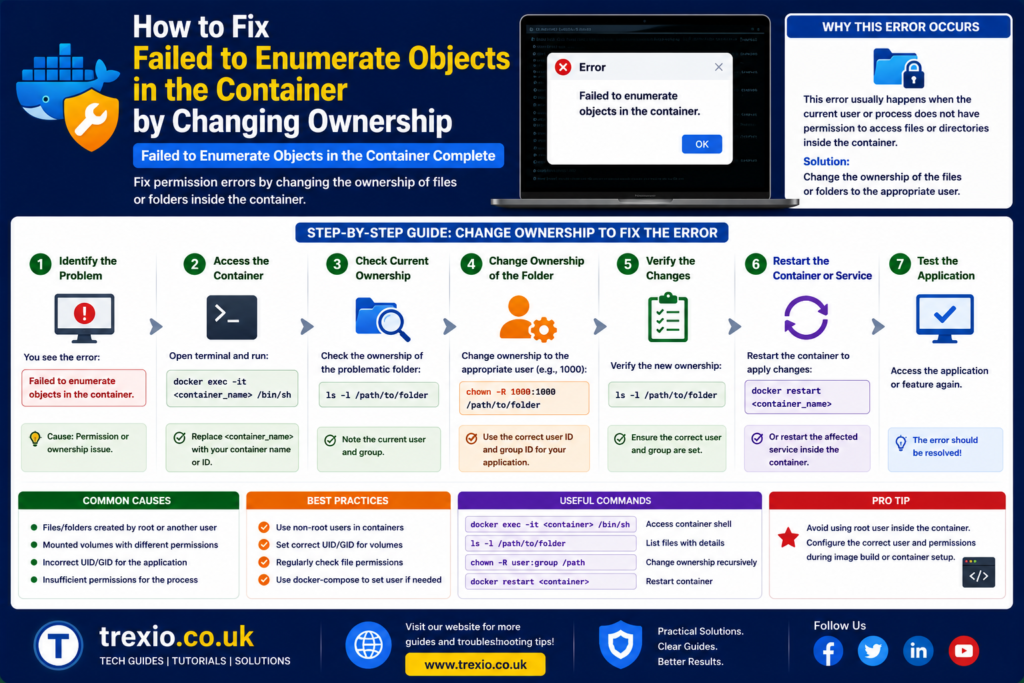
One of the most reliable solutions for the failed to enumerate objects in the container error is changing folder ownership. Because ownership determines who has ultimate control over files and folders, assigning ownership to your administrator account often removes permission conflicts completely. This method is safe when performed carefully and is recommended before using command-line tools or advanced security modifications.
Step 1: Open Folder Properties
Right-click the folder displaying the failed to enumerate objects in the container error and select Properties. Open the Security tab before clicking Advanced. Here you will see the current owner listed at the top of the window. If the owner is TrustedInstaller, another user account, or an unknown security identifier, ownership should usually be changed before modifying permissions.
Step 2: Change the Owner
Select Change next to the owner field. Enter the name of your administrator account and choose Check Names to verify it. After confirmation, enable the option to Replace owner on subcontainers and objects. This instructs Windows to apply the new ownership throughout the folder hierarchy instead of only changing the top-level directory. Applying ownership consistently reduces the likelihood of encountering the failed to enumerate objects in the container error again during later permission updates.
Step 3: Apply Permissions to All Child Objects
After changing ownership, click Apply and wait while Windows updates every file and subfolder. Depending on the number of files, this process may take anywhere from a few seconds to several minutes. If the folder contains thousands of items, avoid interrupting the process because doing so may leave permissions partially updated. Once ownership has been transferred, return to the Security tab and verify that your administrator account has Full Control. If necessary, edit the permissions manually and check the option to replace all child object permission entries with inheritable permissions from the parent object. This ensures every item receives consistent security settings instead of retaining conflicting Access Control Lists (ACLs). In many situations, this final step completely resolves the failed to enumerate objects in the container error without requiring additional troubleshooting. After the changes are complete, close the Properties window and test whether you can now access, edit, or delete the folder successfully.
Fix the Error Using Command Prompt
If the graphical interface cannot resolve the failed to enumerate objects in the container error, Windows includes powerful command-line tools that can repair ownership and permissions directly. These commands should always be run from an elevated Command Prompt or Windows Terminal with administrator privileges. They are particularly helpful when folder security settings are heavily corrupted or inaccessible through File Explorer. Although command-line tools may seem intimidating, they are widely recommended by Microsoft administrators because they work even when the graphical permission editor fails. Before making changes, double-check the folder path to avoid modifying the wrong directory. Running these commands on system folders should only be done when absolutely necessary. After ownership and permissions are repaired, restart your computer and verify that the problem has been resolved.
Use the TAKEOWN Command
The takeown command transfers ownership of a file or folder to the current administrator account. This is especially useful when files originate from another Windows installation or another user profile. By assigning ownership correctly, Windows can once again manage permissions normally. Once ownership has been updated, the failed to enumerate objects in the container message often disappears because the operating system no longer encounters ownership conflicts.
Use the ICACLS Command
The icacls utility manages NTFS permissions directly. It allows administrators to grant, remove, reset, or repair file permissions efficiently. When permissions become inconsistent or inheritance has been broken, resetting them through icacls often restores normal operation. Combining ownership changes with permission resets provides one of the most effective solutions for persistent instances of the failed to enumerate objects in the container error.
Repair Corrupted System Files
Sometimes the failed to enumerate objects in the container error is not limited to folder permissions. Corrupted Windows system files may interfere with security services responsible for processing ownership and access rights. Running built-in Windows repair utilities can restore damaged system components without affecting personal files. These tools compare existing Windows files against known-good versions and automatically replace corrupted copies. If system corruption is responsible for permission failures, repairing Windows files can eliminate recurring security errors. This approach is especially useful after interrupted Windows updates, unexpected shutdowns, or malware removal. Because these tools are officially supported, they represent a safe troubleshooting step before considering more advanced recovery options. Once repairs are complete, restart Windows and test the affected folder again.
Run System File Checker (SFC)
The System File Checker scans protected Windows files and repairs corruption automatically. If damaged security-related files are detected, Windows replaces them using cached system copies. Many users report that permission-related issues disappear after completing a successful SFC scan.
Use DISM to Restore Windows Components
Deployment Image Servicing and Management (DISM) repairs the underlying Windows image used by System File Checker. Running DISM before SFC often produces the best results when extensive corruption exists. Together, these utilities help restore the integrity of Windows security components involved in processing folder permissions.
Check Disk for File System Errors
Hard drive or SSD file system errors can also contribute to the failed to enumerate objects in the container issue. When NTFS metadata becomes inconsistent, Windows may struggle to interpret security descriptors correctly. Running the built-in disk checking utility verifies the integrity of the file system and repairs logical errors where possible. If bad sectors are detected, Windows attempts to recover readable information while marking damaged areas to prevent future use. Although hardware failure is not the most common cause of this error, checking disk health is worthwhile when permission issues repeatedly return. Storage devices that have experienced sudden power loss or aging hardware are especially susceptible to file system inconsistencies. Performing routine disk maintenance helps reduce the likelihood of permission-related errors in the future. After the scan finishes, reboot your system and verify whether the failed to enumerate objects in the container problem has been resolved.
Troubleshooting on Windows 10 vs. Windows 11
Although the failed to enumerate objects in the container error behaves similarly across Windows versions, the interface and security features differ slightly. Windows 11 introduces an updated File Explorer, redesigned Settings app, and additional security protections that may affect how permissions are displayed. Windows 10 retains the classic interface familiar to many users but uses nearly identical NTFS permission architecture. The underlying troubleshooting process remains largely the same regardless of version. Ownership, inheritance, administrator privileges, and permission consistency remain the key factors. Understanding the small differences helps users navigate menus more efficiently. The following comparison summarizes the most notable distinctions.
| Feature | Windows 10 | Windows 11 |
|---|---|---|
| Security Interface | Classic layout | Modernized layout |
| NTFS Permission System | Yes | Yes |
| Ownership Process | Similar | Similar |
| Command-Line Tools | Supported | Supported |
| Advanced Security Options | Available | Available |
| Main Cause of Error | Permission conflicts | Permission conflicts |
Best Practices to Prevent Permission Errors
Preventing the failed to enumerate objects in the container error is much easier than repairing damaged permissions afterward. Following a few simple maintenance practices keeps Windows security settings consistent and reduces the risk of future ownership conflicts.
- Always use an administrator account when modifying sensitive folders.
- Avoid manually changing permissions on Windows system directories unless necessary.
- Keep Windows updated with the latest security patches.
- Back up important files before modifying ownership or NTFS permissions.
- Leave permission inheritance enabled unless a specific security policy requires otherwise.
- Run periodic disk health and system file integrity checks.
- Avoid forcefully shutting down the computer during updates or file operations.
- Use reputable security software to protect against malware that may alter permissions.
Common Mistakes to Avoid
Many users accidentally make the failed to enumerate objects in the container error worse by applying incorrect fixes. Understanding these common mistakes helps avoid unnecessary complications.
- Removing all security permissions from a folder.
- Disabling inheritance without understanding its purpose.
- Assigning ownership to the wrong user account.
- Editing permissions on protected Windows folders unnecessarily.
- Ignoring administrator privilege requirements.
- Interrupting ownership updates before they finish.
- Running random third-party permission repair utilities without verifying their reliability.
- Assuming hardware failure before checking ownership and permissions.
Pro Tips from Windows Administrators
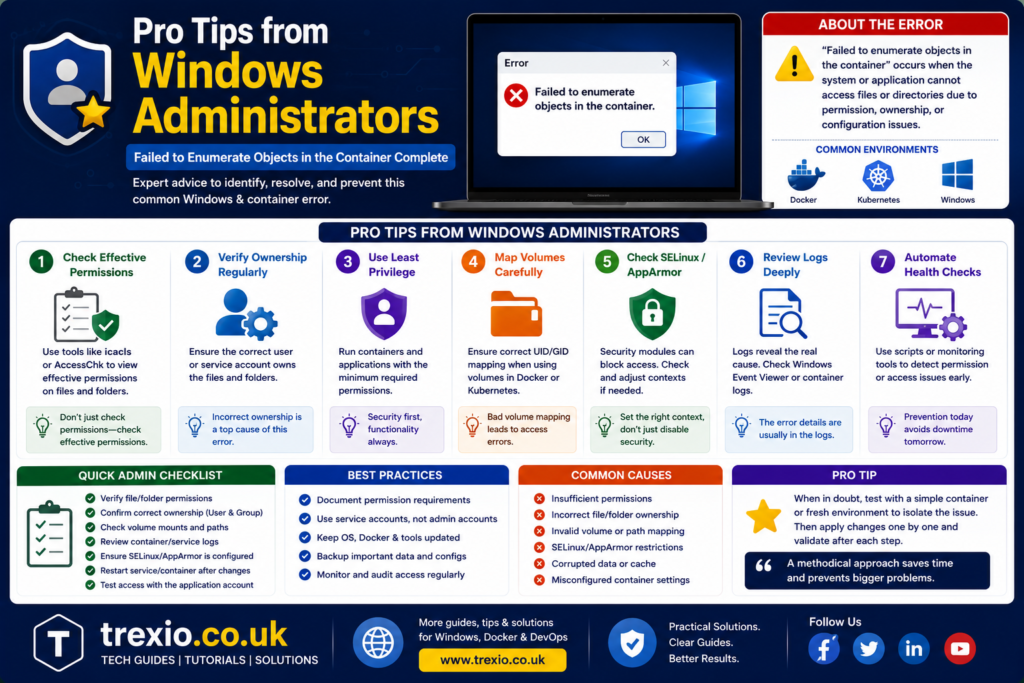
Experienced Windows administrators follow several practices that significantly reduce permission-related problems over time.
- Create a system restore point before changing advanced permissions.
- Use built-in Windows tools whenever possible instead of unofficial utilities.
- Verify folder ownership before editing permissions.
- Keep regular backups of important files and system images.
- Document permission changes in business environments for easier troubleshooting.
- Use elevated PowerShell or Command Prompt only when graphical tools fail.
- Regularly monitor disk health using SMART diagnostics.
- Limit permission modifications to only the folders that require changes.
Comparison of Common Solutions
| Solution | Difficulty | Success Rate | Recommended For |
|---|---|---|---|
| Change Folder Ownership | Easy | Very High | Most users |
| Enable Permission Inheritance | Easy | High | Inheritance issues |
| Use TAKEOWN | Medium | Very High | Ownership conflicts |
| Use ICACLS | Medium | Very High | Corrupted permissions |
| Run SFC Scan | Easy | Medium | System corruption |
| Run DISM | Medium | High | Windows image repair |
| Check Disk | Medium | Medium | File system errors |
| Safe Mode Troubleshooting | Medium | High | Locked files |
Conclusion
The failed to enumerate objects in the container error may initially appear complex, but it is almost always related to Windows ownership, NTFS permissions, or inherited security settings rather than permanent file damage. By understanding how Windows manages file ownership and access control, users can approach the problem methodically instead of relying on trial and error. In most cases, changing folder ownership, restoring inherited permissions, or repairing corrupted security entries successfully eliminates the error. Advanced users can also rely on trusted Windows utilities such as TAKEOWN, ICACLS, SFC, and DISM when graphical tools are insufficient. Maintaining healthy storage devices, keeping Windows updated, and avoiding unnecessary permission changes further reduces the likelihood of encountering the failed to enumerate objects in the container message in the future. Whether you are using Windows 10 or Windows 11, following the techniques in this guide provides a safe, effective, and long-term solution for resolving permission-related issues while protecting your important data.
Frequently Asked Questions (FAQs)
1. What does failed to enumerate objects in the container mean?
It means Windows cannot successfully process permissions for every file or folder inside the selected directory because of ownership or security conflicts.
2. Is the error caused by a virus?
Usually not. The error is most commonly related to NTFS permissions, ownership, or administrator rights. However, malware can sometimes alter security settings.
3. Does changing ownership delete my files?
No. Changing ownership only updates permission settings and does not remove or modify the contents of your files.
4. Can I fix the error without Command Prompt?
Yes. Many users resolve the issue entirely through the Properties > Security > Advanced settings by changing ownership and enabling inheritance.
5. Why does the error keep coming back?
Recurring permission problems may indicate corrupted security entries, system file corruption, or disk issues that require additional repair.
6. Is the error different on Windows 11?
The interface differs slightly, but the underlying causes and troubleshooting steps are nearly identical to Windows 10.
7. Should I disable User Account Control (UAC)?
No. Disabling UAC is generally not recommended because it reduces system security without addressing the underlying permission problem.
8. Can external hard drives trigger this error?
Yes. Drives moved from another computer often retain ownership information that conflicts with the current Windows installation.
9. Is it safe to use TAKEOWN and ICACLS?
Yes, when used correctly and on the intended folder. These are official Windows administrative tools designed to manage ownership and NTFS permissions.
10. Can reinstalling Windows fix the issue?
A clean installation may eliminate the error, but it is rarely necessary. Most cases can be resolved through ownership and permission repairs alone.
Author Bio
About the Author:
A technology writer and Windows troubleshooting specialist with extensive experience in Microsoft operating systems, file system permissions, and desktop support. The author focuses on creating accurate, user-friendly, and SEO-optimized technical guides that help readers solve real-world Windows problems using trusted methods and industry best practices.