
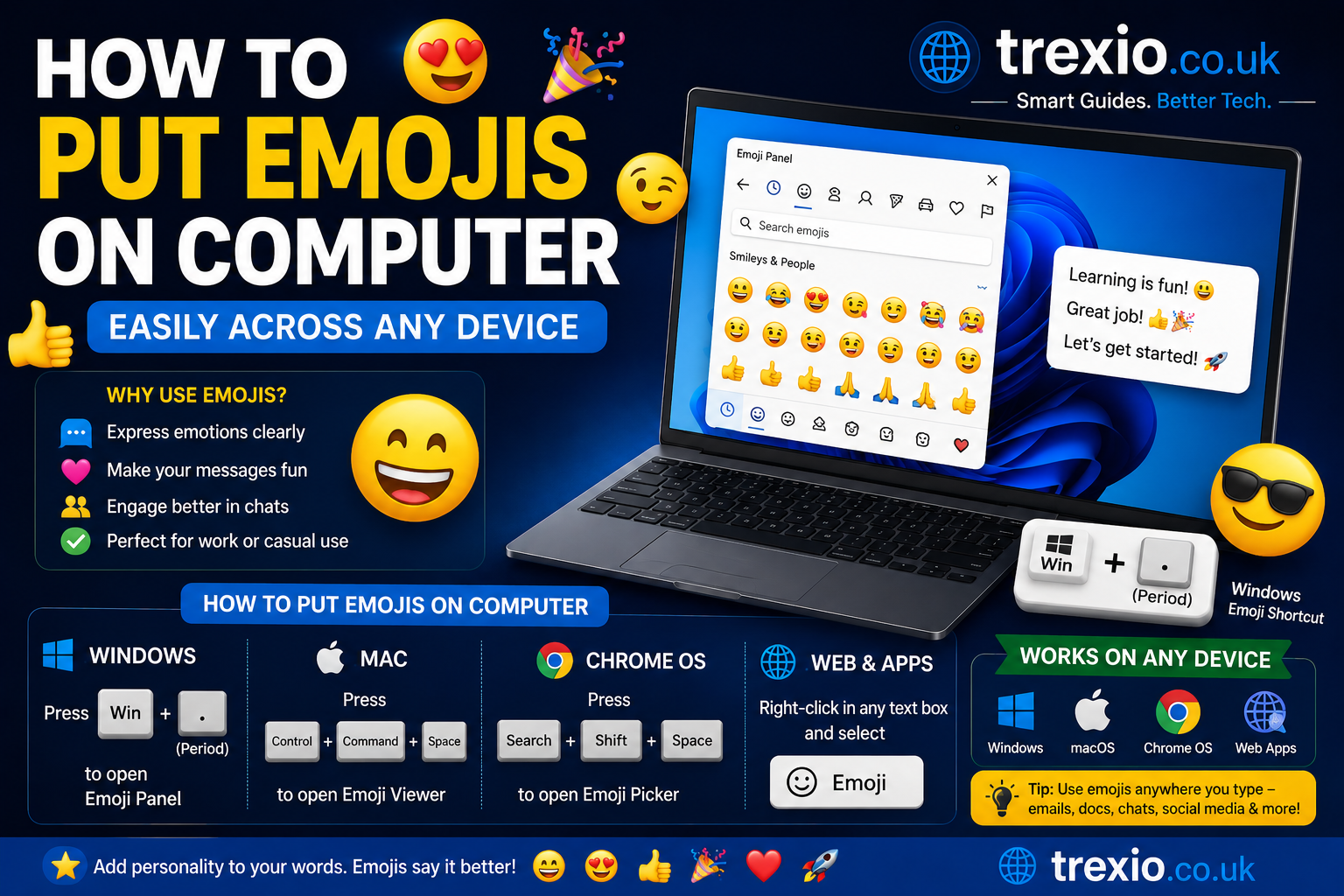
If you’ve ever wondered how to put emojis on computer, you’re not alone. Emojis have become a universal language that makes emails, social media posts, online chats, and even work messages more expressive and engaging. Whether you’re replying to a friend, writing a blog, creating social media content, or chatting with coworkers, knowing how to put emojis on computer can save time while adding personality to your messages. Many users believe emojis only work on smartphones, but modern computers include built-in emoji keyboards that are incredibly easy to access. Both Windows and macOS have dedicated emoji panels, while Chromebooks and many web applications also support emoji input. Once you understand these features, you’ll never need to copy and paste emojis from websites again. This guide explains how to put emojis on computer step by step using simple methods that work for beginners and experienced users alike.
Quick Answer
The fastest way to learn how to put emojis on computer depends on your operating system.
- Windows: Press Windows + . (period) or Windows + ; (semicolon).
- Mac: Press Control + Command + Space.
- Chromebook: Right-click a text field and select Emoji, or use the built-in emoji picker if available.
- Web Browsers: Most browsers support your operating system’s emoji keyboard automatically.
These shortcuts instantly open an emoji picker where you can browse categories, search for emojis, and insert them into nearly any application.
Why Learning How to Put Emojis on Computer Is Useful
Understanding how to put emojis on computer offers much more than adding smiling faces to conversations. Emojis improve communication by expressing emotions that plain text often cannot convey. In professional settings, they can make friendly internal communication feel warmer when used appropriately. On social media platforms, emojis help posts stand out, increase engagement, and improve readability. Bloggers frequently use emojis in promotional content to capture attention. Content creators also include emojis in YouTube titles, Instagram captions, and marketing campaigns. Even customer support representatives use emojis carefully to create a welcoming experience. Once you master how to put emojis on computer, you’ll notice your digital communication becomes faster, clearer, and more engaging. Since most operating systems now include thousands of Unicode emojis, there’s no need for third-party software in most situations.
Understanding Computer Emoji Support
Before learning the different methods, it’s helpful to understand how computer emojis actually work. Emojis are standardized Unicode characters recognized by modern operating systems and applications. Instead of being simple images, they are text characters rendered differently depending on the platform. This explains why an emoji may look slightly different on Windows, macOS, Android, or iPhone. Despite those design differences, the meaning remains the same across devices. Most modern software—including Microsoft Office, Google Docs, Gmail, Slack, Discord, Microsoft Teams, Facebook, X, and WhatsApp Web—supports Unicode emojis. Learning how to put emojis on computer means you’re using a universal standard that’s compatible almost everywhere. As Unicode continues releasing new emoji versions, operating systems regularly update their emoji libraries to include the latest additions.
How to Put Emojis on Computer Using Windows
Windows provides one of the easiest built-in methods for inserting emojis. If you’ve never used the emoji panel before, you’ll be surprised by how convenient it is. Learning how to put emojis on computer on Windows takes only a few seconds and works in nearly every application.
Open the Windows Emoji Panel
Press the following keyboard shortcut:
Windows Key + Period (.)
or
Windows Key + Semicolon (;)
Immediately, the Windows emoji picker appears beside your cursor. From there, you can browse thousands of emojis organized into categories such as:
Smileys and Emotions
This section contains happy faces, laughing emojis, hearts, crying faces, thinking faces, and hundreds of emotional expressions. It’s the most commonly used category for casual conversations and social media posts. If you’re practicing how to put emojis on computer, this is usually the first category you’ll explore. Windows also remembers recently used emojis, making future access even faster. You can simply click an emoji to insert it wherever your text cursor is active. The interface is designed to be beginner-friendly while supporting frequent users with quick access features. Since the emoji panel works system-wide, you can use it in most desktop and web applications.
Animals and Nature
You’ll find animals, plants, flowers, weather symbols, insects, marine life, and seasonal icons. These emojis are popular for educational content, storytelling, travel blogs, and social media captions. Because they’re categorized visually, locating specific symbols is quick and intuitive. Windows continuously updates this collection as new Unicode standards become available. Whether you’re discussing pets, wildlife, vacations, or environmental topics, this category offers a wide variety of expressive icons. Understanding these categories makes how to put emojis on computer even more efficient during everyday typing.
Food and Drink
The food section includes fruits, vegetables, desserts, beverages, meals, snacks, and cooking-related icons. These emojis are especially useful for restaurant reviews, recipes, food blogs, invitations, and casual conversations. Many users frequently access pizza, coffee, birthday cake, and celebration emojis from this section. Instead of searching online, everything is available directly within Windows. Once you know how to put emojis on computer, inserting food emojis becomes as easy as typing regular text.
How to Search for Emojis Faster
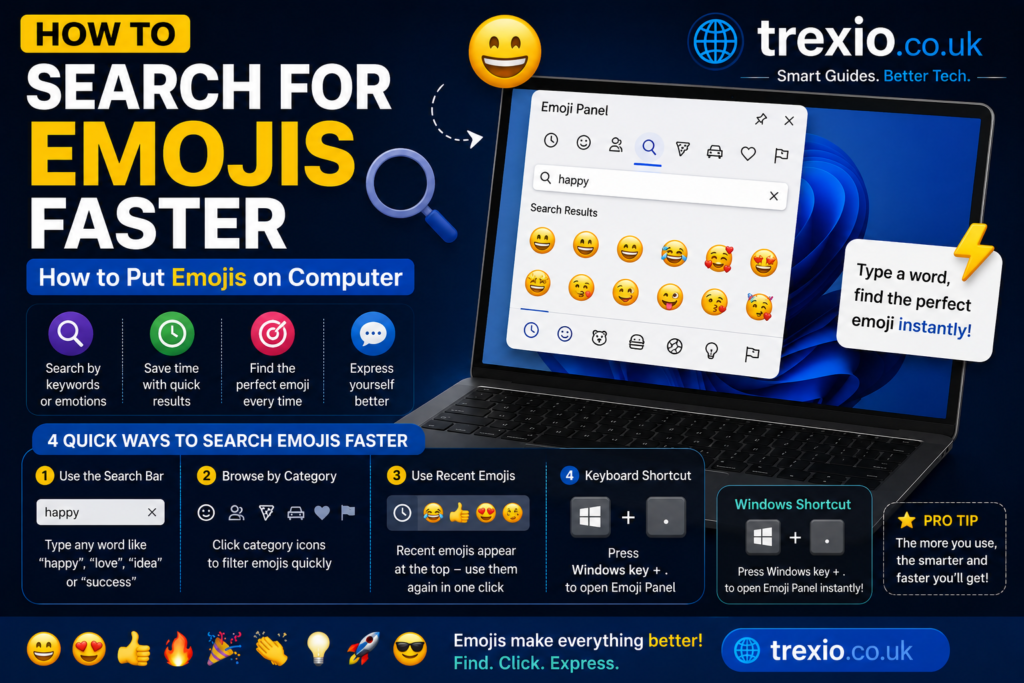
Browsing thousands of emojis manually can be time-consuming. Fortunately, Windows includes a powerful search feature that makes finding the perfect emoji incredibly fast.
Use the Search Box
Simply open the emoji panel and begin typing keywords such as:
- smile
- heart
- fire
- laptop
- coffee
- music
- party
- celebration
Windows instantly filters matching emojis as you type. This saves considerable time, especially if you frequently use similar emojis in emails or social media posts. Knowing how to search efficiently is an important part of mastering how to put emojis on computer. Even if you don’t remember an emoji’s exact appearance, descriptive keywords usually locate it quickly. The search function continues improving with Windows updates, making emoji selection even easier over time.
How to Put Emojis on Computer Using Mac
Mac users also enjoy a built-in emoji keyboard that’s simple and reliable. Apple has integrated emoji support into macOS for many years, allowing users to insert emojis into documents, messages, presentations, and web applications.
Keyboard Shortcut for Mac
Press:
Control + Command + Space
This opens the Character Viewer, which includes emojis, symbols, punctuation marks, and special characters.
Browse Emoji Categories
The Mac emoji viewer organizes emojis into logical groups similar to Windows. Categories include smileys, people, animals, travel, activities, food, objects, symbols, and flags. You can scroll through the collection or search by keyword to quickly locate specific emojis. The interface is clean, responsive, and optimized for both casual and professional users. Recent emojis appear at the top for quick access, making repeated usage more efficient. Once you become familiar with the layout, how to put emojis on computer on macOS becomes second nature. Apple also updates emoji designs regularly with each major macOS release.
Insert Emojis Anywhere
After selecting an emoji, simply click it once. The emoji is inserted wherever your cursor is currently placed. This works in Apple Mail, Safari, Notes, Microsoft Word, Google Docs, Messages, Slack, Discord, and countless other applications. Because macOS treats emojis as Unicode characters, compatibility remains excellent across platforms. Whether you’re composing an email or designing social media content, understanding how to put emojis on computer on a Mac dramatically speeds up your workflow. You can even combine multiple emojis creatively to enhance storytelling and visual communication.
Using Emojis in Microsoft Word
Many people assume Microsoft Word doesn’t support emojis, but that’s no longer true. Modern versions fully support Unicode emojis across documents.
Insert Emojis While Writing
Open your document and place the cursor where you want the emoji to appear. Then use your operating system’s emoji shortcut. The selected emoji immediately becomes part of your text. This works for resumes, newsletters, presentations, educational materials, invitations, and digital reports. While professional documents should use emojis sparingly, they can be appropriate for internal communication, classroom materials, marketing documents, and informal content. Learning how to put emojis on computer helps Word users create more visually engaging documents without relying on images or icons. Since emojis scale with font size, they blend naturally into your text while remaining fully editable.
How to Put Emojis on Computer in Google Docs
Google Docs fully supports Unicode emojis, making it easy to add expressive symbols to documents without installing extensions. If you regularly collaborate with classmates, coworkers, or clients, knowing how to put emojis on computer while using Google Docs can improve communication and make documents more engaging. Simply place your cursor where you want the emoji to appear and use your operating system’s emoji shortcut. The emoji will be inserted as standard text and remain visible when the document is shared with others. Because Google Docs syncs across devices, the emojis generally display correctly on Windows, macOS, Android, and iPhone. You can also copy emojis between documents without losing formatting. For presentations, lesson plans, newsletters, and collaborative notes, emojis can improve readability when used thoughtfully. Since Google Docs is cloud-based, the latest Unicode emojis are typically supported once your browser and operating system are updated.
Tips for Better Emoji Usage in Google Docs
When using emojis in professional or educational documents, choose symbols that reinforce your message rather than distract from it. Limit decorative emojis in formal reports while using them more freely in presentations, team announcements, or instructional materials. Consistent emoji usage creates a cleaner and more professional appearance. If multiple people are editing the same document, agree on an appropriate style before adding emojis throughout the file. This keeps formatting consistent and prevents unnecessary visual clutter. Understanding how to put emojis on computer within Google Docs allows you to create documents that are both informative and visually appealing. Small additions, such as check marks, warning symbols, or celebration icons, often improve organization without overwhelming the reader.
How to Put Emojis on Computer in Web Browsers
Whether you’re using Chrome, Microsoft Edge, Firefox, Safari, or Opera, web browsers rely on your operating system’s emoji keyboard. This means once you learn how to put emojis on computer, the same shortcuts work across most websites. You can insert emojis into social media posts, online forms, comment sections, forums, email services, and messaging platforms. Since browsers support Unicode, the inserted emojis appear correctly on compatible websites. Browser updates also improve emoji rendering and compatibility with newer Unicode releases. If a website restricts special characters, certain emojis may not display, but this is uncommon on modern platforms. Overall, browser support is excellent for both personal and professional use. The convenience of system-wide emoji support eliminates the need for browser-specific extensions in most situations.
Popular Websites That Support Emojis
Many websites accept emojis without requiring additional software.
- Gmail
- Outlook Web
- X (formerly Twitter)
- Discord
- Slack
- Microsoft Teams
- WhatsApp Web
- YouTube comments
- Google Chat
Because these platforms recognize Unicode characters, your emojis remain visible across different operating systems and mobile devices. This broad compatibility is one of the biggest reasons users search for how to put emojis on computer today.
How to Put Emojis on Computer Using Chromebook
Chromebooks include built-in emoji functionality that continues to improve with ChromeOS updates. Users can insert emojis into emails, documents, chats, and websites using the integrated emoji picker. In many text fields, right-clicking opens an option to insert emojis directly. Some ChromeOS versions also provide a keyboard shortcut or an emoji button on the virtual keyboard. Because ChromeOS integrates closely with Google services, emoji support works particularly well in Google Docs, Gmail, Google Chat, and Classroom. Once selected, emojis behave like regular text and can be copied, pasted, and edited easily. Learning how to put emojis on computer on a Chromebook is especially useful for students, educators, and remote workers. Keeping ChromeOS updated ensures access to the newest emoji library and performance improvements.
Troubleshooting Emoji Problems
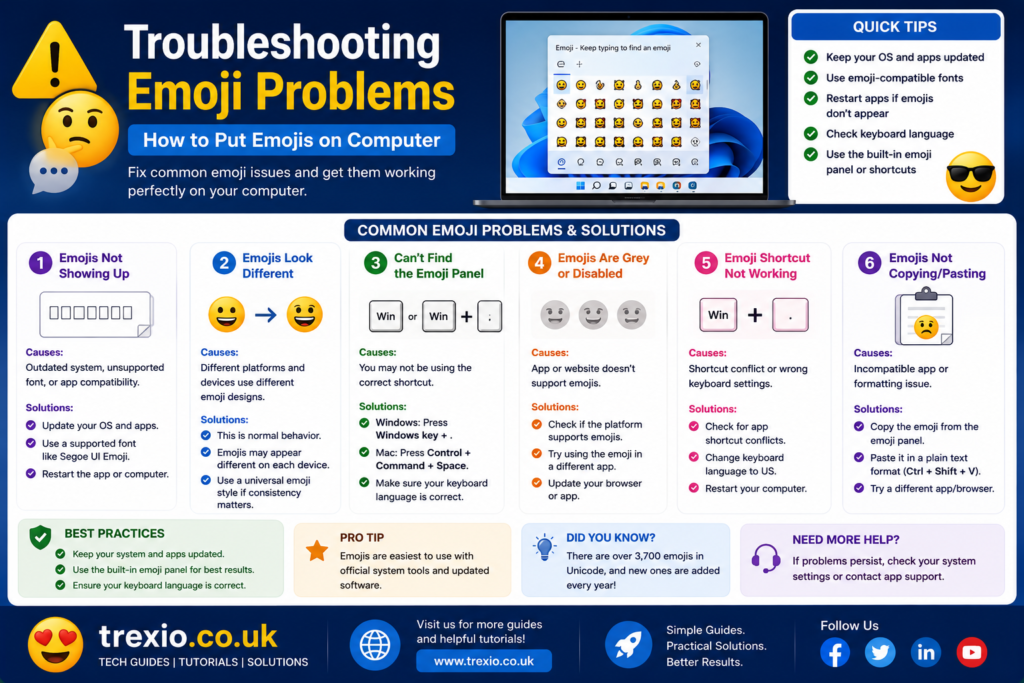
Sometimes emojis do not appear correctly even after using the proper shortcut. Fortunately, most issues are easy to fix with a few simple checks. Knowing the common causes helps you continue using how to put emojis on computer without unnecessary frustration.
Emoji Keyboard Doesn’t Open
If the emoji panel refuses to appear, first verify that your operating system is fully updated. Restarting the computer often resolves temporary software glitches. Check whether your keyboard shortcuts have been reassigned through third-party software. Some gaming keyboards and productivity tools can override default shortcuts. If necessary, disconnect external keyboard utilities and test again. Most shortcut problems are resolved after installing the latest operating system updates.
Emojis Display as Empty Boxes
Empty boxes usually indicate that your operating system or application does not support a newer Unicode version. Updating Windows, macOS, ChromeOS, or your browser generally fixes the issue. Certain older fonts also lack emoji support, causing characters to appear incorrectly. Switching to a modern font often resolves the problem immediately. If you’re sharing documents with others, remember that older devices may not display recently released emojis correctly.
Emojis Look Different on Other Devices
This behavior is completely normal. Apple, Microsoft, Google, and other platforms each design their own versions of Unicode emojis. Although the artwork differs slightly, the intended meaning usually remains consistent. This is another reason to use universally recognized emojis when communicating professionally. Understanding these platform differences is an important part of mastering how to put emojis on computer effectively.
Comparison of Emoji Methods by Operating System
| Operating System | Emoji Shortcut | Built-in Emoji Picker | Search Feature | Ease of Use |
|---|---|---|---|---|
| Windows 10/11 | Windows + . or Windows + ; | Yes | Yes | Excellent |
| macOS | Control + Command + Space | Yes | Yes | Excellent |
| Chromebook | Emoji Picker or Right Click | Yes | Yes | Very Good |
| Linux (varies by distribution) | Distribution Dependent | Partial | Limited | Good |
Comparison of Common Applications Supporting Emojis
| Application | Emoji Support | Keyboard Shortcut Works | Recommended |
| Microsoft Word | Yes | Yes | Yes |
| Google Docs | Yes | Yes | Yes |
| Gmail | Yes | Yes | Yes |
| Outlook | Yes | Yes | Yes |
| Slack | Yes | Yes | Excellent |
| Discord | Yes | Yes | Excellent |
| Microsoft Teams | Yes | Yes | Yes |
| WhatsApp Web | Yes | Yes | Yes |
| Yes | Yes | Yes | |
| Yes | Yes | Yes |
Best Practices for Using Emojis on a Computer
Using emojis effectively requires balance and context. Consider these best practices:
- Match the emoji to the tone of your message.
- Use emojis sparingly in formal business communication.
- Prefer universally recognized emojis over obscure ones.
- Keep your operating system updated for the latest emoji support.
- Use the built-in emoji picker instead of copying emojis from random websites.
- Avoid replacing entire sentences with emojis.
- Test documents if they will be viewed on older devices.
- Use emojis to improve clarity rather than create visual clutter.
- Stay consistent with emoji style in presentations and collaborative documents.
- Remember that different audiences may interpret certain emojis differently.
Common Mistakes to Avoid
Many users make avoidable mistakes when first learning how to put emojis on computer. Adding too many emojis in a single sentence often distracts readers instead of enhancing the message. Another common error is using emojis in highly formal legal, financial, or academic documents where professionalism is expected. Some people rely on third-party emoji websites even though their operating system already includes a secure emoji keyboard. Others forget to update their computer, causing new emojis to display incorrectly or not appear at all. Choosing emojis without considering cultural interpretation may also lead to misunderstandings. Copying emojis from unsupported fonts can produce inconsistent formatting in shared documents. Avoiding these mistakes helps ensure your communication remains clear, polished, and appropriate across different platforms.
Pro Tips for Faster Emoji Typing
Once you’re comfortable with how to put emojis on computer, you can work even more efficiently by adopting a few advanced habits. Use the search feature instead of scrolling through every emoji category. Frequently used emojis are typically saved automatically, allowing faster access the next time you open the picker. Learn keyboard shortcuts by memory so you never interrupt your workflow. Keep your operating system and browser updated to access newly released Unicode emojis. Use emojis consistently across your brand or personal content if you’re creating marketing materials or social media posts. Combine emojis thoughtfully to support, rather than replace, written communication. For professional environments, choose simple symbols such as check marks, warning icons, or celebration emojis that are widely understood. These small improvements make everyday communication faster and more effective.
Conclusion
Learning how to put emojis on computer is a simple skill that can significantly improve the way you communicate online. Whether you use Windows, macOS, Chromebook, or web-based applications, modern operating systems include built-in emoji tools that are fast, secure, and easy to use. By understanding keyboard shortcuts, search features, and application compatibility, you can insert emojis into emails, documents, presentations, chats, and social media posts without relying on third-party websites. Using emojis appropriately adds personality, improves readability, and helps convey tone that plain text sometimes cannot express. At the same time, following best practices ensures your messages remain professional when required. Regular software updates will also keep your emoji library current with the latest Unicode releases. With the techniques covered throughout this guide, you’ll be able to confidently use emojis across virtually every computer application and platform.
Frequently Asked Questions
1. What is the fastest way to put emojis on a Windows computer?
Press Windows + . (period) or Windows + ; (semicolon) to instantly open the Windows emoji panel.
2. How do I open the emoji keyboard on a Mac?
Press Control + Command + Space to launch the macOS Character Viewer with emojis and symbols.
3. Can I use emojis in Microsoft Word?
Yes. Modern versions of Microsoft Word fully support Unicode emojis using your operating system’s emoji keyboard.
4. Do emojis work in Google Docs?
Yes. Google Docs supports emojis across all major operating systems and browsers.
5. Why are my emojis showing as boxes?
Your operating system, font, or application may not support the newest Unicode emoji version. Updating your software usually resolves the issue.
6. Can I search for emojis instead of scrolling?
Yes. Both Windows and macOS allow you to search by keywords, making it much faster to find specific emojis.
7. Are emojis the same on every device?
No. Their appearance differs slightly between Apple, Microsoft, Google, and other platforms, although the meaning generally remains the same.
8. Is it safe to use third-party emoji websites?
In most cases, they are unnecessary because Windows, macOS, and ChromeOS already include secure built-in emoji keyboards.
9. Can I use emojis in professional emails?
Yes, when appropriate. Use them sparingly and only when they match the tone and expectations of your audience.
10. Does learning how to put emojis on computer require additional software?
No. Nearly all modern operating systems include built-in emoji support, so no extra software is required.
Author Bio
About the Author
The author is an experienced SEO content writer and technology researcher specializing in practical computer tutorials, productivity guides, and digital communication topics. With a strong focus on Google’s E-E-A-T principles and Helpful Content guidelines, the author creates clear, accurate, and beginner-friendly resources that help readers solve everyday technology problems with confidence.