
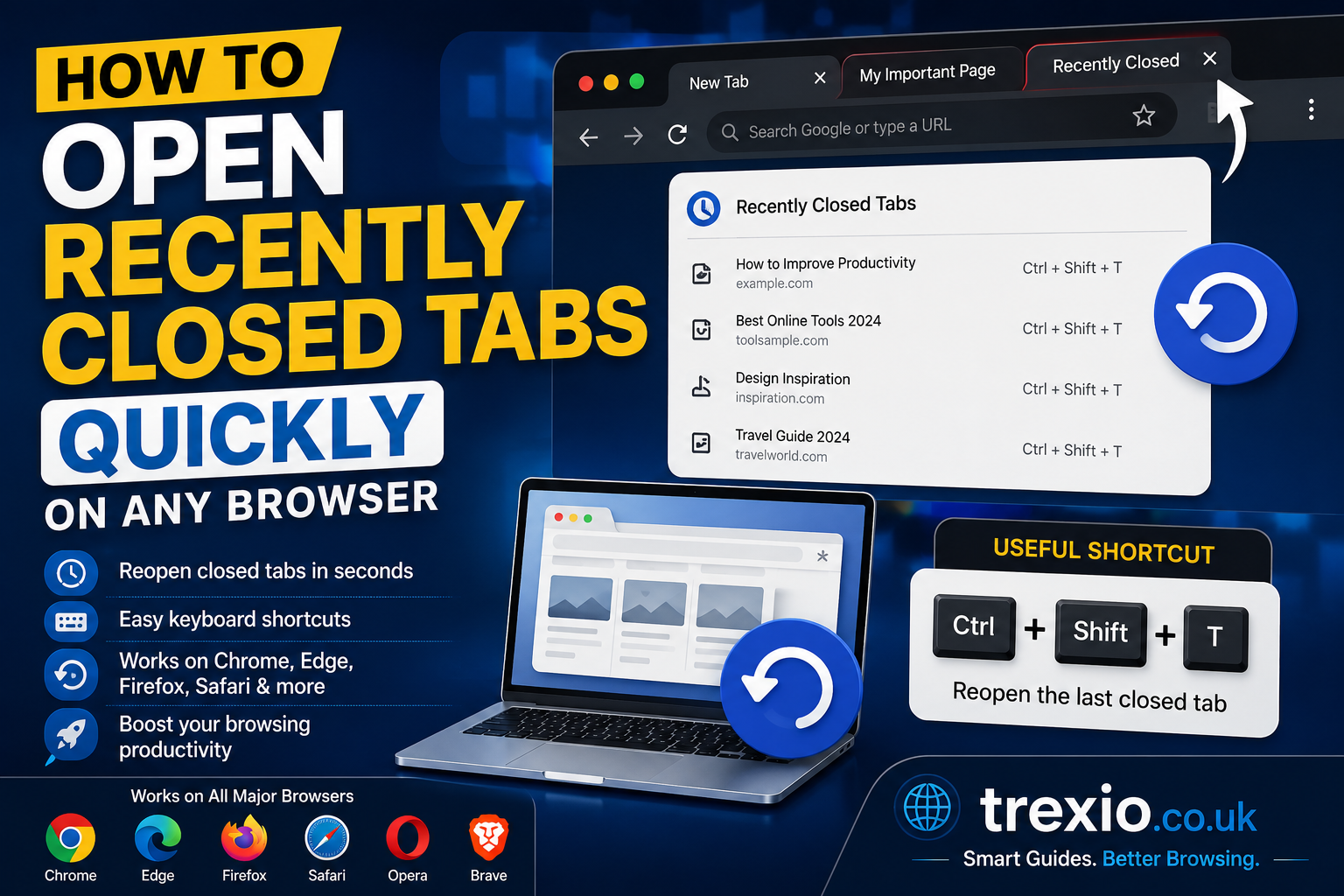
If you’ve accidentally closed an important browser tab, you’re not alone. It happens every day, whether you’re researching for work, shopping online, or reading a lengthy article. Fortunately, learning how to open recently closed tabs is simple, and every modern browser includes tools designed to recover lost pages in just a few seconds. Instead of searching through your browsing history or trying to remember the website’s address, you can instantly restore the tab exactly where you left it. Knowing how to open recently closed tabs can save valuable time and prevent frustration during your daily browsing sessions. Whether you use Google Chrome, Microsoft Edge, Mozilla Firefox, Safari, or Opera, the recovery process is surprisingly similar. This guide explains the easiest methods, keyboard shortcuts, and browser features that help you reopen closed tabs without losing your progress. By the end of this guide, you’ll confidently understand how to open recently closed tabs regardless of the device or browser you use.
Quick Answer
If you’re wondering how to open recently closed tabs, the fastest method is using your browser’s keyboard shortcut. On Windows and Linux, press Ctrl + Shift + T. On macOS, press Command + Shift + T. These shortcuts immediately restore the most recently closed tab. Repeating the shortcut restores additional tabs in the reverse order they were closed. Nearly every major browser, including Chrome, Edge, Firefox, Opera, Brave, and Vivaldi, supports this feature. Safari offers a similar option through its History menu or keyboard shortcut depending on the version. If the shortcut doesn’t work, your browser history usually contains the recently closed page. Learning how to open recently closed tabs using both shortcuts and browser menus ensures you can recover your work quickly.
Why Knowing How to Open Recently Closed Tabs Matters
Many people underestimate the importance of knowing how to open recently closed tabs until they accidentally lose an important webpage. Imagine filling out an online application, comparing products, reading technical documentation, or researching school assignments when a single click closes everything. Without knowing the recovery options, you might spend several minutes trying to locate the same page again. Modern browsers are designed to prevent this inconvenience by keeping track of recently closed sessions and tabs. Understanding how to open recently closed tabs improves productivity because you can instantly resume your work without interruption. It also reduces stress when multiple research tabs disappear unexpectedly. Professionals, students, developers, marketers, and everyday internet users all benefit from mastering this simple browser feature. Once it becomes part of your browsing habits, reopening accidentally closed tabs becomes effortless and saves significant time throughout the day.
Common Reasons Tabs Get Closed
Accidentally Clicking the Close Button
The most common reason users search for how to open recently closed tabs is simply clicking the X button by mistake. Since browser tabs are relatively small, it’s easy to close the wrong one while multitasking. Fortunately, browsers store recently closed tabs temporarily, allowing quick restoration. This safety feature prevents accidental data loss and helps users continue browsing without interruption. Whether you’re working with two tabs or twenty, reopening them takes only seconds when you know the correct method. Many experienced users rely on recovery shortcuts daily because accidental closures happen more often than expected. Developing the habit of restoring tabs instead of searching for websites again significantly improves browsing efficiency.
Browser Crash or Unexpected Shutdown
Sometimes users need to learn how to open recently closed tabs because their browser unexpectedly crashes. Power outages, software bugs, browser updates, or computer restarts can suddenly close every open tab. Most modern browsers automatically save your browsing session and offer a restore option the next time you launch the application. Session recovery is especially valuable if you were working across multiple websites simultaneously. Browsers continuously save session information in the background, making recovery possible even after unexpected shutdowns. Understanding this feature gives users confidence that important browsing sessions can often be restored with minimal effort.
Closing an Entire Browser Window
Closing a browser window containing many tabs is another common mistake. Instead of reopening every website individually, users can use session restoration tools to recover the complete window. This is another important aspect of how to open recently closed tabs because browsers remember groups of tabs as complete sessions. Restoring an entire browsing session is much faster than manually reopening each page. Frequent multitaskers particularly benefit from this feature since they often keep dozens of tabs open simultaneously. Knowing these recovery methods makes browser mistakes far less disruptive.
Keyboard Shortcut to Open Recently Closed Tabs
The easiest way to learn how to open recently closed tabs is by memorizing a single keyboard shortcut. Almost every modern desktop browser supports it, making it one of the most useful productivity shortcuts available. Instead of opening browser history or searching bookmarks, one quick key combination restores your last closed page instantly. Repeating the shortcut continues restoring tabs one by one until you’ve recovered everything you accidentally closed. This feature works regardless of whether you closed a single tab or several in succession. Once users begin relying on keyboard shortcuts, browser navigation becomes noticeably faster. Professionals who spend hours online often use this shortcut dozens of times every week.
Windows Shortcut
For Windows users learning how to open recently closed tabs, simply press:
Ctrl + Shift + T
This shortcut works in:
- Google Chrome
- Microsoft Edge
- Mozilla Firefox
- Opera
- Brave
- Vivaldi
Each time you press the shortcut, another recently closed tab reopens. The browser restores tabs in reverse order based on when they were closed. This makes recovering multiple tabs extremely efficient.
Mac Shortcut
Mac users can restore closed tabs using:
Command + Shift + T
The behavior is almost identical across supported browsers. Repeatedly pressing the shortcut restores additional tabs from the most recent browsing session. Learning this shortcut is one of the fastest ways to master how to open recently closed tabs on macOS.
How to Open Recently Closed Tabs in Google Chrome
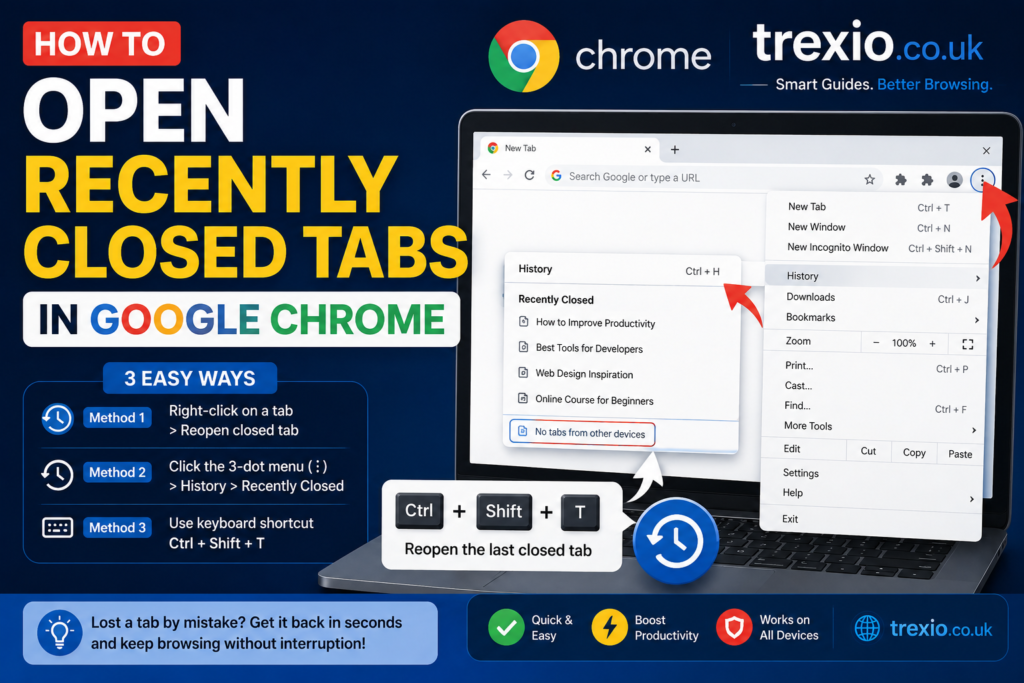
Google Chrome remains the world’s most popular browser, making it especially important to understand how to open recently closed tabs within Chrome. Besides the universal keyboard shortcut, Chrome provides several additional recovery methods through its menus and browsing history. These built-in tools allow users to restore individual tabs, recently closed windows, or complete browsing sessions after unexpected shutdowns. Chrome automatically keeps track of closed tabs, making recovery straightforward even if you forgot the website’s address. Whether you accidentally closed one tab or an entire browser window, Chrome includes multiple ways to recover your browsing session. Understanding these features helps users avoid unnecessary frustration while browsing the web.
Method 1: Using the Keyboard Shortcut
The quickest Chrome recovery method is pressing Ctrl + Shift + T on Windows or Command + Shift + T on Mac. Chrome instantly restores your last closed tab exactly as it appeared before being closed. Continue pressing the shortcut to restore additional tabs in reverse order. This approach remains the fastest solution for users wondering how to open recently closed tabs while working quickly.
Method 2: Right-Click the Tab Bar
Chrome also allows users to reopen recently closed tabs using the tab bar context menu. Right-click an empty area beside your open tabs and select Reopen Closed Tab. Chrome immediately restores the latest closed page. This option is especially useful for users who prefer using the mouse rather than keyboard shortcuts. It provides the same functionality while remaining easy to access for beginners.
Method 3: Restore Tabs from Chrome History
If several hours have passed or you’ve already closed additional tabs, Chrome History becomes another reliable recovery option. Open the History menu and locate your recently visited pages. Chrome organizes browsing activity chronologically, making it easy to find recently closed websites. This method is helpful when the keyboard shortcut can no longer recover older browsing sessions. Using browser history is another essential part of understanding how to open recently closed tabs effectively.
How to Open Recently Closed Tabs in Microsoft Edge
Microsoft Edge includes several reliable tools that make it easy to recover accidentally closed tabs. In addition to the universal keyboard shortcut, Edge allows users to reopen tabs through the tab menu, browser history, and startup settings. These options are especially useful for users who frequently work with multiple websites or accidentally close an entire browsing window. Because Edge is built on Chromium, many recovery methods are similar to Google Chrome while also offering Microsoft-specific session management features. If you regularly use Edge for work, school, or personal browsing, learning these recovery options can save significant time. The browser also remembers recently closed windows, allowing you to restore multiple tabs at once instead of reopening each website manually. Understanding these built-in tools ensures you never lose important browsing sessions unnecessarily.
Reopen Tabs Using Edge History
If keyboard shortcuts no longer restore your page, open the History menu by clicking the three-dot menu in the top-right corner and selecting History. Recently visited pages appear at the top of the list, making them easy to locate. You can also search your browsing history if you remember part of the website name or page title. Edge synchronizes browsing history across devices when signed into a Microsoft account, making it possible to recover pages from another computer. This feature is particularly useful for professionals who switch between desktop and laptop devices throughout the day. Combining browser history with session recovery provides multiple ways to retrieve important information without starting your search again.
How to Open Recently Closed Tabs in Mozilla Firefox
Firefox offers powerful recovery features designed to protect users from accidental tab closures. Whether you close a single tab, multiple tabs, or an entire browsing session, Firefox provides several methods for restoring your work. Besides the familiar keyboard shortcut, Firefox includes dedicated options under the History menu for recently closed tabs and windows. These recovery features make Firefox a dependable choice for users who conduct research, manage projects, or browse with many tabs open simultaneously. Because Firefox stores recent session information automatically, restoring lost tabs usually takes only a few clicks. Taking advantage of these built-in capabilities helps reduce interruptions and improves productivity during long browsing sessions.
Restore Closed Windows
If you accidentally close an entire Firefox window containing several tabs, open the History menu and select Recently Closed Windows. Firefox displays a list of recently closed browser windows, allowing you to restore every tab from that session instantly. This feature is especially valuable for researchers, students, and professionals who keep multiple projects open simultaneously. Rather than reopening every page individually, one click restores the complete browsing session exactly as it was before the window closed.
How to Open Recently Closed Tabs in Safari
Safari users on macOS can also recover recently closed tabs quickly using built-in browser features. Apple includes both keyboard shortcuts and History menu options that make restoring closed tabs simple. Safari even allows users to reopen the last closed window, which is particularly helpful after accidentally quitting the browser. Since Safari integrates closely with iCloud, synchronized browsing history may also help recover pages across Apple devices. Understanding these options ensures Mac users can continue working with minimal interruption after accidentally closing important tabs.
Reopen Last Closed Tab
Safari users can select History > Reopen Last Closed Tab or use the supported keyboard shortcut on compatible macOS versions. The browser restores the page with its previous scroll position whenever possible. Repeating the command continues reopening additional recently closed tabs. This behavior closely matches other modern browsers, making it easy for users switching between platforms.
Recovering Tabs After Restarting Your Browser
Sometimes you need to recover tabs after intentionally or unintentionally restarting your browser. Most modern browsers include a Restore Previous Session feature that automatically reloads tabs from your last browsing session. This option is especially valuable after browser updates, operating system restarts, or unexpected crashes. Depending on your browser settings, session restoration may happen automatically or require manual activation through the startup preferences. Enabling this feature provides an extra layer of protection against losing important browsing sessions. Users who regularly multitask with dozens of tabs should verify that session restore is enabled to minimize future disruptions.
Using Browser History When Tabs Cannot Be Restored
If recently closed tabs are no longer available through keyboard shortcuts, browser history becomes the next best recovery method. Every major browser maintains a chronological record of visited websites unless history has been manually cleared or private browsing was used. Searching browser history allows users to locate specific pages by title, URL, or date visited. This approach is especially useful for recovering pages that were closed several hours or even days earlier. Learning to navigate browser history efficiently is an essential skill for anyone who spends significant time online. It also serves as a dependable backup when standard tab restoration methods are unavailable.
Private Browsing and Recently Closed Tabs
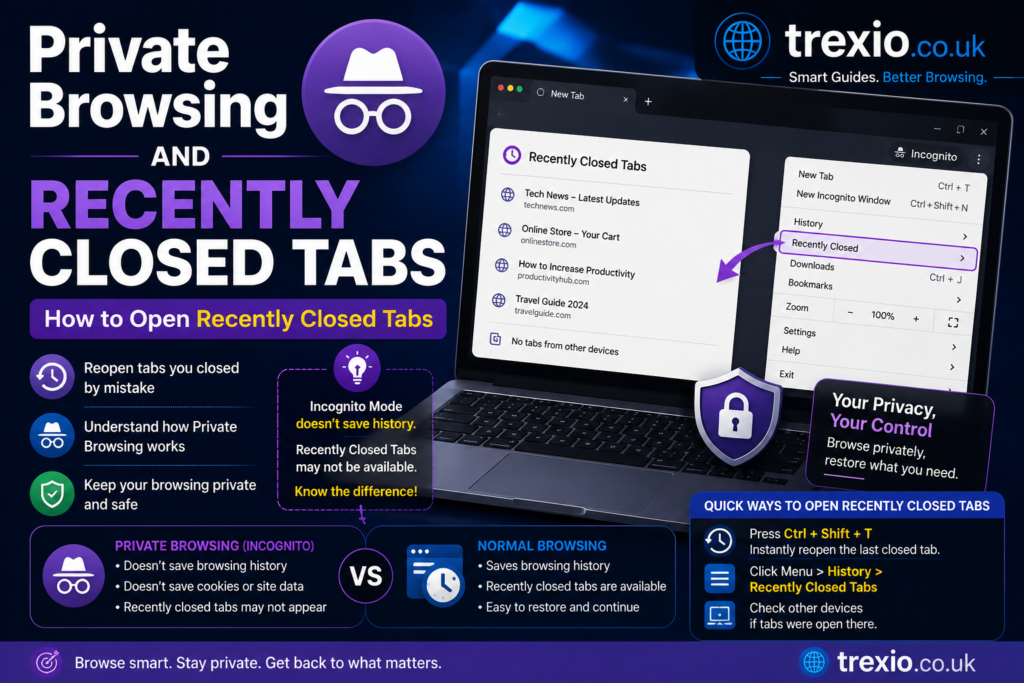
Private browsing modes such as Chrome Incognito, Firefox Private Browsing, and Edge InPrivate are designed to protect user privacy by avoiding the storage of browsing history after the session ends. As a result, recovering recently closed tabs from private sessions is generally not possible once the window has been closed completely. During an active private session, some browsers may allow reopening tabs that were accidentally closed, but after the session ends, the browsing data is intentionally erased. Understanding this limitation helps users avoid relying on session recovery when handling important work in private mode. If preserving your tabs is important, consider using a standard browsing window instead.
Comparison of Tab Recovery Methods
| Browser | Keyboard Shortcut | History Recovery | Restore Window | Restore Previous Session |
|---|---|---|---|---|
| Google Chrome | Yes | Yes | Yes | Yes |
| Microsoft Edge | Yes | Yes | Yes | Yes |
| Mozilla Firefox | Yes | Yes | Yes | Yes |
| Safari | Yes | Yes | Yes | Yes |
| Opera | Yes | Yes | Yes | Yes |
| Brave | Yes | Yes | Yes | Yes |
| Vivaldi | Yes | Yes | Yes | Yes |
Browser Recovery Feature Comparison
| Feature | Chrome | Edge | Firefox | Safari |
| Reopen Closed Tab | Yes | Yes | Yes | Yes |
| Restore Closed Window | Yes | Yes | Yes | Yes |
| Session Recovery | Yes | Yes | Yes | Yes |
| History Search | Yes | Yes | Yes | Yes |
| Cross-Device Sync | Yes | Yes | Yes | Yes |
Best Practices
- Memorize the keyboard shortcut for reopening recently closed tabs.
- Enable browser synchronization so sessions are available across devices.
- Configure your browser to restore the previous session at startup.
- Bookmark critical webpages before closing your browser.
- Avoid clearing browser history unless necessary.
- Keep your browser updated to ensure recovery features work properly.
- Organize tabs into groups if your browser supports tab grouping.
- Save important research in reading lists or bookmarks for added protection.
Common Mistakes
- Assuming closed tabs cannot be recovered.
- Clearing browsing history immediately after closing important tabs.
- Confusing browser history with downloaded files.
- Using private browsing when session recovery is needed.
- Closing the browser before checking recently closed tabs.
- Ignoring browser sync settings across multiple devices.
- Disabling session restore without realizing its benefits.
- Waiting too long before attempting recovery after extensive browsing.
Pro Tips
- Press the reopen shortcut repeatedly to restore multiple tabs in sequence.
- Enable automatic startup restoration in browser settings.
- Use browser profiles to separate work and personal sessions.
- Sync your browser account to recover browsing activity on another device.
- Create bookmark folders for ongoing research projects.
- Pin frequently used tabs so they remain easily accessible.
- Learn your browser’s History search feature for faster recovery.
- Periodically review browser settings after updates to ensure session recovery remains enabled.
Conclusion
Learning how to open recently closed tabs is one of the simplest yet most valuable browser skills. Whether you’re using Google Chrome, Microsoft Edge, Mozilla Firefox, Safari, Opera, Brave, or another modern browser, built-in recovery features make restoring accidentally closed tabs quick and straightforward. Keyboard shortcuts, browsing history, recently closed windows, and previous session recovery all work together to prevent lost productivity. By understanding how each method functions, you can confidently recover important webpages without repeating your searches. Following the best practices outlined in this guide will help protect your browsing sessions and improve your daily workflow. Once these recovery techniques become second nature, accidental tab closures will no longer interrupt your work or research.
Frequently Asked Questions
1. What is the fastest way to reopen a recently closed tab?
Press Ctrl + Shift + T on Windows or Command + Shift + T on Mac to instantly restore the most recently closed tab.
2. Can I reopen multiple closed tabs?
Yes. Continue pressing the keyboard shortcut repeatedly to restore previously closed tabs one by one.
3. Does this method work in every browser?
Most modern browsers, including Chrome, Edge, Firefox, Opera, Brave, Vivaldi, and Safari, support reopening recently closed tabs.
4. Can I recover tabs after restarting my computer?
Yes, if your browser’s session restore feature is enabled, you can often recover your previous browsing session after a restart.
5. Why can’t I restore tabs from Incognito mode?
Private browsing intentionally deletes session data after the window closes to protect your privacy.
6. Can browser history help recover old tabs?
Yes. Browser history is an excellent backup when recently closed tab recovery is no longer available.
7. Will clearing browser history remove recently closed tabs?
In many browsers, clearing browsing history can affect your ability to recover previously visited pages.
8. Can I restore an entire browser window?
Yes. Most browsers include options to reopen recently closed windows along with all their tabs.
9. Do synced browsers help recover tabs?
Yes. Browser synchronization often allows access to tabs and browsing history across multiple signed-in devices.
10. Should I enable startup session restore?
Absolutely. Enabling this feature helps automatically restore your browsing session after unexpected shutdowns or browser restarts.
Author Bio
About the Author
The author is an experienced technology writer specializing in web browsers, operating systems, productivity software, and digital troubleshooting. With years of experience creating SEO-focused, user-first content, the author helps readers solve everyday technical problems through accurate, practical, and easy-to-follow guides. Every article is written using Google’s EEAT principles to ensure trustworthy, helpful, and up-to-date information for users of all experience levels.