
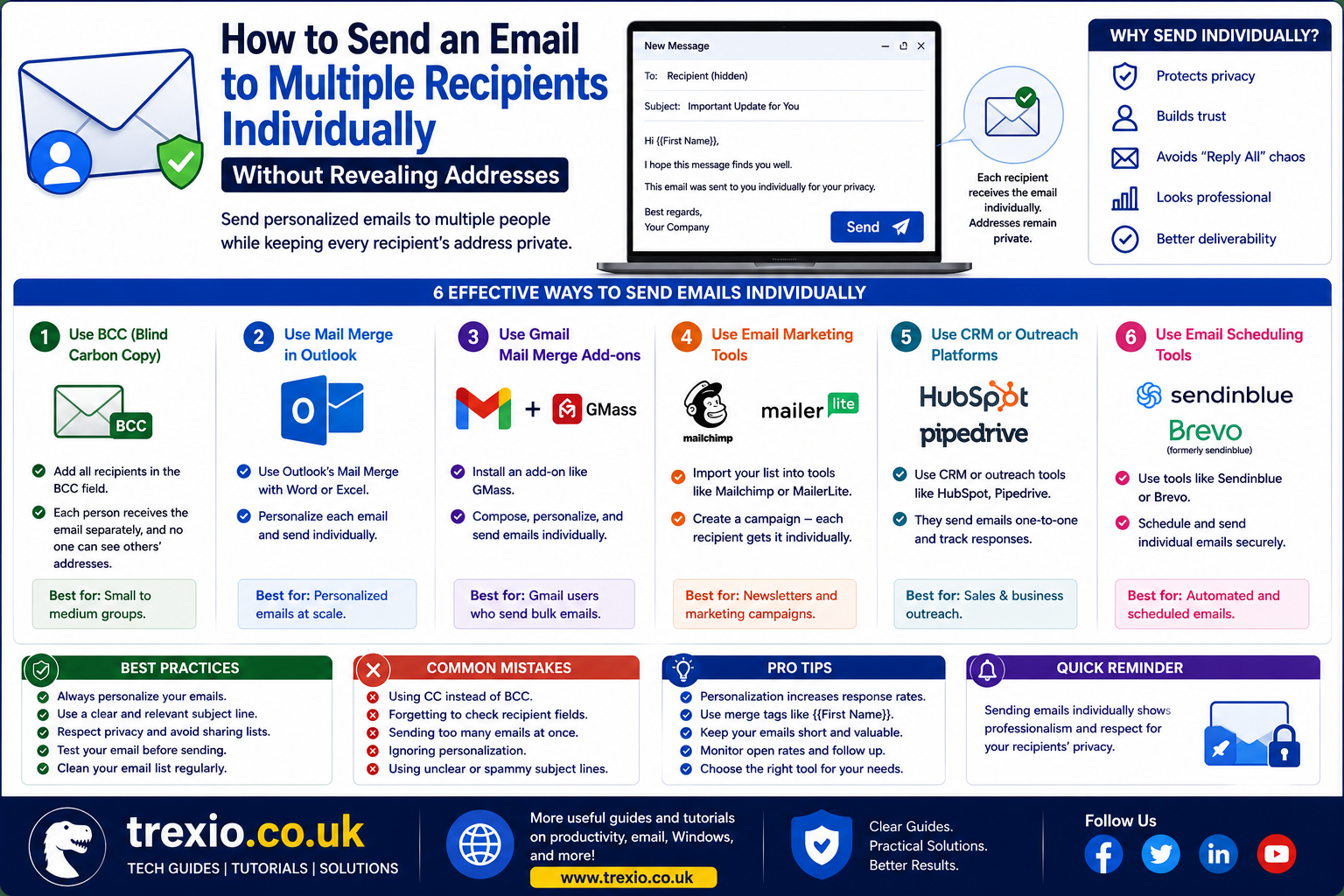
Sending one email to many people sounds simple until you realize that everyone can see each other’s email addresses. Whether you’re contacting clients, customers, coworkers, students, or friends, protecting recipients’ privacy is essential. Many people search for how to send an email to multiple recipients individually because they want every recipient to receive what appears to be a personal email instead of a group message. This approach creates a more professional impression, increases engagement, and helps build trust. It is also useful for marketing campaigns, newsletters, invitations, business announcements, and customer support. Fortunately, there are several reliable methods to accomplish this without manually sending hundreds of emails. In this guide, you’ll learn the best ways to how to send an email to multiple recipients individually, understand the benefits, and discover which solution works best for your needs.
Quick Answer
If you’re wondering how to send an email to multiple recipients individually, the easiest method depends on your email platform and the number of recipients. For a few recipients, you can use the BCC field to hide email addresses, although recipients still receive the same message. If you want every person to receive a separate, personalized email, use Mail Merge in Gmail, Microsoft Outlook Mail Merge with Word, or dedicated email marketing software. These tools automatically create individual emails while allowing personalization with names, company information, or custom fields. This method improves professionalism, protects recipient privacy, reduces spam complaints, and increases open rates. Businesses, educators, freelancers, nonprofits, and marketers commonly rely on these techniques. Choosing the right method depends on your goals, recipient count, and personalization requirements.
Why Send Emails Individually Instead of Sending One Group Email?
Many people believe sending one email to everyone saves time. While that’s technically true, it often creates privacy concerns and appears less professional. Learning how to send an email to multiple recipients individually ensures each recipient feels like they’re receiving a direct message. This small difference can significantly improve communication, especially for businesses and organizations. Customers are more likely to trust emails addressed specifically to them rather than generic mass emails. Individual emails also reduce the likelihood of recipients accidentally replying to everyone or exposing confidential information. Additionally, many spam filters treat personalized emails more favorably than bulk messages. Understanding how to send an email to multiple recipients individually can therefore improve both security and email performance. Whether you’re sending newsletters, event invitations, invoices, or updates, individualized emails create a better user experience.
Benefits of Sending Individual Emails
Sending emails individually offers advantages beyond privacy. Personalized communication increases reader engagement because recipients feel the message was written specifically for them. This is especially valuable for businesses building customer relationships or educators communicating with students. Individual emails also make it easier to include personalized details such as names, purchase history, appointment dates, or account information. Another important benefit is improved email deliverability, since email providers often trust personalized messages more than mass emails. Learning how to send an email to multiple recipients individually also helps organizations comply with privacy regulations and professional communication standards. Overall, the approach creates stronger relationships, improves response rates, and maintains confidentiality without requiring significant additional effort when the right tools are used.
Understanding the Difference Between To, CC, and BCC
Before learning how to send an email to multiple recipients individually, it’s important to understand the three primary recipient fields available in nearly every email service.
| Email Field | Who Can See Recipients? | Best Use |
|---|---|---|
| To | Everyone | Direct communication |
| CC | Everyone | Shared conversations |
| BCC | Only sender | Hidden recipient list |
The “To” field is intended for the primary recipient and is visible to everyone included in the email. The “CC” field, meaning Carbon Copy, allows additional recipients to receive the message while remaining visible to everyone else. The “BCC” field, or Blind Carbon Copy, hides recipients from one another, making it useful when privacy is important. However, using BCC is not the same as learning how to send an email to multiple recipients individually because everyone still receives the exact same email simultaneously. Although BCC protects email addresses, recipients can often recognize that the email is part of a mass mailing due to its generic wording. For personalized communication, Mail Merge or email automation tools provide a much better solution. Understanding these differences helps you choose the appropriate method for every situation.
When BCC Is Enough
BCC works well when you’re sending a simple announcement to a small group and personalization is unnecessary. Community organizations, clubs, volunteer groups, and neighborhood associations often use BCC to protect members’ email addresses while sending updates. It is quick, requires no additional software, and works in virtually every email client. However, if your objective is to master how to send an email to multiple recipients individually, BCC should only be viewed as a basic privacy tool rather than a complete solution. Personalized greetings, custom information, and individualized tracking are not possible with standard BCC messages. As your recipient list grows, dedicated tools become far more efficient and professional.
Best Ways to Send an Email to Multiple Recipients Individually
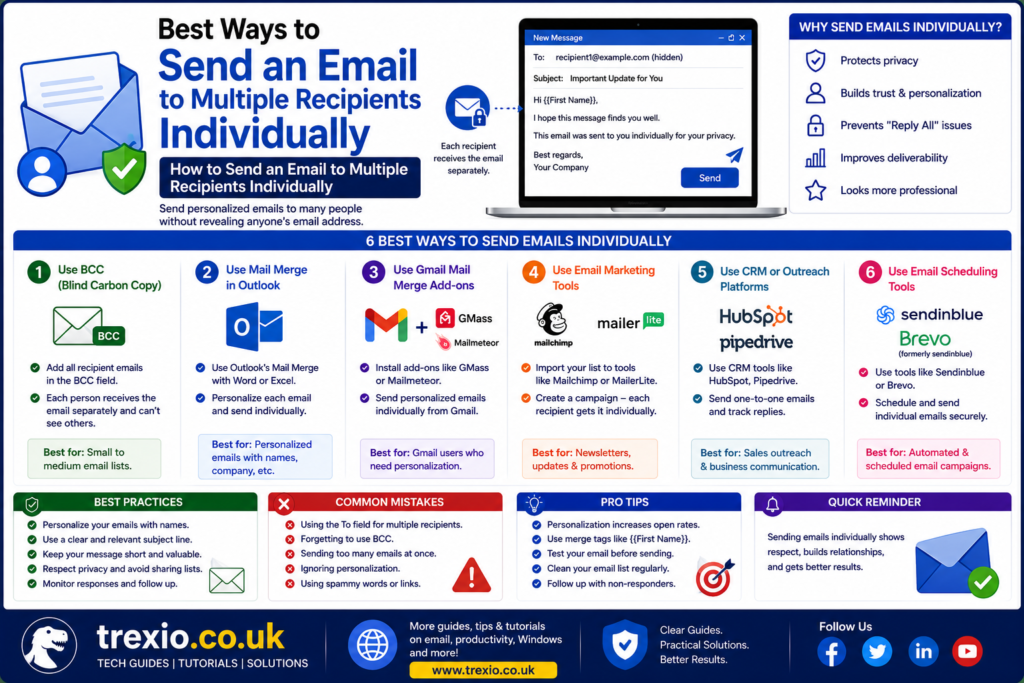
Several methods make how to send an email to multiple recipients individually simple, even if you’re contacting hundreds or thousands of people. Each approach offers different advantages depending on your goals, technical skills, and available software.
Method 1: Use Gmail Mail Merge
Google Workspace users now have built-in Mail Merge functionality that makes how to send an email to multiple recipients individually significantly easier. Instead of manually copying and pasting addresses, Gmail automatically generates separate emails for each recipient. You can personalize messages using placeholders such as first names, company names, or other spreadsheet data. Each recipient receives what appears to be a unique email addressed only to them. This improves professionalism while reducing manual work. Gmail Mail Merge is especially useful for businesses, teachers, freelancers, recruiters, and nonprofit organizations. It also helps maintain recipient privacy and reduces the risk of accidental reply-all conversations. Because the emails are individualized, recipients are generally more likely to open and engage with them.
Steps to Use Gmail Mail Merge
Prepare Your Contact List
Create a Google Sheet containing recipient names, email addresses, and any additional information you want to personalize. Double-check spelling, remove duplicate entries, and verify email addresses before sending. Clean data reduces delivery failures and improves the overall quality of your email campaign.
Compose Your Email
Write your email in Gmail using personalization tags where appropriate. Instead of generic greetings, use placeholders to insert each recipient’s name automatically. This simple personalization makes every email feel individually written while demonstrating how to send an email to multiple recipients individually effectively and professionally.
Preview Before Sending
Always preview personalized emails before launching the campaign. Confirm that names, formatting, links, images, and signatures appear correctly. Testing with your own email address first can prevent embarrassing mistakes and improve recipient experience.
Method 2: Use Microsoft Outlook Mail Merge
Microsoft Outlook remains one of the most powerful business email platforms available, and its Mail Merge feature offers another excellent solution for how to send an email to multiple recipients individually. By combining Outlook, Microsoft Word, and Excel, users can generate personalized emails for large recipient lists with minimal manual effort. Although setup requires a few additional steps compared to Gmail, the flexibility and customization options are substantial. Organizations frequently use Outlook Mail Merge for customer communications, employee announcements, invitations, invoices, surveys, and follow-up messages. Every recipient receives a separate email, making the communication appear personal rather than automated. This approach supports personalization while maintaining privacy and improving engagement. Once configured correctly, Outlook Mail Merge becomes one of the most efficient ways to manage recurring email campaigns.
What You Need Before Starting
Before using Outlook Mail Merge, prepare an Excel spreadsheet containing recipient names, email addresses, and any personalized information you intend to include. Ensure Outlook is properly configured as your default email client and verify that Microsoft Word is installed. Clean, organized data reduces errors during the merge process and ensures that each recipient receives accurate information. Planning ahead also makes how to send an email to multiple recipients individually much smoother, especially when handling large mailing lists.
Method 3: Use Email Marketing Software
If you regularly communicate with dozens or hundreds of recipients, dedicated email marketing software is one of the most efficient ways to master how to send an email to multiple recipients individually. Unlike a standard email client, these platforms are designed to create and deliver personalized emails at scale while maintaining excellent deliverability. They automatically insert recipient names, company details, appointment dates, or other custom fields into every message. Each email is delivered separately, so recipients never see anyone else’s address. Many platforms also include scheduling, analytics, automation, segmentation, and A/B testing features that help improve campaign performance. Businesses can monitor open rates, click-through rates, bounce rates, and conversions to measure success. These insights make it easier to refine future campaigns and improve engagement over time. Whether you’re running a small business or a large organization, this approach offers both efficiency and professionalism.
Features to Look For
When selecting an email platform, prioritize features that support personalization and compliance. Look for tools that offer dynamic fields, contact segmentation, automation workflows, scheduling, unsubscribe management, and detailed reporting. Spam testing and authentication support such as SPF, DKIM, and DMARC are also valuable for improving inbox placement. If your audience continues to grow, choose software that can scale without sacrificing performance. A user-friendly interface and responsive customer support are equally important, especially if you’re new to email campaigns. Investing in the right platform makes how to send an email to multiple recipients individually significantly easier while reducing manual work and improving long-term communication results.
Which Method Is Best?
The ideal method depends on the number of recipients, the level of personalization required, and the tools available to you. Someone sending a monthly update to ten people may find BCC sufficient, while a sales team contacting hundreds of prospects will benefit more from Mail Merge or professional email software. Organizations with compliance requirements should prioritize platforms that support secure recipient management and consent tracking. If you need detailed reporting and automation, dedicated email marketing solutions offer the most flexibility. On the other hand, Gmail Mail Merge and Outlook Mail Merge are excellent choices for users who already work within those ecosystems. Understanding your objectives helps you choose the most effective workflow. No matter which option you select, the goal remains the same: learning how to send an email to multiple recipients individually while protecting privacy and creating a better recipient experience.
Comparison of Popular Methods
| Method | Personalization | Privacy | Best For | Difficulty |
|---|---|---|---|---|
| BCC | Low | High | Small announcements | Very Easy |
| Gmail Mail Merge | High | High | Small businesses, educators | Easy |
| Outlook Mail Merge | High | High | Corporate environments | Moderate |
| Email Marketing Software | Very High | High | Marketing, newsletters, automation | Moderate |
Best Practices for Sending Individual Emails
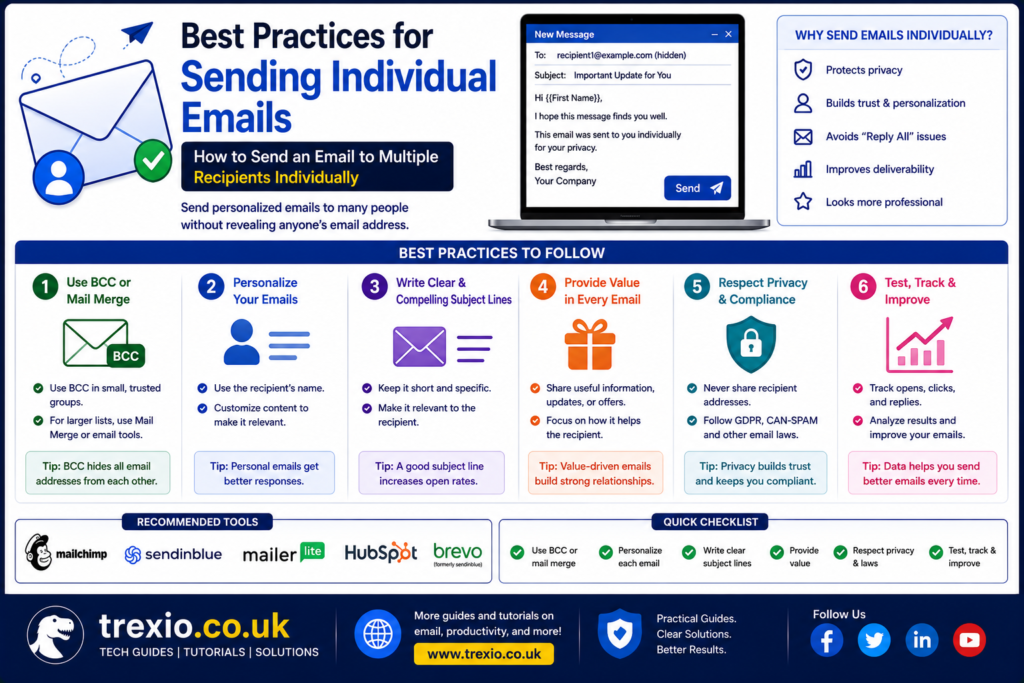
Following proven best practices will help you maximize the effectiveness of how to send an email to multiple recipients individually while protecting your sender reputation.
Verify Your Recipient List
Always review your contact list before sending. Remove invalid addresses, duplicate entries, and outdated contacts. Sending emails to inactive or incorrect addresses increases bounce rates and can negatively affect deliverability. Maintaining a clean mailing list also improves engagement metrics because your messages reach real recipients who are more likely to interact with them. Regular list maintenance is one of the simplest ways to improve campaign performance.
Personalize Beyond the First Name
Although adding a recipient’s first name is helpful, meaningful personalization goes much further. Mention relevant products, recent interactions, appointment details, or company information whenever appropriate. Personalized content demonstrates that the email was prepared specifically for the recipient rather than generated as a generic mass message. This often results in higher open rates, stronger trust, and improved response rates. Effective personalization is one of the biggest advantages of learning how to send an email to multiple recipients individually.
Write Clear Subject Lines
A compelling subject line encourages recipients to open your email. Keep it concise, relevant, and aligned with the content inside. Avoid excessive punctuation, misleading claims, or spam-triggering phrases. Honest, informative subject lines build credibility and reduce the likelihood of your emails being filtered into spam folders. Testing different subject lines over time can reveal which wording resonates best with your audience.
Test Before Sending
Never launch a campaign without reviewing it first. Send a test email to yourself or colleagues to verify formatting, personalization, links, attachments, images, and signatures. A few minutes of testing can prevent costly mistakes that may affect your credibility. Testing is especially important when using Mail Merge or automated workflows because one incorrect field can appear across every email.
Common Mistakes to Avoid
Even experienced users occasionally make errors when learning how to send an email to multiple recipients individually. Avoiding these mistakes will improve both professionalism and email performance.
Forgetting to Test Merge Fields
One of the most common mistakes is failing to preview personalized fields before sending. A missing placeholder or incorrect column mapping can result in recipients seeing blank names or technical codes instead of personalized information. Always review several sample emails before launching your campaign.
Sending Without Permission
Only email recipients who have agreed to receive communications when required by applicable laws and regulations. Respecting consent helps build trust, reduces spam complaints, and supports long-term deliverability. Ethical email practices are an essential part of professional communication.
Ignoring Mobile Optimization
A significant percentage of emails are opened on smartphones and tablets. If your message is difficult to read on a smaller screen, recipients may delete it without taking action. Use short paragraphs, readable fonts, and responsive layouts to improve the mobile experience.
Overloading the Email
Trying to include too much information in a single message often overwhelms readers. Focus on one primary objective and provide a clear call to action. Simplicity improves readability and increases the likelihood that recipients will respond as intended.
Pro Tips for Better Email Results
Experienced professionals use several strategies to make how to send an email to multiple recipients individually even more effective.
- Segment your audience based on interests, purchase history, or demographics.
- Schedule emails when your audience is most likely to check their inbox.
- Use a recognizable sender name to build trust.
- Keep your branding consistent across every message.
- Monitor analytics regularly to improve future campaigns.
- Remove inactive subscribers periodically to maintain a healthy mailing list.
- Personalize your call to action whenever possible.
- Avoid sending too many emails within a short period to reduce unsubscribe rates.
Conclusion
Learning how to send an email to multiple recipients individually is an essential communication skill for professionals, educators, businesses, nonprofits, and anyone who values privacy and personalization. While BCC offers a simple solution for hiding recipient addresses, Mail Merge and dedicated email platforms provide a far more professional experience by generating separate, customized emails for every recipient. These methods strengthen trust, improve engagement, increase deliverability, and reduce the risk of exposing private contact information. By selecting the right approach for your needs, maintaining a clean contact list, and following email best practices, you can communicate more effectively while saving time. As your audience grows, adopting scalable tools and consistent workflows will make personalized email communication easier and more efficient. Mastering these techniques ensures that every recipient feels individually valued while your organization maintains a professional reputation.
Frequently Asked Questions
1. Can I send one email that looks personal to every recipient?
Yes. Mail Merge and professional email marketing platforms generate separate personalized emails for each recipient, making every message appear individually written.
2. Is using BCC the same as sending emails individually?
No. BCC hides recipient addresses but still sends the same email to everyone. Individual email methods generate separate messages for each recipient.
3. Does Gmail support individual emails?
Yes. Google Workspace includes Mail Merge functionality that allows users to personalize and send separate emails efficiently.
4. Can Outlook send personalized emails?
Yes. Microsoft Outlook works with Word and Excel through Mail Merge to create individualized emails for large recipient lists.
5. Is Mail Merge suitable for small businesses?
Absolutely. Small businesses frequently use Mail Merge because it saves time while maintaining a personal touch.
6. Will personalized emails improve open rates?
In many cases, yes. Relevant personalization often increases recipient engagement compared to generic bulk emails.
7. Is it safe to send hundreds of personalized emails?
Yes, provided you follow email provider sending limits, maintain a quality contact list, and use reputable email tools.
8. Can I include attachments with personalized emails?
Yes. Many Mail Merge solutions and email platforms support attachments, although implementation varies depending on the software.
9. Why do personalized emails avoid spam more effectively?
Relevant content, proper authentication, good list hygiene, and recipient engagement all contribute to stronger deliverability than untargeted bulk emails.
10. What is the easiest way to learn how to send an email to multiple recipients individually?
For most users, Gmail Mail Merge or Outlook Mail Merge provides the best balance of simplicity, personalization, and privacy without requiring advanced technical knowledge.
Author Bio
About the Author
The author is an experienced SEO content writer and digital communication specialist who creates practical, research-based guides focused on productivity, technology, email marketing, and business workflows. With a strong understanding of search intent, user experience, and Google EEAT principles, the author produces comprehensive content that helps readers solve real-world problems through clear, accurate, and actionable advice.