
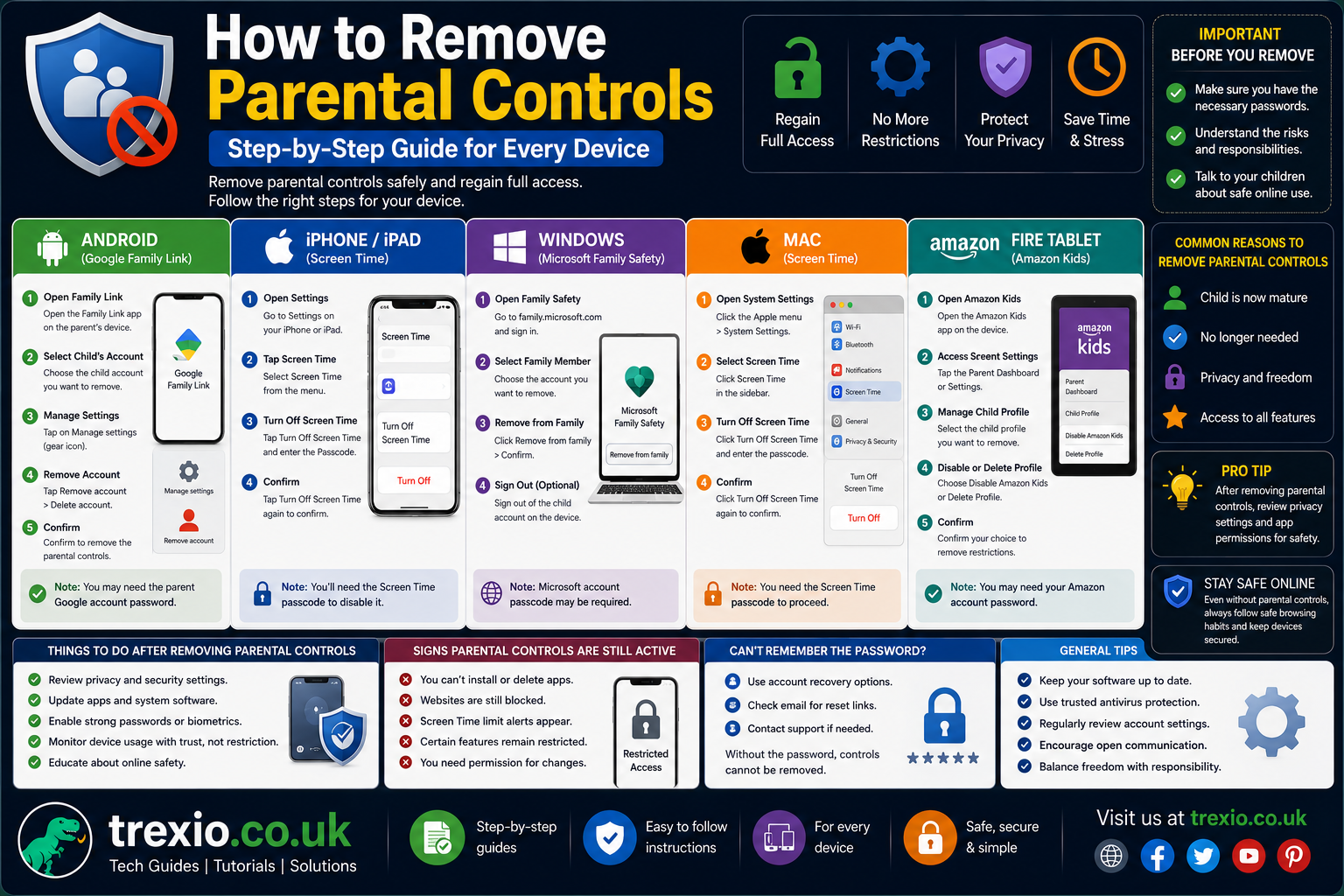
How to Remove Parental Controls
Parental controls are designed to help parents and guardians manage screen time, restrict inappropriate content, and monitor online activities. While these features are incredibly useful for protecting children, there eventually comes a time when they need to be removed or adjusted. Whether you’ve forgotten that restrictions were enabled years ago, your child has become old enough to manage their own device, or you’re troubleshooting software issues, understanding how to remove parental controls is essential. The process differs depending on the device, operating system, or service you’re using, making it confusing for many users. Some devices require administrator passwords, while others rely on linked family accounts or cloud-based settings. Removing these restrictions incorrectly can lead to data loss or account issues, so it’s important to follow the proper steps. This guide explains everything in clear, beginner-friendly language while also covering advanced situations for experienced users. By the end of this series, you’ll know exactly how to remove parental controls safely on virtually any device.
Quick Answer
If you want to know how to remove parental controls, open the parental control settings on your device or account, sign in using the administrator or parent credentials, and disable the restrictions. The exact steps depend on whether you’re using Android, iPhone, Windows, Mac, Family Link, Microsoft Family Safety, or another parental control service. In most cases, you’ll need the original password or account that created the restrictions. Without administrator authorization, parental controls generally cannot be removed for security reasons.
What Are Parental Controls?
Parental controls are built-in or third-party tools that allow parents to manage how children use digital devices and online services. They can limit screen time, block mature content, restrict app downloads, prevent unauthorized purchases, monitor browsing activity, and control communication features. Modern parental control systems are available on smartphones, tablets, computers, gaming consoles, streaming services, and even Wi-Fi routers. Companies continuously improve these tools to help families create safer digital environments while giving parents greater oversight. Understanding how to remove parental controls begins with knowing where they’re installed because restrictions may exist at multiple levels simultaneously. For example, a child might have restrictions through Google Family Link while also having app limits enabled directly on their Android device. Similarly, Apple devices may use Screen Time alongside Family Sharing restrictions. Identifying every active control is the first step before attempting removal.
Common Types of Parental Controls
Several different categories of parental controls exist, each serving a different purpose. Device-level controls manage settings directly on phones, tablets, or computers. Account-based controls synchronize restrictions across multiple devices through cloud accounts. Internet-based controls operate through routers or internet service providers, filtering websites before they even reach connected devices. Application-specific controls exist inside platforms like YouTube, Netflix, Disney+, TikTok, and gaming services. Some antivirus software also includes parental monitoring features. Learning how to remove parental controls requires identifying which category is enforcing the restrictions because disabling one layer may not remove another. Many users mistakenly disable Screen Time while Family Link continues blocking apps, creating unnecessary confusion.
Signs That Parental Controls Are Enabled
You may notice several indicators showing parental controls are active. Apps may display permission errors when attempting installation. Certain websites may refuse to load despite working on other devices. Screen time limits may automatically lock the device after a specific number of hours. Age-restricted videos, games, or movies might remain inaccessible. Purchase approvals may require another person’s authorization before downloading content. Password prompts for changing settings are another common sign. If you experience these restrictions, identifying their source is an important part of learning how to remove parental controls successfully.
Before Removing Parental Controls
Before making any changes, it’s important to understand what happens after restrictions are removed. Disabling parental controls restores access to previously blocked features, apps, websites, purchases, and device settings. Children may immediately gain unrestricted access to online content if alternative safeguards aren’t in place. Families should discuss responsible digital behavior before removing protections permanently. Some parents choose to gradually reduce restrictions instead of eliminating them altogether. Understanding the potential consequences helps ensure the transition happens safely. If you’re removing parental controls because you’re selling a device, remember to back up important information first. Many parental control systems synchronize through online accounts, meaning simply resetting the device may not completely remove restrictions. Knowing how to remove parental controls correctly prevents repeated activation during future setup.
Information You’ll Need
Before starting, gather any information required for authentication. Most systems require the administrator password, PIN, Apple ID credentials, Google account, Microsoft account, or Family Link parent account. If two-factor authentication is enabled, you’ll also need access to the associated verification device. Some older parental control software requires a master password created during initial installation. Having this information ready significantly speeds up the removal process. Without proper credentials, legitimate removal becomes much more difficult because manufacturers intentionally protect parental settings from unauthorized changes. This security is an important part of understanding how to remove parental controls legally and safely.
How to Remove Parental Controls on Android
Android devices offer several methods for implementing parental controls depending on the manufacturer and installed services. Google’s Family Link remains the most common solution, but Samsung, Xiaomi, Motorola, OnePlus, and other manufacturers also provide additional controls through their own software. Google Play itself includes content restrictions independent of Family Link. Because of these multiple layers, users often believe restrictions remain active even after disabling one feature. Learning how to remove parental controls on Android requires checking every possible source of restrictions. Fortunately, Android provides centralized settings that simplify much of this process. Once you know where each control is located, removal becomes straightforward.
Remove Google Play Parental Controls
Google Play includes content filtering for apps, movies, TV shows, books, and games based on maturity ratings. To disable these restrictions, open the Google Play Store and tap your profile picture. Navigate to Settings, then Family, and open Parental Controls. Enter the parental control PIN that was originally created. Toggle Parental Controls off to remove all content restrictions. If desired, you can instead modify age ratings rather than disabling them entirely. Restarting the Play Store may be necessary before changes fully apply. Understanding this process is one of the most common reasons people search for how to remove parental controls because app downloads are frequently affected by these restrictions.
Remove Google Family Link Restrictions
Google Family Link uses parent-managed Google accounts to supervise children’s Android devices. To remove supervision, the parent must open the Family Link app on their own device and select the child’s account. Navigate to account settings and locate the supervision options. Depending on the child’s age and account type, you may have the option to stop supervision entirely or gradually transition the account. Confirm the action using your Google password if prompted. Once completed, restrictions on screen time, app approvals, content filtering, and location sharing will be removed. Devices may require synchronization before every change appears. Knowing how to remove parental controls from Family Link is especially important because resetting the phone alone does not remove cloud-based supervision.
Troubleshooting Android Removal Problems
Sometimes restrictions remain even after parental controls appear disabled. This usually happens because multiple systems are active simultaneously. Check whether Samsung Kids, Digital Wellbeing, Secure Folder, work profiles, or third-party parental monitoring apps are still installed. Clearing the Google Play Store cache may also resolve outdated restriction information. Updating Android to the latest version can fix synchronization issues between Family Link and device settings. If problems continue, signing out and back into the supervised Google account often refreshes policy updates. Careful troubleshooting ensures how to remove parental controls works correctly without performing unnecessary factory resets.
How to Remove Parental Controls on iPhone and iPad
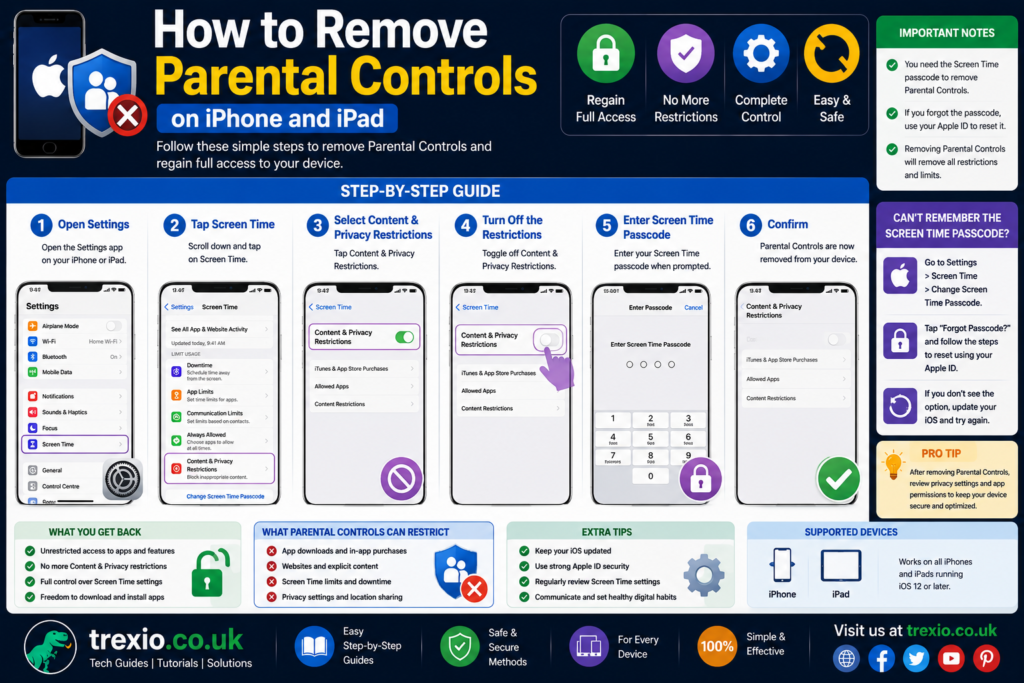
Apple devices use Screen Time as their primary parental control system. Through Screen Time, parents can enforce app limits, communication restrictions, downtime schedules, purchase approvals, and content filtering. These settings can be managed locally on the device or remotely through Family Sharing. Because Apple integrates Screen Time deeply into iOS and iPadOS, removing restrictions requires access to the Screen Time passcode or the parent Apple ID managing the account. Many users mistakenly believe resetting the device automatically removes restrictions, but activation lock and Family Sharing may restore settings during setup. Understanding how to remove parental controls on Apple devices involves checking both local and family account configurations. Once authenticated, Apple makes disabling restrictions relatively simple.
Disable Screen Time Restrictions
Open the Settings app and tap Screen Time. Scroll to the bottom and select Turn Off Screen Time. Enter the Screen Time passcode when prompted. Confirm your choice to disable all Screen Time features. If you only want to remove specific restrictions, open Content & Privacy Restrictions and disable individual controls instead. You can also adjust App Limits, Communication Limits, and Downtime without turning off the entire feature. These flexible options allow families to customize restrictions as children grow older. Learning how to remove parental controls in Screen Time helps restore full access while preserving other important device settings.
Remove Family Sharing Parental Controls
If your iPhone or iPad is managed through Apple Family Sharing, turning off Screen Time alone may not eliminate every restriction. Open Settings, tap your Apple ID, and navigate to Family to view the accounts connected to your family group. Select the child’s profile if you are the family organizer, then access the Screen Time settings managed remotely. From there, you can disable content restrictions, communication limits, purchase approvals, and other supervision features. If the child has reached the appropriate age and no longer requires supervision, you can stop managing those restrictions entirely while keeping Family Sharing active for purchases and subscriptions. Remember that only the family organizer or authorized parent can modify these settings. Once changes are saved, allow a few minutes for iCloud to synchronize them across all Apple devices. Understanding how to remove parental controls within Family Sharing ensures every linked restriction is removed instead of only the settings stored on the individual device.
How to Remove Parental Controls on Windows
Windows computers include Microsoft Family Safety, which allows parents to monitor activity, control screen time, filter websites, and limit applications. These settings are connected to Microsoft accounts rather than being stored only on the computer itself. As a result, restrictions often remain even after reinstalling Windows or switching user profiles. If you are learning how to remove parental controls on Windows, you should first determine whether Microsoft Family Safety is active or whether third-party parental control software is installed. Logging in with administrator privileges is required before making changes. Microsoft regularly synchronizes settings through the cloud, meaning internet access may be necessary before modifications fully apply. Removing restrictions carefully prevents accidental loss of family account settings while restoring full access to the computer.
Disable Microsoft Family Safety
Visit your Microsoft Family Safety settings while signed in with the parent or organizer account. Locate the family member whose restrictions you want to change and open their profile. From there, disable content filters, screen time schedules, app restrictions, and web browsing limits individually or remove the family member from supervision entirely if appropriate. After saving your changes, restart the affected computer to ensure the new settings synchronize correctly. In some cases, signing out and back into Windows refreshes policy updates more quickly. Verify that the child’s account is no longer listed under active family supervision before assuming the process is complete. Knowing how to remove parental controls through Microsoft Family Safety helps eliminate restrictions without affecting personal files or installed applications.
Remove Third-Party Parental Control Software
Many families install additional monitoring applications that operate independently of Windows. Examples include Norton Family, Qustodio, Bark, Net Nanny, and similar programs. These applications often require administrator credentials before they can be disabled or uninstalled. Begin by opening the application’s settings and disabling protection using the parent password. Next, uninstall the software through Windows Settings or Control Panel if it is no longer needed. Restart the computer afterward to ensure background services are completely removed. Some programs include browser extensions that should also be deleted to prevent continued website filtering. Checking for remaining startup services ensures how to remove parental controls is completed successfully without leaving hidden monitoring components behind.
How to Remove Parental Controls on Mac
Apple’s macOS provides parental management through Screen Time and Family Sharing, making the removal process similar to iPhone and iPad. Begin by opening System Settings and selecting Screen Time. If restrictions are managed locally, you can disable them after entering the Screen Time passcode. If supervision is provided through Family Sharing, the organizer must remove or modify restrictions using their Apple account. Mac users should also review Content & Privacy settings, app limits, and communication controls to ensure every restriction has been removed. Some educational or workplace Macs may include administrator-managed restrictions that require separate authorization. Learning how to remove parental controls on macOS becomes much easier once you identify whether the controls are local or cloud-based. Always restart the Mac after making significant configuration changes to ensure they take effect properly.
How to Remove Parental Controls on Gaming Consoles
Modern gaming consoles provide extensive parental control systems designed to manage purchases, multiplayer communication, playtime, and age-appropriate games. PlayStation, Xbox, and Nintendo Switch each implement these features differently, although all require the parent account or PIN to make changes. Before removing restrictions, verify that the correct family organizer account is signed in. Some settings are stored directly on the console, while others synchronize through online accounts. Removing local restrictions without updating cloud settings may result in the controls returning after synchronization. Understanding how to remove parental controls on gaming consoles ensures uninterrupted gameplay while maintaining account security. Each platform also offers the flexibility to adjust restrictions instead of disabling them completely.
PlayStation
Access Settings, navigate to Family and Parental Controls, and sign in using the family manager account. Choose the child’s account and either modify individual restrictions or disable parental controls entirely. Confirm any security prompts before saving your changes. Restart the console if necessary to refresh user permissions.
Xbox
Sign in with the organizer’s Microsoft account and open Family Settings. Select the family member whose permissions you want to modify. Remove screen time limits, content restrictions, spending approvals, or communication settings as needed. Save the changes and allow the console to synchronize with Microsoft’s servers.
Nintendo Switch
Open System Settings, then Parental Controls. Enter the parental control PIN or use the Nintendo Switch Parental Controls app linked to the console. Choose to unregister the parental controls if you want to remove all restrictions completely. Confirm your decision before exiting the settings menu.
How to Remove Parental Controls on Smart TVs and Streaming Services
Smart TVs and streaming platforms frequently include parental controls to block mature content or require PIN verification before viewing certain programs. Removing these settings usually involves entering the existing PIN and disabling content restrictions within account settings. Netflix, Disney+, Hulu, Amazon Prime Video, and YouTube all manage parental controls differently, so the exact process varies. Some televisions also include manufacturer-level restrictions independent of streaming apps. Understanding how to remove parental controls requires checking both the streaming service and the television’s own settings menu. If restrictions continue after one layer is disabled, another level of protection is likely still active. Reviewing every connected account prevents unnecessary troubleshooting later. Once completed, content ratings and viewing permissions should update immediately or after signing out and back in.
Comparison Table: Removing Parental Controls Across Devices
| Device or Platform | Administrator Required | Cloud Account Needed | Difficulty | Typical Time |
|---|---|---|---|---|
| Android | Yes | Sometimes | Easy | 5–10 Minutes |
| iPhone/iPad | Yes | Often | Easy | 5 Minutes |
| Windows | Yes | Yes | Moderate | 10 Minutes |
| Mac | Yes | Often | Easy | 5–10 Minutes |
| PlayStation | Yes | Yes | Moderate | 10 Minutes |
| Xbox | Yes | Yes | Moderate | 10 Minutes |
| Nintendo Switch | Yes | Optional | Easy | 5 Minutes |
| Smart TV | Usually PIN | Sometimes | Easy | 5 Minutes |
| Streaming Services | Account Password | Yes | Easy | 5 Minutes |
Best Practices for Removing Parental Controls
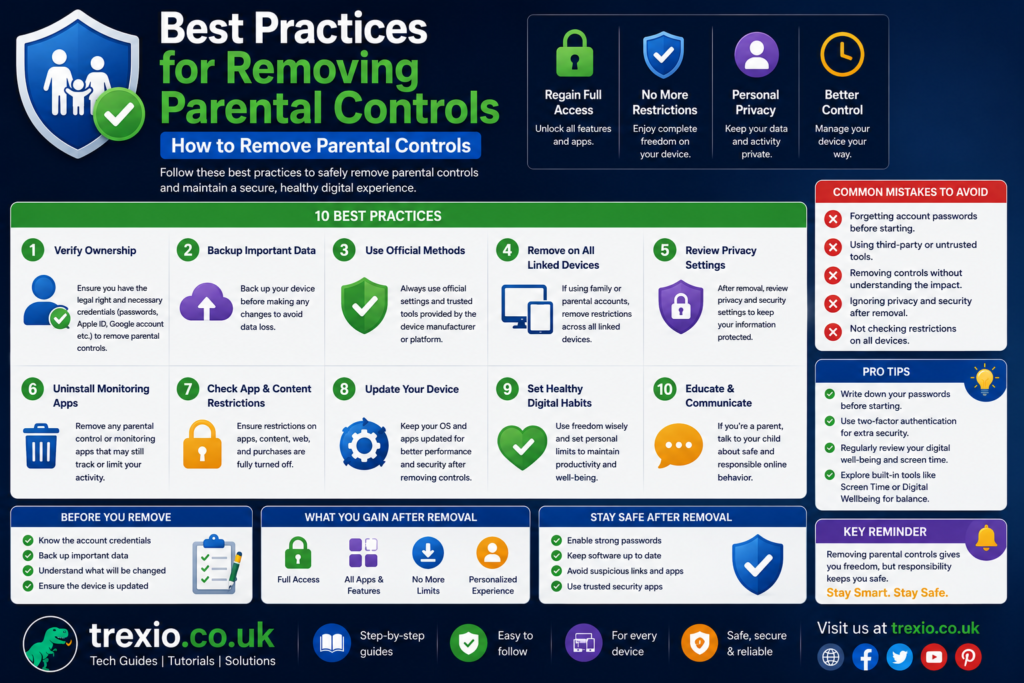
Removing restrictions should always be done thoughtfully rather than impulsively. Keep administrator passwords in a secure location before making any changes. Back up important data whenever modifications involve account settings or device resets. Verify whether multiple parental control systems are active instead of assuming there is only one. Discuss responsible internet usage before removing protections for younger users. Update devices to the latest software version to avoid synchronization problems during the process. Review privacy settings after restrictions are removed to ensure sensitive information remains protected. Finally, test app downloads, website access, and account permissions to confirm how to remove parental controls has been completed successfully.
Common Mistakes to Avoid
Many users make avoidable errors while trying to disable parental restrictions. One of the biggest mistakes is performing a factory reset without checking whether restrictions are linked to an online family account. Another common issue is forgetting administrator passwords and attempting unauthorized workarounds that rarely succeed. Some users disable only local settings while cloud-based supervision remains active. Others overlook third-party monitoring software that continues enforcing restrictions even after built-in controls are removed. Ignoring software updates may also cause synchronization delays that make changes appear unsuccessful. Attempting to bypass parental controls instead of using authorized credentials can permanently complicate account recovery. Taking a systematic approach makes how to remove parental controls much simpler and more reliable.
Pro Tips
- Identify every active parental control system before changing settings.
- Use the original administrator account whenever possible.
- Keep recovery email addresses and authentication methods up to date.
- Document important PINs in a secure password manager.
- Restart devices after major configuration changes.
- Check cloud synchronization before assuming restrictions remain active.
- Remove unused parental control applications to avoid conflicts.
- Test websites, apps, purchases, and screen time after completing the process.
- Maintain age-appropriate digital safety practices even after restrictions are removed.
- Review family account settings periodically to ensure they still meet your household’s needs.
Conclusion
Learning how to remove parental controls becomes much easier once you understand where the restrictions originate. Whether the controls are managed through Android, iPhone, Windows, Mac, gaming consoles, streaming platforms, or cloud-based family accounts, the safest approach is always to use the authorized administrator credentials. Carefully identifying every active layer of supervision prevents unnecessary troubleshooting and ensures restrictions are fully removed without affecting personal data. Rather than immediately performing factory resets or deleting accounts, review each device’s parental control settings systematically and disable only the features you no longer need. Families should also consider balancing online freedom with responsible digital habits, especially for younger users who are gradually transitioning to independent device use. By following the steps outlined throughout this guide, you can confidently remove restrictions while maintaining account security, privacy, and long-term device stability.
Frequently Asked Questions
1. Can I remove parental controls without the password?
In most cases, no. Administrator credentials or the original parent account are required to protect devices from unauthorized changes.
2. Will a factory reset remove parental controls?
Not always. Cloud-based services like Family Link, Apple Family Sharing, and Microsoft Family Safety may restore restrictions after setup.
3. Why are restrictions still active after I disabled them?
Multiple parental control systems may be enabled simultaneously, including third-party applications or online family accounts.
4. Does removing parental controls delete my data?
No. Disabling parental controls normally changes only restriction settings and does not erase personal files.
5. Can I disable only certain restrictions?
Yes. Most platforms allow you to remove app limits, content filters, or screen time individually without disabling every feature.
6. Are parental controls available on smart TVs?
Yes. Most modern smart TVs and streaming platforms include PIN-protected parental settings.
7. Is it safe to remove parental controls?
Yes, provided you use authorized administrator access and understand the effects of removing restrictions.
8. Can third-party parental control apps continue blocking content?
Yes. Programs like Qustodio, Norton Family, and similar software may continue enforcing restrictions until they are properly disabled or uninstalled.
9. Why does Family Link still manage my device?
The supervised Google account may still be linked to Family Link, even if local Android settings were changed.
10. How long does it take to remove parental controls?
Most devices require between five and fifteen minutes, although cloud synchronization can occasionally take longer.
Author Bio
Author: Tech Editorial Team
The Tech Editorial Team specializes in creating accurate, user-focused technology guides that simplify complex digital topics. With extensive experience covering operating systems, cybersecurity, smartphones, computers, and online services, the team follows Google’s EEAT principles by prioritizing factual accuracy, practical experience, and trustworthy research. Every guide is carefully reviewed to provide clear, actionable instructions that help readers solve technical problems with confidence.