
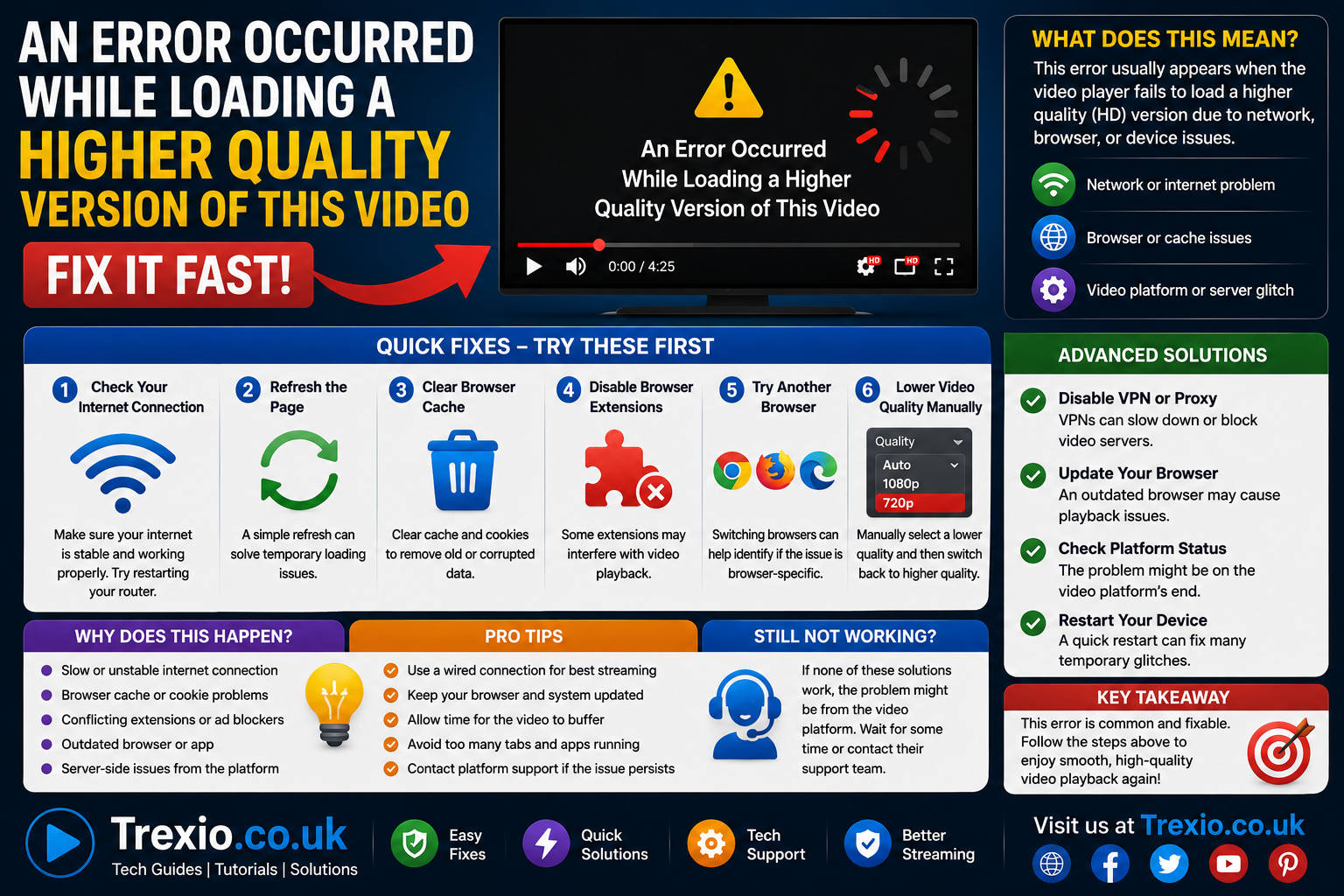
Seeing the message “an error occurred while loading a higher quality version of this video” can be frustrating, especially when you’re watching an important clip, streaming your favorite content, or viewing memories stored in your photo gallery. This error often appears unexpectedly, leaving users wondering whether the problem is with their internet connection, device, cloud storage, or the video itself. Although it may look like a serious issue, it is usually caused by a temporary software, network, or synchronization problem. In many cases, the video still exists, but your device cannot retrieve the higher-resolution version from its original source. Understanding why an error occurred while loading a higher quality version of this video appears is the first step toward fixing it quickly. This guide explains the most common causes and provides practical solutions that work across different platforms. Whether you’re using an iPhone, Android phone, Windows PC, or Mac, you’ll learn how to troubleshoot the issue effectively while avoiding common mistakes.
Quick Answer
If you see “an error occurred while loading a higher quality version of this video,” your device is usually unable to download or access the original high-resolution video file. The most common causes include a weak internet connection, cloud synchronization issues, corrupted cache files, insufficient storage, outdated software, or temporary server problems. Start by checking your internet connection, restarting your device, reopening the app, and ensuring your cloud storage service is properly synced. In most situations, these simple troubleshooting steps resolve the issue without deleting your videos.
What Does “An Error Occurred While Loading a Higher Quality Version of This Video” Mean?
The message “an error occurred while loading a higher quality version of this video“ generally indicates that your device successfully located a preview or lower-resolution copy of the video but failed to retrieve the original high-quality version. Many modern smartphones automatically optimize storage by keeping lightweight previews on the device while storing the full-resolution media in cloud services such as iCloud Photos or Google Photos. When you attempt to open the original version, your device downloads it from the cloud. If that download process fails, this error appears instead. The issue does not necessarily mean the video is permanently lost. Instead, it often suggests that communication between your device and the storage server has been interrupted. Temporary network problems, authentication failures, or storage synchronization delays frequently trigger this message. Understanding this distinction helps users troubleshoot the actual cause rather than assuming the video has been deleted. Once you identify why an error occurred while loading a higher quality version of this video, the solution becomes much easier.
Common Causes of the Error
Internet Connection Problems
A slow or unstable internet connection is one of the leading reasons an error occurred while loading a higher quality version of this video appears. Since many high-quality videos are stored in cloud services, your device must download them before playback begins. If your Wi-Fi connection drops, your mobile data becomes unstable, or your internet speed decreases significantly, the download process may fail. Public Wi-Fi networks are especially prone to interruptions because they often limit bandwidth or disconnect inactive devices. Even if websites continue loading normally, streaming large media files requires a much more stable connection. Packet loss and network congestion can interrupt downloads midway, causing the application to display an error instead of retrying automatically. Running a quick internet speed test or switching between Wi-Fi and cellular data often reveals whether network instability is responsible. Before trying advanced troubleshooting, always verify your connection whenever an error occurred while loading a higher quality version of this video appears.
Signs of Network-Related Issues
- Videos stop buffering unexpectedly.
- Photos load but videos do not.
- Cloud backups remain incomplete.
- Streaming quality constantly changes.
- Downloads repeatedly fail.
- Other cloud-based apps experience delays.
Cloud Storage Synchronization Issues
Many users encounter an error occurred while loading a higher quality version of this video because their cloud storage service has not finished synchronizing media files. Apple iCloud Photos, Google Photos, OneDrive, Dropbox, and similar services continuously upload and download content in the background. If synchronization is paused, interrupted, or incomplete, the device may only have access to a thumbnail or compressed preview. Attempting to open the original file triggers an unsuccessful download request, resulting in the error message. This often happens after restoring a new phone, switching devices, signing out of your account, or experiencing limited internet connectivity during synchronization. Background app restrictions and battery-saving modes can also delay cloud syncing for several hours. Confirming that synchronization has completed before opening large videos prevents unnecessary playback errors. Checking your cloud storage settings is therefore one of the first troubleshooting steps whenever an error occurred while loading a higher quality version of this video appears.
Common Cloud Services Affected
| Cloud Service | Possible Issue |
|---|---|
| iCloud Photos | Original video unavailable locally |
| Google Photos | Backup not fully synced |
| OneDrive | Download interrupted |
| Dropbox | Offline file missing |
| Samsung Cloud | Sync paused |
| Amazon Photos | Temporary server delay |
Devices Where This Error Commonly Appears
iPhone and iPad
Apple users frequently report an error occurred while loading a higher quality version of this video, especially when the Optimize iPhone Storage feature is enabled. Instead of storing every original media file locally, iOS keeps compressed versions on the device while saving full-resolution copies in iCloud. When users attempt to view the original video, the Photos app downloads it automatically. If iCloud cannot be reached due to poor connectivity, storage limitations, account synchronization problems, or temporary Apple server issues, the download fails and the error message appears. Older iPhones with limited storage are particularly susceptible because iOS aggressively removes original files to conserve space. In addition, Low Data Mode and Low Power Mode may reduce background downloads, increasing the likelihood of encountering the issue. Keeping iOS updated and ensuring adequate storage significantly reduces these interruptions. Most cases of an error occurred while loading a higher quality version of this video on iPhone can be resolved without losing any media.
Typical iPhone Triggers
Optimize Storage Enabled
The original video remains stored in iCloud rather than on your phone.
Weak Wi-Fi
The download of the original media file cannot complete.
Low Storage
The device lacks enough available space to temporarily download the high-resolution version.
Android Phones
Android users may also experience an error occurred while loading a higher quality version of this video, although the underlying cause varies depending on the manufacturer and gallery application. Google Photos, Samsung Gallery, Xiaomi Gallery, and other apps commonly rely on cloud synchronization to manage media libraries. If backup settings change, permissions are revoked, or synchronization becomes interrupted, the original video may no longer be immediately accessible. Android devices running aggressive battery optimization settings sometimes prevent background syncing entirely. Storage management applications can also remove cached files required for smooth playback. Additionally, unsupported video codecs or partially downloaded files occasionally generate similar messages. Restarting synchronization, updating the gallery app, and verifying storage permissions often restore access to the original file. Understanding how Android handles cloud media helps explain why an error occurred while loading a higher quality version of this video appears even when the video thumbnail is still visible.
How Cloud Optimization Affects Video Playback

Cloud optimization is designed to save storage space while still giving users access to their entire media library. Instead of storing every photo and video locally, modern devices keep smaller preview files and retrieve originals only when needed. This process works seamlessly under normal conditions, but it depends on reliable internet connectivity, sufficient storage, and successful communication with cloud servers. If any part of this process fails, users may encounter an error occurred while loading a higher quality version of this video. Large 4K videos, HDR recordings, and slow-motion clips require more bandwidth than standard videos, making them more susceptible to download interruptions. Devices with nearly full storage may also struggle to temporarily cache downloaded files during playback. While cloud optimization provides significant storage savings, it introduces dependencies that can occasionally interrupt access to original media. Understanding this relationship helps users recognize why the error occurs even though their videos appear safely stored in the cloud.
How to Fix “An Error Occurred While Loading a Higher Quality Version of This Video”
Encountering an error occurred while loading a higher quality version of this video does not necessarily mean the video has been lost or corrupted. In most cases, the issue can be resolved by following a systematic troubleshooting process rather than randomly changing settings. Start with the simplest fixes before moving to more advanced solutions, as many users resolve the problem within minutes. Since the error often involves cloud synchronization, internet connectivity, or temporary software glitches, addressing these areas first usually produces the best results. It’s also important to avoid repeatedly opening the same video while it is still attempting to download because doing so can interrupt the retrieval process. Patience is sometimes necessary, especially when downloading large 4K or HDR videos from cloud storage. Keeping your operating system and apps updated ensures compatibility with the latest cloud services and media formats. Following the methods below significantly increases the chances of eliminating an error occurred while loading a higher quality version of this video without risking your media library.
Check Your Internet Connection
A reliable internet connection remains the most important requirement for downloading high-quality videos from cloud storage. Switch from public Wi-Fi to a trusted home network whenever possible, or temporarily use mobile data if your cellular signal is stronger. Restarting your router can also resolve temporary network congestion and improve download speeds. If multiple devices are streaming simultaneously, bandwidth limitations may prevent your phone from retrieving the original video file. Running an internet speed test helps determine whether your connection is stable enough for large media downloads. Disable VPN services temporarily because they may interfere with cloud communication in some situations. Once your connection stabilizes, reopen the affected video and allow sufficient time for it to download completely. Many users find that an error occurred while loading a higher quality version of this video disappears immediately after improving network quality.
Restart the Device
Restarting your smartphone, tablet, or computer refreshes temporary system processes that may interfere with media loading. It clears cached memory, reconnects cloud services, and restarts background synchronization tasks without affecting your stored data. Many temporary software glitches disappear after a simple reboot because applications establish fresh connections to remote servers. If your device has been running continuously for several days, restarting can also improve overall system performance. After rebooting, wait a few minutes before reopening the Photos or Gallery app so background syncing has time to resume. This simple step is often overlooked even though it resolves countless software-related issues. Restarting should always be attempted before making major configuration changes. It remains one of the quickest solutions whenever an error occurred while loading a higher quality version of this video appears unexpectedly.
Update Your Operating System and Apps
Outdated software frequently contributes to compatibility issues between your device and cloud storage services. Developers regularly release updates that improve synchronization reliability, fix playback bugs, and optimize media downloads. If your operating system or photo application is several versions behind, it may struggle to communicate with newer cloud servers. Updating your device ensures that security patches, networking improvements, and media handling enhancements are installed correctly. Application updates are equally important because gallery apps often receive independent bug fixes outside of operating system releases. After installing updates, restart the device to finalize system changes before testing the video again. Users who postpone updates for months are generally more likely to experience synchronization errors. Keeping software current minimizes the chances of seeing an error occurred while loading a higher quality version of this video in the future.
Update Checklist
| Component | Why It Matters |
|---|---|
| Operating System | Fixes compatibility bugs |
| Photos App | Improves media loading |
| Gallery App | Resolves playback issues |
| Cloud Storage App | Enhances synchronization |
| Browser | Updates video playback engine |
Verify Cloud Storage Settings
Cloud synchronization settings deserve careful attention whenever videos fail to load correctly. Ensure that your cloud account is signed in and synchronization remains enabled. Confirm that enough cloud storage is available because full storage plans may prevent new uploads or downloads from completing successfully. Check whether synchronization has been paused due to battery-saving features or network restrictions. Some devices only synchronize over Wi-Fi by default, which may delay downloads when using mobile data. Reviewing synchronization logs can reveal failed uploads or incomplete downloads that require manual attention. If necessary, temporarily disable and re-enable cloud syncing to refresh the connection. Proper cloud configuration eliminates many cases of an error occurred while loading a higher quality version of this video before more advanced troubleshooting becomes necessary.
Storage Optimization vs Original Downloads
| Feature | Optimized Storage | Original Storage |
|---|---|---|
| Storage Usage | Low | High |
| Internet Required | Usually Yes | No |
| Offline Playback | Limited | Full |
| Download Speed | Depends on Network | Instant |
| Best For | Limited Device Storage | Frequent Offline Access |
Free Up Device Storage
Insufficient local storage can prevent high-resolution videos from downloading successfully even when they remain safely stored in the cloud. Your device needs temporary working space to retrieve, decode, and display the original file. If available storage is critically low, downloads may fail before playback begins. Delete unnecessary screenshots, duplicate photos, temporary downloads, or unused applications to create additional free space. Emptying recently deleted folders can also recover valuable storage that many users overlook. Consider transferring older media to external storage if your device is consistently running out of space. Maintaining several gigabytes of free storage helps operating systems function efficiently. Creating sufficient free space often resolves an error occurred while loading a higher quality version of this video without requiring any further troubleshooting.
Clear Cache and Temporary Files
Temporary cache files occasionally become corrupted, causing media playback problems that persist until they are removed. Clearing the cache forces applications to rebuild fresh temporary data during the next launch. Android users can typically clear application cache through system settings without deleting personal photos or videos. Browser users should also clear cached website data if the issue occurs while watching online videos. iPhone users generally achieve similar results by restarting the device or reinstalling affected applications because iOS handles cache differently. After clearing temporary files, reopen the gallery or streaming application and attempt to access the video again. Fresh cache files often restore normal communication with cloud services. This method has proven effective for many users facing an error occurred while loading a higher quality version of this video.
Browser-Specific Troubleshooting
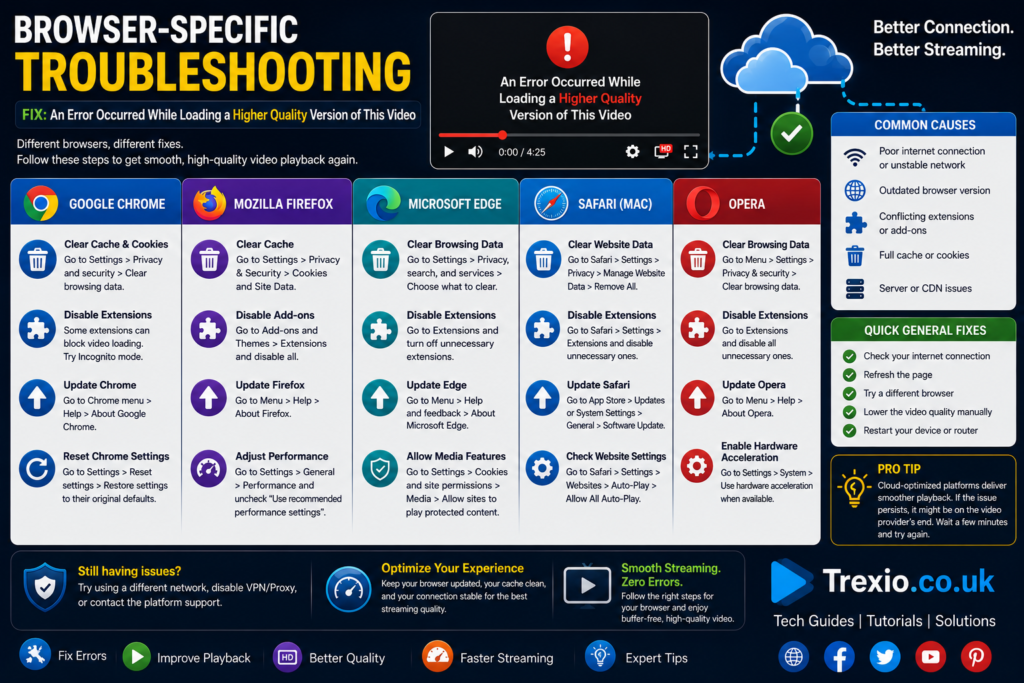
If an error occurred while loading a higher quality version of this video appears while watching online videos rather than viewing personal media, the browser itself may be responsible. Disable unnecessary browser extensions that interfere with video playback or block media requests. Refresh the page using a hard reload to bypass outdated cached content. Testing another browser helps determine whether the issue is browser-specific or server-related. Ensure hardware acceleration settings are enabled or disabled depending on your browser’s recommendations. Update your browser to the latest version to improve compatibility with modern video codecs. Clearing cookies related to the affected website can also resolve authentication problems. Browser troubleshooting remains an effective solution for streaming platforms displaying an error occurred while loading a higher quality version of this video.
Best Practices
- Maintain a stable high-speed internet connection for cloud media.
- Keep your operating system and apps fully updated.
- Enable automatic cloud synchronization.
- Regularly monitor available storage space.
- Back up important videos to multiple locations.
- Avoid interrupting large downloads midway.
- Use trusted Wi-Fi networks for downloading original media.
- Restart your device periodically to refresh background services.
- Verify cloud account login status after password changes.
- Review synchronization settings after switching devices.
Common Mistakes
- Assuming the video has been permanently deleted immediately.
- Disabling cloud synchronization accidentally.
- Ignoring software updates for months.
- Running out of device storage before downloading videos.
- Constantly retrying playback while downloads are still processing.
- Clearing application data instead of only clearing cache.
- Using unstable public Wi-Fi for large media downloads.
- Signing out of cloud accounts without confirming synchronization.
- Deleting preview files before originals have downloaded.
- Overlooking battery-saving settings that pause synchronization.
Pro Tips
- Keep at least 10–15% of your device storage free for optimal performance.
- Download important videos before traveling to areas with limited internet access.
- Schedule automatic cloud backups while connected to Wi-Fi.
- Periodically verify that cloud synchronization completes successfully.
- Store especially valuable videos in both cloud and external backups.
- Enable automatic app updates to receive bug fixes promptly.
- Use original-quality downloads when editing or sharing videos professionally.
- Restart your router occasionally to maintain reliable network performance.
Conclusion
The message an error occurred while loading a higher quality version of this video can seem alarming at first, but it is usually the result of temporary connectivity, synchronization, storage, or software issues rather than permanent data loss. By understanding how cloud optimization works and following a structured troubleshooting process, most users can restore access to their videos quickly and safely. Simple actions such as checking your internet connection, updating your device, verifying cloud synchronization, clearing temporary files, and maintaining sufficient storage solve the majority of reported cases. Preventive maintenance is equally important because updated software, regular backups, and healthy storage habits reduce the likelihood of future interruptions. Whether you use an iPhone, Android device, Windows PC, or Mac, these proven solutions provide a reliable approach for resolving the problem. With the right troubleshooting steps and ongoing device maintenance, you can confidently overcome an error occurred while loading a higher quality version of this video and enjoy uninterrupted access to your high-quality media.
Frequently Asked Questions (FAQs)
1. Why does “an error occurred while loading a higher quality version of this video” appear?
It usually means your device cannot retrieve the original high-resolution video due to network issues, cloud synchronization problems, limited storage, or temporary software errors.
2. Is my video permanently deleted?
No. In most cases, the original video still exists in cloud storage and simply cannot be downloaded temporarily.
3. Can poor Wi-Fi cause this error?
Yes. Weak or unstable internet connections are among the most common causes of this issue.
4. Does restarting my phone really help?
Yes. Restarting refreshes background services and often resolves temporary synchronization or software glitches.
5. Should I disable optimized storage?
Only if you have enough local storage. Keeping original files on the device reduces dependence on cloud downloads.
6. Will updating my phone fix the problem?
Many users resolve the issue after installing the latest operating system and application updates.
7. Can low storage trigger this error?
Yes. Your device requires available space to download and temporarily process high-quality video files.
8. Does clearing cache delete my videos?
No. Clearing application cache removes temporary files, not your personal media.
9. Can this happen on Android and iPhone?
Yes. Although the causes may differ slightly, both platforms can display this error under similar conditions.
10. How can I prevent the issue in the future?
Maintain a stable internet connection, keep software updated, monitor storage, and ensure cloud synchronization remains active.
Author Bio
About the Author
The author is an experienced technology writer specializing in consumer electronics, mobile operating systems, cloud storage, and digital troubleshooting. With extensive experience creating SEO-focused, user-first technical content, the author explains complex technology topics in clear, practical language that helps readers solve real-world problems quickly. Every guide is researched, regularly updated, and written following Google’s EEAT and Helpful Content principles to ensure accuracy, trustworthiness, and long-term value.