
How to Stop Apps from Running in the Background
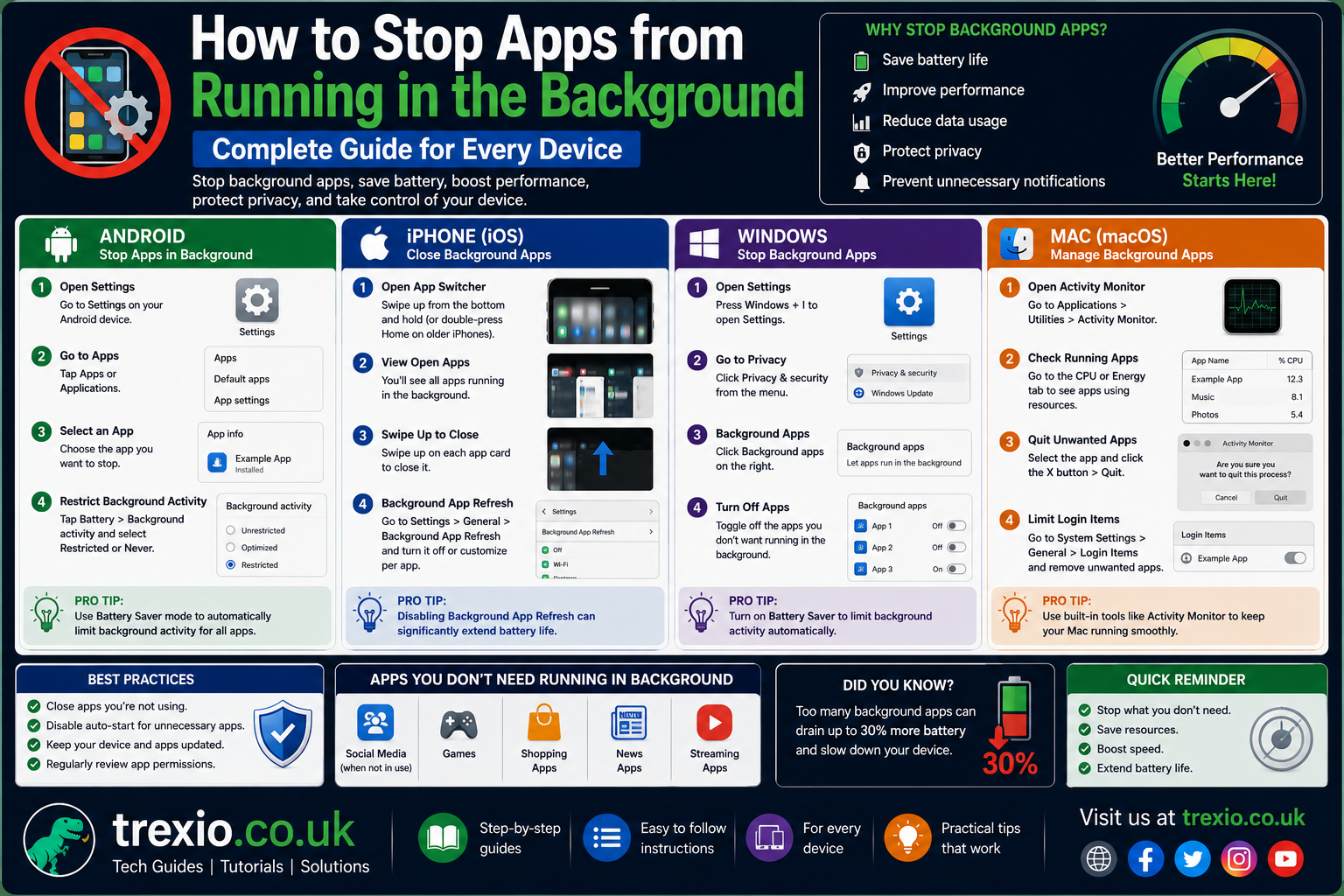
Many people notice their phones or computers becoming slower over time without understanding the real cause. In many cases, background apps silently consume memory, processor power, battery, and internet data even when they are not actively being used. Learning how to stop apps from running in the background can dramatically improve your device’s overall performance while extending battery life. Whether you use Android, iPhone, Windows, or macOS, controlling background activity is one of the simplest ways to optimize your system. Some apps legitimately need background access for notifications, messaging, navigation, or cloud syncing, while others continue running unnecessarily. Understanding the difference helps you decide which apps deserve permission and which should be restricted. This guide explains everything step by step using beginner-friendly instructions and practical recommendations. By the end, you’ll know exactly how to stop apps from running in the background safely without affecting important features.
Quick Answer
If you want to know how to stop apps from running in the background, open your device’s Settings and locate the Battery, Apps, or Background App Refresh section. From there, disable background activity for apps that do not need to update continuously. Android users can restrict battery usage or background processes, while iPhone users can turn off Background App Refresh for individual apps. Windows users can adjust background app permissions through Privacy or Installed Apps settings, and Mac users can manage login items and background processes. Limiting unnecessary background activity reduces battery drain, improves responsiveness, lowers RAM usage, and may even reduce mobile data consumption. However, avoid disabling background access for apps that require real-time notifications or synchronization.
Why Apps Continue Running in the Background
Many users assume closing an app removes it from memory entirely, but modern operating systems are designed differently. Most smartphones and computers keep recently used applications partially active to improve multitasking and reduce loading times. This approach makes switching between apps faster, but it also means some programs continue using system resources. Understanding how to stop apps from running in the background begins with recognizing why operating systems allow background processes in the first place. These processes can check for notifications, download updates, synchronize files, track your location, or refresh content automatically. Although these features improve convenience, they also increase battery consumption and processor usage. Manufacturers balance performance and functionality by allowing controlled background activity instead of completely shutting down every app. Knowing which apps genuinely require background access helps you make smarter decisions when managing your device.
Background Activities Apps Commonly Perform
Syncing Data
Many applications automatically synchronize contacts, emails, calendars, photos, or cloud documents. This keeps information current across multiple devices without requiring manual updates. Cloud storage services, email clients, and productivity apps rely heavily on background syncing. While useful, continuous synchronization can increase battery drain and internet usage. Understanding these activities makes it easier to decide how to stop apps from running in the background selectively rather than disabling every process.
Delivering Notifications
Messaging platforms, banking apps, social media, and communication tools stay active so they can instantly deliver notifications. If these apps cannot run in the background, alerts may arrive late or not at all. This is one reason operating systems don’t automatically disable every background task. Users should carefully balance convenience with battery optimization.
Downloading Updates
Some applications download new content automatically, including podcasts, offline maps, news articles, and software updates. These background downloads improve user experience but may consume storage space, mobile data, and battery. Restricting unnecessary apps helps maintain better performance.
Benefits of Stopping Background Apps
Learning how to stop apps from running in the background offers advantages beyond simply extending battery life. Many users notice faster app launches, smoother multitasking, reduced overheating, and improved system responsiveness after limiting unnecessary background processes. Devices with limited RAM especially benefit because fewer active applications leave more memory available for current tasks. Reduced background activity also decreases CPU workload, which can improve long-term hardware efficiency. Mobile users often save significant amounts of cellular data because apps are prevented from continuously refreshing online content. In addition, restricting background access improves privacy by limiting location tracking and automatic data collection. Although some apps require background permissions for essential functionality, disabling non-essential ones creates a more efficient computing experience. Proper background management is one of the easiest methods to optimize both smartphones and computers.
Major Benefits at a Glance
| Benefit | How It Helps |
|---|---|
| Better battery life | Reduces unnecessary power consumption |
| Faster performance | Frees processor and memory resources |
| Less overheating | Lowers CPU workload |
| Reduced data usage | Stops unnecessary internet activity |
| Improved privacy | Limits background tracking |
| More available RAM | Improves multitasking performance |
| Longer hardware lifespan | Reduces continuous resource usage |
How to Stop Apps from Running in the Background on Android
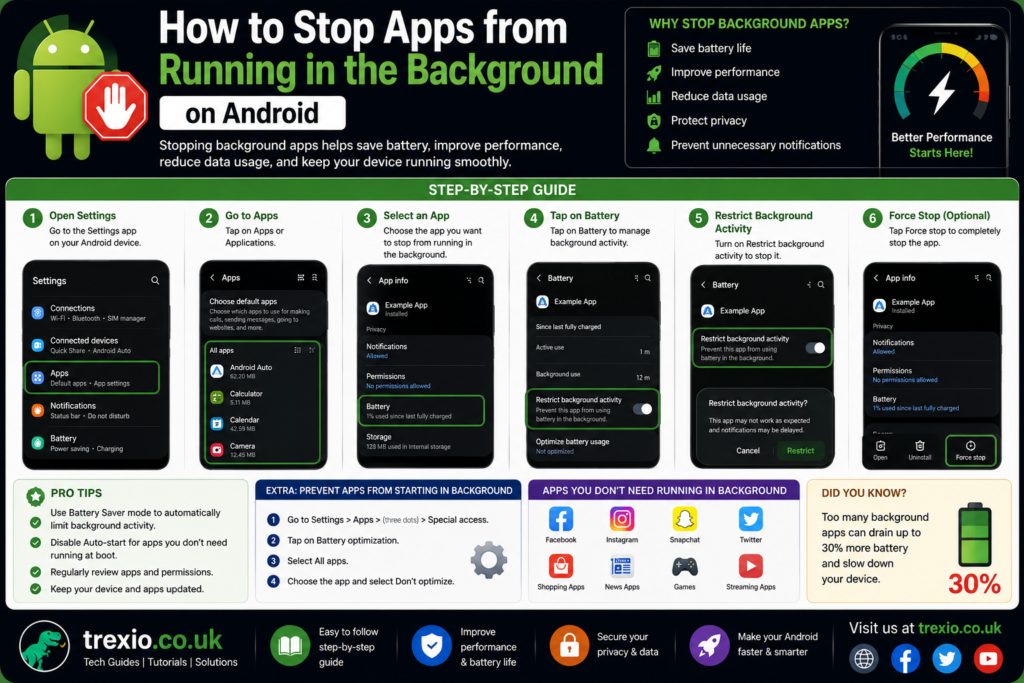
Android offers several methods for controlling background processes depending on your device manufacturer and Android version. Learning how to stop apps from running in the background on Android is relatively straightforward because Google provides multiple battery optimization tools. Samsung, Google Pixel, Motorola, Xiaomi, OnePlus, Oppo, and other manufacturers may organize these settings differently, but the general process remains similar. Users can restrict background battery usage, force-stop applications, disable background data, or place apps into sleeping mode. These options allow you to customize resource usage without uninstalling applications completely. Android’s adaptive battery system also learns usage patterns to automatically limit rarely used apps. Combining manual controls with built-in optimization tools produces the best balance between performance and convenience.
Method 1: Restrict Background Battery Usage
Step 1
Open Settings and select Apps.
Step 2
Choose the application you want to restrict.
Step 3
Tap Battery.
Step 4
Select Restricted or choose the strongest available battery optimization option.
This setting prevents many unnecessary background activities while still allowing the app to function when opened manually.
Method 2: Force Stop an App
Force stopping immediately terminates an application’s active processes until it is opened again. This method is especially useful when an app becomes unresponsive or consumes excessive battery unexpectedly. Although force stopping temporarily solves immediate performance issues, some applications automatically restart after receiving system events or notifications. Therefore, force stopping should be combined with battery restrictions when learning how to stop apps from running in the background effectively. Avoid repeatedly force stopping essential system applications because doing so may temporarily affect device stability. Instead, reserve this option for apps that frequently misbehave or consume abnormal resources. Android provides this feature within every app’s information page, making it accessible without installing third-party optimization software. Used appropriately, force stopping remains one of Android’s quickest troubleshooting tools.
Method 3: Disable Background Data
Background data allows applications to communicate with internet servers even when closed. Disabling this feature helps reduce both battery usage and cellular data consumption. Open the application’s information page, navigate to Mobile Data & Wi-Fi, and disable background data if available. Some Android manufacturers provide additional controls through Data Saver mode, which limits background internet access automatically. Users who frequently travel or have limited mobile data plans often benefit significantly from this feature. However, disabling background data may delay notifications from messaging, email, or collaboration apps until they are opened manually. Understanding when to restrict internet activity is another important aspect of learning how to stop apps from running in the background while maintaining essential functionality.
How to Stop Apps from Running in the Background on iPhone
Apple manages background processes differently than Android by tightly controlling how applications operate when not actively in use. Even so, users can still learn how to stop apps from running in the background by adjusting Background App Refresh and location permissions. Unlike Android, manually closing every app generally does not improve battery life on iPhones because iOS intelligently freezes inactive applications. Instead, Apple recommends disabling unnecessary background refresh for apps that do not require constant updates. This approach allows essential services like messaging, navigation, and email to continue functioning while reducing battery consumption elsewhere. iPhone users should focus on settings that control refresh behavior rather than repeatedly swiping apps away from the App Switcher. These built-in management features provide better long-term optimization than manually closing apps throughout the day.
Turn Off Background App Refresh
Step 1
Open Settings.
Step 2
Tap General.
Step 3
Select Background App Refresh.
Step 4
Disable Background App Refresh entirely or turn it off individually for apps that do not require constant updates.
Turning off unnecessary refresh reduces battery usage without affecting the overall stability of your iPhone.
Review Location Permissions
Many apps continue working in the background because they constantly monitor your location. Navigate to Settings > Privacy & Security > Location Services and review each application’s permissions. Choose While Using the App whenever continuous location access is unnecessary. Reducing location monitoring decreases battery drain while enhancing privacy. Combined with Background App Refresh controls, this represents one of the most effective ways to manage background activity on iOS devices.
How to Stop Apps from Running in the Background on Windows
Windows computers often have dozens of applications running in the background without users realizing it. These programs may launch automatically during startup, synchronize files, check for updates, or provide notification services even when they are not open on your desktop. Understanding how to stop apps from running in the background on Windows can improve boot times, reduce memory usage, and make your PC feel significantly faster. Microsoft has introduced multiple ways to control background processes in Windows 10 and Windows 11, giving users greater flexibility than ever before. By reviewing startup apps, background permissions, and power settings, you can prevent unnecessary software from consuming valuable system resources. It is important to identify which applications are essential before disabling them, especially antivirus software and hardware-related utilities. Making thoughtful adjustments rather than disabling everything ensures your computer remains stable while gaining noticeable performance improvements. With regular maintenance, Windows devices can stay responsive for years without requiring expensive hardware upgrades.
Method 1: Disable Startup Apps
Startup applications are among the biggest contributors to background resource usage because they begin running as soon as Windows starts. Open Settings > Apps > Startup and review the list of installed programs. Disable applications that you rarely use or that do not need to launch automatically, such as music players, gaming launchers, or messaging platforms that you do not rely on daily. Reducing startup programs shortens boot times and decreases RAM usage immediately after logging in. If you are unsure about a particular application, research its purpose before turning it off. Keeping only essential programs enabled helps Windows allocate more resources to active tasks. This simple adjustment is one of the easiest ways to optimize overall performance. It also complements other methods used to learn how to stop apps from running in the background effectively.
Method 2: Manage Background App Permissions
Windows allows certain apps to continue running even after they are closed. Depending on your Windows version, navigate to Settings > Apps and review each application’s permissions. Some Microsoft Store apps include options to control background activity directly. Turning off background permissions for non-essential apps reduces CPU usage and battery drain on laptops. Users should leave background access enabled for communication apps or security software that depends on continuous monitoring. Reviewing these permissions every few months helps ensure newly installed apps are not consuming resources unnecessarily. This proactive approach improves system efficiency while maintaining a smooth user experience.
How to Stop Apps from Running in the Background on Mac
Apple’s macOS includes several intelligent background management features, but many applications still run automatically to provide updates, cloud synchronization, and notifications. Learning how to stop apps from running in the background on a Mac involves reviewing Login Items, Activity Monitor, and battery settings rather than force-closing every application. Background utilities can gradually consume memory and processor power, especially if many third-party programs have been installed over time. By limiting unnecessary startup services, users often notice faster login times and improved overall responsiveness. Macs with older hardware particularly benefit from reducing background activity because available memory is more limited. Apple provides built-in tools that make identifying resource-heavy processes relatively simple. Using these tools responsibly helps maintain both performance and battery life without compromising system stability. Proper background management also reduces unnecessary fan noise and device heat during everyday use.
Remove Unnecessary Login Items
Open System Settings > General > Login Items to review applications that launch automatically when your Mac starts. Disable programs that do not need to run continuously, especially utilities that you rarely use. Reducing login items decreases startup time and lowers memory consumption immediately after signing in. Essential services such as cloud storage or security software can remain enabled if they are part of your daily workflow. Periodically reviewing this list prevents software from accumulating unnoticed over time. Keeping startup processes minimal helps macOS allocate resources more efficiently.
Monitor Active Processes with Activity Monitor
Activity Monitor provides detailed information about CPU, memory, energy, disk, and network usage. Open the application from the Utilities folder and identify programs consuming excessive resources. If an application becomes unresponsive or uses unusually high CPU power, you can safely quit it through Activity Monitor. This tool also helps identify background services that may need further investigation or reconfiguration. Understanding how resources are distributed makes it easier to decide which applications deserve background access. Activity Monitor is one of the most valuable built-in diagnostic tools available on macOS.
Should You Force Close Every Background App?
Many users believe constantly closing every background application improves performance, but this is generally a misconception. Modern operating systems are designed to manage memory intelligently and often freeze inactive applications instead of allowing them to consume significant resources. Repeatedly force-closing apps may actually increase battery usage because the system must fully reload each application when it is reopened. Learning how to stop apps from running in the background is more about managing permissions than manually closing programs throughout the day. Essential apps such as messaging services, navigation tools, and email clients often require limited background access to function properly. Force closing should mainly be reserved for apps that freeze, crash, or exhibit abnormal battery or CPU usage. Trusting the operating system’s resource management while selectively restricting unnecessary applications creates the best balance between efficiency and convenience. Understanding this distinction prevents users from adopting habits that offer little real benefit.
Comparison of Background App Management Across Devices
| Device | Main Setting | Difficulty | Battery Savings | Performance Improvement |
|---|---|---|---|---|
| Android | Battery Optimization & App Settings | Easy | High | High |
| iPhone | Background App Refresh | Easy | Moderate to High | Moderate |
| Windows | Startup Apps & Background Permissions | Moderate | Moderate | High |
| Mac | Login Items & Activity Monitor | Moderate | Moderate | High |
Signs That Background Apps Are Affecting Performance
Several warning signs indicate that too many applications are running in the background. Rapid battery drain is often the first symptom noticed by smartphone users, while desktop users may observe slow startup times or constant hard drive activity. Devices may also become unusually warm during light usage because background processes continuously utilize the processor. Increased mobile data consumption without obvious explanation can also point to excessive background synchronization. Lag during multitasking, delayed touch response, or frequent application crashes may result from limited available memory. Fans running loudly on laptops or desktop computers often signal unnecessary processor activity. Recognizing these symptoms early allows users to apply the techniques described throughout this guide before performance deteriorates further. Regular monitoring helps maintain a fast, reliable device over the long term.
Best Practices for Managing Background Apps
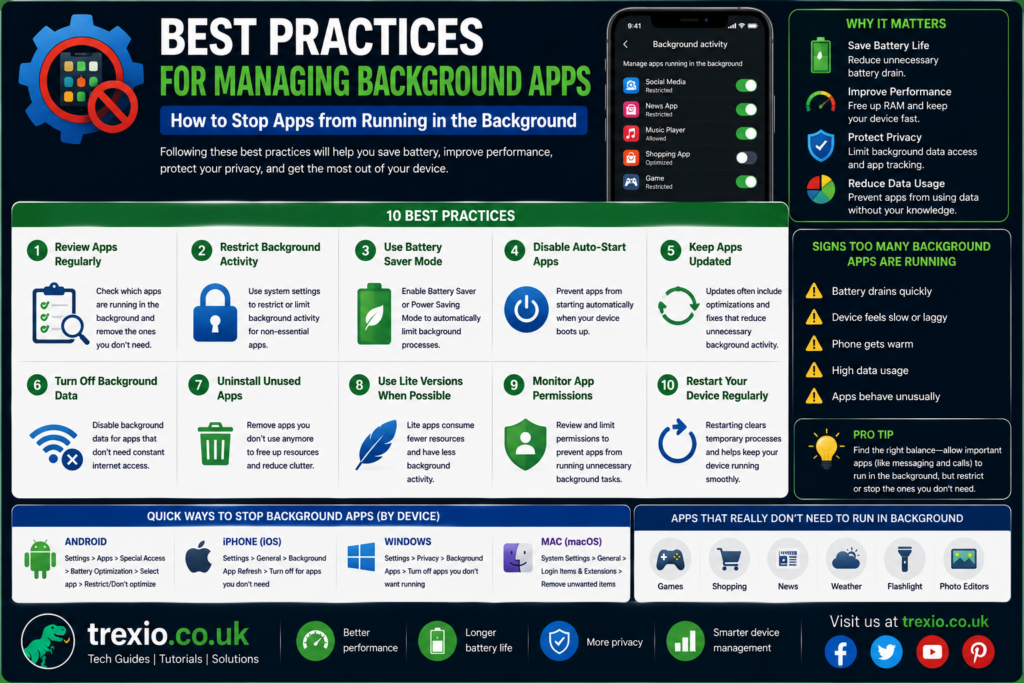
Following consistent maintenance habits is more effective than making one-time changes. Review installed applications every few months and uninstall software that is no longer needed. Only allow background permissions for apps that genuinely benefit from real-time updates, such as messaging, navigation, calendar, or security applications. Keep your operating system updated because newer versions often include improved battery optimization and resource management. Restart your device periodically to clear temporary processes and refresh system memory. Monitor battery usage reports to identify apps consuming excessive power and investigate whether background restrictions are appropriate. Avoid installing multiple optimization utilities that promise performance improvements, as many simply add more background processes themselves. Combining thoughtful permission management with routine maintenance provides the best long-term results when learning how to stop apps from running in the background.
Common Mistakes to Avoid
Many users unintentionally reduce their device’s functionality by disabling background activity indiscriminately. Turning off background access for messaging apps can delay important notifications, while restricting cloud storage services may interrupt file synchronization across devices. Another common mistake is relying on third-party task killers that aggressively close applications despite modern operating systems already managing resources efficiently. Ignoring battery usage reports also prevents users from identifying genuinely problematic applications. Some people repeatedly force close every app throughout the day, believing this improves battery life when it often has the opposite effect. Failing to update apps and operating systems may leave inefficient background processes unoptimized. Disabling essential security software can expose devices to unnecessary risks. Avoiding these mistakes ensures that performance improvements do not come at the expense of usability or protection.
Pro Tips
- Review battery and resource usage reports monthly to identify apps that consume excessive power.
- Keep only essential startup applications enabled on Windows and macOS.
- Use built-in battery optimization features instead of installing third-party task killers.
- Restrict background activity for games, shopping apps, and rarely used social media platforms.
- Allow messaging, email, navigation, and security apps to continue running when real-time functionality is important.
- Restart your device regularly to clear temporary background processes.
- Remove unused applications rather than simply disabling their background activity.
- Test performance after making changes so you can identify which adjustments have the greatest impact.
Conclusion
Learning how to stop apps from running in the background is one of the simplest and most effective ways to improve your device’s speed, battery life, and overall efficiency. Whether you use Android, iPhone, Windows, or macOS, every operating system provides built-in tools that help you manage unnecessary background activity without compromising essential functionality. Instead of force-closing every application, focus on reviewing background permissions, startup programs, battery optimization settings, and resource usage reports. These targeted adjustments reduce memory consumption, minimize processor workload, and help extend the lifespan of your device. At the same time, leaving critical apps such as messaging, navigation, and security software enabled ensures you continue receiving timely updates and important notifications. By following the best practices outlined in this guide and avoiding common mistakes, you can maintain excellent performance without relying on third-party optimization tools. Regular maintenance, combined with informed decisions about which apps truly need background access, provides the best long-term results. With these strategies, you’ll always know how to stop apps from running in the background safely and effectively.
Frequently Asked Questions
1. Is it safe to stop apps from running in the background?
Yes. It is generally safe for non-essential apps, but avoid restricting messaging, security, or navigation apps if you rely on real-time notifications.
2. Will stopping background apps improve battery life?
Yes. Reducing unnecessary background activity can significantly decrease battery consumption, especially on smartphones.
3. Does force stopping apps save battery?
Not always. Force stopping should only be used for malfunctioning apps because repeatedly reopening apps can increase battery usage.
4. Why do apps restart after I close them?
Some apps automatically restart to provide notifications, synchronization, or other essential background services managed by the operating system.
5. Can background apps slow down my computer?
Yes. Too many active background processes can consume RAM and CPU resources, resulting in slower performance.
6. Should I install a task killer app?
In most cases, no. Modern operating systems already manage memory efficiently, making most task killers unnecessary.
7. Which apps should always be allowed to run in the background?
Messaging apps, email clients, navigation apps, cloud storage services, and security software generally benefit from background access.
8. How often should I review background app settings?
Checking your settings every few months or after installing several new apps is a good practice.
9. Does disabling background data reduce mobile data usage?
Yes. Preventing apps from accessing the internet in the background can noticeably reduce cellular data consumption.
10. Will stopping background apps make an old device faster?
In many cases, yes. Older devices with limited RAM often experience smoother performance after unnecessary background processes are restricted.
Author Bio
About the Author:
This article was written by an experienced technology writer specializing in consumer electronics, operating systems, and device optimization. With extensive research and hands-on testing across Android, iPhone, Windows, and macOS platforms, the author creates practical, easy-to-follow guides that align with Google’s EEAT and Helpful Content principles. The goal is to help readers solve technical problems confidently through accurate, trustworthy, and up-to-date information.