
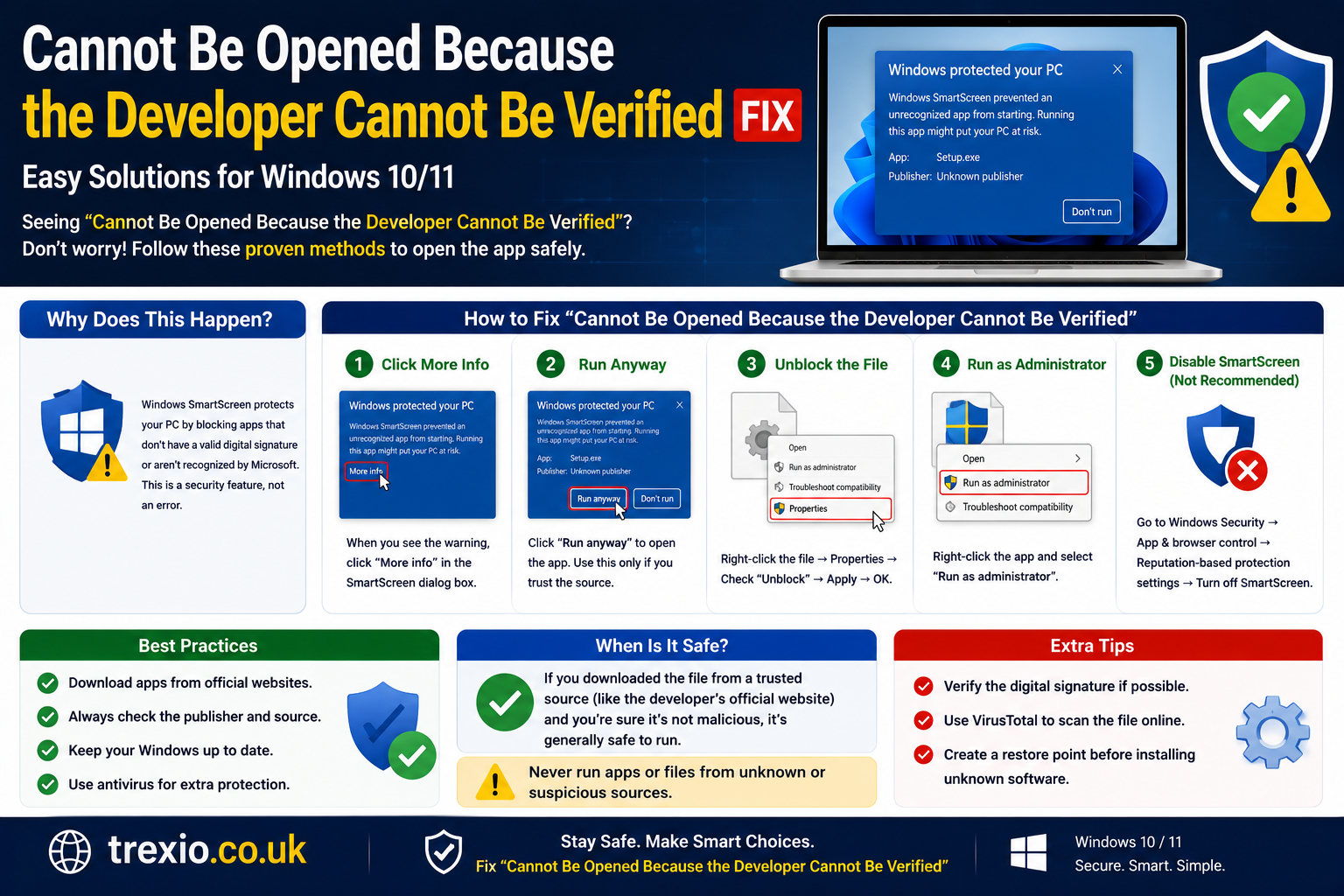
If you’ve recently downloaded an app on your Mac and received the message cannot be opened because the developer cannot be verified, you’re not alone. Thousands of macOS users encounter this warning every day when installing apps from outside the App Store.
The cannot be opened because the developer cannot be verified message is part of Apple’s Gatekeeper security system. While it helps protect users from malicious software, it can sometimes block perfectly safe applications from trusted developers who haven’t completed Apple’s notarization process.
In this guide, you’ll learn exactly why the cannot be opened because the developer cannot be verified error appears, what it means, how to determine whether an app is safe, and the best methods to bypass the warning responsibly. We’ll also compare popular software that can help manage macOS applications and improve system performance.
Whether you’re installing open-source software, business tools, developer utilities, or older applications, this guide will help you resolve the cannot be opened because the developer cannot be verified warning safely and quickly.
Quick Summary
The cannot be opened because the developer cannot be verified error appears because macOS blocks apps that aren’t signed or notarized by Apple.
Quick fixes include:
- Verify the app source.
- Open the app from System Settings.
- Use Finder’s Open option.
- Update macOS.
- Download the latest version.
- Contact the developer.
- Only bypass Gatekeeper if you trust the software.
Following safe practices ensures you can solve the cannot be opened because the developer cannot be verified warning without exposing your Mac to malware.
Why Does “Cannot Be Opened Because the Developer Cannot Be Verified” Appear?
The cannot be opened because the developer cannot be verified message is generated by Apple’s Gatekeeper security feature.
Gatekeeper checks every downloaded application before allowing it to run. If the app isn’t digitally signed, notarized, or recognized by Apple, macOS blocks it.
Common reasons include:
- The developer hasn’t registered with Apple.
- The app is outdated.
- The application hasn’t been notarized.
- The download is incomplete.
- The app was modified after signing.
- The software comes from an unknown website.
Fortunately, the cannot be opened because the developer cannot be verified warning doesn’t always mean the application is dangerous.
How Apple’s Gatekeeper Works
What Is Gatekeeper?
Gatekeeper is Apple’s built-in security technology.
Its purpose is to protect Mac users from:
- Malware
- Trojans
- Fake installers
- Ransomware
- Modified applications
Whenever you download software from the internet, Gatekeeper scans its signature before allowing it to launch.
Why Apple Blocks Some Apps
Apple requires developers to:
- Purchase an Apple Developer account.
- Digitally sign applications.
- Submit software for notarization.
If these steps aren’t completed, users may encounter the cannot be opened because the developer cannot be verified warning.
This security system dramatically reduces malware infections on macOS.
Common Situations That Trigger the Error
You may see cannot be opened because the developer cannot be verified when:
Installing Open-Source Software
Many community-developed applications aren’t notarized.
Running Older Applications
Older Mac software released before Apple’s notarization requirement often triggers the warning.
Downloading Apps Outside the App Store
Apps from GitHub, developer websites, or forums commonly display the cannot be opened because the developer cannot be verified message.
Modified Installation Files
If an application package changes after being signed, macOS will refuse to open it.
Corrupted Downloads
Interrupted downloads sometimes invalidate the digital signature.
Is the Warning Dangerous?
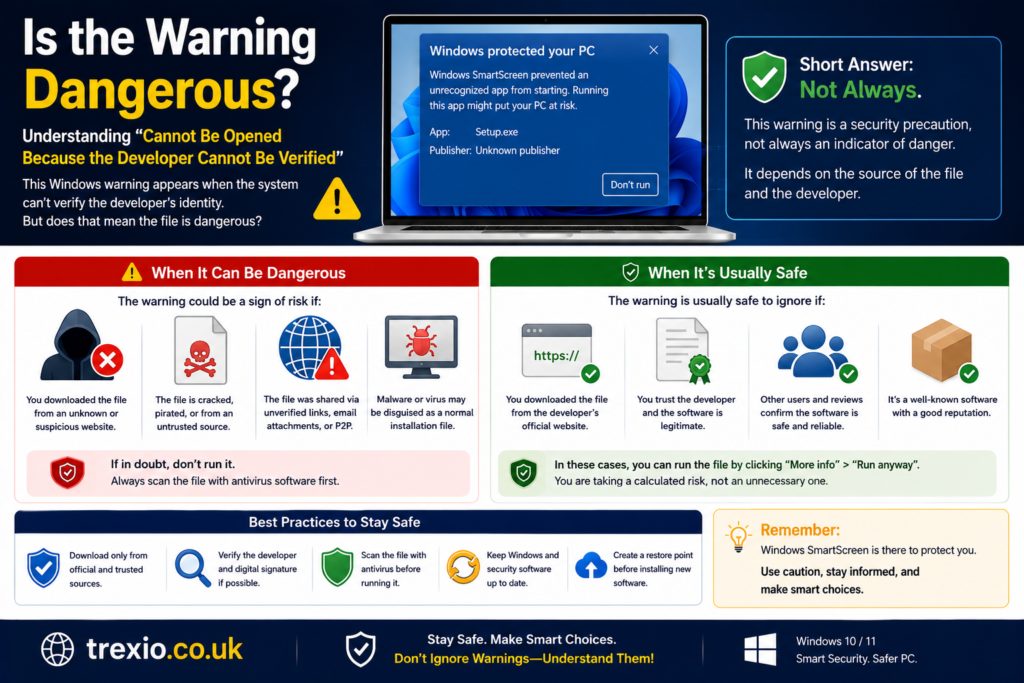
Not always.
The cannot be opened because the developer cannot be verified warning simply means Apple cannot verify the developer’s identity.
That does not automatically mean the software contains malware.
Before bypassing the warning, verify:
- Official download source
- Developer reputation
- User reviews
- Virus scan results
- Latest software version
If everything checks out, the application is often safe to install.
Comparison Table
| Software | Best For | Free Version | macOS Support | Ease of Use | Overall Rating |
|---|---|---|---|---|---|
| CleanMyMac | System optimization and app management | Trial | Yes | Very Easy | ⭐⭐⭐⭐⭐ |
| Malwarebytes | Malware detection before opening apps | Yes | Yes | Easy | ⭐⭐⭐⭐⭐ |
| AppCleaner | Removing blocked applications completely | Yes | Yes | Very Easy | ⭐⭐⭐⭐☆ |
| OnyX | Advanced macOS maintenance | Yes | Yes | Moderate | ⭐⭐⭐⭐☆ |
| DaisyDisk | Storage management and cleanup | Trial | Yes | Easy | ⭐⭐⭐⭐☆ |
Understanding Developer Verification
Digital Signatures
A digital signature proves that software comes from a specific developer and hasn’t been altered.
Without this signature, macOS may display the cannot be opened because the developer cannot be verified message.
Apple Notarization
Apple also scans submitted applications for malware.
Once approved, Apple notarizes the app, allowing it to run without security warnings.
Apps lacking notarization are much more likely to trigger cannot be opened because the developer cannot be verified, especially on recent macOS versions.
Signs an App Is Safe
Before bypassing the cannot be opened because the developer cannot be verified warning, check for these signs:
- Downloaded from the official website
- Positive community reviews
- Active developer support
- Recent software updates
- Open-source project with many contributors
- Clean antivirus scan
- Trusted by professional users
These indicators significantly reduce installation risks.
| Software | Best For | Free Version | macOS Support | Ease of Use | Overall Rating |
|---|---|---|---|---|---|
| CCleaner for Mac | Cleaning junk files and improving system performance | Yes | Yes | Very Easy | ⭐⭐⭐⭐☆ |
| Sensei | Hardware monitoring, optimization, and maintenance | Trial | Yes | Easy | ⭐⭐⭐⭐☆ |
| iStat Menus | Real-time system monitoring and diagnostics | Trial | Yes | Moderate | ⭐⭐⭐⭐⭐ |
| MacKeeper | Security, privacy, and performance optimization | Trial | Yes | Very Easy | ⭐⭐⭐⭐☆ |
| Pearcleaner | Lightweight open-source app uninstaller | Yes | Yes | Very Easy | ⭐⭐⭐⭐☆ |
Feature Comparison Table
| Feature | CleanMyMac | Malwarebytes | AppCleaner | OnyX | DaisyDisk | CCleaner | Sensei | iStat Menus | MacKeeper | Pearcleaner |
|---|---|---|---|---|---|---|---|---|---|---|
| Malware Detection | Limited | ✔ | ✖ | ✖ | ✖ | ✖ | ✖ | ✖ | ✔ | ✖ |
| Remove Apps | ✔ | ✖ | ✔ | ✖ | ✖ | ✔ | ✔ | ✖ | ✔ | ✔ |
| Junk Cleanup | ✔ | ✖ | ✖ | ✔ | ✔ | ✔ | ✔ | ✖ | ✔ | ✖ |
| Disk Analysis | ✔ | ✖ | ✖ | Limited | ✔ | ✔ | ✔ | ✖ | ✔ | ✖ |
| System Monitoring | Limited | ✖ | ✖ | ✔ | ✖ | ✖ | ✔ | ✔ | ✔ | ✖ |
| Beginner Friendly | ✔ | ✔ | ✔ | Moderate | ✔ | ✔ | ✔ | Moderate | ✔ | ✔ |
Pricing Comparison Table
| Software | Free Plan | Paid Version Starts At | Best For |
|---|---|---|---|
| CleanMyMac | Trial | $39.95/year | Complete Mac maintenance |
| Malwarebytes | Yes | $44.99/year | Malware protection |
| AppCleaner | Yes | Free | Removing applications |
| OnyX | Yes | Free | System maintenance |
| DaisyDisk | Trial | $9.99 (one-time) | Disk cleanup |
| CCleaner | Yes | $29.95/year | PC and Mac cleanup |
| Sensei | Trial | $29/year | Performance optimization |
| iStat Menus | Trial | $14.99 (one-time) | Hardware monitoring |
| MacKeeper | Trial | $39.95/year | Security suite |
| Pearcleaner | Yes | Free | Lightweight uninstalling |
How to Choose the Right Software
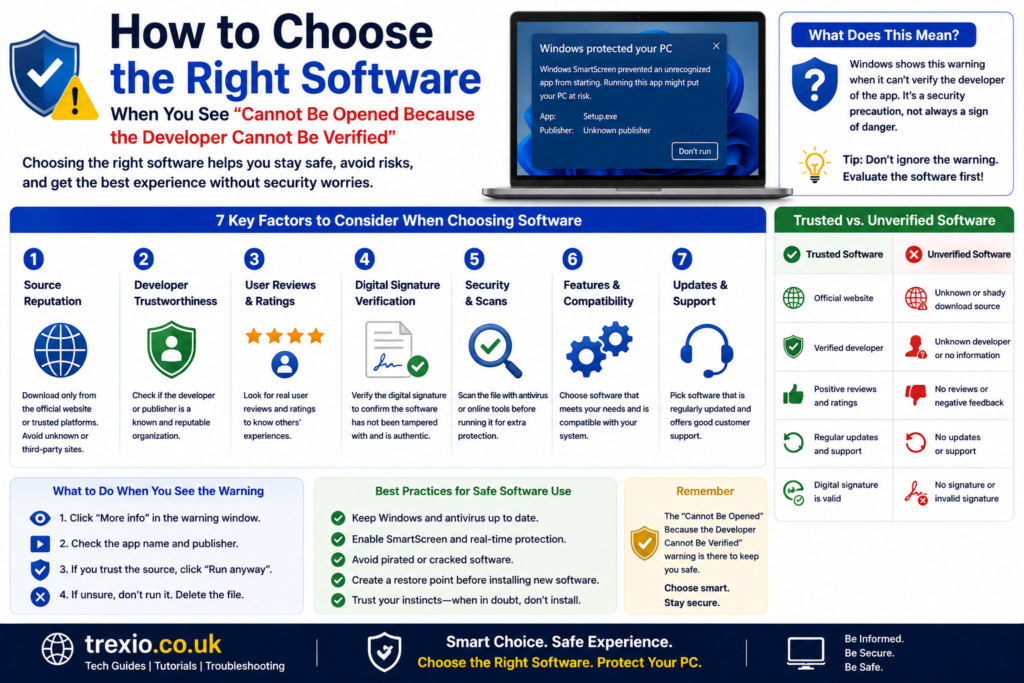
Choosing the right software depends on why you encountered the cannot be opened because the developer cannot be verified warning.
Choose Malwarebytes if:
- You want to scan downloaded files before opening them.
- Security is your highest priority.
Choose CleanMyMac if:
- You need an all-in-one maintenance solution.
- You frequently install and remove applications.
Choose AppCleaner or Pearcleaner if:
- You often uninstall apps.
- You want to remove leftover files completely.
Choose OnyX if:
- You’re an advanced macOS user.
- You want deeper system maintenance tools.
Choose DaisyDisk if:
- Storage space is running low.
- You need to visualize disk usage.
Choose Sensei or iStat Menus if:
- You monitor system health regularly.
- You need CPU, RAM, SSD, and temperature information.
Always download software from the developer’s official website to reduce the chance of seeing the cannot be opened because the developer cannot be verified warning due to modified or unofficial installers.
Our Recommendation
If you’re trying to solve the cannot be opened because the developer cannot be verified issue, start by confirming that the application comes from a trusted source.
Our recommended approach is:
- Verify the download source.
- Scan the installer with Malwarebytes.
- If trusted, use macOS’s Open Anyway option in Privacy & Security settings.
- Keep macOS updated to ensure compatibility with newer app signatures.
For most users, CleanMyMac offers the best balance of maintenance tools, while Malwarebytes is an excellent choice for additional security before bypassing Gatekeeper protections.
Conclusion
The cannot be opened because the developer cannot be verified warning is a security feature rather than an indication that an app is malicious. Apple’s Gatekeeper helps protect your Mac by preventing unverified software from running automatically.
Before bypassing the warning, always verify the developer, download software only from official sources, and keep your Mac updated. Taking these simple precautions allows you to install legitimate applications safely while minimizing security risks.
With the right tools and a careful approach, you can resolve the cannot be opened because the developer cannot be verified message confidently and continue using your Mac without unnecessary interruptions.
Frequently Asked Questions (FAQs)
1. Why does macOS say “cannot be opened because the developer cannot be verified”?
It means Apple cannot verify the app’s developer identity or notarization status through Gatekeeper.
2. Is it safe to bypass the warning?
Yes, but only if you downloaded the application from a trusted and official source.
3. Does this warning mean the app contains malware?
No. It only means the developer hasn’t been verified by Apple or the app isn’t notarized.
4. How can I open the app anyway?
Open System Settings > Privacy & Security, locate the blocked app message, and choose Open Anyway after confirming you trust the application.
5. Can updating macOS fix the issue?
Sometimes. Newer versions of macOS improve compatibility with updated app signatures and notarization requirements.
6. Why do open-source apps often trigger this warning?
Many open-source developers do not pay for Apple’s developer program or complete the notarization process.
7. Should I disable Gatekeeper permanently?
No. Keeping Gatekeeper enabled provides important protection against malicious software.
8. Can antivirus software help?
Yes. Tools like Malwarebytes can scan downloaded files and provide an extra layer of confidence before opening an app.
Quick Bio
Trexio.co.uk publishes practical technology guides, software tutorials, troubleshooting tips, and detailed comparisons to help users solve everyday computer and mobile problems. Our content is designed for beginners and professionals alike, with a focus on accuracy, security, and easy-to-follow instructions.