
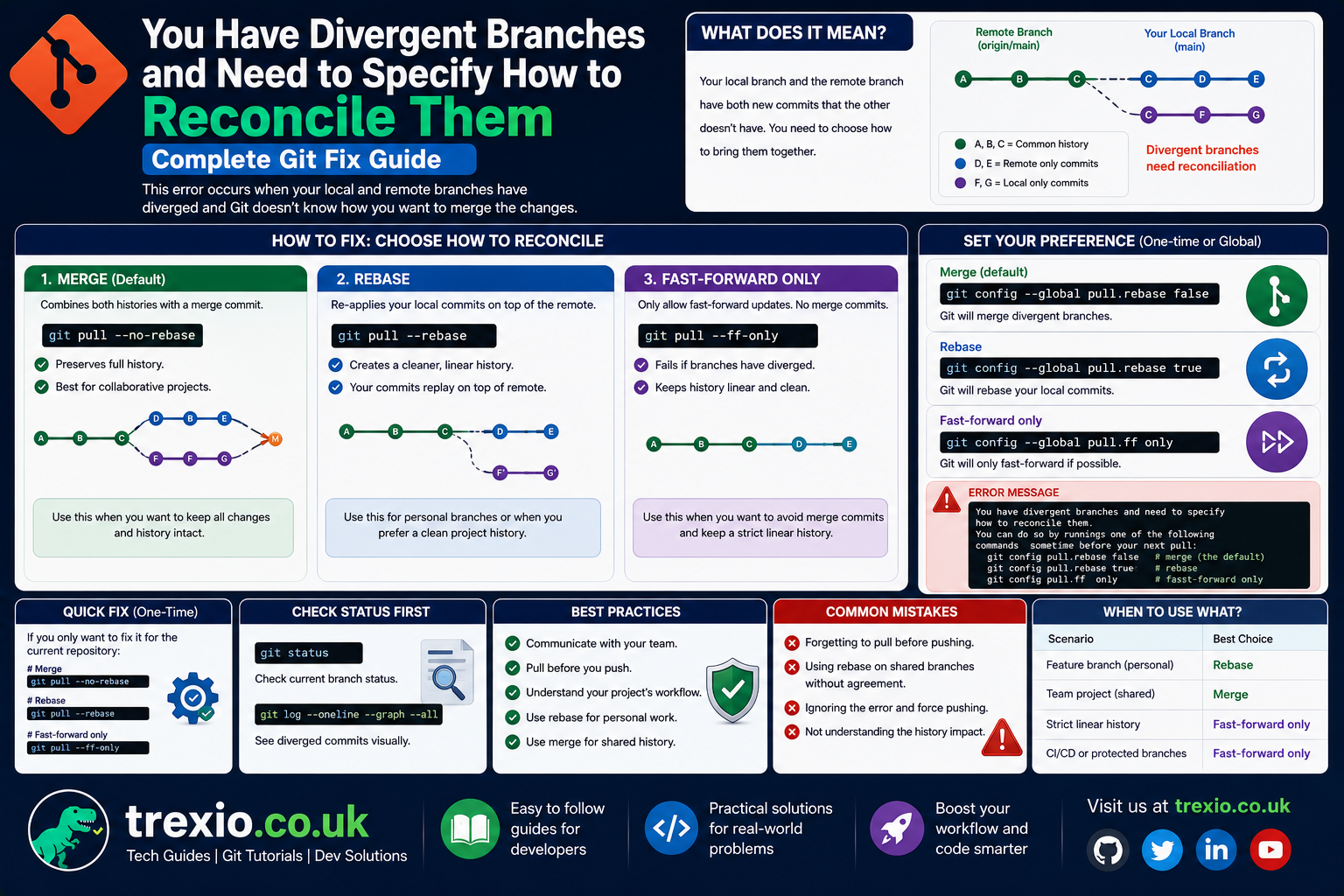
If you’ve recently run a git pull command and encountered the message “you have divergent branches and need to specify how to reconcile them,” you’re not alone. This Git message has confused countless developers, especially after newer Git versions introduced stricter defaults for handling branch histories. Although the error may seem intimidating at first, it actually provides valuable information about the state of your repository. Rather than automatically combining different commit histories, Git now asks you to explicitly choose how you want to integrate changes. This behavior helps prevent accidental history rewrites and ensures teams follow a consistent workflow. Understanding why this message appears is an essential step toward mastering Git version control. Whether you’re working on personal projects or collaborating with a development team, learning how to reconcile divergent branches will make your workflow smoother and more predictable. In this guide, you’ll discover what the error means, why it occurs, and the best methods for resolving it correctly.
Quick Answer
The “you have divergent branches and need to specify how to reconcile them” message appears when your local branch and the remote branch have different commit histories. Git cannot determine whether you want to merge, rebase, or only allow fast-forward updates. You can resolve the issue by choosing one of these commands:
git config pull.rebase falseThis uses merge during future git pull operations.
Or:
git config pull.rebase trueThis uses rebase instead.
Or:
git config pull.ff onlyThis allows only fast-forward pulls.
You can also apply these settings globally by adding the --global flag.
What Does “You Have Divergent Branches and Need to Specify How to Reconcile Them” Mean?
The message you have divergent branches and need to specify how to reconcile them indicates that your local Git branch and the corresponding remote branch have evolved independently. In simple terms, both branches contain commits that the other does not have. Since Git cannot safely assume how you want to combine these separate histories, it pauses the pull operation and asks you to make an explicit decision. Earlier versions of Git often defaulted to merging these histories automatically, but newer versions encourage developers to choose a preferred strategy instead. This change improves transparency and reduces unexpected commit histories in collaborative environments. The warning is not an indication that your repository is damaged or corrupted. Instead, it reflects Git’s emphasis on making version control operations more intentional. Once you understand the available reconciliation methods, resolving the issue becomes straightforward. Learning this concept also provides a deeper understanding of how Git manages commit graphs and branch histories.
Understanding Divergent Branches in Git
Divergent branches occur when two branches begin from a common commit but later receive separate commits independently. Imagine you commit changes locally while another developer pushes new commits to the remote repository before you pull the latest updates. Your local branch now contains commits absent from the remote branch, while the remote has commits missing from your local copy. Because both branches have unique histories, Git must determine how these changes should be integrated. This situation is common in collaborative software development, especially when multiple contributors work on the same feature branch. Divergence is a normal part of distributed version control systems and should not be viewed as an error in itself. Instead, it reflects parallel development occurring across different repositories. Git simply requires clear instructions on how to combine these separate development paths. Understanding branch divergence helps developers appreciate Git’s flexibility while avoiding unnecessary merge conflicts.
Visual Example of Divergent Branches
Consider the following simplified commit history:
A --- B --- C (origin/main)
       \
        D --- E (local/main)
In this example, both branches share commit B, but the remote branch contains commit C, while the local branch includes commits D and E. Since neither branch is ahead of the other, Git identifies them as divergent. A pull operation cannot continue until you specify whether to merge, rebase, or allow only fast-forward updates. This visual representation makes it easier to understand why Git requests additional instructions.
Why Git Started Showing This Message
Many developers first noticed this message after upgrading Git to version 2.27 or later. Before this update, Git generally used merge as the default strategy during pull operations. While convenient, this behavior sometimes produced merge commits that developers did not intend to create. To improve clarity and reduce unexpected repository histories, Git maintainers introduced a requirement for users to define their preferred pull strategy. This change encourages better version control practices and makes workflows more predictable across teams. Rather than assuming your intentions, Git now requests explicit configuration. Although this adjustment initially surprised many users, it ultimately promotes cleaner project histories and greater consistency. Organizations with established Git workflows particularly benefit because every contributor follows the same reconciliation method. Once configured, the warning usually disappears unless repository settings change.
Benefits of Git’s New Behavior
The updated behavior provides several important advantages beyond eliminating ambiguity. Developers gain more control over repository history, allowing them to select workflows that match their team’s standards. Teams using linear histories often prefer rebase, while others value merge commits for documenting integration points. Explicit configuration also reduces confusion among new contributors who might otherwise unknowingly alter project history. Since every developer chooses a consistent pull strategy, repositories become easier to review and maintain. The update encourages learning fundamental Git concepts rather than relying on hidden defaults. This ultimately improves collaboration and minimizes mistakes during large development projects. Although the warning initially appears inconvenient, it serves as an educational prompt that strengthens version control habits.
Common Situations That Trigger the Error
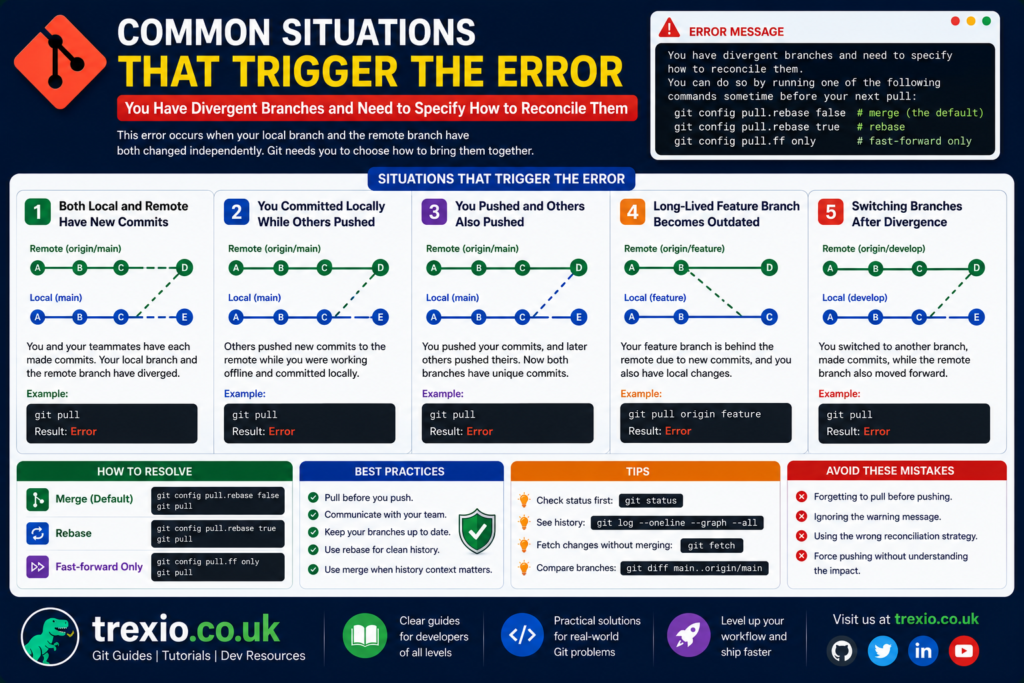
Several everyday Git workflows can trigger the “you have divergent branches and need to specify how to reconcile them“ message. One common scenario occurs when multiple developers commit to the same branch before everyone synchronizes with the remote repository. Another frequent case involves developers making local commits while disconnected from the internet, then attempting to pull updates later. Cherry-picking commits, reverting changes, or manually modifying branch history can also contribute to divergence. Developers who frequently switch between branches without pulling recent updates may encounter this warning more often. Fork-based workflows can produce similar situations, particularly when syncing with an upstream repository. Even solo developers may experience divergence if they use multiple computers to work on the same repository. The message simply reflects that Git detected two valid but separate commit histories. Understanding these common triggers helps developers anticipate and prevent interruptions during future pull operations.
Typical Development Scenarios
Team Collaboration
In collaborative environments, teammates often push commits before others have updated their local repositories. When everyone later performs a pull, Git recognizes the differing histories and requests a reconciliation strategy. This is perhaps the most common cause of divergent branches in professional software development.
Multiple Devices
Developers who alternate between workstations, laptops, or home computers frequently create divergent histories without realizing it. If commits are made on one device before another has synchronized, Git detects the mismatch during the next pull operation.
Feature Branch Synchronization
Long-running feature branches naturally drift away from the main branch over time. When developers finally merge or pull the latest changes, Git may identify divergent histories requiring explicit reconciliation.
Merge vs Rebase vs Fast-Forward
Understanding the three reconciliation strategies is essential for choosing the correct solution. Although all three methods integrate changes from remote repositories, they produce different commit histories and suit different workflows. Selecting the appropriate approach depends on your team’s collaboration style, repository policies, and personal preferences. Each strategy has strengths and trade-offs that developers should understand before configuring Git. Choosing incorrectly does not necessarily damage your repository, but it can affect history readability and future collaboration. Modern Git encourages developers to consciously select the strategy that best matches their development practices. Once configured, Git consistently follows your chosen behavior for future pull operations. This consistency simplifies teamwork and reduces confusion during code reviews.
Merge
The merge strategy creates a new merge commit whenever divergent histories are combined. This preserves the complete development history and clearly documents where branches came together. Many enterprise teams favor merge because it accurately reflects collaborative development without rewriting commit history. Merge commits also make it easier to trace when features were integrated into the main branch. However, repositories with frequent merges can develop more complex commit graphs that appear cluttered over time. Despite this drawback, merge remains one of the safest and most widely used Git workflows. Developers who prioritize historical accuracy often prefer merge over other strategies. It is especially suitable for large projects involving multiple contributors.
Rebase
Rebasing rewrites your local commits so they appear after the latest commits from the remote branch. Instead of creating an additional merge commit, Git produces a cleaner and more linear project history. Many open-source projects encourage rebasing because it simplifies commit logs and makes project evolution easier to understand. However, rebase rewrites commit history, meaning developers should avoid rebasing commits that have already been shared publicly. Used correctly, rebase results in tidy repositories that are easier to navigate. It also reduces unnecessary merge commits that might otherwise clutter history. Developers should understand the implications of history rewriting before adopting this workflow. When used appropriately, rebase is a powerful tool for maintaining clean repositories.
Fast-Forward
A fast-forward pull is the simplest reconciliation strategy because it only updates your local branch when no additional local commits exist. In other words, Git moves your branch pointer forward without creating a merge commit or rewriting commit history. If your local branch has diverged from the remote branch, Git will stop the operation because a fast-forward update is no longer possible. Many teams choose this option because it enforces a clean and predictable commit history while preventing accidental merges. It also encourages developers to resolve conflicts consciously rather than allowing Git to create automatic merge commits. However, this strategy is more restrictive than merge or rebase and may require additional commands when divergence occurs. Projects with strict branching policies often rely on fast-forward-only workflows to maintain consistency. Understanding when a fast-forward update is possible helps developers avoid confusion and select the right approach for their repositories.
Choosing the Right Reconciliation Strategy
There is no universally “best” reconciliation strategy because the right choice depends on your workflow, team policies, and project requirements. Individual developers working on personal repositories often prefer rebasing because it keeps the commit history clean and linear. Larger organizations, however, frequently adopt merge commits because they preserve the exact history of collaboration. Fast-forward-only workflows are ideal for projects that require strict control over repository history and enforce pull requests before merging. Before configuring Git, discuss the preferred workflow with your team to ensure everyone follows the same approach. Consistency is more important than the specific strategy you choose because mixed workflows can create unnecessary confusion. Once everyone understands the chosen method, collaboration becomes smoother and repository maintenance becomes significantly easier. Selecting a strategy intentionally also reduces future merge conflicts and improves code review efficiency.
Comparison of Git Pull Strategies
| Strategy | Creates Merge Commit | Rewrites History | Best For | Advantages | Drawbacks |
|---|---|---|---|---|---|
| Merge | Yes | No | Team collaboration | Preserves complete history | Extra merge commits |
| Rebase | No | Yes | Individual developers, clean history | Linear commit history | Can rewrite shared commits |
| Fast-Forward | No | No | Strict repository workflows | Simple, clean history | Fails when branches diverge |
Configuring Git Pull Behavior
Once you decide which reconciliation strategy fits your workflow, you should configure Git so the warning no longer appears. Git allows configuration at either the repository level or globally across all repositories on your machine. Repository-level settings affect only the current project, while global settings apply to every repository owned by your user account. Choosing the appropriate scope depends on whether different projects follow different workflows. Many developers use global settings for consistency and override them only when a particular project requires a different strategy. Configuring Git correctly saves time because you no longer need to specify reconciliation options manually during every pull operation. These settings can also be changed later if your team’s workflow evolves. Understanding configuration scopes ensures you avoid unexpected behavior when switching between repositories.
Configure Merge as the Default
If your team prefers merge commits during pull operations, configure Git with the following command:
git config --global pull.rebase falseThis setting instructs Git to perform a merge whenever git pull encounters divergent branches.
Configure Rebase as the Default
If you want a cleaner commit history with rebasing, use:
git config --global pull.rebase trueGit will now replay your local commits on top of the latest remote commits.
Configure Fast-Forward Only
For repositories that require fast-forward updates only:
git config --global pull.ff onlyGit will reject any pull that cannot be completed with a fast-forward update.
Repository-Level vs Global Configuration
Git provides flexibility by allowing configuration settings to exist at different levels. Repository-level settings are stored inside the project’s .git directory and apply only to that repository. This is useful when different projects follow different branching strategies. Global settings, on the other hand, are stored in your user configuration file and affect every repository on your computer. Developers contributing to multiple organizations often use repository-specific settings because each team may have unique Git policies. Beginners usually benefit from global settings since they create a consistent experience across all repositories. If repository-specific settings exist, they override global values automatically. Understanding this hierarchy helps troubleshoot unexpected Git behavior and ensures your commands work as intended. Taking a few minutes to review your Git configuration can prevent many common version control issues.
Check Your Current Git Configuration
To view your current pull configuration:
git config --get pull.rebaseTo list all Git settings:
git config --listThese commands are useful when troubleshooting unexpected pull behavior.
Step-by-Step Example of Fixing the Error
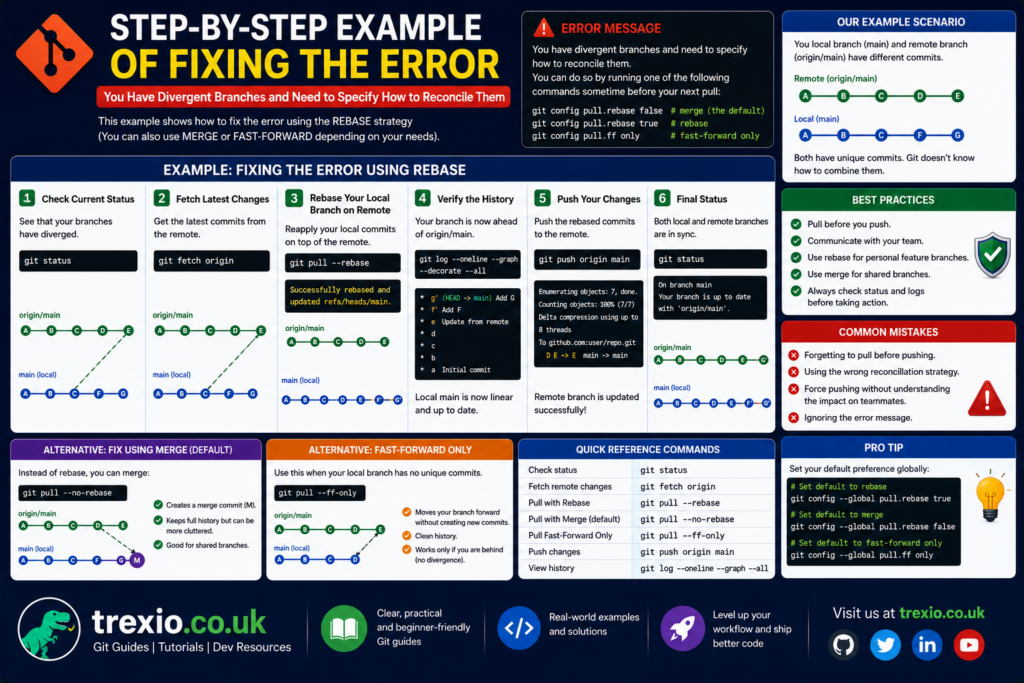
Suppose you have committed changes locally while another developer has already pushed new commits to the remote repository. When you execute git pull, Git detects that both branches contain unique commits and displays the divergent branches message. Instead of guessing your preferred workflow, Git waits for explicit instructions. If your project uses merge commits, configure merge and rerun the pull command. If your team follows a linear history, configure rebase and allow Git to replay your commits after downloading the latest changes. If your organization enforces fast-forward-only policies, you’ll need to resolve divergence manually before pulling again. After the pull completes successfully, verify the commit history using git log --oneline --graph to confirm the expected result. Reviewing the history after reconciliation helps ensure no unintended changes occurred. Repeating this process a few times quickly builds confidence when working with Git.
Verify Your Repository
Useful commands after reconciliation include:
git statusgit log --oneline --graph --decorategit branch -vvThese commands confirm that your local repository is synchronized correctly.
Best Practices
Following proven Git practices significantly reduces the chances of encountering divergent branch issues. Pull changes frequently before starting new work so your local repository stays synchronized with the remote version. Make small, focused commits instead of accumulating large batches of changes because smaller commits are easier to reconcile. Communicate with teammates about branch management policies and ensure everyone understands the preferred pull strategy. Avoid rewriting public commit history unless your team specifically recommends rebasing shared branches. Review merge conflicts carefully instead of accepting automatic resolutions without inspection. Use feature branches for new work rather than committing directly to the main branch whenever possible. Regularly verify your Git configuration after upgrading Git versions or setting up a new computer. Finally, practice using merge, rebase, and fast-forward workflows in test repositories before applying them to production projects.
Common Mistakes
Many developers mistakenly believe the divergent branches message indicates repository corruption, when it is actually a normal Git safety feature. Another common mistake is randomly selecting merge or rebase without understanding how each affects commit history. Some users repeatedly delete and reclone repositories instead of configuring Git correctly, wasting time and bandwidth. Others rebase commits that have already been pushed to shared repositories, causing confusion for collaborators. Ignoring team workflow guidelines can also lead to inconsistent repository histories that complicate future maintenance. Developers sometimes forget to pull before beginning work, increasing the likelihood of divergence. Another frequent error is overlooking Git configuration after installing a newer version, resulting in repeated warnings. Learning from these mistakes helps create more reliable and efficient version control practices.
Pro Tips
Experienced developers often establish a consistent Git workflow across every machine they use to avoid unexpected behavior. Consider creating Git aliases for frequently used commands to improve productivity during daily development. Review your commit history periodically using graph views because visualizing branch structures makes troubleshooting much easier. Enable branch protection rules in shared repositories to minimize accidental history rewrites and unauthorized direct commits. If your team adopts rebasing, learn interactive rebase as it provides powerful tools for cleaning commit history before sharing code. Use descriptive commit messages so reconciliation remains understandable months after changes were made. Keep your Git installation updated because newer releases include performance improvements and valuable security fixes. Finally, spend time understanding how Git stores commits internally, as this deeper knowledge makes resolving complex branching scenarios far less intimidating.
Conclusion
The you have divergent branches and need to specify how to reconcile them message is not an error that indicates something is wrong with your repository. Instead, it is Git’s way of asking you to choose how separate commit histories should be combined. By understanding branch divergence and the differences between merge, rebase, and fast-forward workflows, you can confidently resolve the message and continue developing without interruption. Configuring your preferred pull strategy ensures Git behaves consistently during future pull operations while reducing repetitive warnings. Whether you work independently or collaborate with a large development team, selecting and following a consistent workflow improves repository quality and simplifies long-term maintenance. Mastering these concepts is an important milestone in becoming a more effective Git user and software developer.
Frequently Asked Questions
1. Why does Git say “you have divergent branches and need to specify how to reconcile them”?
Git displays this message because your local branch and the remote branch both contain commits that the other does not. Git requires you to choose whether to merge, rebase, or allow only fast-forward updates.
2. Is this message an actual Git error?
No. It is a configuration prompt designed to prevent Git from making assumptions about how your branch histories should be combined.
3. Which reconciliation strategy should I choose?
It depends on your workflow. Merge preserves history, rebase creates a cleaner linear history, and fast-forward enforces stricter repository policies.
4. Can I change my Git pull strategy later?
Yes. Git configuration can be updated at any time using the appropriate git config command.
5. Does rebasing delete my commits?
No. Rebasing rewrites commit history by replaying commits in a different order, but your changes remain unless conflicts are resolved incorrectly.
6. What happens if I choose fast-forward only?
Git will perform pulls only when your branch can move forward without creating merge commits. Divergent histories must be resolved manually.
7. Can different repositories use different pull strategies?
Yes. Repository-level configuration overrides global settings, allowing each project to use its own preferred workflow.
8. How can I check my current Git pull configuration?
Run:
git config --listor
git config --get pull.rebaseto inspect your current settings.
9. Will configuring Git globally affect existing repositories?
Yes. Global settings apply to all repositories unless a repository-specific configuration overrides them.
10. How can I avoid divergent branches in the future?
Pull changes regularly, communicate with teammates, make smaller commits, and follow a consistent branching strategy agreed upon by your development team.
Author Bio
About the Author
The author is an experienced technology writer and SEO content specialist with extensive knowledge of Git, software development workflows, version control systems, and developer productivity. By combining practical technical expertise with clear, beginner-friendly explanations, the author creates comprehensive guides that help developers solve real-world programming challenges while following modern best practices and Google’s EEAT guidelines.