
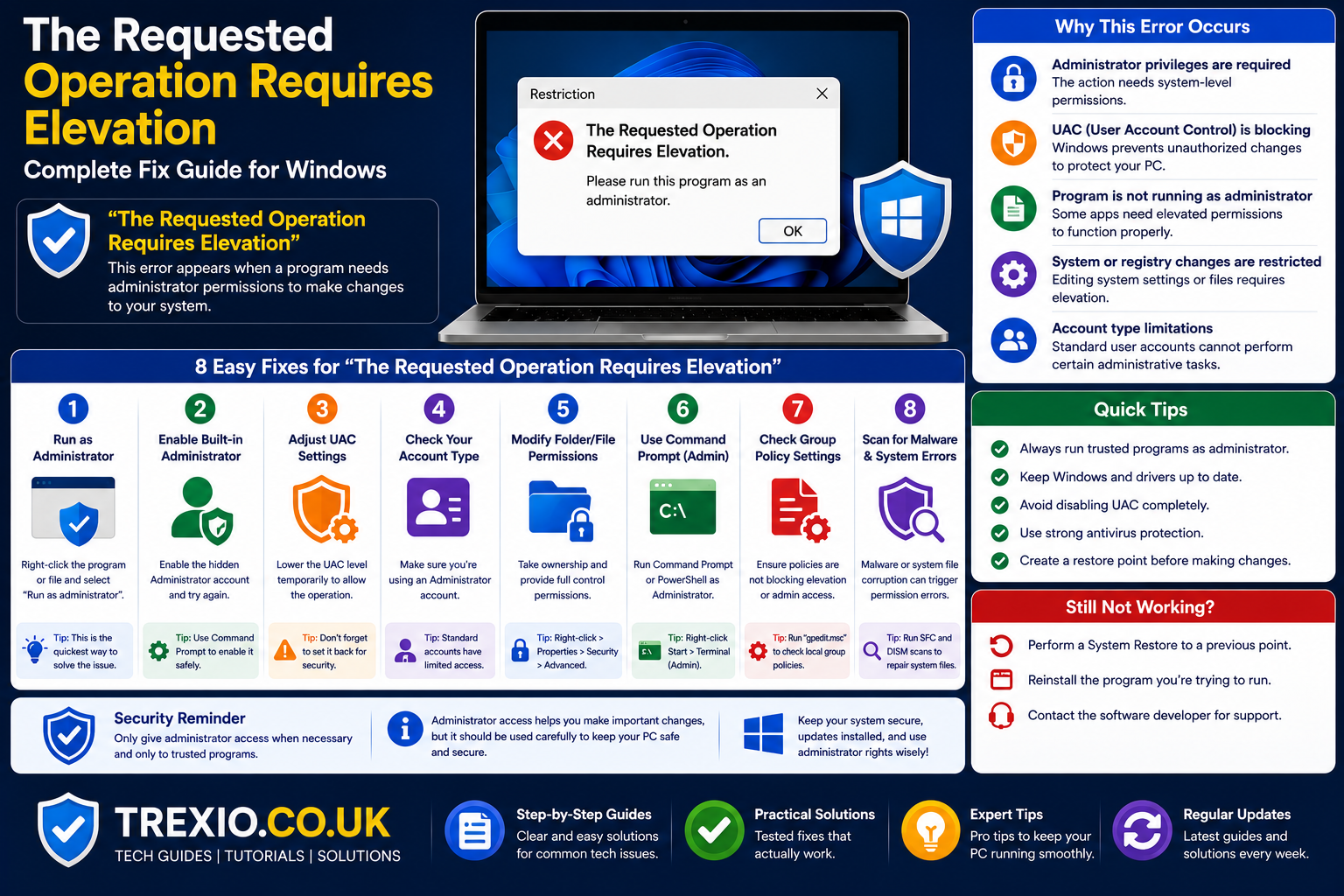
If you’ve tried deleting a file, running Command Prompt, installing software, or changing system settings, you may have encountered the message “the requested operation requires elevation.” This Windows security error prevents actions that require administrator privileges, even when you’re signed in to your own computer. For many users, it can be frustrating because the error appears without clearly explaining how to fix it.
Fortunately, this issue is usually related to Windows User Account Control (UAC), administrator permissions, or restricted system access rather than a serious operating system problem. Whether you’re using Windows 10 or Windows 11, understanding why the requested operation requires elevation appears is the first step toward resolving it. This guide explains the causes, shows practical solutions, and helps you avoid permission-related errors in the future without compromising your system’s security.
Quick Answer
If you see “the requested operation requires elevation,” Windows is telling you that the action requires administrator privileges.
The quickest fixes include:
- Run the application as Administrator.
- Open Command Prompt with elevated permissions.
- Log in using an administrator account.
- Adjust folder or file permissions.
- Review User Account Control (UAC) settings.
- Use Windows Terminal or PowerShell with administrative privileges.
Most users solve the problem simply by launching the application with administrator rights.
What Does “The Requested Operation Requires Elevation” Mean?
The message “the requested operation requires elevation“ means Windows has blocked a task because it requires higher security permissions than your current application or account possesses. Microsoft introduced this security feature to reduce unauthorized changes that could damage the operating system or expose your computer to malware. Even if your account belongs to the Administrators group, Windows often launches applications with standard privileges until you explicitly approve elevated access. This security model helps prevent accidental system modifications and malicious software from silently changing critical settings. When Windows detects that an action affects protected files, registry entries, or system services, it requests elevated permissions before allowing the operation. If those permissions aren’t granted, the action stops and displays the error. The message itself isn’t an indication of corruption or hardware failure. Instead, it is Windows protecting your computer by ensuring only trusted users or approved programs can make sensitive changes.
Common Examples
- Deleting protected system files
- Installing software
- Editing Windows Registry
- Running DISM commands
- Running SFC Scan
- Creating system folders
- Modifying network settings
- Executing certain batch files
Why Does Windows Require Elevation?
Windows uses a layered security model that separates everyday computing from administrative tasks. This design minimizes the risk of accidental damage and blocks malware from making unauthorized system changes. When a program attempts to modify protected resources, Windows checks whether it has the necessary administrator token. If the application lacks that elevated permission, Windows displays “the requested operation requires elevation.” The requirement exists because many system components directly affect the stability and security of the operating system. Allowing unrestricted access would increase the chances of software conflicts, unauthorized modifications, and security vulnerabilities. Elevation acts as a checkpoint where users consciously approve high-level operations before they occur. Although it may seem inconvenient, this protection significantly improves Windows security and reduces the impact of malicious programs.
Windows Protects
- System files
- Registry entries
- Drivers
- Startup services
- Security policies
- Windows folders
- Network configuration
- User accounts
Common Causes of “The Requested Operation Requires Elevation”
Several different situations can trigger the requested operation requires elevation error. Understanding the underlying cause helps you choose the correct solution instead of trying random fixes. In many cases, the application itself is running without administrator rights, while the task being performed requires elevated permissions. Other times, Windows security policies, folder ownership, or domain restrictions can prevent access even for administrator accounts. Corrupted shortcuts, outdated software, or restrictive User Account Control settings may also contribute to the issue. Corporate computers often have additional security policies managed by IT administrators, which can further limit privileged operations. Malware infections occasionally alter permissions as well, making legitimate tasks fail. Identifying the exact scenario will make troubleshooting much faster and more effective.
Most Common Causes
Missing Administrator Privileges
Applications launched normally operate with standard permissions instead of elevated rights.
User Account Control Restrictions
UAC blocks programs from making administrative changes without user approval.
Protected System Files
Windows prevents unauthorized editing of important operating system files.
Incorrect Folder Permissions
Ownership or permission settings may deny access to specific files and folders.
Standard User Account
Users without administrator rights cannot perform protected operations.
Corporate Security Policies
Managed devices may enforce additional permission restrictions through Group Policy.
When Does This Error Usually Appear?
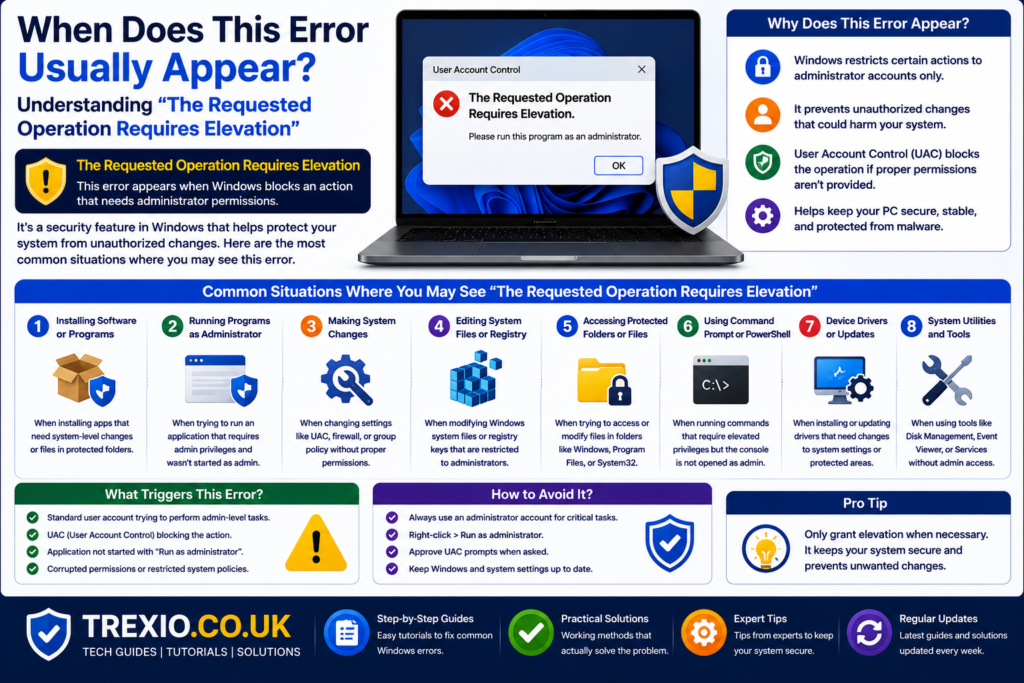
The error can appear during many routine Windows tasks, especially those involving system administration. Users often encounter it while installing or uninstalling applications, editing protected directories, running Command Prompt utilities, or configuring network settings. Developers may see it when compiling applications that require administrative access or when writing files into restricted folders like Program Files. IT professionals frequently encounter the message while using tools such as DISM, DiskPart, or Registry Editor without elevation. Even simple operations like renaming certain folders or copying files into Windows directories can trigger the warning. The frequency of the error depends on your user account type, Windows security configuration, and the applications you use. Understanding these common situations makes it easier to recognize when elevation is expected rather than treating it as a system malfunction.
Examples
| Task | Elevation Required? |
|---|---|
| Install software | Yes |
| Delete Windows folder | Yes |
| Edit Registry | Yes |
| Run DiskPart | Yes |
| Run DISM | Yes |
| Format drive | Yes |
| Modify Program Files | Yes |
| Change firewall rules | Yes |
Understanding Administrator Permissions
Administrator permissions are special privileges that allow users to modify critical Windows settings, install software, manage hardware, and configure system-wide options. Although many people believe logging into an administrator account automatically grants unrestricted access, Windows actually separates administrative credentials from daily operations. This approach reduces security risks while still allowing authorized users to elevate privileges when necessary. Administrator permissions also include ownership changes, service management, driver installation, and advanced networking tasks. Because these actions directly affect system integrity, Windows requires explicit approval before granting elevated access. If an application isn’t launched with administrative privileges, Windows may refuse the requested action even if your account has administrator rights. Understanding how these permissions work helps explain why the requested operation requires elevation appears during certain tasks but not others.
Administrator Rights Allow You To
- Install applications
- Remove software
- Configure Windows services
- Manage user accounts
- Edit Registry
- Change system settings
- Install drivers
- Modify protected folders
Difference Between Standard and Administrator Accounts
Standard User
A standard user account is designed for everyday computing activities such as browsing the internet, using productivity software, streaming media, and managing personal files. This account type intentionally limits access to critical system areas to reduce accidental damage and improve security. Standard users cannot install many system-wide applications, modify protected folders, or change advanced Windows settings without administrator approval. Even when prompted by User Account Control, they often need an administrator password to continue. This restriction helps organizations and families keep computers secure by preventing unauthorized changes. Standard accounts are generally recommended for regular daily use because they significantly reduce the impact of malware infections. If the requested operation requires elevation appears while using a standard account, you’ll usually need administrator credentials to proceed.
Administrator User
Administrator accounts have permission to perform advanced system management tasks, but Windows still applies User Account Control to separate standard activities from elevated ones. This means administrators often need to approve elevation before completing sensitive operations. The extra confirmation layer prevents malicious software from silently gaining full control of the computer. Administrator users can manage system services, install drivers, configure Windows security settings, edit the registry, and perform advanced troubleshooting. However, these privileges should be used carefully because incorrect changes can affect system stability. Understanding this distinction explains why even administrators sometimes encounter the requested operation requires elevation message when launching tools normally instead of with elevated privileges.
How User Account Control (UAC) Works
User Account Control, commonly known as UAC, is one of Windows’ most important security technologies. Introduced to reduce unauthorized system modifications, UAC separates everyday tasks from administrative operations by requiring user approval before allowing protected changes. When an application requests elevated permissions, Windows displays a prompt asking whether you want to allow the program to make changes to your device. If you approve the request, the application receives an elevated security token and gains access to protected resources. If you decline or lack administrator credentials, Windows displays permission-related errors, including the requested operation requires elevation. UAC also helps prevent malware from silently installing software or altering critical settings without your knowledge. Rather than being an obstacle, it serves as an essential safeguard for your computer.
UAC Helps Protect Against
- Malware installation
- Unauthorized Registry changes
- Hidden software installations
- Driver manipulation
- System file modification
- Privilege escalation attacks
- Silent background installations
- Security policy changes
Fix 1: Run the Program as Administrator
The simplest solution for the requested operation requires elevation is to launch the affected application with administrator privileges. Many Windows programs function normally with standard permissions but require elevated rights when performing system-level tasks. Right-clicking the application’s shortcut and selecting Run as administrator instructs Windows to grant the program elevated access after UAC approval. This approach works well for Command Prompt, PowerShell, Registry Editor, Device Manager, installers, and many troubleshooting utilities. If you use the application frequently, you can configure it to always run with administrator privileges through its Compatibility settings. However, only enable permanent elevation for trusted software because elevated applications have broader access to your system.
Steps
- Right-click the application.
- Select Run as administrator.
- Click Yes on the UAC prompt.
- Retry the operation.
Fix 2: Open an Elevated Command Prompt
Many users receive the requested operation requires elevation while executing commands in Command Prompt. Opening Command Prompt normally provides only standard permissions, even if you’re logged into an administrator account. To access elevated privileges, search for Command Prompt, right-click it, and choose Run as administrator. Alternatively, Windows Terminal and PowerShell can also be launched with elevated permissions using the same method. Once opened with administrator rights, many commands that previously failed will execute successfully. Administrative utilities such as SFC, DISM, DiskPart, CHKDSK, and network configuration commands typically require elevated access. Using an elevated terminal is one of the most reliable ways to resolve permission-related command errors.
Commands That Often Require Elevation
sfc /scannowDISM /Online /Cleanup-Image /RestoreHealthdiskpartnet userbcdeditipconfig /flushdnsshutdown /rchkdsk
Fix 3: Use an Administrator Account
If your Windows account lacks administrative privileges, no amount of restarting applications will bypass the security restrictions. In this situation, the most effective solution is to sign in using an administrator account or ask your system administrator to perform the task. Windows assigns permissions based on account type, so standard users remain restricted even when attempting to launch applications with elevated privileges. If your personal computer has only one account, you can verify whether it belongs to the Administrators group through the Windows Settings or Control Panel. On work or school devices, administrative rights may intentionally be limited to protect organizational systems. Confirming your account type before attempting advanced troubleshooting can save considerable time and help identify whether the error is caused by permission limitations rather than software issues.
Fix 4: Change File or Folder Permissions
Sometimes the requested operation requires elevation appears because the file or folder you’re trying to access has restrictive permissions. Windows uses Access Control Lists (ACLs) to determine who can read, modify, or delete specific files. Even administrator accounts can be denied access if ownership or permissions have been changed. This often happens after restoring files from another computer, reinstalling Windows, or copying data from external drives. Correcting the permissions allows Windows to recognize your account as an authorized user. Before making changes, ensure the folder doesn’t belong to Windows system directories unless you fully understand the consequences. Changing permissions carefully can resolve access issues without affecting other applications. Always create a backup before modifying permissions on important folders.
Steps to Change Permissions
- Right-click the file or folder.
- Select Properties.
- Open the Security tab.
- Click Advanced.
- Review the current owner.
- Change the owner if necessary.
- Grant your account Full Control.
- Apply the changes and retry the operation.
Fix 5: Take Ownership of the File or Folder
If adjusting permissions alone doesn’t work, ownership may be preventing access. Windows assigns an owner to every file and folder, and only the owner or an administrator can change certain security settings. When files originate from another installation or user account, ownership often remains with the previous account. Taking ownership transfers control to your current administrator account, allowing permission changes and administrative actions. This solution is especially useful when deleting old Windows folders, accessing external drives, or managing archived system files. Be cautious when taking ownership of protected Windows directories because doing so can interfere with future updates. After ownership changes, verify that permissions are still configured correctly. In most cases, ownership and permissions work together to resolve the requested operation requires elevation.
Fix 6: Enable the Built-in Administrator Account
Windows includes a hidden Administrator account with unrestricted privileges. Unlike regular administrator accounts, this built-in account bypasses many User Account Control limitations. It is intended primarily for troubleshooting and advanced system recovery rather than everyday use. If your normal administrator profile has become corrupted or lacks required permissions, enabling this account can help determine whether the issue is account-specific. Once troubleshooting is complete, it’s recommended to disable the account again to reduce security risks. Leaving it permanently enabled increases the attack surface for malware and unauthorized access. This method should be reserved for advanced users who understand Windows security. Always use a strong password before enabling the account.
Command
net user administrator /active:yesTo disable it later:
net user administrator /active:noFix 7: Adjust User Account Control (UAC) Settings
User Account Control settings determine how aggressively Windows requests administrator approval. If UAC is configured unusually high or has been modified by third-party software, legitimate administrative tasks may trigger the requested operation requires elevation more frequently than expected. Opening the UAC settings allows you to review the current notification level and restore the recommended configuration. Lowering UAC completely is generally discouraged because it weakens Windows security and increases the risk of malware. Instead, keep the default setting unless you have a specific administrative requirement. After changing the setting, restart your computer to ensure the configuration is applied correctly. Maintaining balanced UAC settings provides both security and usability. Most users never need to disable UAC entirely.
Fix 8: Run Windows Terminal or PowerShell as Administrator
Modern versions of Windows include Windows Terminal and PowerShell as powerful alternatives to Command Prompt. These tools often require elevated permissions for administrative commands, scripting, and system maintenance. Launching them normally may result in the requested operation requires elevation whenever protected resources are accessed. Opening either application with administrator privileges grants access to advanced Windows management commands. PowerShell is particularly useful for automation, system diagnostics, and repairing Windows components. Many enterprise administrators prefer PowerShell because of its extensive command library and scripting capabilities. Running these tools with elevation also simplifies troubleshooting when standard Command Prompt commands fail. Always verify commands before executing them because elevated scripts can make significant system changes.
Fix 9: Check Group Policy Restrictions
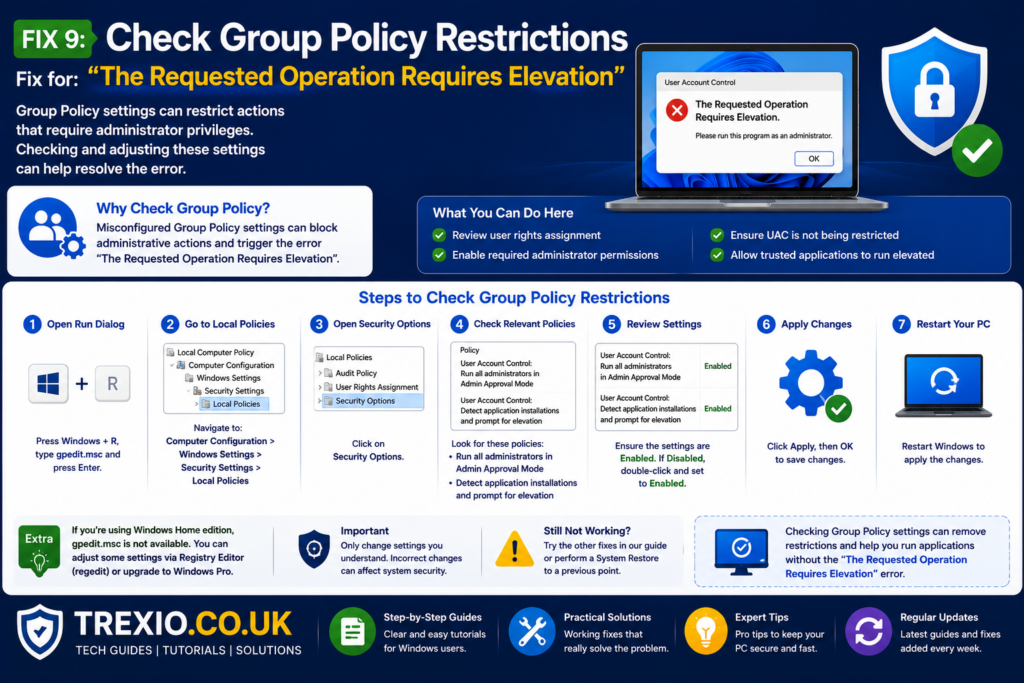
Business and educational computers frequently enforce security policies through Local Group Policy or Active Directory. These policies can prevent users from performing administrative actions even when they belong to the Administrators group. If the requested operation requires elevation occurs only on a workplace or school device, policy restrictions may be responsible. System administrators often disable access to Registry Editor, Command Prompt, Control Panel features, or software installation to protect organizational systems. Reviewing Group Policy settings can identify whether restrictions are causing the issue. Home editions of Windows do not include the Local Group Policy Editor by default, but enterprise editions do. If the device is managed by an organization, contact your IT department before attempting policy changes. Unauthorized modifications may violate company security rules.
Fix 10: Repair Corrupted Windows System Files
Occasionally, damaged Windows system files contribute to permission-related errors. Corruption can occur after unexpected shutdowns, malware infections, failed updates, or storage device issues. Running Microsoft’s built-in repair utilities can restore damaged components without reinstalling Windows. The System File Checker (SFC) scans protected operating system files and replaces corrupted versions automatically. Deployment Image Servicing and Management (DISM) repairs the Windows image that SFC relies upon. Using both tools together resolves many persistent Windows problems beyond the requested operation requires elevation. After the repair process finishes, restart the computer and test the affected operation again. These tools are safe and recommended by Microsoft for routine system maintenance.
Recommended Repair Commands
DISM /Online /Cleanup-Image /RestoreHealth

sfc /scannow
Comparison Table of Fixes
| Solution | Difficulty | Success Rate | Best For |
|---|---|---|---|
| Run as Administrator | Easy | Very High | Most users |
| Elevated Command Prompt | Easy | Very High | Command-line tasks |
| Administrator Account | Easy | High | Permission issues |
| Change Folder Permissions | Medium | High | File access problems |
| Take Ownership | Medium | High | Protected files |
| Enable Built-in Administrator | Advanced | High | Advanced troubleshooting |
| Adjust UAC | Easy | Medium | Frequent elevation prompts |
| Run PowerShell as Admin | Easy | High | Administrative scripting |
| Check Group Policy | Advanced | Medium | Managed computers |
| Run SFC and DISM | Medium | High | System corruption |
Feature Comparison of Administrative Methods
| Method | Requires Admin Account | Changes System Security | Recommended for Beginners |
|---|---|---|---|
| Run as Administrator | Yes | No | Yes |
| Change Permissions | Yes | Slightly | Yes |
| Take Ownership | Yes | Yes | Intermediate |
| Enable Built-in Administrator | Yes | Yes | No |
| Modify UAC | Yes | Yes | Intermediate |
| Group Policy Changes | Yes | Yes | Advanced |
| PowerShell Elevated | Yes | No | Yes |
Best Practices
Using administrator privileges responsibly is just as important as knowing how to obtain them. Keep User Account Control enabled because it provides an essential security layer against unauthorized software. Only grant administrator access to trusted applications from reputable developers. Maintain Windows updates so security improvements and bug fixes are installed promptly. Regularly scan your computer with reliable antivirus software to prevent malware from modifying permissions or administrative settings. Create restore points before making major configuration changes so you can recover quickly if something goes wrong. Use a standard account for everyday computing whenever possible and reserve administrator privileges for maintenance tasks. Finally, back up important files regularly to minimize the impact of unexpected system problems.
Common Mistakes
Many users accidentally make troubleshooting more difficult by applying unnecessary or risky fixes. One common mistake is disabling User Account Control permanently instead of addressing the real permission issue. Others attempt to modify permissions on critical Windows folders without understanding their purpose, which can lead to software instability. Running unknown programs with administrator privileges is another frequent error that exposes systems to malware. Some users ignore Windows security prompts and repeatedly retry the same operation without checking whether the application was launched with elevation. Skipping Windows updates can also leave permission-related bugs unresolved. Editing the Windows Registry without a backup increases the risk of system failure. Avoiding these mistakes helps maintain both security and long-term system stability.
Pro Tips
Experienced Windows users often prevent elevation errors before they occur by adopting a few practical habits. Pin commonly used administrative tools such as Command Prompt, PowerShell, and Windows Terminal with elevated shortcuts for faster access. Keep software updated because newer versions frequently include compatibility improvements for Windows security features. Learn basic command-line administration, as many repair tools function more effectively from an elevated terminal. Use separate administrator and standard accounts if multiple people share the same computer. Before changing permissions, export important settings or create restore points to simplify recovery. If the error appears after a Windows update, check Microsoft’s release notes for known issues. Finally, avoid downloading unofficial system modification tools that promise instant permission fixes, as they often create additional problems instead of solving them.
Conclusion
The the requested operation requires elevation error is a normal Windows security mechanism designed to protect important system resources from unauthorized changes. Although the message can interrupt installations, file management, or administrative tasks, it is usually resolved by running applications with elevated privileges, verifying administrator permissions, adjusting folder ownership, or repairing Windows components. Understanding how User Account Control, administrator accounts, and Windows security work together makes troubleshooting much easier and prevents unnecessary changes that could weaken your computer’s protection. By following the solutions and best practices outlined in this guide, you can safely resolve permission-related issues while keeping your Windows installation secure, stable, and fully functional.
Frequently Asked Questions
1. What does “the requested operation requires elevation” mean?
It means Windows requires administrator privileges before allowing the requested action to proceed.
2. Is this error caused by a virus?
Usually not. It is most commonly related to Windows security permissions, although malware can occasionally alter permissions.
3. Can I fix the error without reinstalling Windows?
Yes. In nearly all cases, running the program as Administrator or correcting permissions resolves the issue.
4. Why do I receive the error even as an administrator?
Windows uses User Account Control, so administrator accounts often run applications with standard permissions until elevation is approved.
5. Is disabling User Account Control recommended?
No. Keeping UAC enabled provides important protection against unauthorized software changes.
6. Does the error occur in Windows 11?
Yes. Both Windows 10 and Windows 11 use the same elevation security model.
7. Can folder ownership cause this error?
Yes. Incorrect ownership or restrictive permissions are common reasons for the message.
8. Which commands require elevated Command Prompt?
Commands such as SFC, DISM, DiskPart, BCDEdit, and many networking utilities require administrative privileges.
9. Will changing permissions affect Windows security?
It can. Only modify permissions when necessary and avoid changing protected system folders unless you understand the implications.
10. How can I prevent this error in the future?
Use administrator privileges only when required, keep Windows updated, launch administrative tools correctly, and maintain proper file permissions.
Author Bio
About the Author:
This article was written by a technology writer with extensive experience covering Windows troubleshooting, cybersecurity, operating system maintenance, and PC optimization. The goal is to provide accurate, practical, and easy-to-follow guidance that aligns with Google’s EEAT principles, helping users solve technical problems safely and confidently.