
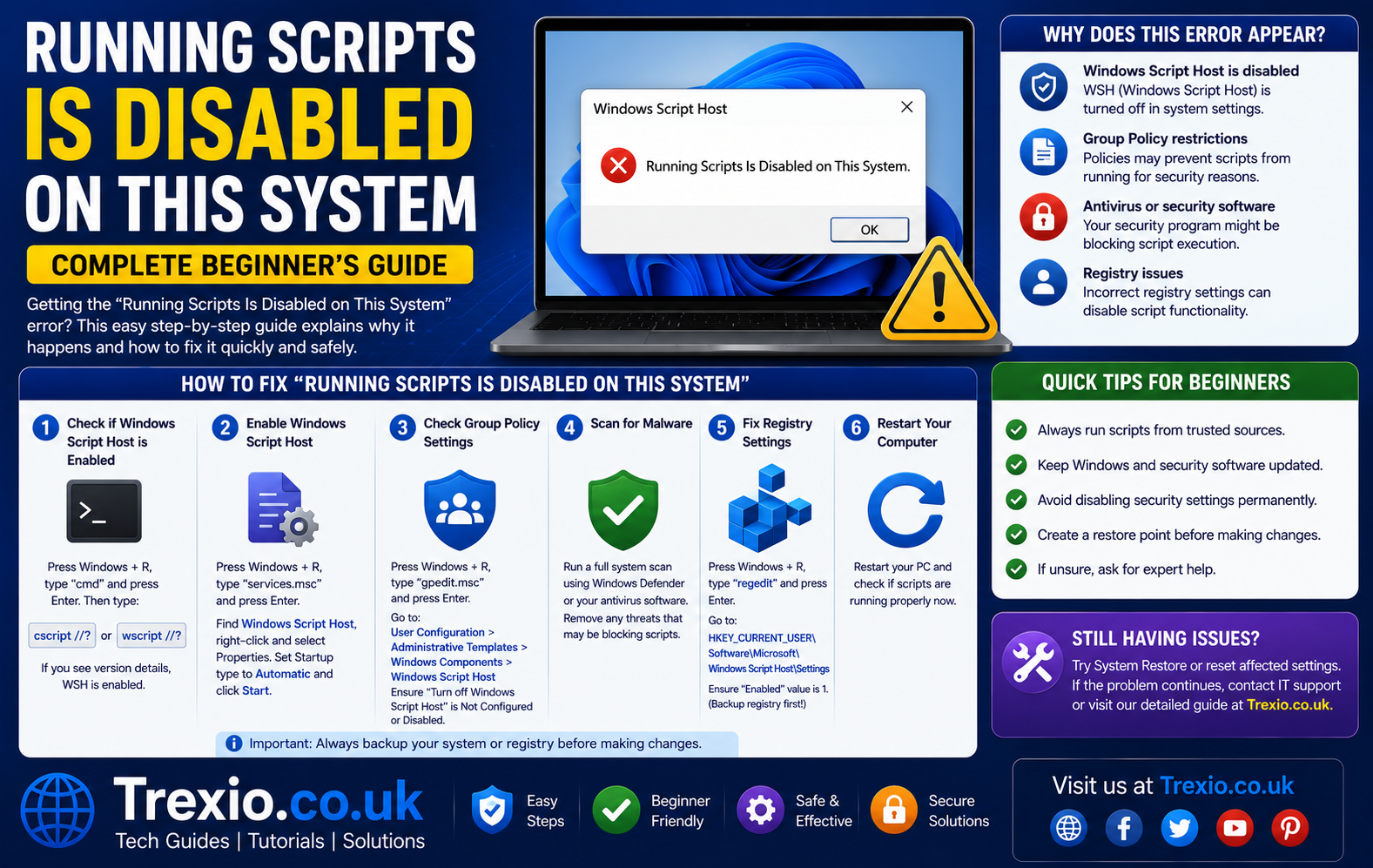
If you’ve recently tried running a PowerShell script and encountered the message “running scripts is disabled on this system,” you’re not alone. This is one of the most common PowerShell errors that Windows users, developers, IT administrators, and system engineers experience. The error often appears while installing software, configuring development environments, executing automation scripts, or running administrative tasks. Although the message looks intimidating, it usually doesn’t indicate that anything is broken. Instead, Windows is protecting your computer by preventing unauthorized scripts from running automatically. Understanding why this happens is the first step toward fixing the issue safely. Once you know how PowerShell execution policies work, resolving the problem becomes much easier. This guide explains everything in simple language while following Microsoft’s recommended security practices.
Quick Answer
The running scripts is disabled on this system error appears because PowerShell’s Execution Policy blocks scripts from running. You can fix it by changing the execution policy to a less restrictive option, such as RemoteSigned, using an elevated PowerShell window.
Example command:
Set-ExecutionPolicy RemoteSignedIf you only need to allow scripts temporarily, you can use:
Set-ExecutionPolicy -Scope Process BypassAlways choose the least permissive policy necessary to keep your system secure.
What Does “Running Scripts Is Disabled on This System” Mean?
The running scripts is disabled on this system message indicates that PowerShell has intentionally blocked a script from executing because of your computer’s configured execution policy. Contrary to what many users believe, this is not a software bug or a corrupted Windows installation. Instead, it is a built-in Windows security feature designed to reduce the risk of malware, malicious automation, and unauthorized code execution. Microsoft introduced execution policies to help administrators control which PowerShell scripts users can run. When a script violates the currently configured policy, PowerShell immediately stops the process and displays the warning. This behavior protects users from accidentally running harmful scripts downloaded from unknown sources. Even scripts you’ve written yourself may be blocked depending on your current policy settings. Understanding this security mechanism helps you resolve the issue without weakening your computer’s defenses.
The running scripts is disabled on this system error commonly appears during software installation, Windows administration, Azure configuration, Visual Studio setup, Node.js development, Python automation, Git scripting, and package management. Developers frequently encounter it while installing tools with PowerShell scripts, while IT professionals often see it during server configuration or automation tasks. The good news is that fixing the issue usually takes only a few minutes. However, it’s important to understand the implications of changing your execution policy before making modifications. Selecting an appropriate execution policy ensures both usability and security. Rather than disabling security entirely, Microsoft recommends choosing the policy that best matches your workflow. That approach minimizes unnecessary risks while allowing legitimate scripts to run successfully.
Why Does the Running Scripts Is Disabled on This System Error Occur?
The running scripts is disabled on this system error occurs because PowerShell uses execution policies to determine whether scripts are allowed to run. These policies act as safety rules rather than strict security boundaries. Depending on your organization’s security settings or Windows configuration, PowerShell may completely block local scripts, downloaded scripts, or unsigned scripts. This prevents users from unknowingly executing malicious code. If your device is managed by an organization, the policy may also be enforced through Group Policy, preventing local changes. Personal computers typically use default execution policies that can be modified by administrators. Understanding the root cause helps you apply the correct solution instead of relying on unsafe workarounds. In most cases, the error is expected behavior rather than a malfunction.
Several factors can trigger the running scripts is disabled on this system message. Installing development frameworks, using package managers, cloning Git repositories, running automation scripts, or launching PowerShell setup files can all trigger the restriction. Some antivirus software also interacts with PowerShell security settings, making script execution more restrictive. Additionally, Windows updates or administrative policies may reset execution policies unexpectedly. Corporate environments often implement stricter execution policies to comply with organizational security standards. Home users usually experience the issue after attempting to run a downloaded script for the first time. By identifying the exact cause, you can choose the safest solution instead of permanently lowering your system’s security level.
Common Situations Where the Error Appears
The running scripts is disabled on this system message can appear in many real-world scenarios. Developers frequently encounter it while installing Node.js packages, Angular CLI, React tools, PowerShell modules, Azure CLI components, or Visual Studio dependencies. System administrators often see the error while deploying automation scripts across multiple servers. IT support technicians may face it while executing maintenance scripts designed to troubleshoot Windows issues. Students learning PowerShell commonly experience the problem when following online tutorials that require running sample scripts. The error can also occur while configuring Docker, Kubernetes, or Windows Terminal environments. Even software installers sometimes rely on PowerShell scripts that trigger the restriction. Recognizing these common situations makes troubleshooting much easier.
Another frequent scenario involves downloading scripts from the internet. Windows automatically marks downloaded files as originating from an external source, making PowerShell apply stricter execution rules. This security mechanism helps protect users from running untrusted content. Scripts shared through email, cloud storage, or messaging applications may also carry this security marker. Developers collaborating through Git repositories occasionally encounter similar restrictions depending on how files were obtained. Corporate networks may impose even stricter controls through centralized security policies. In every case, PowerShell is simply following the configured execution policy rather than indicating that the script itself contains errors.
Typical Error Message
Most users see an error similar to this:
File C:\Scripts\example.ps1 cannot be loaded because running scripts is disabled on this system.
For more information, see about_Execution_Policies.
The exact wording may vary depending on your PowerShell version, but the underlying cause remains the same. The message identifies the blocked script, explains that execution is restricted, and points users toward execution policy documentation. Although the error looks technical, it simply means PowerShell requires additional permission before allowing the script to execute. The script itself may still be completely safe. The focus should be on reviewing the execution policy rather than assuming the file is corrupted. Understanding the wording prevents unnecessary troubleshooting and helps you address the correct problem.
Understanding PowerShell Execution Policies
PowerShell execution policies determine the conditions under which scripts are allowed to run on a Windows computer. These policies are intended to reduce accidental execution of potentially harmful scripts while providing flexibility for developers and administrators. Contrary to popular belief, execution policies are not a replacement for antivirus software or endpoint protection. Instead, they serve as an additional layer of defense that encourages users to think before executing code. Different policies provide different balances between convenience and security. Choosing the correct policy depends on your environment, workflow, and organizational requirements. Knowing how these policies work is essential for resolving the running scripts is disabled on this system error correctly. A clear understanding also helps avoid unnecessary security risks.
Execution policies can be configured at multiple levels, including MachinePolicy, UserPolicy, Process, CurrentUser, and LocalMachine. PowerShell evaluates these scopes in order of precedence to determine the effective policy. This means that changing one scope may not override another if a higher-priority policy exists. Many users mistakenly believe their command failed when, in reality, another policy is taking precedence. Understanding this hierarchy simplifies troubleshooting and helps identify whether Group Policy or administrator settings are involved. Before changing anything, it’s always a good idea to check the currently active execution policy. This prevents confusion and ensures you’re modifying the correct configuration.
Types of PowerShell Execution Policies
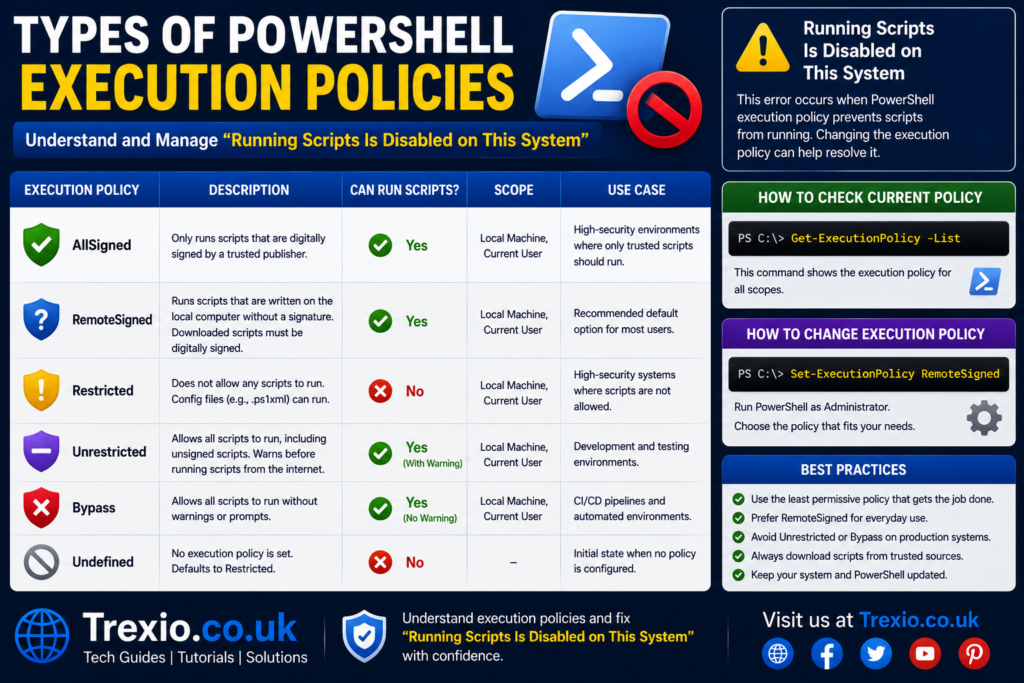
Restricted
Restricted is the default execution policy on many Windows client systems. Under this policy, PowerShell does not allow any scripts to run. Users can still execute individual commands interactively, but script files are blocked entirely. This provides maximum protection against accidental script execution while limiting automation capabilities. It’s commonly found on systems where PowerShell scripting is rarely needed. Many first-time PowerShell users encounter the running scripts is disabled on this system message because of this default setting. While highly secure, Restricted is impractical for developers and administrators who depend on scripting. Organizations that prioritize strict security sometimes retain this policy across workstations.
RemoteSigned
RemoteSigned is one of the most commonly recommended execution policies for personal computers and development environments. Local scripts that you create yourself can run without requiring a digital signature. However, scripts downloaded from the internet must be signed by a trusted publisher unless their security marker is removed. This provides a strong balance between usability and protection. Many developers choose this option because it enables everyday scripting while maintaining safeguards against unknown downloads. Microsoft often recommends RemoteSigned for users who regularly work with PowerShell. It resolves the running scripts is disabled on this system error in many legitimate scenarios without completely disabling script protection.
AllSigned
AllSigned requires every PowerShell script to be digitally signed, regardless of whether it originated locally or remotely. This policy offers stronger assurance that scripts haven’t been altered after signing. It is commonly used in enterprise environments where software integrity is strictly controlled. Administrators can verify the identity of script authors before execution. Although secure, this policy introduces additional management overhead because every script must be signed appropriately. Developers working independently often find it unnecessarily restrictive. Organizations handling sensitive infrastructure, however, frequently consider AllSigned an appropriate balance between automation and security.
Bypass and Unrestricted
Bypass and Unrestricted policies impose far fewer restrictions on PowerShell scripts. Bypass allows scripts to run with virtually no execution policy prompts, while Unrestricted permits script execution but may display warnings for downloaded files. These policies are typically reserved for specialized automation, testing, or temporary troubleshooting. Using them permanently on personal or production systems is generally discouraged because they reduce protection against malicious scripts. Administrators should understand the associated risks before applying either option. Whenever possible, use a more restrictive policy that still meets your operational needs.
Execution Policy Comparison
| Execution Policy | Scripts Allowed | Downloaded Scripts | Security Level | Best For |
|---|---|---|---|---|
| Restricted | No | No | Very High | Standard Windows users |
| RemoteSigned | Yes | Signed only | High | Developers and IT professionals |
| AllSigned | Yes | Signed only | Very High | Enterprise environments |
| Unrestricted | Yes | Warning displayed | Moderate | Testing environments |
| Bypass | Yes | No restrictions | Low | Temporary automation |
How to Check Your Current Execution Policy
Before attempting to fix the running scripts is disabled on this system error, you should identify the execution policy currently applied to your computer. Many users immediately change settings without understanding which policy is active, often creating unnecessary confusion. PowerShell provides built-in commands that display the effective execution policy as well as every configured policy scope. This information helps determine whether the restriction comes from your local computer, your user account, or an organizational Group Policy. Knowing the active policy allows you to choose the safest and most appropriate solution. It also prevents making changes that have no effect because another policy overrides them. A quick check can save significant troubleshooting time later. Understanding your configuration is always the best starting point.
To view the current execution policy, open PowerShell and run:
Get-ExecutionPolicyTo see all policy scopes, use:
Get-ExecutionPolicy -ListThese commands provide valuable insight into why the running scripts is disabled on this system message appears and prepare you for selecting the correct remediation method.
How to Fix the “Running Scripts Is Disabled on This System” Error
Once you’ve identified your current execution policy, the next step is choosing the safest method to resolve the running scripts is disabled on this system error. Rather than selecting the least restrictive option, you should use the execution policy that provides the permissions you actually need while maintaining Windows security. Microsoft designed PowerShell execution policies to encourage safe script execution instead of completely preventing automation. In many situations, a temporary policy change is sufficient, especially if you’re installing software or running a trusted script only once. Developers who work with PowerShell regularly may prefer a more permanent solution, while enterprise users often need to comply with organizational security requirements. Before making any changes, verify that the script originates from a trusted source and scan it if necessary. This approach minimizes the risk of executing malicious code disguised as a legitimate script. Following the correct method ensures that you resolve the running scripts is disabled on this system error without weakening your overall system security.
Method 1 – Change the Execution Policy
For most home users and developers, changing the execution policy to RemoteSigned is the recommended solution. This policy allows locally created scripts to run while still requiring downloaded scripts to meet security requirements. It strikes a practical balance between convenience and protection, making it suitable for daily PowerShell use. Open Windows PowerShell as an administrator before applying the change to ensure the command succeeds. If User Account Control prompts you for permission, approve the request and continue. After updating the execution policy, restart your PowerShell session so the new configuration takes effect. This simple adjustment resolves the running scripts is disabled on this system error in the majority of personal computing environments. Always review your organization’s policies before modifying execution settings on a managed device.
Run the following command:
Set-ExecutionPolicy RemoteSignedWhen prompted, type:
Yand press Enter.
Method 2 – Allow Scripts Only for the Current Session
If you don’t want to permanently modify your PowerShell configuration, you can temporarily bypass the restriction for the current PowerShell session. This is particularly useful when installing development tools, testing scripts, or completing a one-time administrative task. Once you close the PowerShell window, the execution policy automatically returns to its previous setting. This method is considered safer than permanently lowering your execution policy because it limits the scope of the change. Developers frequently use this approach when working with package managers or setup scripts that only need temporary access. It also reduces the chance of accidentally leaving your system configured with unnecessary permissions. When the task is complete, simply close the PowerShell window. The running scripts is disabled on this system error will only be bypassed for that session.
Set-ExecutionPolicy -Scope Process BypassMethod 3 – Change the Policy for the Current User
If you don’t have administrator privileges, modifying the execution policy for your own Windows account may be sufficient. This option affects only your user profile and leaves system-wide settings unchanged. It’s commonly used on shared computers where users need PowerShell access without altering settings for everyone else. Since the scope is limited to your account, it offers a safer alternative than changing the LocalMachine policy. This method is especially useful for developers working on personal projects or students learning PowerShell. It avoids unnecessary administrative changes while still resolving the running scripts is disabled on this system error. Always verify whether another policy, such as Group Policy, overrides your user-level configuration before assuming the command failed. Understanding execution policy precedence remains important.
Set-ExecutionPolicy RemoteSigned -Scope CurrentUserMethod 4 – Unblock Downloaded Scripts
Sometimes the issue isn’t your execution policy at all. Windows marks files downloaded from the internet with a security attribute known as the “Mark of the Web.” Even if your execution policy allows scripts, PowerShell may still treat these files as untrusted. Removing this security marker allows trusted downloaded scripts to execute normally without changing your overall execution policy. This method is particularly useful when you obtained the script from a reputable developer or official documentation. Rather than relaxing PowerShell security, you’re simply indicating that the file has been reviewed and approved. This preserves stronger protection for future downloads. In many situations, this is the safest solution to the running scripts is disabled on this system error.
Unblock-File .\YourScript.ps1How to Fix the Error in Windows PowerShell ISE and Visual Studio Code
Many developers encounter the running scripts is disabled on this system error while working inside Windows PowerShell ISE or Visual Studio Code rather than the standard PowerShell console. Although the error message looks identical, the underlying cause remains the same because both applications rely on PowerShell execution policies. If you’ve already updated your execution policy but still receive the error, restarting the editor is often necessary so it recognizes the new configuration. Visual Studio Code may also use a different integrated terminal profile than expected. Confirm that you’re actually running PowerShell rather than Command Prompt or another shell before troubleshooting further. Extensions and development environments generally respect Windows execution policies instead of overriding them. As a result, correcting the policy at the appropriate scope usually resolves the issue across multiple development tools. Understanding this relationship helps eliminate confusion when the same script behaves differently in different terminals.
For integrated development environments, it’s also important to verify that the correct PowerShell version is installed and selected. Windows PowerShell 5.1 and PowerShell 7 can maintain separate environments depending on your configuration. If one terminal uses PowerShell 7 while another launches Windows PowerShell, the effective behavior may appear inconsistent. Checking the active version, reopening the terminal, and confirming execution policies can quickly identify the root cause. Developers who regularly switch between multiple shells should ensure they’re modifying the correct environment. Keeping PowerShell updated also improves compatibility with modern scripting tools. These simple checks often eliminate the running scripts is disabled on this system error without requiring additional configuration changes.
How to Fix the Error in Enterprise Environments
Corporate environments introduce additional considerations because execution policies are frequently managed through Active Directory Group Policy. In these situations, local changes may have no effect because higher-precedence organizational policies override them. If your computer belongs to a business, school, or government network, it’s possible that your IT department intentionally restricted PowerShell scripting for security reasons. Attempting to bypass these restrictions without authorization could violate organizational policies. Instead, contact your administrator and explain the business need for running the required script. Administrators can often approve trusted scripts or assign an appropriate execution policy for your account. This collaborative approach maintains security while enabling legitimate administrative tasks. Understanding enterprise policy management prevents unnecessary troubleshooting and ensures compliance with organizational standards.
If you suspect Group Policy is controlling PowerShell, display every execution policy scope using:
Get-ExecutionPolicy -ListIf MachinePolicy or UserPolicy contains a defined value, those settings generally take precedence over local configuration changes. In that case, only an administrator with appropriate permissions can modify the effective execution policy. Recognizing this limitation saves time and prevents repeated attempts to change settings that are intentionally locked down. Enterprise security exists to protect organizational resources, so always follow approved procedures when requesting script execution permissions.
Security Risks of Disabling PowerShell Restrictions
Although it may be tempting to completely remove PowerShell restrictions, doing so creates unnecessary security risks. Execution policies exist to reduce accidental execution of harmful scripts rather than to inconvenience legitimate users. Malware authors frequently target scripting environments because scripts can automate destructive actions with very little user interaction. Permanently setting the execution policy to Bypass or Unrestricted increases the likelihood that malicious scripts will execute without warning. Even experienced users can accidentally launch unsafe scripts downloaded from unknown websites or received through email. Maintaining an appropriate execution policy adds an important layer of protection against these threats. Responsible PowerShell administration involves balancing productivity with security rather than maximizing convenience. Keeping this perspective helps prevent avoidable security incidents.
Whenever possible, use temporary or narrowly scoped solutions instead of broad permanent changes. Verify script sources, review script contents before execution, and keep Windows Defender or another trusted security solution enabled. Digitally signed scripts provide additional assurance that code hasn’t been modified since publication. Organizations should implement script signing, least-privilege access, and centralized policy management whenever practical. These practices reduce risk without preventing administrators and developers from performing legitimate work. By treating execution policies as part of an overall security strategy, you can safely resolve the running scripts is disabled on this system error while maintaining strong system protection.
Troubleshooting When the Error Still Appears
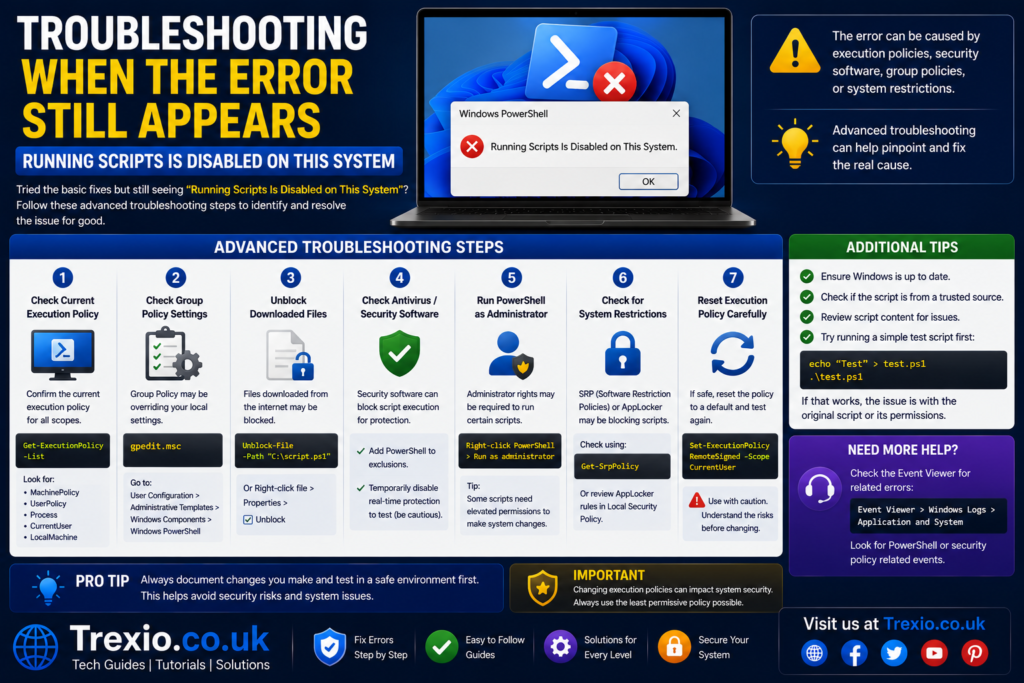
If you’ve already modified the execution policy and continue seeing the running scripts is disabled on this system error, several additional factors may be involved. Begin by reopening PowerShell because policy changes may not affect already-running sessions. Next, verify the effective execution policy using Get-ExecutionPolicy rather than assuming the previous command succeeded. If the displayed policy doesn’t match your expectations, inspect all policy scopes using Get-ExecutionPolicy -List. Higher-precedence settings frequently override local changes, particularly in managed environments. Also confirm that you’re using the intended PowerShell version and not another terminal application. Restarting your computer can occasionally resolve environment-related inconsistencies. Systematically checking each possibility is more effective than repeatedly changing execution policies without identifying the true cause.
You should also verify that the script itself isn’t blocked by Windows. Downloaded files often require the Unblock-File command before execution. Confirm that the file extension is actually .ps1 and that the script path is correct. Running PowerShell without sufficient permissions can also produce unexpected behavior depending on the required task. If the issue persists after completing these checks, reviewing Windows Event Viewer or organizational security policies may provide additional insight. Enterprise antivirus solutions occasionally restrict PowerShell activity beyond standard execution policies. Careful troubleshooting helps identify the precise reason the running scripts is disabled on this system error continues to appear.
Comparison of Available Solutions
| Solution | Difficulty | Security | Administrator Required | Best Use Case |
|---|---|---|---|---|
| RemoteSigned | Easy | High | Usually Yes | Regular PowerShell users |
| Process Bypass | Easy | High | No | Temporary script execution |
| CurrentUser Scope | Easy | High | No | Personal user account |
| Unblock-File | Very Easy | Very High | No | Trusted downloaded scripts |
| Group Policy Change | Advanced | Very High | Yes | Enterprise environments |
Best Practices
- Keep your execution policy as restrictive as your workflow allows.
- Download PowerShell scripts only from trusted and verified sources.
- Review script contents before executing unfamiliar code.
- Prefer RemoteSigned instead of Unrestricted whenever possible.
- Use temporary execution policies for one-time administrative tasks.
- Keep PowerShell and Windows updated with the latest security patches.
- Digitally sign scripts used in business or production environments.
- Regularly audit execution policies on shared or managed computers.
Common Mistakes
- Permanently setting the execution policy to Bypass without understanding the risks.
- Running scripts downloaded from unknown websites without reviewing them.
- Forgetting to restart PowerShell after changing the execution policy.
- Assuming local settings override organizational Group Policy.
- Ignoring file-blocking attributes applied to downloaded scripts.
- Executing PowerShell with insufficient permissions.
- Confusing Windows PowerShell with PowerShell 7 environments.
- Modifying system-wide settings when a user-level policy would be sufficient.
Pro Tips
- Check execution policies with
Get-ExecutionPolicy -Listbefore making changes. - Use CurrentUser scope whenever administrator privileges aren’t necessary.
- Prefer Process Bypass for temporary installations and testing.
- Store frequently used PowerShell scripts in trusted directories.
- Learn basic PowerShell security concepts before modifying execution policies.
- Keep backups of important scripts before editing or signing them.
- Use code signing certificates for production automation whenever possible.
- Document execution policy changes in enterprise environments for easier troubleshooting.
Conclusion
The running scripts is disabled on this system error is a protective feature rather than a Windows malfunction. PowerShell execution policies help prevent unauthorized or potentially harmful scripts from running automatically, making them an important component of Windows security. Fortunately, resolving the issue is usually straightforward once you understand how execution policies work and which scope applies to your environment. Whether you choose RemoteSigned, a temporary Process Bypass, or simply unblock a trusted downloaded script, selecting the least permissive solution helps maintain both productivity and security. Users in managed environments should always consider organizational policies before making configuration changes, while home users can safely adopt Microsoft-recommended settings for everyday scripting. By following the best practices outlined in this guide, you can confidently troubleshoot PowerShell script restrictions without exposing your computer to unnecessary risks. Understanding the reasons behind the running scripts is disabled on this system message will also make future PowerShell troubleshooting faster and more effective.
Frequently Asked Questions
1. Why do I see “running scripts is disabled on this system” in PowerShell?
The message appears because your current PowerShell execution policy prevents scripts from running to help protect your system from unauthorized or malicious code.
2. Is it safe to change the execution policy?
Yes, provided you choose an appropriate policy such as RemoteSigned and only execute scripts from trusted sources.
3. Which execution policy is recommended for developers?
RemoteSigned is generally recommended because it balances security with usability for development tasks.
4. Can I bypass the restriction temporarily?
Yes. Using Set-ExecutionPolicy -Scope Process Bypass allows scripts during the current PowerShell session only.
5. Why does the error continue after changing the execution policy?
Another policy scope, such as Group Policy, may override your changes, or the PowerShell session may need to be restarted.
6. Do I need administrator rights to fix the error?
Not always. You can often modify the CurrentUser execution policy without administrative privileges.
7. What does the Unblock-File command do?
It removes the security marker applied to trusted files downloaded from the internet, allowing them to run under your existing execution policy.
8. Can antivirus software cause PowerShell script issues?
Yes. Some security products apply additional restrictions to PowerShell beyond the standard execution policy.
9. Should I use the Unrestricted execution policy?
Generally no. It reduces protection against potentially harmful scripts and is rarely necessary for normal use.
10. Does this error occur in PowerShell 7?
Yes. PowerShell 7 also respects execution policies, although configuration and environment differences may affect behavior.
Author Bio
About the Author
The author is an experienced technology writer specializing in Windows troubleshooting, PowerShell administration, cybersecurity, and enterprise IT solutions. With extensive experience creating EEAT-focused technical content, the author produces practical, well-researched guides that simplify complex Windows issues for beginners, developers, and IT professionals alike.