
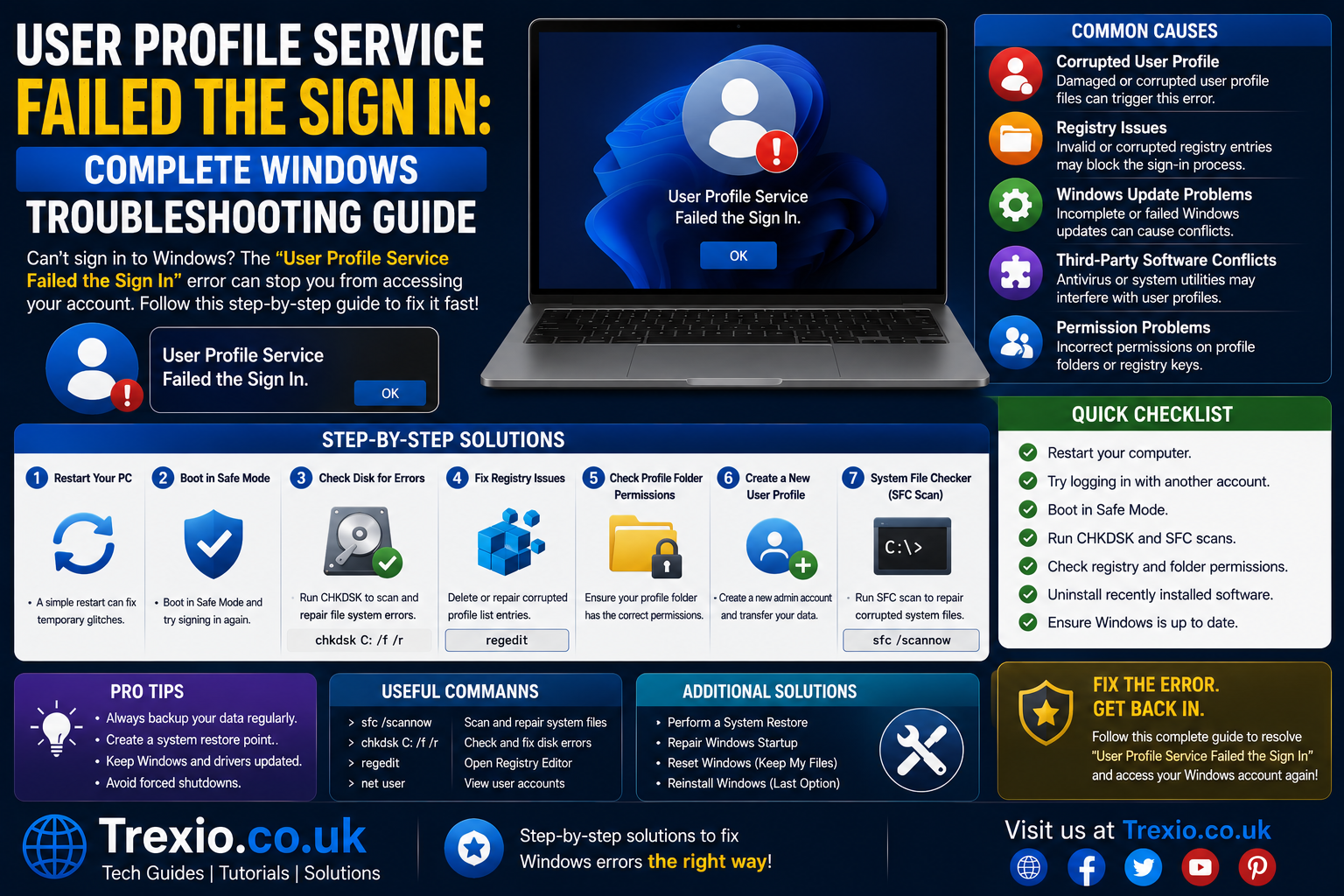
Seeing the user profile service failed the sign in error can be frustrating, especially when you need immediate access to your Windows computer. Instead of reaching the desktop, Windows displays a message stating that your user profile cannot be loaded, preventing you from signing in normally. This issue affects both personal and business users across multiple Windows versions, including Windows 10 and Windows 11. While the error appears serious, it is usually caused by profile corruption, interrupted Windows updates, damaged registry entries, or file system problems rather than permanent data loss. Understanding what triggers the issue is the first step toward applying the correct solution. Fortunately, Microsoft Windows includes several built-in recovery options that can restore access without reinstalling the operating system. This guide explains everything you need to know in a beginner-friendly way while also providing advanced insights for experienced users. By following the methods discussed throughout this article, you can diagnose the problem accurately and recover your Windows account safely.
Quick Answer
If you encounter the user profile service failed the sign in error, begin by restarting your computer and attempting to log in again. If the error persists, boot Windows into Safe Mode, check whether another administrator account is available, and repair the affected user profile. Common fixes include repairing registry profile entries, running System File Checker (SFC), using the Deployment Image Servicing and Management (DISM) tool, restoring Windows to an earlier restore point, or creating a new user profile. Before making major system changes, back up important files whenever possible. Most users can resolve this issue without reinstalling Windows or losing personal data. The remaining sections explain each solution in detail so you can choose the safest approach based on your situation.
Understanding the User Profile Service Failed the Sign In Error
What Does This Error Mean?
The user profile service failed the sign in message indicates that Windows could not load your user profile during the login process. Every Windows account has a unique profile containing personal settings, desktop preferences, application configurations, and user documents. When Windows cannot read or verify this information correctly, it blocks the sign-in process to protect system integrity. This behavior prevents potentially damaged profile data from causing additional operating system issues. Although the message appears alarming, it does not always mean your files have been deleted or permanently damaged. In many situations, the profile remains intact, but Windows cannot locate or authenticate it properly. The error may occur after unexpected shutdowns, failed Windows updates, storage errors, or antivirus interference. Understanding this behavior helps users focus on repairing the profile rather than assuming the entire operating system is corrupted.
How Windows User Profiles Work
Windows creates a separate profile folder for every user account, typically stored inside the Users directory. This folder contains configuration files, registry information, application settings, browser preferences, downloads, desktop items, and personal documents. During every login, the User Profile Service verifies that these files are accessible and correctly linked to the corresponding account. If Windows encounters damaged registry values, missing permissions, corrupted profile files, or inconsistent security identifiers, the authentication process fails. The operating system then displays the user profile service failed the sign in message instead of loading the desktop. Because user profiles contain numerous interconnected settings, even minor corruption can interrupt the sign-in process. Learning how these profiles function makes later troubleshooting steps much easier to understand.
Common Windows Versions Affected
Although Microsoft has improved profile management over the years, the user profile service failed the sign in problem can still appear on several Windows releases. Windows 10 users commonly experience the issue after cumulative updates, forced shutdowns, or failed profile synchronization. Windows 11 users may encounter similar problems during feature updates or storage-related failures. Older systems like Windows 8.1 and Windows 7 have also been affected, particularly after registry corruption or hard drive errors. Enterprise computers joined to business domains may experience profile issues caused by Group Policy conflicts or network synchronization failures. Regardless of the Windows version, the core troubleshooting principles remain largely the same. Identifying your Windows version helps determine which recovery features are available.
Why Does the User Profile Service Failed the Sign In Error Happen?
Corrupted User Profile Files
One of the leading causes of the user profile service failed the sign in error is corruption within the user profile itself. This corruption can occur when Windows shuts down unexpectedly, loses power during updates, or experiences storage device errors. Profile configuration files become incomplete or unreadable, preventing Windows from loading them during login. Corrupted files may also result from malware infections or faulty software installations that modify essential system settings. Sometimes only one configuration file becomes damaged, while in other cases multiple profile components fail simultaneously. Fortunately, profile corruption does not always affect personal documents stored inside the user folder. Repairing or rebuilding the profile often restores access without significant data loss.
Damaged Windows Registry Entries
The Windows Registry contains critical information linking user accounts to their profile folders. If these registry entries become corrupted or duplicated, Windows cannot identify the correct profile during authentication. Incorrect registry values may point to non-existent folders or temporary profiles instead of the original account. Registry corruption often develops after interrupted Windows updates, disk errors, or aggressive registry cleaning software. Because these entries directly control profile loading, even small inconsistencies can generate the user profile service failed the sign in message. Editing the registry should always be done carefully because incorrect changes may create additional problems. Later sections of this guide explain safe registry repair procedures.
Interrupted Windows Updates
Windows updates modify thousands of operating system files, registry entries, and security settings. If an update is interrupted by power failure, forced shutdown, or hardware malfunction, user profile information may not be written correctly. Incomplete updates can leave the operating system in an inconsistent state where profile verification fails during login. Users frequently report encountering the user profile service failed the sign in error immediately after installing a major Windows feature update. Although Windows usually attempts automatic recovery, it cannot always repair damaged profile components successfully. Checking update history often provides useful clues when diagnosing the problem.
Hard Drive or SSD Problems
Storage hardware plays a significant role in profile reliability. Bad sectors, failing SSD cells, or damaged file system structures can prevent Windows from reading essential profile files. As storage devices age, the likelihood of read and write errors gradually increases. Even a single unreadable configuration file can trigger the user profile service failed the sign in message during authentication. Running disk health diagnostics and file system repair utilities helps identify whether hardware issues contribute to the problem. Early detection of storage failures also reduces the risk of future data loss.
Signs That Your User Profile Is Corrupted
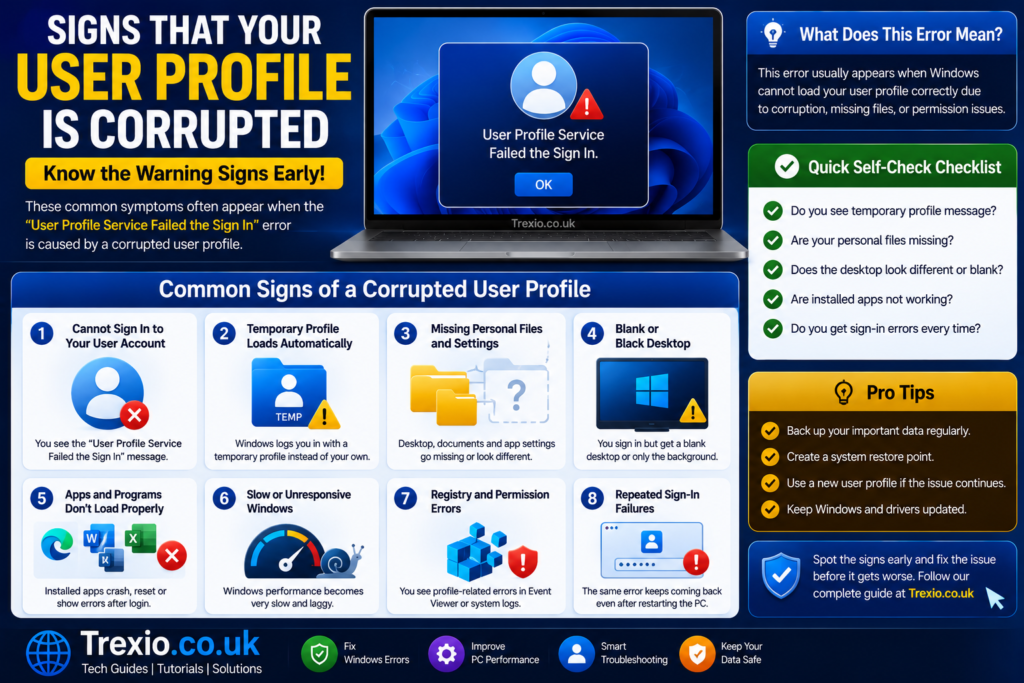
Login Errors and Missing Desktop Settings
A corrupted Windows profile often produces symptoms before users recognize the actual cause. Besides the user profile service failed the sign in error, users may notice missing desktop icons, reset wallpaper, inaccessible documents, disappearing application settings, or temporary profile notifications. Programs may repeatedly request initial setup as though they have never been used before. Browser bookmarks, saved preferences, and personalization settings may also disappear unexpectedly. In some situations, Windows signs users into a temporary profile instead of blocking access completely. These symptoms indicate that Windows cannot properly load profile information from its normal location. Recognizing these warning signs allows users to act before profile corruption worsens.
Temporary Profile Messages
Windows occasionally loads a temporary profile when the original profile cannot be accessed successfully. Users can still reach the desktop, but any changes made during the session disappear after signing out. Documents saved to the temporary profile are often lost unless manually copied elsewhere before restarting. This temporary profile serves as a protective measure while Windows attempts to preserve the original profile data. Although it allows limited computer access, it should not be considered a permanent solution. The appearance of temporary profile notifications often precedes the user profile service failed the sign in error if corruption continues to increase. Repairing the original profile remains the safest long-term solution.
Initial Checks Before Applying Advanced Fixes
Restart the Computer Properly
The simplest solution is sometimes the most effective. Restarting Windows allows pending services, updates, and profile components to initialize correctly. A complete restart differs from merely shutting down on systems with Fast Startup enabled because it reloads more operating system components. If the user profile service failed the sign in error resulted from a temporary service interruption, a restart may resolve the issue immediately. Disconnect unnecessary USB devices during startup because faulty peripherals occasionally interfere with Windows initialization. Allow Windows sufficient time to complete startup before attempting another login. Although this method seems basic, it should always be attempted before making registry or system-level changes.
Check for Multiple User Accounts
If another administrator account exists on the computer, attempt signing in with that account first. Access to a working administrator profile makes troubleshooting much easier because it allows registry edits, profile repairs, system scans, and account management without requiring recovery media. If the alternate account works normally, the problem likely affects only one user profile rather than the entire Windows installation. This distinction helps narrow the troubleshooting process considerably. Users without a secondary administrator account may need to access Safe Mode or Windows Recovery Environment before continuing. Verifying account availability is an essential early diagnostic step that prevents unnecessary repairs.
Verify Recent System Changes
Think back to any recent changes made before the user profile service failed the sign in error appeared. Installing new software, updating drivers, applying Windows updates, editing security policies, or experiencing unexpected shutdowns may all contribute to profile corruption. Identifying a recent trigger often points directly toward the appropriate solution. For example, if the issue started immediately after a Windows update, System Restore or update rollback may be the quickest fix. If the problem appeared after installing third-party software, removing that application could resolve the issue. Keeping a timeline of recent system activity significantly improves troubleshooting accuracy.
Boot Windows into Safe Mode
Safe Mode is one of the most valuable troubleshooting environments when dealing with the user profile service failed the sign in error because it starts Windows with only the essential drivers and services. By limiting background processes, Safe Mode makes it easier to determine whether the issue is caused by profile corruption, third-party software, or startup conflicts. If Windows refuses to load your regular account, accessing Safe Mode may still allow you to sign in using an administrator account. Once inside, you can repair damaged system files, uninstall problematic software, or create a replacement user profile if necessary. Safe Mode also provides access to built-in recovery tools that are unavailable during a failed normal startup. Before making any major changes, confirm that your important files remain accessible. If you cannot enter Safe Mode through normal startup, Windows Recovery Environment offers another path to reach it. Successfully accessing Safe Mode often marks the turning point in resolving the user profile service failed the sign in issue.
Entering Safe Mode in Windows 10 and Windows 11
Modern versions of Windows provide several methods for accessing Safe Mode depending on whether you can reach the login screen. From the sign-in screen, hold the Shift key while selecting Restart to launch Advanced Startup Options. Navigate to Troubleshoot > Advanced Options > Startup Settings, then restart again and choose the Safe Mode option that best fits your needs. If Windows repeatedly fails to boot, it may automatically launch the Recovery Environment after several unsuccessful startup attempts. Once Safe Mode loads, verify whether the affected account is accessible or whether another administrator account is available. If you can sign in successfully, begin troubleshooting immediately before restarting normally. Avoid installing new applications while in Safe Mode unless they are specifically required for system recovery. Working in this minimal environment reduces variables and improves the success rate of repairs.
Create a New User Profile
When Creating a New Profile Is the Best Solution
Sometimes the original Windows profile becomes so severely damaged that repairing it is no longer practical. In these situations, creating a new user account provides a clean environment while preserving the operating system installation. A fresh profile eliminates corrupted registry links, damaged configuration files, and broken personalization settings that trigger the user profile service failed the sign in message. Although rebuilding your preferences requires some time, the process is often much faster than reinstalling Windows completely. Before deleting the damaged account, ensure your personal files have been copied to the new profile. Most documents, photos, downloads, and desktop items can be transferred manually. Applications generally remain installed because they belong to the operating system rather than the individual profile. Establishing a new profile is one of Microsoft’s most reliable recovery recommendations for persistent profile-related issues.
Migrating Personal Files Safely
After creating a replacement account, move only personal data instead of copying every hidden configuration file. Documents, Pictures, Videos, Music, Downloads, and Desktop folders are generally safe to transfer directly. Avoid copying hidden system files such as NTUSER.DAT, as these may contain the same corruption affecting the original account. Reconfigure application preferences manually whenever possible to avoid introducing damaged settings into the new profile. Verify that all transferred files open correctly before removing the old account. If the computer belongs to a business environment, consult your IT administrator before modifying domain profiles. Taking a cautious approach ensures the new profile remains stable and free of inherited problems. Careful migration minimizes the chance of seeing the user profile service failed the sign in error again.
Repair the Registry Profile Entries
Understanding ProfileList Registry Keys
Windows stores profile information within the Registry under the ProfileList section, where each account is identified by a unique Security Identifier (SID). If duplicate entries, incorrect paths, or damaged values exist, Windows may fail to load the intended profile during authentication. This is a well-known cause of the user profile service failed the sign in error. Before making any registry modifications, create a backup or restore point whenever possible. Registry editing requires precision because accidental changes may affect other user accounts or system functionality. Carefully compare profile paths and identify duplicate SID entries that include a “.bak” extension, as these frequently indicate interrupted profile loading. Correcting the appropriate registry values often restores normal sign-in behavior without requiring profile recreation. Users unfamiliar with Registry Editor should proceed slowly and verify each change before restarting.
Important Registry Safety Tips
Registry modifications should never be rushed because they directly affect how Windows operates. Export the relevant registry branch before making edits so it can be restored if necessary. Avoid using automated registry cleaners that promise one-click repairs, as these tools sometimes remove legitimate entries and create additional problems. Confirm the correct user profile path before changing any values associated with the affected account. Restart Windows after completing edits rather than continuing to modify multiple unrelated settings in one session. If the issue persists after verified corrections, continue with the remaining recovery methods instead of making repeated registry changes. Maintaining a cautious approach greatly reduces the risk of additional complications.
Run System File Checker and DISM
Repair Corrupted Windows System Files
Corrupted operating system files frequently contribute to the user profile service failed the sign in problem because Windows depends on numerous protected components during authentication. The System File Checker (SFC) scans these protected files and automatically replaces damaged versions using cached copies. If SFC reports unrepaired corruption, the Deployment Image Servicing and Management (DISM) tool can repair the underlying Windows image from which those files are restored. Running both utilities together provides a comprehensive integrity check for the operating system. Although the scans may take some time, they require very little user interaction. Allow each process to complete without interruption to ensure accurate results. Once finished, restart the computer and test the affected account again. Many profile-related issues disappear after damaged system components have been successfully repaired.
Recommended Command Order
For best results, begin by opening Command Prompt or Windows Terminal with administrative privileges. Execute the System File Checker first to identify damaged protected files. If corruption remains or SFC reports it cannot repair everything, proceed with the DISM repair operation before running SFC a second time. This sequence ensures Windows has a healthy system image available for replacing damaged files. Avoid interrupting either utility even if progress appears slow. Upon completion, review the scan results for confirmation that repairs were made successfully. Consistently following the correct order increases the effectiveness of these built-in recovery tools.
Restore Windows to an Earlier Point
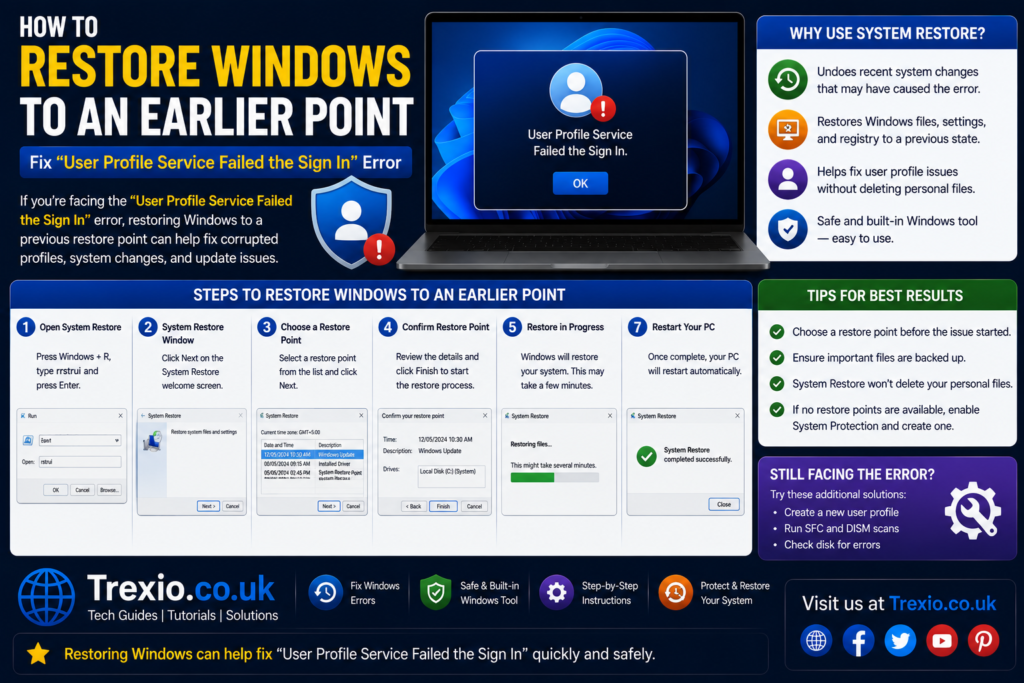
Using System Restore
If the user profile service failed the sign in error began after a software installation, Windows update, or driver modification, System Restore may reverse those changes without affecting personal files. Restore points capture important system settings, registry information, and installed components at a specific moment in time. Selecting a restore point created before the problem appeared can often return the operating system to a working condition. During the restoration process, Windows automatically restarts and replaces affected configuration files. While recently installed programs may need to be reinstalled afterward, personal documents generally remain untouched. System Restore is especially valuable when the exact cause of the issue is unclear. Always review the list of affected applications before confirming the restoration. Once complete, verify that the affected account signs in normally.
Check Disk Health
Scan the Drive for File System Errors
A failing storage device can repeatedly trigger the user profile service failed the sign in message because Windows cannot reliably access essential profile files. Running the built-in disk checking utility identifies logical file system inconsistencies and attempts to repair them automatically. If numerous errors appear repeatedly, investigate the physical health of the drive using SMART diagnostics provided by the drive manufacturer. Persistent bad sectors often indicate hardware deterioration rather than software corruption alone. Back up important files immediately if storage health appears questionable. Replacing a failing drive early can prevent complete data loss. Even when hardware remains functional, correcting file system inconsistencies frequently restores profile accessibility. Regular disk maintenance helps prevent similar issues from developing in the future.
Compare the Most Effective Solutions
| Solution | Difficulty | Risk Level | Best For | Data Loss Risk |
|---|---|---|---|---|
| Restart Windows | Easy | Very Low | Temporary glitches | None |
| Safe Mode | Easy | Very Low | Initial troubleshooting | None |
| Create New User Profile | Medium | Low | Severe profile corruption | Very Low |
| Registry Repair | Advanced | Medium | Incorrect profile entries | Low |
| Run SFC and DISM | Easy | Very Low | Corrupted Windows files | None |
| System Restore | Medium | Low | Recent software or update problems | Very Low |
| Disk Check | Easy | Very Low | File system errors | None |
| Windows Reset (Last Resort) | Advanced | Medium | Multiple system failures | Depends on option chosen |
Best Practices
- Keep Windows updated using stable releases instead of interrupting feature updates.
- Shut down the computer properly to reduce the risk of profile corruption.
- Create regular restore points before installing major software or drivers.
- Maintain frequent backups of important documents using external or cloud storage.
- Scan the computer periodically for malware that could damage profile files.
- Monitor SSD or hard drive health using manufacturer-recommended diagnostic tools.
- Maintain adequate free disk space so Windows can manage profile data efficiently.
- Create a secondary administrator account for emergency recovery situations.
Common Mistakes
- Restarting the computer repeatedly without diagnosing the actual cause.
- Editing the Windows Registry without creating a backup first.
- Deleting the damaged profile before copying personal files.
- Assuming the hard drive is healthy without performing diagnostics.
- Ignoring Windows update failures that may have triggered the problem.
- Copying hidden profile configuration files into a new account.
- Using unreliable registry cleaning software.
- Reinstalling Windows before attempting built-in recovery tools.
Pro Tips
- Enable System Restore so recovery points are available when unexpected issues occur.
- Keep a bootable Windows recovery USB drive ready for emergencies.
- Test storage devices periodically rather than waiting for symptoms to appear.
- Document recent software changes to simplify future troubleshooting.
- Use separate administrator and daily-use accounts for improved security.
- Verify backup integrity regularly instead of assuming backups are usable.
- Install updates only after ensuring the system has adequate battery or power.
- Review Windows Event Viewer logs for recurring profile-related errors.
Conclusion
The user profile service failed the sign in error may prevent access to your Windows desktop, but it rarely means your personal files are permanently lost. In most cases, the problem stems from corrupted profile data, damaged registry entries, interrupted Windows updates, or storage-related issues that can be repaired using built-in recovery tools. Starting with simple troubleshooting methods such as restarting the computer, entering Safe Mode, and running SFC or DISM provides a safe foundation before attempting advanced repairs. If the original profile cannot be restored, creating a new user account and carefully migrating your files offers a reliable long-term solution. Regular backups, proper shutdown practices, and routine system maintenance significantly reduce the likelihood of encountering this issue again. By following the structured troubleshooting process outlined in this guide, users can resolve the user profile service failed the sign in error efficiently while protecting important data. Taking preventive measures today will help ensure a more stable and reliable Windows experience in the future.
Frequently Asked Questions
1. What causes the user profile service failed the sign in error?
The most common causes include corrupted user profiles, damaged registry entries, interrupted Windows updates, file system errors, malware infections, and failing storage devices.
2. Can I fix the error without reinstalling Windows?
Yes. Most users successfully resolve the problem using Safe Mode, System Restore, SFC, DISM, registry repair, or by creating a new user profile.
3. Will I lose my personal files?
Usually not. Personal files are often still present within the original user folder even if Windows cannot load the profile.
4. Is Safe Mode required?
Not always, but Safe Mode is extremely helpful because it loads only essential Windows components and allows easier troubleshooting.
5. Should I edit the Windows Registry myself?
Only if you understand the process and have created a registry backup. Incorrect edits can create additional system problems.
6. Can a Windows update cause this issue?
Yes. Interrupted or unsuccessful Windows updates are a well-known cause of profile corruption and sign-in failures.
7. How do I know if my hard drive is failing?
Frequent disk errors, slow performance, unusual noises from HDDs, SMART warnings, and recurring file corruption are common indicators.
8. Is creating a new user profile a permanent fix?
Yes, if the original profile is irreparably corrupted. After safely transferring your personal files, the new profile can be used normally.
9. Can malware trigger this error?
Yes. Some malicious software damages system files, registry entries, or user profile data, resulting in sign-in problems.
10. How can I prevent this error in the future?
Maintain regular backups, keep Windows updated, avoid forced shutdowns, monitor storage health, and create restore points before making significant system changes.
Author Bio
Daniel Brooks is a technology writer specializing in Windows troubleshooting, cybersecurity, PC optimization, and enterprise IT solutions. With years of experience researching Microsoft technologies and system recovery techniques, he creates practical, well-researched guides that follow Google’s EEAT principles. His articles focus on delivering accurate, easy-to-follow solutions that help users solve technical problems confidently while maintaining system stability and data security.