
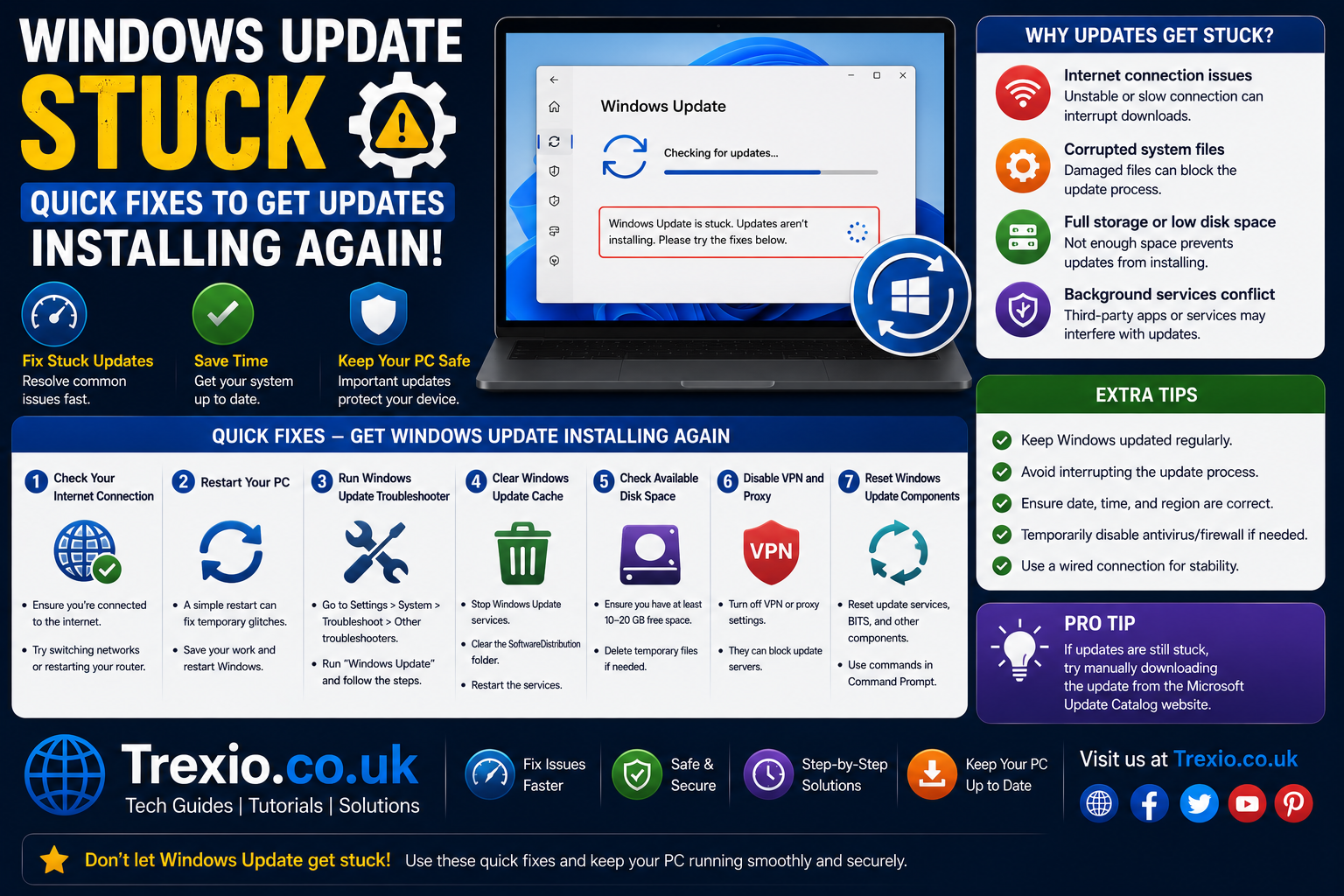
A windows update stuck problem is one of the most frustrating issues Windows users encounter. Whether the update freezes at 0%, 20%, 35%, 60%, 95%, or even 100%, it can leave you wondering if your computer is broken or if you should simply wait longer. Since Windows updates deliver security patches, bug fixes, new features, and performance improvements, completing them successfully is essential for keeping your PC secure and stable. Unfortunately, various factors—including corrupted update files, software conflicts, internet interruptions, and hardware issues—can prevent the installation from finishing. In many cases, users mistakenly force their computers to shut down before the update process has actually completed, which can create additional problems. Understanding why a windows update stuck issue occurs is the first step toward resolving it safely. This guide explains the common causes and walks you through the most effective early troubleshooting methods before moving on to advanced repairs.
Quick Answer
If your windows update stuck issue has lasted only a few minutes, wait at least 30 to 60 minutes because some updates, especially feature updates, take considerably longer than regular security patches. If there is no hard drive activity, no progress after an hour, and the percentage remains unchanged, restart the computer only if Microsoft’s update process has clearly stopped responding. After restarting, run Windows Update again, verify your internet connection, ensure enough storage space is available, disconnect unnecessary external devices, and use the built-in Windows Update Troubleshooter. Most windows update stuck problems are caused by temporary update cache errors, interrupted downloads, software conflicts, or insufficient system resources. These simpler issues can often be resolved without reinstalling Windows or losing your personal files.
What Does Windows Update Stuck Mean?
A windows update stuck issue occurs when Windows begins downloading, preparing, installing, or configuring updates but fails to progress normally. The installation percentage may remain frozen for a long time, or the system may repeatedly display messages such as “Working on updates,” “Installing updates,” or “Please don’t turn off your computer.” Sometimes the update appears frozen even though background processes are still actively working. Larger cumulative updates and feature upgrades often require significantly more processing time because Windows must replace system files, migrate settings, optimize drivers, and verify installation integrity. Users often mistake these lengthy operations for system failures. Knowing the difference between a genuinely frozen update and a slow installation helps prevent unnecessary interruptions that could damage system files. Before assuming the windows update stuck problem requires extensive repairs, it is important to determine whether Windows is still functioning behind the scenes.
Normal Update Behavior vs. Frozen Updates
Windows updates frequently pause temporarily while installing drivers, configuring services, or applying cumulative patches. During these pauses, the percentage indicator may remain unchanged for several minutes even though disk usage and processor activity continue. Modern SSD-equipped computers generally complete updates much faster than older systems using mechanical hard drives. If the hard drive activity light continues blinking or Task Manager shows ongoing disk usage after startup, Windows is likely still processing the update. A true windows update stuck problem typically shows no visible progress for an extended period, accompanied by little or no hardware activity. Understanding this distinction helps users avoid interrupting updates that only appear frozen. Patience during major feature updates often prevents unnecessary troubleshooting and reduces the risk of incomplete installations.
Common Stages Where Updates Become Stuck
Windows updates may freeze during several different installation phases. Downloads sometimes stop because of unstable internet connections or Microsoft’s update servers becoming temporarily overloaded. Installation can fail when corrupted update files, incompatible drivers, or third-party security software interfere with system changes. Some computers become stuck while configuring updates after restarting because essential Windows services cannot complete required tasks. Others remain frozen during “Preparing Windows” or “Working on updates” screens after successfully downloading files. Identifying exactly where the windows update stuck issue occurs provides valuable clues about the underlying cause. Different stages often require different troubleshooting techniques, making accurate diagnosis an important first step toward a successful repair.
Why Is Windows Update Stuck?
Understanding why a windows update stuck issue happens makes troubleshooting much easier. Windows Update relies on several interconnected services, system files, network components, storage resources, and security features working correctly. Even a small disruption can interrupt the installation process. Some problems originate from the operating system itself, while others result from hardware limitations or third-party software conflicts. Identifying the most likely cause allows you to focus on the correct solution instead of trying every available fix. Below are the most common reasons Windows updates fail to complete successfully.
Corrupted Windows Update Cache
Windows stores downloaded update packages inside a dedicated cache before installation begins. If these cached files become damaged because of interrupted downloads, sudden shutdowns, or storage errors, Windows may repeatedly attempt to install incomplete data. This frequently causes a windows update stuck problem that persists across multiple restart attempts. Since Windows continues using the same corrupted files, the installation never completes successfully. Clearing the update cache often resolves this issue because Windows downloads a fresh copy of the required files. Fortunately, cache corruption is one of the most common and easiest update problems to fix.
Insufficient Storage Space
Major Windows feature updates require several gigabytes of free disk space for temporary installation files. If your system drive is nearly full, Windows may begin the installation but fail before completion. A windows update stuck issue caused by low storage typically occurs during file extraction or update configuration. Temporary files, old downloads, duplicate media, and unused applications can consume valuable storage needed for successful updates. Keeping sufficient free space available helps Windows install updates smoothly while improving overall system performance. Storage shortages remain one of the leading causes of failed Windows upgrades.
Recommended Free Storage
The amount of available storage significantly affects update reliability. While smaller security updates require relatively little space, feature updates need much more room for temporary processing.
| Update Type | Recommended Free Space | Risk of Update Failure |
|---|---|---|
| Security Update | 5 GB | Low |
| Monthly Cumulative Update | 10 GB | Low |
| Feature Update | 20–30 GB | Moderate |
| Major Version Upgrade | 30 GB or more | Lowest Risk |
Internet Connectivity Problems
A stable internet connection is essential during download phases. Weak Wi-Fi signals, VPN software, proxy settings, or temporary ISP interruptions may corrupt downloaded update files before installation begins. Slow internet speeds can also make Windows appear frozen even though downloads continue in the background. In some cases, Microsoft’s update servers temporarily experience high traffic, causing downloads to pause unexpectedly. Users often mistake these delays for a windows update stuck issue when the system is actually waiting for missing files. Checking network stability before troubleshooting can eliminate one of the simplest potential causes.
Driver Compatibility Issues
Hardware drivers play a critical role during Windows updates because they communicate directly with system components. Outdated graphics drivers, storage controllers, network adapters, or chipset drivers sometimes conflict with new Windows versions. During installation, Windows attempts to verify driver compatibility before completing the update. If an incompatible driver prevents essential hardware from functioning correctly, the windows update stuck problem may occur during restart or configuration. Updating important drivers before installing major Windows releases reduces compatibility issues and helps ensure smoother upgrades.
Initial Checks Before Applying Advanced Fixes
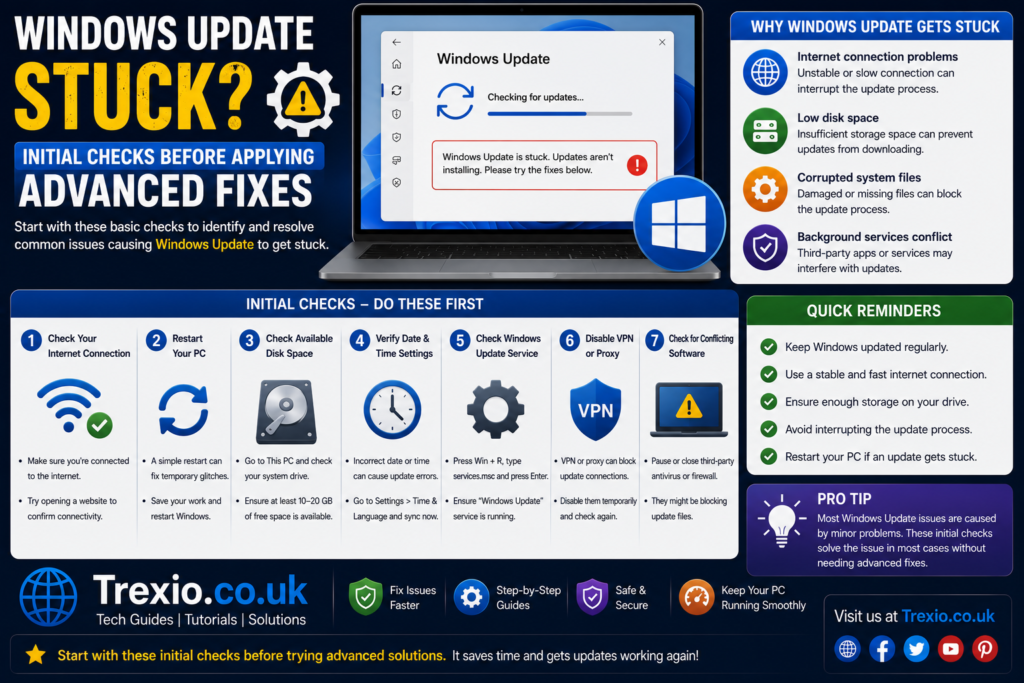
Before using command-line tools, resetting Windows components, or performing system repairs, complete several basic checks. Many windows update stuck problems are temporary and resolve through simple troubleshooting steps that require no technical expertise. These preliminary checks eliminate common issues while protecting your system from unnecessary modifications. Spending a few minutes verifying these basics often saves considerable time later in the troubleshooting process.
Wait Long Enough
One of the biggest mistakes users make is assuming Windows has frozen too quickly. Large cumulative updates and feature upgrades may legitimately require an hour or longer, especially on older hardware with slower processors and traditional hard drives. During this time, Windows performs background optimization, driver installation, file migration, and security verification. Interrupting the process prematurely increases the likelihood of corrupted system files or incomplete updates. If your computer still shows periodic disk activity, allow additional time before assuming the windows update stuck issue requires intervention. Patience is often the simplest and safest solution.
Check Hard Drive Activity
Modern computers may not include dedicated hard drive activity lights, but Windows provides several ways to determine whether installation is still progressing. If you can access Task Manager after restarting, monitor disk usage and CPU activity to see whether update-related processes remain active. Continuous resource usage often indicates Windows is still installing updates rather than being completely frozen. Systems with SSDs generally finish updates more quickly, while older HDD-based computers require considerably more time. Verifying actual system activity helps distinguish a genuine windows update stuck problem from a lengthy but successful installation process.
Disconnect External Devices
External devices occasionally interfere with Windows Update by introducing incompatible drivers or causing hardware detection delays. Disconnect unnecessary USB drives, printers, webcams, docking stations, external hard drives, memory card readers, and other accessories before attempting another update. Leave only your keyboard, mouse, display, and power connection attached if they are required. Simplifying the connected hardware configuration reduces compatibility risks and allows Windows to focus on updating essential system components. Many users resolve a windows update stuck issue simply by removing unnecessary peripherals before restarting the installation.
Run the Windows Update Troubleshooter
If the windows update stuck problem continues after completing the initial checks, the next step is to use Microsoft’s built-in Windows Update Troubleshooter. This utility is designed to automatically detect and repair common update-related issues without requiring advanced technical knowledge. It examines essential Windows Update services, verifies system settings, checks for corrupted update components, and resets certain configurations that may prevent updates from installing correctly. In many cases, the troubleshooter identifies hidden problems that are difficult to locate manually. While it cannot solve every update failure, it often fixes temporary service errors and configuration issues within minutes. After running the troubleshooter, restart your computer before checking for updates again. Even if the tool reports that no problems were found, it may still reset background services that help Windows Update function properly. This makes it one of the safest and most effective first-line solutions for resolving a windows update stuck issue.
How to Access the Troubleshooter
The exact location of the Windows Update Troubleshooter depends on your version of Windows. In Windows 11, open Settings > System > Troubleshoot > Other troubleshooters, then locate Windows Update and click Run. In Windows 10, navigate to Settings > Update & Security > Troubleshoot > Additional troubleshooters and select Windows Update. Allow the tool to complete its diagnostic process without interruption. If recommended fixes appear, approve them and let Windows apply the changes automatically. Once finished, restart the computer before checking for updates again. Running this utility regularly can resolve many recurring windows update stuck problems before they become more serious.
Restart Windows Update Services
Windows Update depends on several background services working together correctly. If one of these services stops responding, becomes disabled, or encounters an unexpected error, updates may freeze during downloading, installation, or configuration. Restarting the services refreshes their operation and clears temporary communication problems between Windows components. This process is considerably safer than reinstalling Windows or performing a complete system reset. Users who experience repeated windows update stuck issues after multiple failed attempts often find that restarting these services restores normal functionality. Once restarted, Windows can rebuild temporary update information and continue processing new downloads. Although this method requires administrative privileges, it remains one of the most effective maintenance techniques available. Always restart the computer after completing this step to ensure all services initialize correctly.
Essential Windows Update Services
Several Windows services must remain operational for updates to download and install successfully. If any of them fail, Windows Update may stop unexpectedly or become unresponsive.
| Windows Service | Purpose | Should Be Running |
|---|---|---|
| Windows Update | Downloads updates | Yes |
| Background Intelligent Transfer Service (BITS) | Transfers update files | Yes |
| Cryptographic Services | Verifies update signatures | Yes |
| Windows Installer | Installs software packages | Yes |
Clear the Windows Update Cache
The Windows Update cache stores temporary installation files that Windows uses during downloads and upgrades. If these files become incomplete or corrupted, Windows may repeatedly attempt to install damaged data, causing the windows update stuck issue to return every time you check for updates. Clearing the cache forces Windows to remove outdated files and download fresh copies directly from Microsoft’s servers. This process does not delete personal files or installed applications, making it a relatively safe troubleshooting step. Many persistent update failures disappear immediately after rebuilding the cache because damaged downloads are no longer reused. Before deleting cached files, stop the Windows Update service to prevent file access conflicts. After clearing the cache, restart the services and search for updates again. A clean cache often improves both download speed and installation reliability.
When Should You Clear the Cache?
Clearing the update cache is recommended when updates repeatedly fail with the same error, remain frozen at the same percentage, or continue downloading identical files after every restart. It is also useful after interrupted downloads caused by power failures or unstable internet connections. Users should avoid clearing the cache during an active installation because doing so may interrupt legitimate update operations. Instead, wait until Windows has completely stopped attempting the installation before performing maintenance. Once rebuilt, Windows automatically recreates the necessary folders and downloads only the files it actually needs. This approach minimizes storage waste while reducing the likelihood of another windows update stuck problem.
Repair Corrupted System Files
Damaged Windows system files frequently interfere with successful updates. Critical operating system components are responsible for validating update packages, installing drivers, and configuring new features. If these files become corrupted because of unexpected shutdowns, malware removal, storage errors, or previous failed updates, Windows may freeze indefinitely during installation. Fortunately, Windows includes built-in repair tools such as System File Checker (SFC) and Deployment Image Servicing and Management (DISM). These utilities scan protected operating system files and replace damaged components using healthy copies stored within Windows. Running these tools often resolves update failures without requiring a full operating system reinstall. They are especially effective when the windows update stuck issue appears after repeated failed updates or system crashes.
SFC vs. DISM
Both repair tools serve different purposes but complement each other during troubleshooting.
| Tool | Primary Function | Best Used When |
|---|---|---|
| SFC | Repairs protected Windows system files | System files are corrupted |
| DISM | Repairs the Windows image itself | SFC cannot repair all files |
Install Updates in Safe Mode
Safe Mode starts Windows with only the essential drivers and services required for basic operation. Because unnecessary startup applications, third-party antivirus software, and background utilities remain disabled, Safe Mode eliminates many software conflicts that prevent updates from installing successfully. If your windows update stuck issue is caused by incompatible software rather than Windows itself, updating from Safe Mode can often resolve the problem. Although some updates still require a normal boot environment, many cumulative updates install without difficulty in this simplified mode. Before entering Safe Mode, save any open work and create a recent backup of important files. Once updates complete successfully, restart Windows normally and verify that no additional updates remain pending. Safe Mode should be viewed as a troubleshooting environment rather than a permanent operating mode.
Reset Windows Update Components
When multiple troubleshooting methods fail, resetting Windows Update components restores the update system to its default working state. This process rebuilds essential folders, refreshes service registrations, clears temporary update data, and removes outdated configuration information that may interfere with new installations. While it sounds complex, Microsoft provides documented procedures that advanced users and IT professionals regularly use when addressing persistent update failures. Resetting components is particularly helpful after numerous unsuccessful update attempts because damaged configuration files often accumulate over time. Once complete, Windows treats future updates as though they are being downloaded for the first time. This significantly reduces the chances of another windows update stuck issue caused by corrupted update infrastructure. Always restart the computer before checking for updates after completing the reset.
Best Practices to Prevent Windows Update Problems
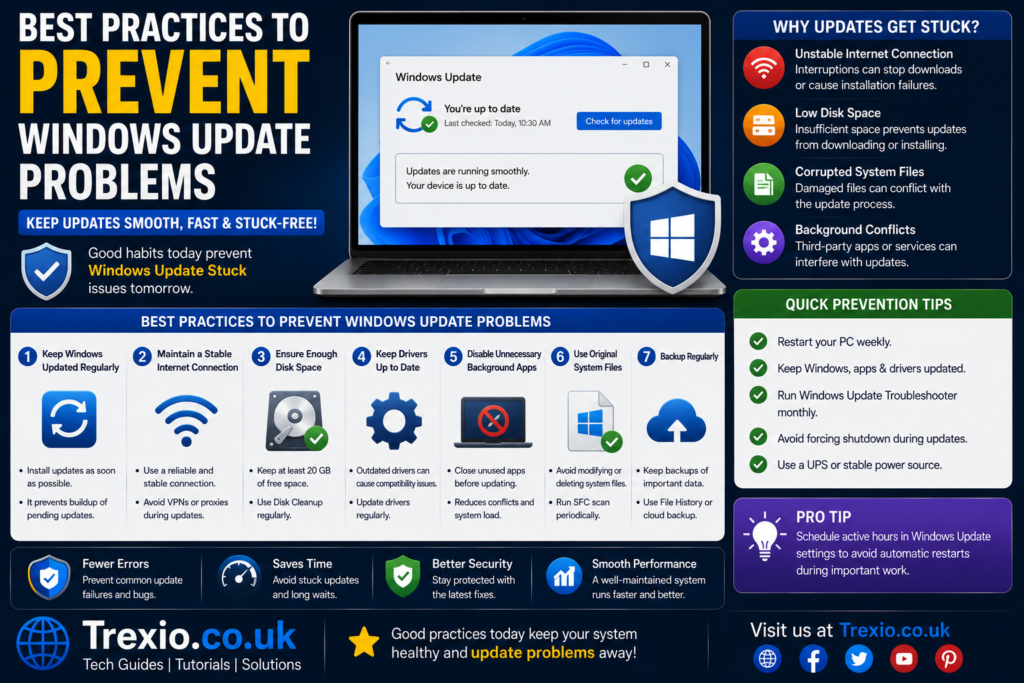
Preventing a windows update stuck issue is far easier than repairing one after it occurs. Keeping Windows updated regularly ensures smaller monthly updates install instead of large overdue packages that require more time and system resources. Maintain at least 20 to 30 GB of free storage space on your system drive so Windows has enough room for temporary installation files. Update hardware drivers through trusted sources before installing major feature releases, especially graphics and chipset drivers. Avoid forcing shutdowns while updates are installing, even if progress appears slow. Create periodic restore points and maintain reliable backups before significant Windows upgrades. Use a stable internet connection whenever downloading feature updates to minimize corruption during transfer. Finally, restart your computer occasionally rather than leaving it running continuously for weeks, as fresh reboots help Windows services operate more reliably.
Common Mistakes That Make Windows Update Issues Worse
Many users unintentionally create additional problems while attempting to fix a windows update stuck issue. One of the most common mistakes is repeatedly pressing the power button during installation because the update appears frozen. Others immediately delete system files without confirming whether Windows is actually still processing the update in the background. Installing unofficial registry cleaners or optimization software can also damage Windows Update components instead of repairing them. Some users disable critical Windows services permanently after reading incomplete online advice, preventing future updates from working correctly. Ignoring low disk space warnings, interrupting downloads, and using unstable internet connections also contribute to repeated installation failures. Another frequent mistake is skipping important driver updates before installing a major Windows version upgrade. Following Microsoft’s recommended troubleshooting sequence minimizes unnecessary risks and produces more reliable results.
Pro Tips for Faster and More Reliable Windows Updates
If you regularly install Windows updates on multiple devices, adopting a few professional maintenance habits can significantly reduce update-related problems. Schedule updates during periods when you are unlikely to need the computer immediately afterward, allowing Windows sufficient time to complete installation without interruption. Keep SSD firmware, BIOS, and chipset drivers reasonably current because hardware compatibility directly affects update stability. Regularly remove temporary files using Windows Storage Sense to maintain adequate free space. Avoid running resource-intensive applications while updates are downloading or installing, as heavy disk usage can extend installation times. Consider temporarily pausing third-party antivirus software if it is known to interfere with updates, but remember to re-enable protection immediately after installation completes. Monitoring Windows Update history also helps identify recurring failures before they develop into more serious issues. These proactive habits greatly reduce the likelihood of encountering another windows update stuck problem.
Conclusion
A windows update stuck issue can be frustrating, but it is usually repairable without reinstalling Windows or losing important files. Most update failures stem from temporary causes such as corrupted cache files, insufficient storage, software conflicts, damaged system files, or interrupted downloads. Beginning with simple troubleshooting methods—such as waiting longer, checking storage space, running the Windows Update Troubleshooter, and restarting update services—often resolves the problem quickly. If necessary, more advanced solutions like clearing the update cache, repairing system files with SFC and DISM, or resetting Windows Update components provide additional recovery options. The key is to work through each solution methodically rather than trying multiple fixes at once. Keeping Windows, drivers, and system maintenance up to date greatly reduces future update failures. With the right troubleshooting approach, most users can successfully resolve a windows update stuck issue and restore normal Windows Update functionality.
Frequently Asked Questions (FAQs)
1. Why is my Windows update stuck at 100%?
The installation may still be completing background configuration tasks. Wait at least 30–60 minutes before assuming the update has failed.
2. Can I turn off my PC if Windows Update is stuck?
Only if you’re confident the update has completely stopped responding for an extended period. Interrupting an active update may corrupt system files.
3. How long should a Windows update normally take?
Most monthly updates finish within 10–30 minutes, while major feature updates may require one hour or longer depending on hardware performance.
4. Does low storage cause Windows Update to freeze?
Yes. Insufficient disk space is one of the most common reasons a windows update stuck problem occurs.
5. Will clearing the Windows Update cache delete my files?
No. Clearing the update cache removes temporary Windows Update files only and does not affect personal documents or installed applications.
6. Is it safe to run SFC and DISM?
Yes. Both are official Microsoft tools designed to repair Windows system files without affecting personal data.
7. Why does Windows Update keep failing after restarting?
Repeated failures often indicate corrupted update files, damaged system components, incompatible drivers, or software conflicts.
8. Should I disable antivirus during updates?
If your antivirus is known to interfere with updates, temporarily disabling it during installation may help. Re-enable protection immediately afterward.
9. Can outdated drivers prevent Windows updates?
Yes. Incompatible or outdated drivers may cause installation failures during major Windows upgrades.
10. How can I avoid future Windows Update problems?
Keep sufficient free storage, maintain updated drivers, install updates regularly, avoid forced shutdowns, and back up important data before major upgrades.
Author Bio
About the Author
The author is an experienced technology writer specializing in Windows troubleshooting, PC maintenance, cybersecurity, and software optimization. With years of experience creating user-focused technical content, they simplify complex Windows issues into practical, step-by-step solutions that help readers confidently diagnose and resolve common computer problems. Their content follows Google’s EEAT principles, emphasizing accuracy, clarity, real-world experience, and helpful guidance for everyday Windows users.