
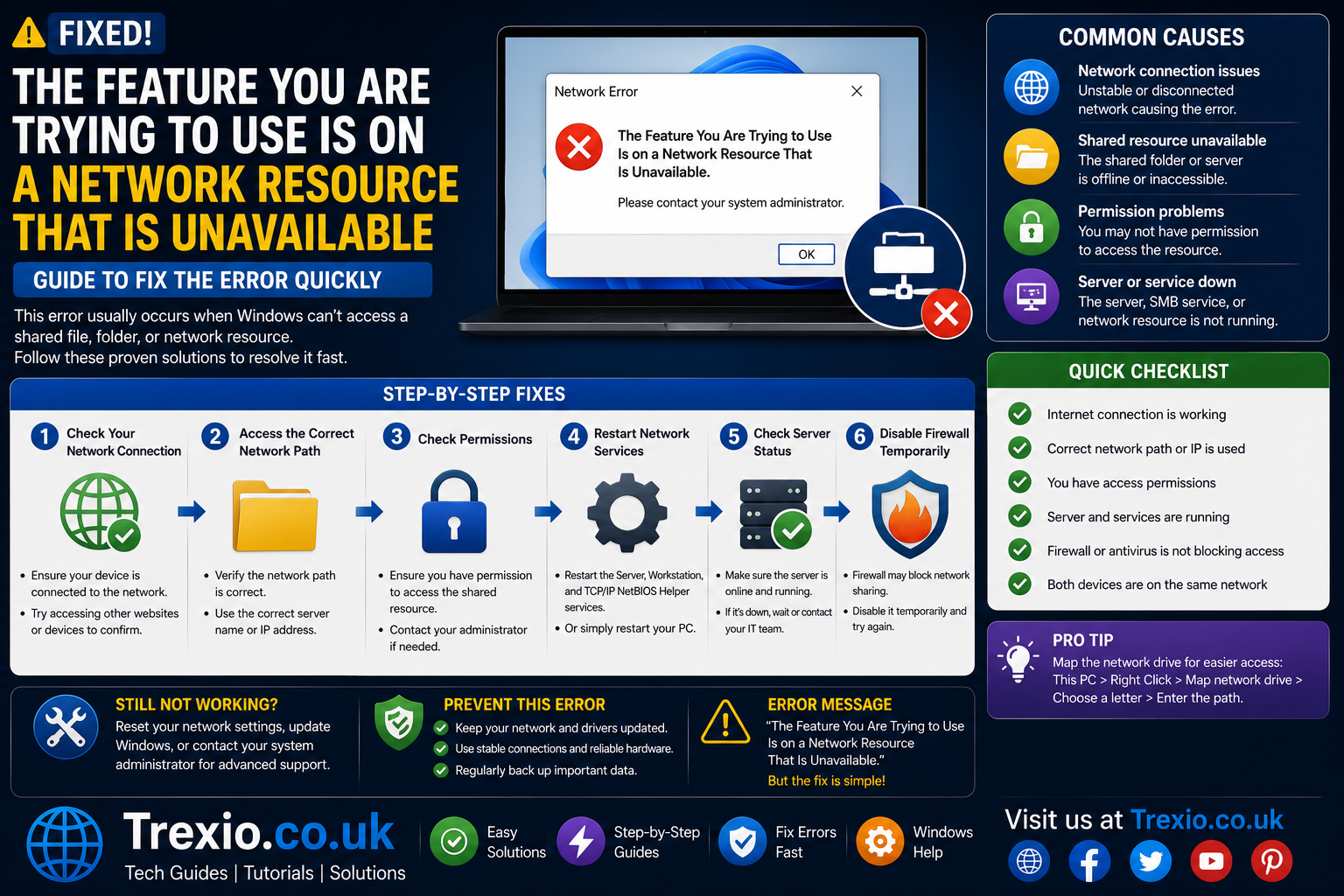
If you’ve encountered the message the feature you are trying to use is on a network resource that is unavailable, you’re not alone. This Windows installation error often appears when installing, updating, repairing, or uninstalling software. The message can be confusing because it suggests a missing network location even when you’re working on a local computer. In reality, Windows is usually searching for installation files that are no longer available or were moved from their original location. The problem frequently affects applications installed using Microsoft Windows Installer (MSI), although it can also occur with third-party software. Many users assume the error means their internet connection has failed, but that is rarely the actual cause. Understanding why the feature you are trying to use is on a network resource that is unavailable appears is the first step toward resolving it safely. This guide explains the underlying causes, common scenarios, and practical troubleshooting methods that work on Windows 10 and Windows 11. Whether you’re a home user or an IT professional, these solutions can help restore normal software installation and management.
Quick Answer
The the feature you are trying to use is on a network resource that is unavailable error usually occurs because Windows Installer cannot locate the original installation package (.MSI), registry entries are damaged, installation sources have been deleted, or software components have become corrupted. The quickest fixes include locating the correct installer, using Microsoft’s Program Install and Uninstall Troubleshooter, repairing the affected application, cleaning corrupted Windows Installer entries, or reinstalling the software completely. In many cases, identifying the missing installation source resolves the issue within a few minutes.
What Does “The Feature You Are Trying to Use Is on a Network Resource That Is Unavailable” Mean?
The message the feature you are trying to use is on a network resource that is unavailable indicates that Windows Installer cannot find the files required to continue an installation, repair, update, or removal process. Despite mentioning a “network resource,” the missing location could actually be a local folder, an external drive, a shared network folder, or a temporary installation directory that no longer exists. Windows stores references to installation packages so it can modify or repair applications later. If those references point to missing files, the installer displays this error instead of completing the requested action. This situation commonly occurs after deleting installation files, migrating computers, restoring backups, or moving software between drives. It may also happen if registry information becomes inconsistent following a failed update. Understanding that the error is related to missing installation resources rather than internet connectivity helps narrow down the troubleshooting process. Once you identify the missing installation source, resolving the feature you are trying to use is on a network resource that is unavailable becomes much easier.
Why Windows Requests the Original Installation Source
Windows Installer relies on cached information about where application packages were originally installed from. During software updates or repairs, it checks these saved locations before making changes. If the installer cannot access that location because the drive was removed, renamed, or deleted, Windows displays the feature you are trying to use is on a network resource that is unavailable. This behavior protects application integrity by ensuring updates are applied to the correct installation files. Without the original package, Windows cannot verify components or replace missing files properly. As a result, installation processes stop until a valid source becomes available. This design improves system stability but often confuses users who no longer have the installer they originally used.
Is It a Network Problem?
In most situations, no. Although the error message references a network resource, the problem usually involves missing installation files rather than internet connectivity. Users frequently spend time restarting routers or checking Wi-Fi settings even though the issue lies within Windows Installer. Unless the software was originally installed from a shared network location, the error is generally unrelated to your network. Instead, Windows is searching for an MSI package, installation media, or folder that no longer exists. Recognizing this distinction prevents unnecessary troubleshooting and helps focus on repairing installation sources instead.
Common Causes of the Error
Several different factors can trigger the feature you are trying to use is on a network resource that is unavailable, and identifying the correct one makes troubleshooting much more efficient. One of the most common causes is deleting the original installer after software installation. Another frequent reason is moving installation files to another drive or external storage device. Registry corruption may also prevent Windows Installer from locating required package information correctly. Interrupted software updates can leave partially registered installation paths that point to invalid locations. Antivirus programs occasionally interfere with installer operations, especially if installation files are quarantined. Hard drive failures, user profile migrations, and incomplete system restores may also contribute to missing installation references. Corporate environments sometimes experience this error when network deployment shares become unavailable. Because several different scenarios can produce the same message, carefully examining recent system changes often reveals the root cause.
Missing MSI Installation Files
Many Windows applications use MSI packages for installation. When those files are deleted after installation, Windows cannot access them during future maintenance tasks. Consequently, the feature you are trying to use is on a network resource that is unavailable appears while installing updates or uninstalling software. Keeping original installers or downloading fresh copies from official sources often resolves this issue. Some applications automatically cache installation packages, while others depend entirely on their original download location. Missing MSI files remain one of the leading causes of this Windows Installer error.
Corrupted Windows Installer Registry Entries
The Windows Registry stores detailed information about installed applications and their installation paths. If registry entries become corrupted because of malware, unexpected shutdowns, or failed updates, Windows Installer may search for invalid locations. Registry corruption can also occur when registry cleaners remove entries incorrectly. When this happens, installation requests fail because Windows cannot verify where application resources are located. Repairing registry information or reinstalling the affected software generally restores proper functionality.
Damaged Installation Cache
Windows maintains an installer cache to support software maintenance operations. If cached files become corrupted or are accidentally deleted, the installer may repeatedly request unavailable resources. This issue commonly appears after aggressive disk cleanup utilities remove system files without recognizing their importance. Repairing Windows Installer or reinstalling affected applications typically recreates the necessary cache entries. Maintaining system files properly helps reduce future installation problems.
Programs Commonly Affected
Although the feature you are trying to use is on a network resource that is unavailable can affect nearly any Windows application, certain categories experience it more frequently because of their installation architecture. Microsoft Office products are among the most common examples because they rely heavily on Windows Installer services. Adobe Creative Cloud applications may also display the error when installation caches become inconsistent. Development tools such as Microsoft Visual Studio sometimes require original installation media during updates or repairs. Enterprise applications deployed through MSI packages are particularly vulnerable because they often reference shared installation sources. Database software, security programs, and printer drivers can also encounter this problem following incomplete updates. Legacy applications installed years earlier may lose their original installation references after system upgrades. Even modern software can experience installation failures if registry entries become corrupted unexpectedly. Recognizing which applications commonly trigger the feature you are trying to use is on a network resource that is unavailable helps prioritize troubleshooting methods.
Microsoft Office
Microsoft Office installations frequently request original installation files during repairs, updates, or feature modifications. If Office was originally installed from downloaded media that has since been removed, Windows Installer may fail to locate required resources. Users often see this error while installing Office updates or attempting to remove individual Office components. Downloading the latest installer directly from Microsoft usually provides the missing files required for successful repairs.
Adobe Applications
Adobe software uses complex installation systems that sometimes depend on cached installer files. If Creative Cloud components become inconsistent or cache directories are deleted, installation tasks may fail with the feature you are trying to use is on a network resource that is unavailable. Running Adobe’s repair utilities or reinstalling Creative Cloud often resolves these installation issues without affecting user projects.
Enterprise MSI-Based Software
Many business applications rely on MSI deployment through Windows domains. If deployment servers change locations or network shares become unavailable, Windows Installer cannot locate required installation packages. IT administrators typically resolve this by restoring access to deployment shares or updating installation source references using enterprise management tools.
Initial Checks Before Applying Advanced Fixes
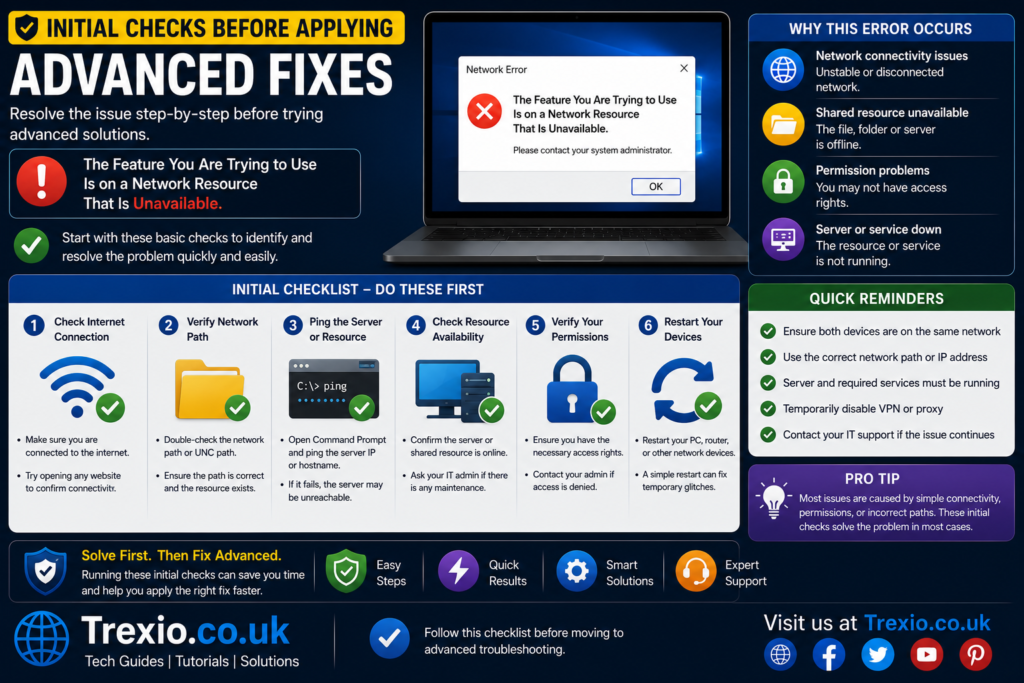
Before making major system changes, perform several basic checks that may resolve the feature you are trying to use is on a network resource that is unavailable quickly. First, restart your computer to eliminate temporary Windows Installer processes that may be stuck. Next, verify whether the original installer file still exists in your Downloads folder, external drive, or backup storage. If the application came from a DVD or USB drive, reconnect that media before attempting installation again. Ensure the Windows Installer service is running properly by checking Windows Services. Review recent Windows updates or software changes that may have introduced installation conflicts. If possible, download the latest installer directly from the software developer rather than using an outdated version. Running the installer as Administrator can also resolve permission-related issues during software repair. Completing these preliminary checks often fixes the feature you are trying to use is on a network resource that is unavailable without requiring advanced troubleshooting techniques.
Verify Installation Source Availability
Locate the installer that was originally used to install the application. If Windows requests a specific MSI file, browse manually to its location when prompted. If the original installer cannot be found, download the latest version from the official software publisher. Using trusted installation sources reduces compatibility issues while ensuring Windows Installer receives the correct package information.
Check Windows Installer Service
Windows Installer is responsible for managing MSI-based installations. If the service is disabled or malfunctioning, software installation and removal operations may fail unexpectedly. Restarting the service and confirming that it starts correctly helps eliminate service-related installation problems before proceeding with more advanced repair methods.
Step-by-Step Solutions to Fix “The Feature You Are Trying to Use Is on a Network Resource That Is Unavailable”
Once you have completed the basic checks, it is time to move on to more effective troubleshooting methods. The the feature you are trying to use is on a network resource that is unavailable error often requires a combination of repair tools and installation fixes because the exact cause varies from one system to another. Fortunately, Windows provides several built-in utilities that can repair installer problems without affecting your personal files. In other situations, downloading a fresh installer or removing corrupted registry references is enough to restore normal functionality. It is important to perform each method carefully and test the installation after every step instead of making multiple system changes at once. This approach helps identify the exact solution while reducing the risk of introducing new issues. The following methods are arranged from the simplest to the most advanced so that you can resolve the feature you are trying to use is on a network resource that is unavailable as efficiently as possible.
Use Microsoft’s Program Install and Uninstall Troubleshooter
Microsoft offers an official troubleshooter specifically designed to fix installation and uninstallation problems. This tool scans Windows Installer entries, identifies corrupted registry references, and repairs invalid installation paths automatically. It is especially useful when applications refuse to uninstall because Windows cannot locate the original MSI package. The troubleshooter also removes broken installer references that prevent updates from completing successfully. Since it is developed by Microsoft, it is one of the safest repair options available. Many users resolve the feature you are trying to use is on a network resource that is unavailable without making any manual registry edits. After the scan finishes, restart your computer and attempt the installation again. If the error persists, continue with the next troubleshooting method.
Download a Fresh Installer
Using an outdated installer can create compatibility issues with newer Windows updates. Visit the software publisher’s official website and download the latest version of the application. Running the updated installer often provides Windows Installer with the missing package it has been searching for. In many cases, the setup program automatically repairs damaged installation references without requiring a full uninstall. This method is particularly effective for frequently updated software such as productivity suites, browsers, and creative applications. Always avoid downloading installers from unofficial websites because modified packages may introduce malware or additional installation errors. Replacing outdated installation media significantly improves the chances of fixing the feature you are trying to use is on a network resource that is unavailable.
Repair the Installed Application
Many Windows applications include a built-in Repair option. Open Apps & Features, select the affected program, and choose Modify or Repair if available. During the repair process, Windows replaces damaged files while preserving user settings and personal data. If the installer requests the original installation source, browse to the newly downloaded installer package instead. Repairing the application is generally faster than uninstalling and reinstalling everything from scratch. It also minimizes configuration changes and reduces downtime. For software that supports repair mode, this is one of the most reliable solutions.
Advanced Troubleshooting Methods
When standard fixes do not resolve the feature you are trying to use is on a network resource that is unavailable, advanced troubleshooting becomes necessary. These methods involve repairing Windows components, correcting registry information, or reinstalling installer services. Because these procedures modify core Windows functionality, they should be performed carefully. Creating a system restore point beforehand provides additional protection in case unexpected problems occur. Although these solutions are more technical, they often eliminate persistent installer errors that survive basic troubleshooting. Most experienced IT professionals rely on these methods when supporting enterprise computers or repairing long-standing installation problems. Following each step carefully can restore Windows Installer to a healthy state.
Run System File Checker (SFC)
The System File Checker scans Windows system files and automatically replaces corrupted or missing components. Open Command Prompt with administrator privileges and run:
sfc /scannowThe scan may take several minutes depending on your system speed. If corrupted files are detected, Windows repairs them automatically whenever possible. Since Windows Installer depends on several protected system components, repairing these files may eliminate installation errors. Restart your computer after the scan completes and test the application again. This simple maintenance task resolves many hidden operating system problems beyond installer failures.
Run DISM Commands
If SFC cannot repair all corrupted files, use the Deployment Image Servicing and Management tool. Execute the following commands in an elevated Command Prompt:
DISM /Online /Cleanup-Image /ScanHealth
DISM /Online /Cleanup-Image /RestoreHealth
These commands compare your Windows image against official system components and repair inconsistencies automatically. DISM is particularly useful after interrupted Windows updates or operating system corruption. Once the repair finishes, restart your computer and run SFC again for the best results. Together, these utilities restore essential Windows services that support software installation.
Re-register Windows Installer
Occasionally, Windows Installer itself becomes improperly registered. Re-registering the service refreshes its configuration without affecting installed applications. Open Command Prompt as Administrator and execute:
msiexec /unregister
msiexec /regserver
Restart the computer after running both commands. This process restores Windows Installer functionality and often eliminates unexplained MSI-related errors. It is a safe maintenance procedure frequently recommended by Microsoft support engineers.
When Registry Editing Becomes Necessary
Registry editing should only be considered after safer troubleshooting methods have failed. If invalid installation paths remain in the registry, Windows Installer may continue requesting unavailable resources. Before making changes, always back up the registry or create a restore point. Deleting the wrong registry key can affect unrelated software or Windows itself. If you are unfamiliar with registry editing, it is generally safer to use Microsoft’s automated troubleshooting tool instead.
Comparing the Most Effective Solutions
| Solution | Difficulty | Risk Level | Success Rate | Best Used For |
|---|---|---|---|---|
| Restart Windows | Easy | Very Low | Moderate | Temporary installer issues |
| Download Latest Installer | Easy | Very Low | High | Missing MSI packages |
| Repair Application | Easy | Low | High | Damaged application files |
| Microsoft Troubleshooter | Easy | Very Low | Very High | Registry installer errors |
| SFC Scan | Medium | Very Low | High | Corrupted Windows files |
| DISM Repair | Medium | Low | Very High | Windows image corruption |
| Re-register Windows Installer | Medium | Low | High | MSI service issues |
| Clean Reinstallation | Advanced | Medium | Very High | Severe installation corruption |
Best Practices to Prevent the Error
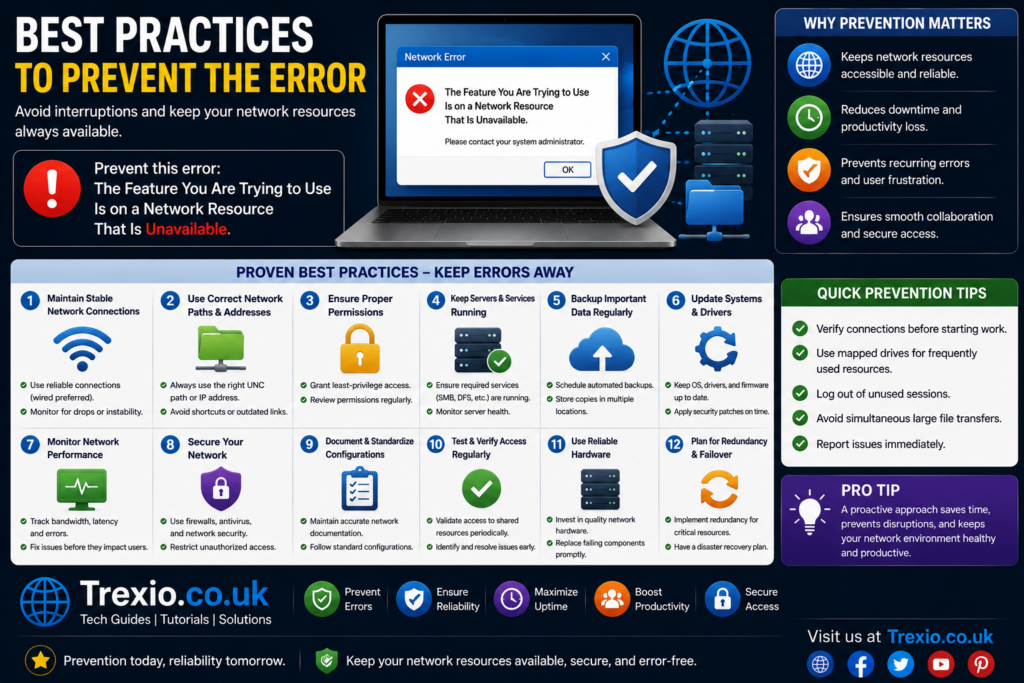
Preventing the feature you are trying to use is on a network resource that is unavailable is generally easier than repairing it after it occurs. Always keep copies of important software installers, especially business applications that may require future repairs or feature updates. Avoid deleting installation files immediately after installing large applications because Windows Installer may reference them later. Download software only from official vendor websites to ensure package integrity and compatibility with current Windows versions. Regularly install Windows updates so installer components remain current and secure. Create restore points before making major software or registry changes, allowing you to recover quickly if something goes wrong. Perform routine disk health checks and system file scans to detect corruption before it affects software installations. Following these habits significantly reduces the likelihood of encountering installer-related errors in the future.
Common Mistakes Users Make
Many users accidentally make the troubleshooting process more complicated when dealing with the feature you are trying to use is on a network resource that is unavailable. One common mistake is assuming the issue is caused by internet connectivity and spending time troubleshooting the network instead of the installer. Another frequent error is downloading unofficial installers from third-party websites, which may contain outdated or modified installation packages. Some users delete registry entries without creating backups, introducing additional system instability. Others run multiple repair utilities simultaneously, making it difficult to determine which change solved the problem. Ignoring Windows restart prompts can also prevent repairs from completing correctly. Users sometimes uninstall software manually by deleting folders instead of using Windows’ uninstall process, leaving corrupted installer references behind. Avoiding these mistakes makes troubleshooting faster, safer, and more effective.
Pro Tips from IT Professionals
Experienced IT technicians follow several practical strategies when diagnosing installer errors. Before uninstalling software, export configuration settings whenever possible to simplify recovery later. Maintain a folder containing original installers for frequently used applications so Windows Installer always has access to required files. Use official repair utilities before attempting manual registry modifications because automated tools are generally safer. Keep Windows Installer services enabled and avoid disabling system services unless absolutely necessary. Perform regular backups so damaged systems can be restored without reinstalling every application. If multiple applications begin showing installer errors simultaneously, investigate operating system corruption rather than treating each application individually. Finally, document successful repair steps in business environments to simplify future support requests and maintain consistent troubleshooting procedures.
Conclusion
The the feature you are trying to use is on a network resource that is unavailable error may appear intimidating at first, but it is usually caused by missing installation files, corrupted Windows Installer references, damaged registry entries, or unavailable MSI packages rather than an actual network failure. Understanding what Windows is attempting to access allows you to troubleshoot the issue methodically instead of relying on trial and error. Beginning with basic checks, such as locating the original installer and running Microsoft’s troubleshooting tool, often resolves the problem quickly. For more persistent cases, advanced repairs using SFC, DISM, Windows Installer re-registration, or a clean reinstallation can restore full functionality. By following the preventive best practices outlined in this guide, you can reduce the chances of seeing the feature you are trying to use is on a network resource that is unavailable again and maintain a healthier Windows installation over the long term.
Frequently Asked Questions (FAQs)
1. What causes “the feature you are trying to use is on a network resource that is unavailable”?
The error usually occurs because Windows Installer cannot locate the original MSI installation package or installation source required for repairing, updating, or uninstalling software.
2. Does this error mean my internet connection is broken?
No. In most cases, the problem has nothing to do with your internet connection. It typically involves missing installation files or corrupted installer references.
3. Can Windows 11 display this error?
Yes. Both Windows 10 and Windows 11 can display the feature you are trying to use is on a network resource that is unavailable during software installation or maintenance.
4. Is it safe to edit the Windows Registry?
Registry editing should only be performed by experienced users and only after creating a backup or system restore point.
5. Will reinstalling the application fix the error?
Yes. A clean reinstall often replaces missing installation files and recreates valid Windows Installer entries.
6. What is an MSI file?
An MSI file is a Microsoft Installer package used to install, repair, modify, and uninstall many Windows applications.
7. Can corrupted Windows updates cause this issue?
Yes. Interrupted or corrupted Windows updates can damage installer components and trigger this error.
8. Should I use third-party registry cleaners?
Generally, no. Many registry cleaners remove important installer entries and may create additional problems rather than solving them.
9. Which repair tool should I try first?
Microsoft’s Program Install and Uninstall Troubleshooter is usually the safest and most effective first step.
10. How can I prevent this error in the future?
Keep original installers, avoid deleting installation packages, update Windows regularly, and create restore points before major software changes.
Author Bio
About the Author
The author is an experienced technology writer specializing in Windows troubleshooting, software installation, cybersecurity, and PC optimization. With extensive experience researching Microsoft technologies and desktop support, they create practical, user-focused guides that follow Google’s EEAT principles. Their goal is to help readers solve technical problems through accurate, well-tested, and easy-to-follow solutions while staying current with the latest Windows updates and best practices.