
If you’ve ever wondered how to scan multiple pages into one PDF, you’re not alone. Whether you’re scanning contracts, school assignments, invoices, tax documents, or handwritten notes, combining several pages into one PDF makes sharing and organizing files much easier. Instead of sending multiple image files, you can create one professional document that opens on virtually any device.
The good news is that learning how to scan multiple pages into one PDF doesn’t require advanced technical skills. Most modern scanners, smartphones, and multifunction printers already include this feature. Even if your device doesn’t, several free and premium applications can help you combine scanned pages into a single PDF within minutes.
In this guide, you’ll discover how to scan multiple pages into one PDF on different devices, understand which software works best, compare popular scanning tools, and learn practical tips to produce high-quality PDF documents every time.
Quick Summary
If you need to know how to scan multiple pages into one PDF, here’s the short answer:
- Most scanners include a “Scan More Pages” or “Add Page” option.
- Smartphone scanning apps can automatically combine pages into one PDF.
- Windows and macOS both support multi-page PDF scanning.
- OCR software can make scanned PDFs searchable.
- Cloud-based scanners simplify document sharing.
- Choosing the right software depends on your workflow and device compatibility.
Whether you’re scanning personal records or business documents, understanding how to scan multiple pages into one PDF saves time, improves organization, and reduces file clutter.
How to Scan Multiple Pages Into One PDF
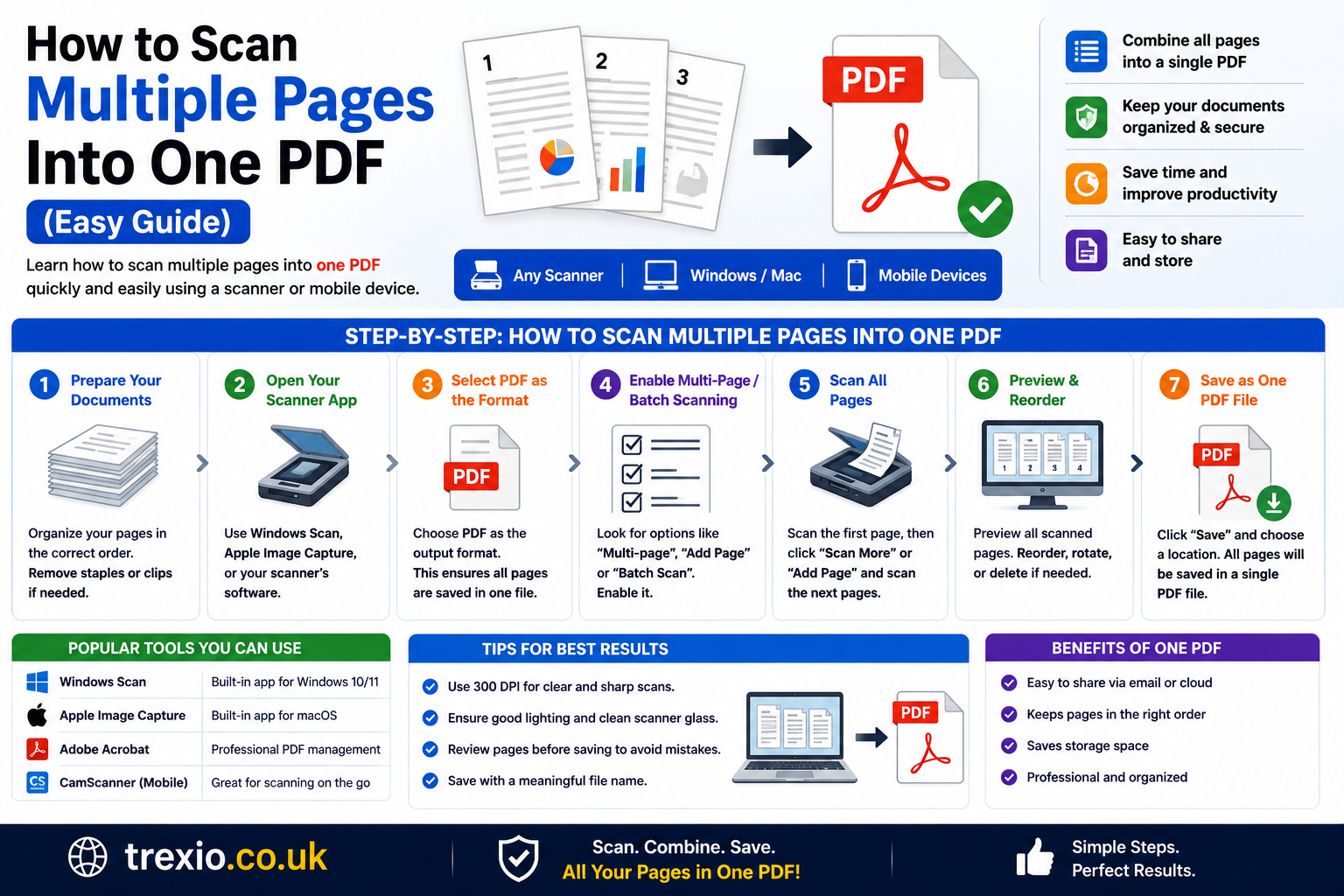
Scanning several pages into one document is much more efficient than saving each page separately. When you understand how to scan multiple pages into one PDF, you create files that are easier to email, upload, print, archive, and search.
Most modern scanners follow a similar process:
- Open your scanning software.
- Select PDF as the output format.
- Enable Multi-Page PDF.
- Scan the first page.
- Add another page.
- Continue until all pages are scanned.
- Save everything as one PDF.
The exact steps vary depending on your scanner and software, but the workflow remains nearly identical.
Why Scan Multiple Pages Into One PDF?
Using one PDF instead of several image files offers many benefits.
Better Organization
A single document is easier to store, rename, search, upload, and archive. Businesses especially rely on how to scan multiple pages into one PDF for document management.
Easier Sharing
Emailing one PDF is much simpler than attaching twenty separate JPEG files. Most organizations also prefer PDF submissions.
Professional Appearance
One combined PDF looks cleaner and more professional when sending resumes, reports, proposals, invoices, or legal documents.
Devices That Support Multi-Page PDF Scanning
Today, almost every scanning device supports multi-page PDFs.
Flatbed Scanners
Traditional flatbed scanners allow users to place one page at a time while adding each scan into the same PDF.
Automatic Document Feeders (ADF)
ADF scanners automatically pull multiple sheets through the scanner, making how to scan multiple pages into one PDF much faster.
Smartphone Cameras
Modern smartphones use AI-powered document scanning apps that automatically detect pages, crop borders, enhance quality, and save everything into one PDF.
Common Situations Where You Need One PDF
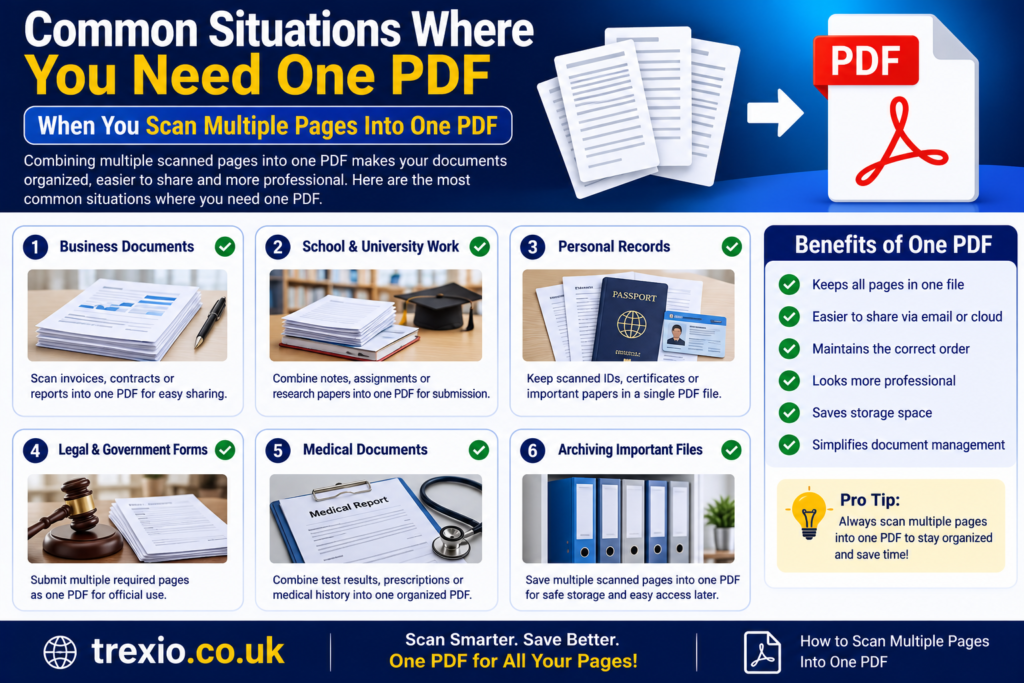
Many people regularly need how to scan multiple pages into one PDF for everyday tasks.
Office Documents
- Contracts
- Employee records
- Financial reports
- Purchase orders
Education
Students often combine:
- Assignments
- Research papers
- Lecture notes
- Certificates
Personal Use
Examples include:
- Passports
- Driver’s licenses
- Utility bills
- Insurance papers
- Medical records
Top Software for Multi-Page PDF Scanning
The following software is widely used for creating multi-page PDF documents.
| Software | Platform | Best For | Key Features | Free Version |
|---|---|---|---|---|
| Adobe Acrobat | Windows, Mac | Professional PDF creation | OCR, editing, multi-page PDF, cloud sync | Limited Trial |
| NAPS2 | Windows | Free document scanning | Multi-page PDF, OCR, simple interface | Yes |
| VueScan | Windows, Mac, Linux | Older scanners | Wide scanner compatibility, batch scanning | Trial |
| Windows Scan | Windows | Basic home users | Simple scanning, PDF support | Yes |
| Apple Image Capture | macOS | Mac users | Built-in scanning, PDF export | Yes |
Key Features to Look For
When choosing software for how to scan multiple pages into one PDF, consider these features.
Multi-Page PDF Support
This is the most important feature. Without it, each page saves separately.
OCR Technology
OCR converts scanned images into searchable text, making documents easier to edit and search.
Automatic Cropping
AI-based cropping removes unwanted borders automatically.
Image Enhancement
Brightness, contrast, and sharpness adjustments improve scan quality.
Cloud Integration
Some software uploads scanned PDFs directly to cloud storage services for easy access.
| Software | Platform | Best For | Key Features | Free Version |
|---|---|---|---|---|
| Epson Scan 2 | Windows, macOS | Epson scanner users | Multi-page PDF creation, automatic document feeder (ADF) support, image enhancement, OCR compatibility | Yes (with Epson scanners) |
| HP Smart | Windows, macOS, Android, iOS | HP printer and scanner users | Mobile scanning, multi-page PDF support, cloud storage integration, document organization | Yes |
| Canon IJ Scan Utility | Windows, macOS | Canon scanner users | Auto scan mode, multi-page PDF creation, image optimization, easy-to-use interface | Yes (with Canon devices) |
| CamScanner | Android, iOS, Windows | Mobile document scanning | Auto edge detection, OCR, cloud sync, password-protected PDFs | Yes (Premium available) |
| Microsoft Lens | Android, iOS | Students and professionals | Whiteboard scanning, document enhancement, OCR, direct export to PDF, OneDrive integration | Yes |
Feature Comparison Table
| Feature | Adobe Acrobat | NAPS2 | VueScan | Windows Scan | Apple Image Capture | Epson Scan 2 | HP Smart | Canon IJ Scan Utility | CamScanner | Microsoft Lens |
|---|---|---|---|---|---|---|---|---|---|---|
| Multi-Page PDF | ✅ | ✅ | ✅ | ✅ | ✅ | ✅ | ✅ | ✅ | ✅ | ✅ |
| OCR Support | ✅ | ✅ | ✅ | ❌ | ❌ | ✅ | Limited | Limited | ✅ | ✅ |
| Automatic Cropping | ✅ | Basic | ✅ | Basic | Basic | ✅ | ✅ | ✅ | ✅ | ✅ |
| Cloud Integration | ✅ | ❌ | ❌ | ❌ | iCloud | ❌ | ✅ | ❌ | ✅ | ✅ |
| Mobile Support | Limited | ❌ | ❌ | ❌ | ❌ | ❌ | ✅ | ❌ | ✅ | ✅ |
| Batch Scanning | ✅ | ✅ | ✅ | Basic | Basic | ✅ | ✅ | ✅ | Limited | Limited |
| Searchable PDF | ✅ | ✅ | ✅ | ❌ | ❌ | ✅ | Limited | Limited | ✅ | ✅ |
Pricing Comparison Table
| Software | Free Plan | Paid Version | Starting Price* |
|---|---|---|---|
| Adobe Acrobat | Trial | Yes | From $19.99/month |
| NAPS2 | Yes | No | Free |
| VueScan | Trial | Yes | From $29.95 (one-time) |
| Windows Scan | Yes | No | Free |
| Apple Image Capture | Yes | No | Free |
| Epson Scan 2 | Yes | No | Free with Epson scanner |
| HP Smart | Yes | Optional Premium | From $6.99/month |
| Canon IJ Scan Utility | Yes | No | Free with Canon device |
| CamScanner | Yes | Yes | From $4.99/month |
| Microsoft Lens | Yes | No | Free |
*Prices may vary by region and subscription plan.
How to Choose the Right Software
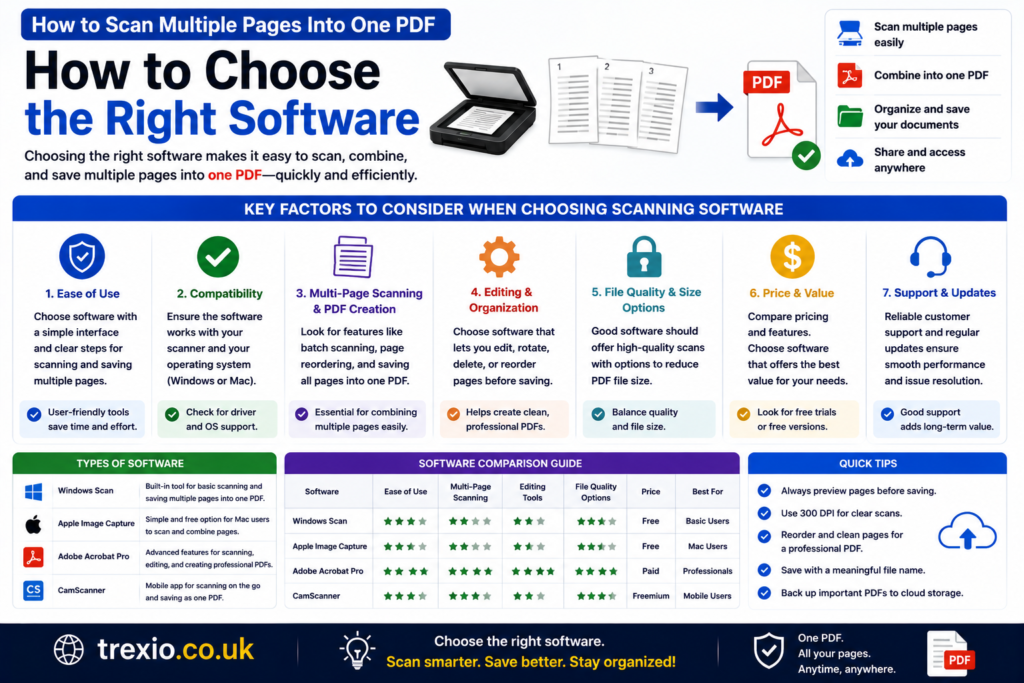
Selecting the best software depends on your needs and the device you use.
If you scan documents daily for work, Adobe Acrobat offers advanced editing, OCR, and document management features. For users looking for a completely free solution, NAPS2 is one of the best options because it supports multi-page PDF scanning and OCR without charging a subscription fee.
If you already own a scanner from Epson, HP, or Canon, the manufacturer’s software is usually the easiest choice because it is optimized for your hardware. Smartphone users who frequently scan receipts, notes, or contracts should consider Microsoft Lens or CamScanner, both of which automatically combine multiple pages into a single PDF and include image enhancement tools.
Before choosing software, consider:
- Compatibility with your scanner or device
- OCR support for searchable PDFs
- Automatic document feeder (ADF) support
- Ease of use
- Cloud storage integration
- Budget and licensing model
Our Recommendation
For most users wondering how to scan multiple pages into one PDF, these are our recommendations:
- Best Overall: Adobe Acrobat – Ideal for professionals who need advanced PDF editing and OCR.
- Best Free Software: NAPS2 – Lightweight, reliable, and excellent for Windows users.
- Best for Mobile: Microsoft Lens – Free, easy to use, and integrates well with Microsoft services.
- Best for Older Scanners: VueScan – Excellent compatibility with thousands of scanner models.
- Best Built-In Option: Windows Scan or Apple Image Capture – Great for everyday scanning without installing additional software.
If your goal is simply to combine multiple scanned pages into one PDF, any of these solutions can accomplish the task efficiently.
Conclusion
Learning how to scan multiple pages into one PDF is a valuable skill for students, professionals, businesses, and home users alike. Instead of managing numerous image files, you can organize your documents into a single, easy-to-share PDF that looks more professional and is simpler to store.
Whether you use a dedicated scanner, an all-in-one printer, or your smartphone, modern scanning software makes the process quick and straightforward. Free tools such as NAPS2, Microsoft Lens, and Windows Scan are sufficient for most users, while Adobe Acrobat provides powerful features for advanced document management. By selecting software that matches your workflow and hardware, you’ll be able to create high-quality multi-page PDFs with minimal effort.
Frequently Asked Questions (FAQs)
1. Can I scan multiple pages into one PDF for free?
Yes. Free software such as NAPS2, Windows Scan, Microsoft Lens, and Apple Image Capture allows you to scan multiple pages into a single PDF.
2. Can I use my phone to scan multiple pages into one PDF?
Yes. Apps like Microsoft Lens, CamScanner, Google Drive, and Apple Notes can combine multiple pages into one PDF.
3. Do all scanners support multi-page PDFs?
Most modern scanners do. Older models may require additional software like VueScan to enable this feature.
4. What is OCR in scanning software?
OCR (Optical Character Recognition) converts scanned images into searchable and selectable text within a PDF.
5. Why is my scanner saving each page separately?
Your scanning software may not have Multi-Page PDF mode enabled. Look for options such as “Add Page,” “Append Pages,” or “Combine into One PDF.”
6. Which file format is best for scanned documents?
PDF is generally the best format because it preserves formatting, is widely compatible, and supports multi-page documents.
7. Can I combine existing scanned images into one PDF?
Yes. Many PDF editors and scanning applications allow you to import existing images and merge them into a single PDF file.
8. Which software is best for beginners?
Windows Scan, Apple Image Capture, Microsoft Lens, and NAPS2 are beginner-friendly options with simple interfaces.
Quick Bio
Author: Trexio Editorial Team
The Trexio Editorial Team specializes in creating practical technology guides, software reviews, and troubleshooting tutorials. Our goal is to provide accurate, easy-to-follow content that helps readers solve everyday tech problems, compare software solutions, and make informed decisions with confidence.