
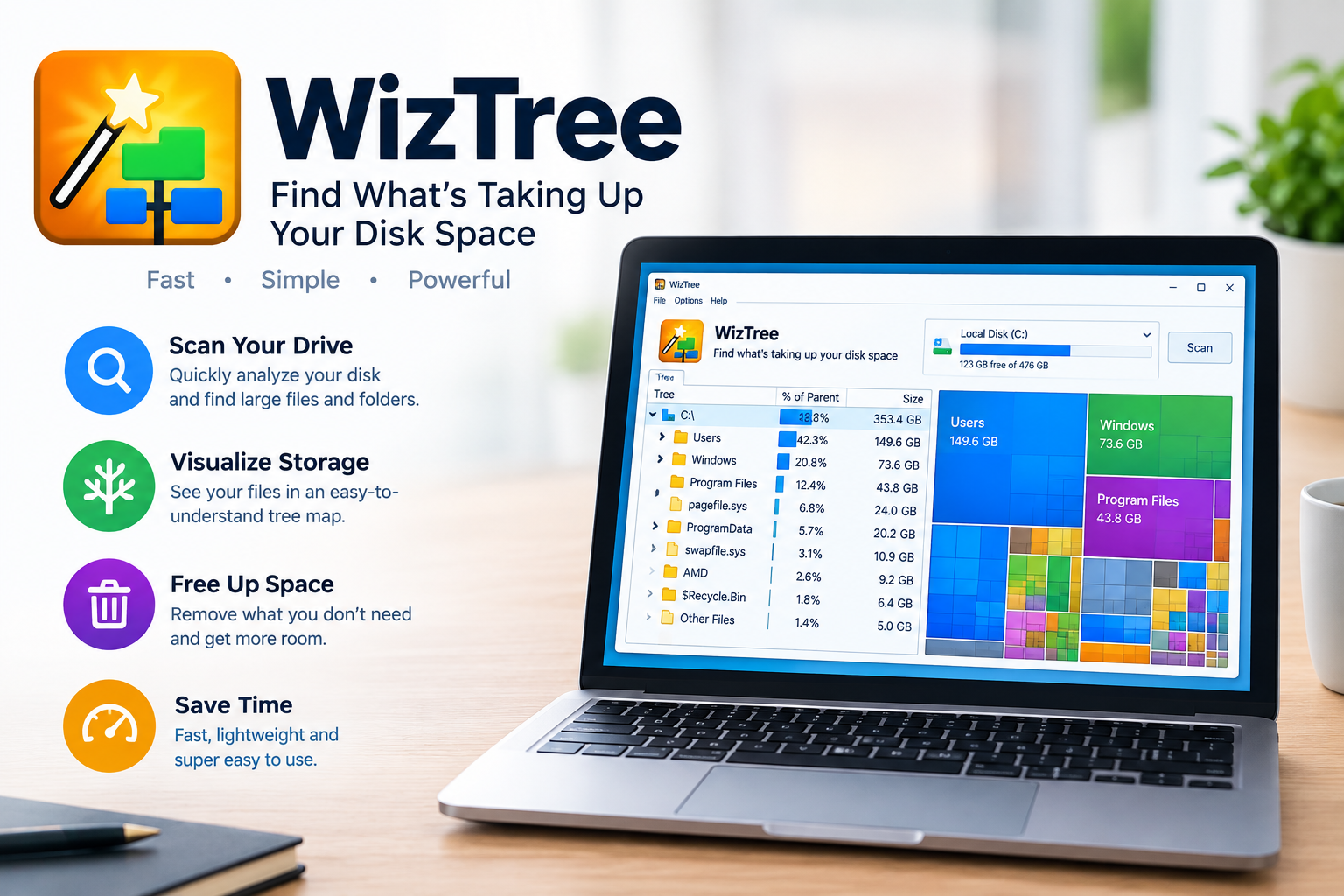
When a computer starts running low on storage, finding the reason can take a surprising amount of time. Windows may show that a drive is almost full, but it does not always make it easy to see which files or folders are responsible. This is where WizTree becomes useful. WizTree is a disk space analysis tool designed to show how storage is being used, helping users locate large files, folders, duplicate files, and other data that may be consuming valuable space. Its visual approach makes storage management easier because users can see the largest areas of a drive instead of manually opening folder after folder.
WizTree has become known for its fast scanning, especially on NTFS-formatted Windows drives. The software can read the Master File Table directly, allowing it to build a detailed picture of files and folders very quickly. It also provides a tree view, visual treemap, file search, duplicate detection, and CSV import and export. The latest official release is Wi’zTree 4.33, released on September 16, 2026, and the software is now also available as WizTreeMac for macOS 12 or later.
What Is WizTree?
WizTree is a disk space analyzer developed to help users understand exactly where their storage is being used. Instead of simply showing the amount of free and occupied space, it breaks storage information down into folders and individual files. This makes it easier to identify large applications, videos, downloads, archives, backups, temporary files, and other data that may have accumulated over time.
The program is particularly useful when a hard drive or SSD suddenly becomes full and the reason is unclear. A user can scan a drive and immediately examine the largest folders before moving deeper into the directory structure. WizTree can also scan different storage types supported by Windows, including NTFS, FAT, FAT32, network locations, and connected MTP or PTP devices such as some smartphones and cameras.
How WizTree Scans Storage
One of the main reasons WizTree is widely recognized for speed is its use of the Master File Table on NTFS drives. The MFT contains information about files and directories stored on an NTFS volume. Rather than processing every file through a traditional approach, Wi’zTree can read the MFT directly and use that information to build its storage map. The official documentation compares this approach to the way the Everything Search Engine can work with file-system information.
This method can make a major difference when a drive contains a very large number of files. WizTree also supports other file systems and locations, although the scanning method and performance can vary. Recent releases have improved scanning for non-admin use, network drives, folders, and non-NTFS storage. Version 4.28, for example, introduced improvements that could provide up to twice the scanning speed in certain non-NTFS, network-drive, or folder scanning situations.
Understanding the WizTree Treemap
The visual treemap is one of the most useful features in WizTree. It represents files and folders as blocks whose sizes correspond to the amount of storage they occupy. Large files appear as larger areas, making storage-heavy content easy to notice. This visual representation can be much easier to understand than reading a long list of filenames and file sizes.
For example, if a computer contains several large video files, disk images, game installations, or archived projects, the treemap can make those areas immediately visible. Users can select different sections and move through the folder structure to understand where the storage is going. WizTree also supports exporting treemap information, although the usefulness of an exported image depends on the amount of data being displayed.
The treemap should be viewed as an investigation tool rather than an automatic cleanup system. A large file is not automatically unnecessary. System components, application files, personal projects, backups, and databases can all be large while still being important. Wi’zTree helps users identify storage usage, but users should determine whether a file is safe to remove before taking action.
WizTree File View and Search
WizTree also includes a detailed File View that allows users to examine individual files and folders. Files can be sorted by size, making it easier to locate the largest items on a drive. This is especially useful when storage problems are caused by a small number of very large files rather than thousands of smaller files.
The file search system adds another layer of control. Users can search for filenames, file types, and other characteristics, while wildcard searches can help locate groups of files with a particular extension. This can be helpful when someone wants to investigate media files, old installers, archives, documents, or other categories without manually browsing every folder.
WizTree has also expanded its time-based filtering capabilities. Recent versions allow users to filter files according to modification time, making it possible to investigate recently changed data or files that have not been modified for a long period. These features can be useful when troubleshooting sudden storage growth or looking for old data that may no longer be required.
Finding Large Files With WizTree
Finding large files is one of the simplest and most practical reasons to use WizTree. A drive can become full because of a few very large files that are difficult to notice through normal Windows browsing. Video recordings, virtual machine images, game files, software installers, compressed archives, backups, and project files can consume many gigabytes without being obvious.
WizTree’s File View provides a direct way to examine these files. Sorting by size can bring the largest items to the top, allowing users to investigate them quickly. The application can also display file and folder information through its tree and visual views, giving users more context before deciding what should happen to the data.
This approach is safer than deleting files simply because they appear large. Users should identify the purpose of a file before removing it, especially when it is located inside Windows, Program Files, application-data directories, backup folders, or active work directories. Important information should also be backed up before major cleanup operations.
Duplicate File Detection in WizTree
Duplicate files are another source of unnecessary storage usage. People often create multiple copies of photographs, documents, downloads, installers, or project files without realizing how much additional space they consume. WizTree includes a duplicate-file detection feature designed to help users identify potential duplicates and investigate their total storage impact.
The software can locate duplicates using file name and size, with date also available as part of the detection method. WizTree’s documentation makes an important distinction here: its duplicate detection does not compare the actual contents of files. This means that files identified as duplicates should be checked before deletion because matching names, sizes, and dates do not provide the same certainty as a full content comparison.
This is particularly important for backups and professional files. Two files can have similar characteristics while serving different purposes, and removing the wrong copy can create problems later. WizTree can make duplicate discovery faster, but the final decision should always be based on the user’s understanding of the files and their backup situation.
WizTree CSV Import and Export
WizTree is not limited to information displayed inside the application. It can export file information and MFT data, including selected or complete file information, to CSV files. These exports can be useful when storage information needs to be reviewed separately, archived, or processed using another application.
CSV support also makes WizTree useful for tracking storage information over time. A user can save an analysis and later import the information back into WizTree to examine changes. Recent versions have improved CSV handling, including additional export options and drive capacity information. Version 4.33 also added support for importing and exporting CSV files generated by WizTreeMac.
For technical users and administrators, WizTree also supports command-line operations for exporting CSV and MFT data. This can be useful when storage auditing needs to become part of a larger workflow. Instead of manually recording information, file-system data can be exported and reviewed later, giving users more flexibility than a simple graphical storage viewer.
WizTree Updates and Platform Support
WizTree continues to receive updates that improve compatibility, performance, and functionality. WizTree 4.29 introduced the ability to rename files and folders directly within the application, while version 4.32 officially confirmed compatibility with Windows Arm devices through Prism Emulation. These releases also included interface improvements and fixes for specific operating-system and file-handling situations.
The latest WizTree 4.33 release, dated September 16, 2026, expanded the product beyond Windows with WizTreeMac for macOS 12 or later. The Mac edition includes most of the functionality available in WizTree 4.33 and supports CSV interoperability with the Windows version. This is a significant development for users who work across Windows and Mac computers and want a similar storage-analysis workflow.
These updates also show why users should obtain the application from its official distribution source and check the current version before installing. Updating an existing Windows installation does not require uninstalling the previous version first, according to the official download information.
Is WizTree Free and Safe to Use?
WizTree is available for personal use under its licensing terms, while commercial users need to follow the applicable commercial licensing requirements. The official licensing information explains that business locations require an appropriate supporter code, while newer releases can be installed over an existing supported installation without first removing the older version.
From a practical safety perspective, users should download WizTree from its official website rather than an unfamiliar software-download source. A storage analyzer can display extensive information about files and folders, so using a trusted distribution is important. WizTree itself should also not be confused with antivirus software. It can help locate unusual or unexpected files, but identifying whether a particular file is malicious requires appropriate security software and additional investigation.
Users should also be careful when deleting or renaming files through any disk-management application. Storage analysis and storage cleanup are two different tasks. WizTree makes it easier to see what occupies space, but responsible cleanup means understanding what the file is, whether it is still required, and whether another backup or copy exists.
WizTree for Everyday Storage Management
WizTree can be useful as part of a regular storage-management routine. When a drive begins approaching its capacity limit, scanning it can quickly reveal which folders have grown significantly. Instead of guessing where the missing storage went, users can examine the largest directories and then investigate individual files. This can save considerable time compared with checking folders manually.
It can also help users understand why Windows and file-analysis software sometimes report slightly different storage figures. WizTree distinguishes between file size and allocated size. File size represents the actual data size, while allocated size reflects the disk space assigned to the file based on the storage system’s cluster size. NTFS also contains reserved space and other file-system information that may not appear in the same way in a WizTree scan.
The best use of WizTree is therefore not simply deleting everything that looks large. Its real value comes from giving users a clearer picture of storage. Once the cause of a full drive is understood, files can be moved, archived, backed up, or removed according to their importance. That makes the software useful for both everyday computer users and people who need more detailed storage auditing.
Conclusion
WizTree is a powerful and practical disk space analyzer for understanding how storage is being used. Its fast NTFS scanning, visual treemap, detailed File View, file search, duplicate detection, filtering, CSV support, and command-line capabilities give users several ways to investigate storage problems. The software has also continued to evolve, with recent releases adding Windows Arm compatibility, improved scanning, file management features, and WizTreeMac for macOS 12 or later.
The biggest advantage of WizTree is that it turns an unclear storage problem into information that is easier to understand. Instead of seeing only that a drive is nearly full, users can identify the folders and files responsible and then make informed decisions about what to keep. When used carefully and downloaded from the official source, WizTree can be a valuable tool for maintaining available storage, investigating large files, reviewing duplicates, and keeping a computer’s file system more organized.