
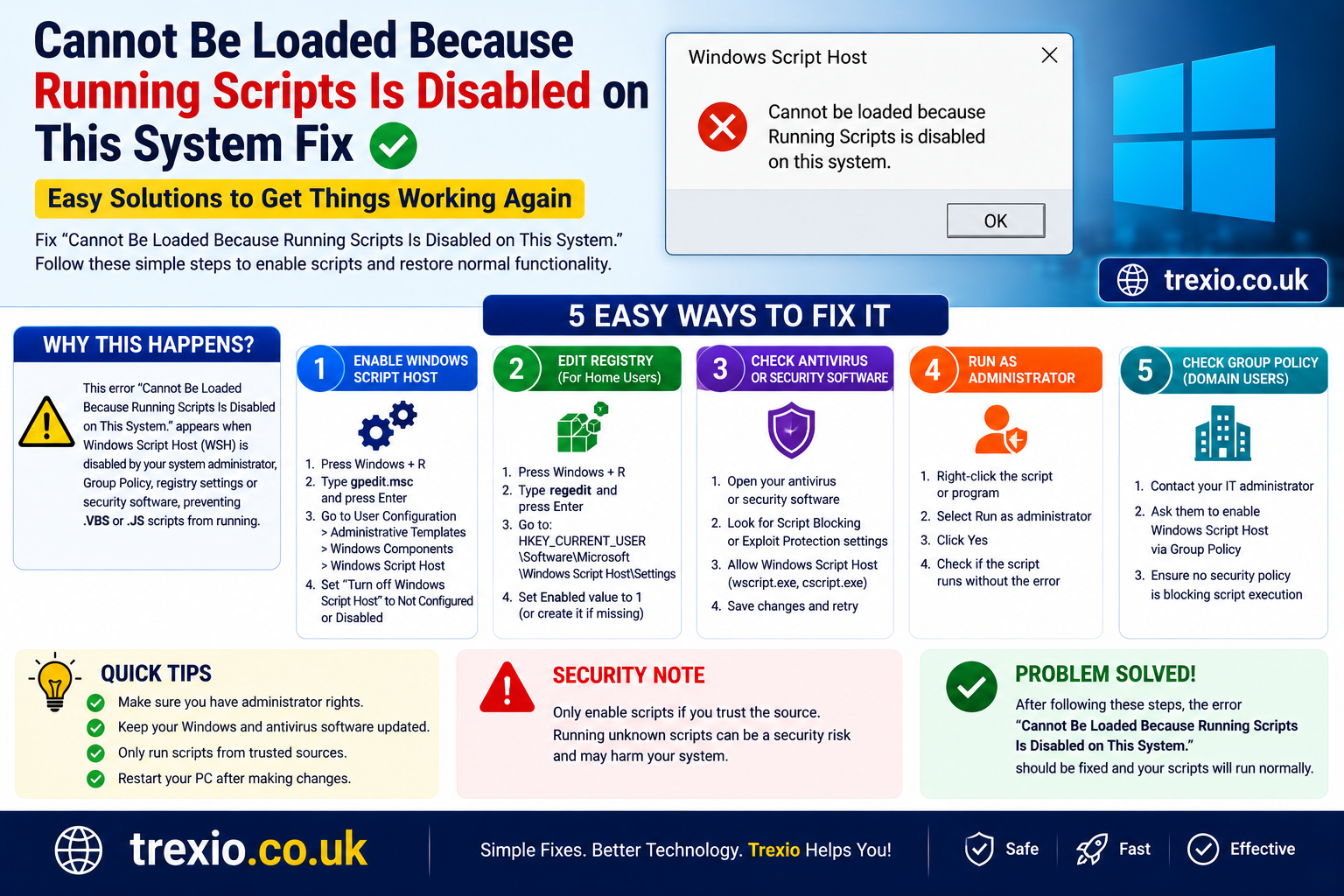
If you’ve ever tried running a PowerShell script and received the message cannot be loaded because running scripts is disabled on this system., you’re not alone. This is one of the most common PowerShell errors Windows users encounter. Whether you’re installing development tools, running automation scripts, configuring Windows settings, or using package managers like npm or Chocolatey, the cannot be loaded because running scripts is disabled on this system. error can stop your workflow instantly.
The good news is that this error is usually caused by Windows PowerShell’s execution policy, a built-in security feature designed to prevent unauthorized scripts from running. Once you understand why the cannot be loaded because running scripts is disabled on this system. message appears, fixing it becomes much easier.
In this guide, you’ll learn what causes the cannot be loaded because running scripts is disabled on this system. error, how execution policies work, when it’s safe to change them, and the best tools that can help manage PowerShell scripts more efficiently.
Quick Summary
| Feature | Details |
|---|---|
| Error | cannot be loaded because running scripts is disabled on this system. |
| Common Cause | PowerShell Execution Policy restrictions |
| Operating Systems | Windows 10, Windows 11, Windows Server |
| Difficulty | Beginner to Intermediate |
| Safe to Fix | Yes, when using trusted scripts |
| Best Solution | Change Execution Policy appropriately |
| Typical Users | Developers, IT admins, Windows users |
Understanding the “Cannot Be Loaded Because Running Scripts Is Disabled on This System.” Error
The cannot be loaded because running scripts is disabled on this system. message appears whenever PowerShell blocks a script from executing due to your current execution policy.
Microsoft designed this protection to reduce the chances of malicious scripts damaging your computer. Instead of allowing every PowerShell script to run automatically, Windows checks whether the script meets the configured security policy.
Although the cannot be loaded because running scripts is disabled on this system. error looks alarming, it doesn’t necessarily indicate that something is wrong with your PC. In most cases, it’s simply Windows enforcing security rules.
What Is PowerShell Execution Policy?
Execution Policy is a PowerShell security feature that determines which scripts are allowed to run.
Rather than acting as an antivirus, it serves as a safety mechanism that helps users avoid accidentally executing harmful or untrusted scripts.
Common execution policies include:
- Restricted
- RemoteSigned
- AllSigned
- Unrestricted
- Bypass
- Undefined
The cannot be loaded because running scripts is disabled on this system. error is most commonly associated with the Restricted policy.
Why Does This Error Appear?
Several situations can trigger the cannot be loaded because running scripts is disabled on this system. message.
Common reasons include:
- Windows PowerShell is using the Restricted execution policy.
- A company or school administrator has enforced Group Policy settings.
- You’re installing development software.
- npm PowerShell scripts are blocked.
- Visual Studio Code is trying to execute PowerShell commands.
- Windows Terminal inherits restricted policies.
- Script files downloaded from the internet are blocked.
Signs You Are Facing This Problem
You may see messages like:
- cannot be loaded because running scripts is disabled on this system.
- Script execution is disabled.
- PowerShell cannot load the file.
- Running scripts is disabled.
- AuthorizationManager check failed.
These messages all point toward PowerShell execution policy restrictions.
Common Situations Where the Error Occurs
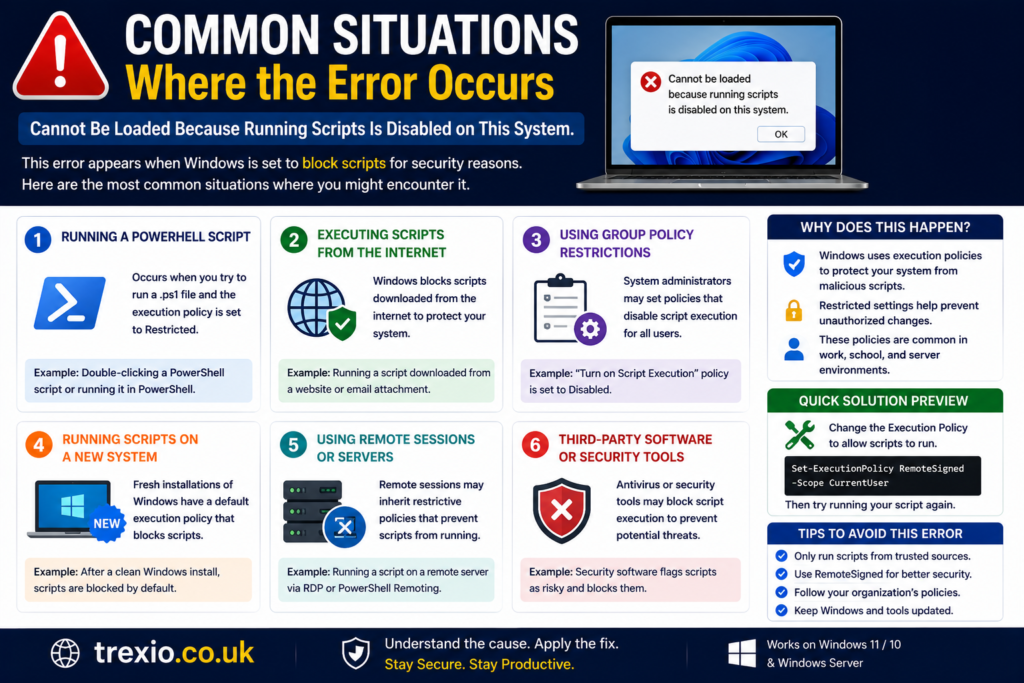
While Installing Node.js Packages
Many developers encounter the cannot be loaded because running scripts is disabled on this system. error while running npm commands.
PowerShell attempts to execute helper scripts, but Windows blocks them according to the execution policy.
During Visual Studio Code Development
VS Code often opens PowerShell as the integrated terminal.
If your execution policy is Restricted, you’ll likely encounter the cannot be loaded because running scripts is disabled on this system. message when running build scripts or automation tasks.
Using Windows Terminal
Windows Terminal inherits PowerShell settings.
If PowerShell isn’t permitted to execute scripts, Windows Terminal will display the cannot be loaded because running scripts is disabled on this system. error as well.
Running Administrative Scripts
IT administrators frequently automate Windows management using PowerShell.
If execution policies aren’t configured correctly, administrative scripts fail with the cannot be loaded because running scripts is disabled on this system. warning.
How Execution Policies Protect Your Computer
Execution policies exist to reduce security risks.
Their primary purposes include:
- Preventing accidental script execution
- Blocking downloaded malicious scripts
- Encouraging signed scripts
- Protecting enterprise computers
- Giving administrators more control
This explains why Windows displays cannot be loaded because running scripts is disabled on this system. instead of silently executing unknown code.
Comparison Table Software for Managing PowerShell Scripts
| Software | Best For | Platform | Ease of Use | Free Version | Why Choose It |
|---|---|---|---|---|---|
| PowerShell 7 | Script execution and automation | Windows, macOS, Linux | Easy | Yes | Modern PowerShell with improved compatibility and performance |
| Visual Studio Code | Script editing and debugging | Windows, macOS, Linux | Easy | Yes | Excellent IntelliSense, extensions, and integrated PowerShell terminal |
| Windows Terminal | Running multiple command-line environments | Windows | Easy | Yes | Supports PowerShell, Command Prompt, and WSL in one interface |
| PowerShell ISE | Basic PowerShell scripting | Windows | Beginner Friendly | Yes | Simple editor suitable for learning and testing scripts |
| Notepad++ | Editing PowerShell scripts | Windows | Easy | Yes | Lightweight text editor with syntax highlighting for PowerShell files |
| Software | Best For | Platform | Ease of Use | Free Version | Why Choose It |
|---|---|---|---|---|---|
| Windows PowerShell ISE Preview | Advanced script editing | Windows | Easy | Yes | Offers enhanced editing features for users who still prefer the ISE environment. |
| JetBrains IntelliJ IDEA (PowerShell Plugin) | Enterprise development | Windows, macOS, Linux | Intermediate | Community Edition Available | Supports PowerShell through plugins and integrates well into professional development workflows. |
| PowerShell Pro Tools | Professional PowerShell development | Windows | Intermediate | Trial Available | Adds advanced debugging, packaging, GUI creation, and Visual Studio integration. |
| Sublime Text | Lightweight scripting | Windows, macOS, Linux | Easy | Evaluation Version | Fast editor with PowerShell syntax highlighting and extensive customization options. |
| Windows Admin Center | Remote Windows administration | Windows | Intermediate | Yes | Helps administrators manage Windows servers and systems using PowerShell behind the scenes. |
Feature Comparison Table
| Feature | PowerShell 7 | VS Code | Windows Terminal | PowerShell ISE | Notepad++ | Pro Tools | Sublime Text | Windows Admin Center |
|---|---|---|---|---|---|---|---|---|
| Script Execution | ✅ | ✅ | ✅ | ✅ | ❌ | ✅ | ❌ | Limited |
| Syntax Highlighting | Basic | Excellent | No | Yes | Yes | Excellent | Excellent | No |
| Debugging | Good | Excellent | No | Good | No | Advanced | Limited | No |
| Extensions | Moderate | Huge Library | Limited | No | Plugins | Yes | Plugins | Limited |
| Cross Platform | ✅ | ✅ | Windows Only | Windows Only | ✅ | Windows Only | ✅ | Windows Only |
| Beginner Friendly | High | High | High | High | High | Medium | Medium | Medium |
Pricing Comparison Table
| Software | Free Plan | Paid Version | Starting Price |
|---|---|---|---|
| PowerShell 7 | Yes | No | Free |
| Visual Studio Code | Yes | No | Free |
| Windows Terminal | Yes | No | Free |
| PowerShell ISE | Yes | No | Free |
| Notepad++ | Yes | No | Free |
| PowerShell Pro Tools | Trial | Yes | Commercial License |
| Sublime Text | Evaluation | Yes | One-time License |
| IntelliJ IDEA | Community Edition | Ultimate Edition | Commercial Pricing |
| Windows Admin Center | Yes | No | Free |
How to Choose the Right Software
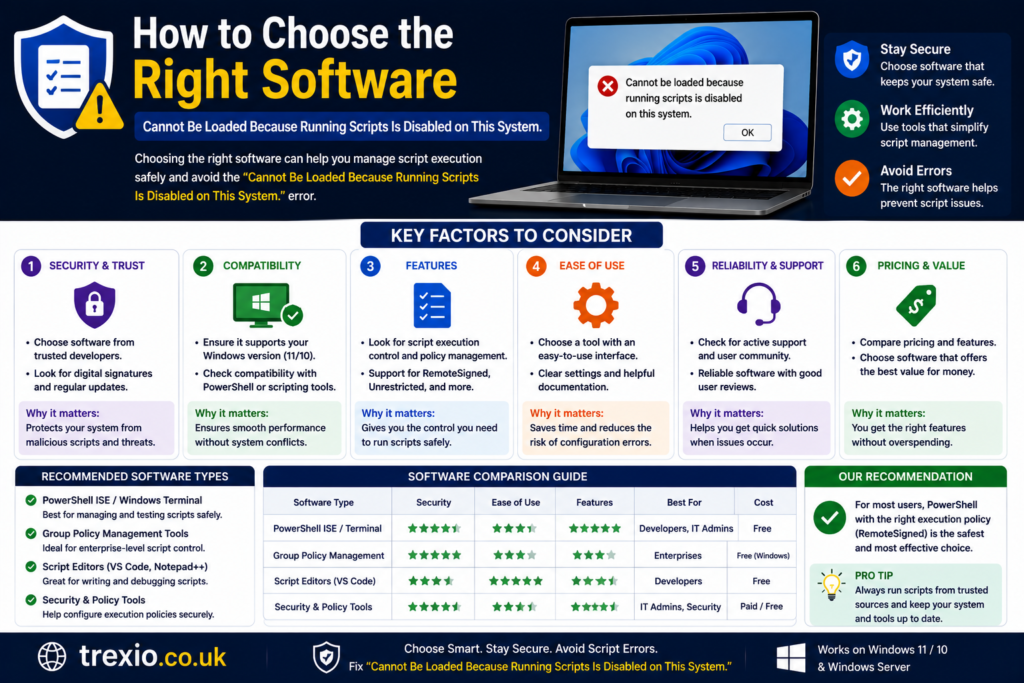
Selecting the best software depends on how you work with PowerShell and how often you encounter the cannot be loaded because running scripts is disabled on this system. error.
Consider these factors before deciding:
- Experience Level: Beginners should start with Visual Studio Code or PowerShell ISE because they provide helpful editing features and built-in debugging.
- Development Needs: Professional developers often benefit from PowerShell Pro Tools or IntelliJ IDEA with PowerShell support for advanced debugging and project management.
- System Compatibility: If you work across Windows, macOS, and Linux, PowerShell 7 and Visual Studio Code offer the best cross-platform experience.
- Performance: Lightweight editors like Notepad++ and Sublime Text are ideal for quickly editing scripts without consuming many system resources.
- Budget: Most users can solve the cannot be loaded because running scripts is disabled on this system. issue using completely free tools such as PowerShell 7, Visual Studio Code, or Windows Terminal.
Our Recommendation
For most Windows users experiencing the cannot be loaded because running scripts is disabled on this system. error, the best combination is:
- PowerShell 7 — Modern, secure, and actively maintained.
- Visual Studio Code — Excellent editor with integrated PowerShell support.
- Windows Terminal — Clean interface for managing multiple command-line environments.
This combination provides everything needed to edit, debug, and safely run PowerShell scripts while making it easier to diagnose execution policy issues.
Conclusion
The cannot be loaded because running scripts is disabled on this system. error is one of the most common PowerShell security messages, but it is also one of the easiest to understand once you know how execution policies work. Rather than indicating a system failure, it reflects Windows protecting your computer from potentially unsafe scripts.
Choosing the right tools—such as PowerShell 7, Visual Studio Code, and Windows Terminal—can make scripting more efficient and troubleshooting much easier. Before changing your execution policy, always ensure that the script comes from a trusted source and that you understand the security implications. With the proper setup and best practices, you can safely work with PowerShell while avoiding future execution policy issues.
Frequently Asked Questions (FAQs)
1. What does “cannot be loaded because running scripts is disabled on this system.” mean?
It means PowerShell’s execution policy is preventing scripts from running for security reasons.
2. Is this error dangerous?
No. The error itself is not harmful. It is a security feature that helps prevent untrusted scripts from executing.
3. Which execution policy usually causes this error?
The Restricted execution policy is the most common cause.
4. Can Windows 11 display this error?
Yes. Both Windows 10 and Windows 11 use PowerShell execution policies and may display this message.
5. Does this affect Command Prompt (CMD)?
No. The error is specific to PowerShell and does not apply to the traditional Command Prompt.
6. Can Visual Studio Code trigger this error?
Yes. If VS Code uses PowerShell as its integrated terminal, the same execution policy restrictions apply.
7. Is PowerShell 7 better than Windows PowerShell?
Yes. PowerShell 7 includes performance improvements, cross-platform support, and ongoing updates while maintaining compatibility with many existing scripts.
8. How can I avoid this error in the future?
Use trusted scripts, understand PowerShell execution policies, keep your tools updated, and configure your environment according to your organization’s security requirements.
Quick Bio
Trexio.co.uk publishes practical technology guides, Windows tutorials, software comparisons, troubleshooting articles, and productivity tips. Our goal is to provide clear, beginner-friendly, and accurate content that helps readers solve technical problems, compare software, and make informed technology decisions.