
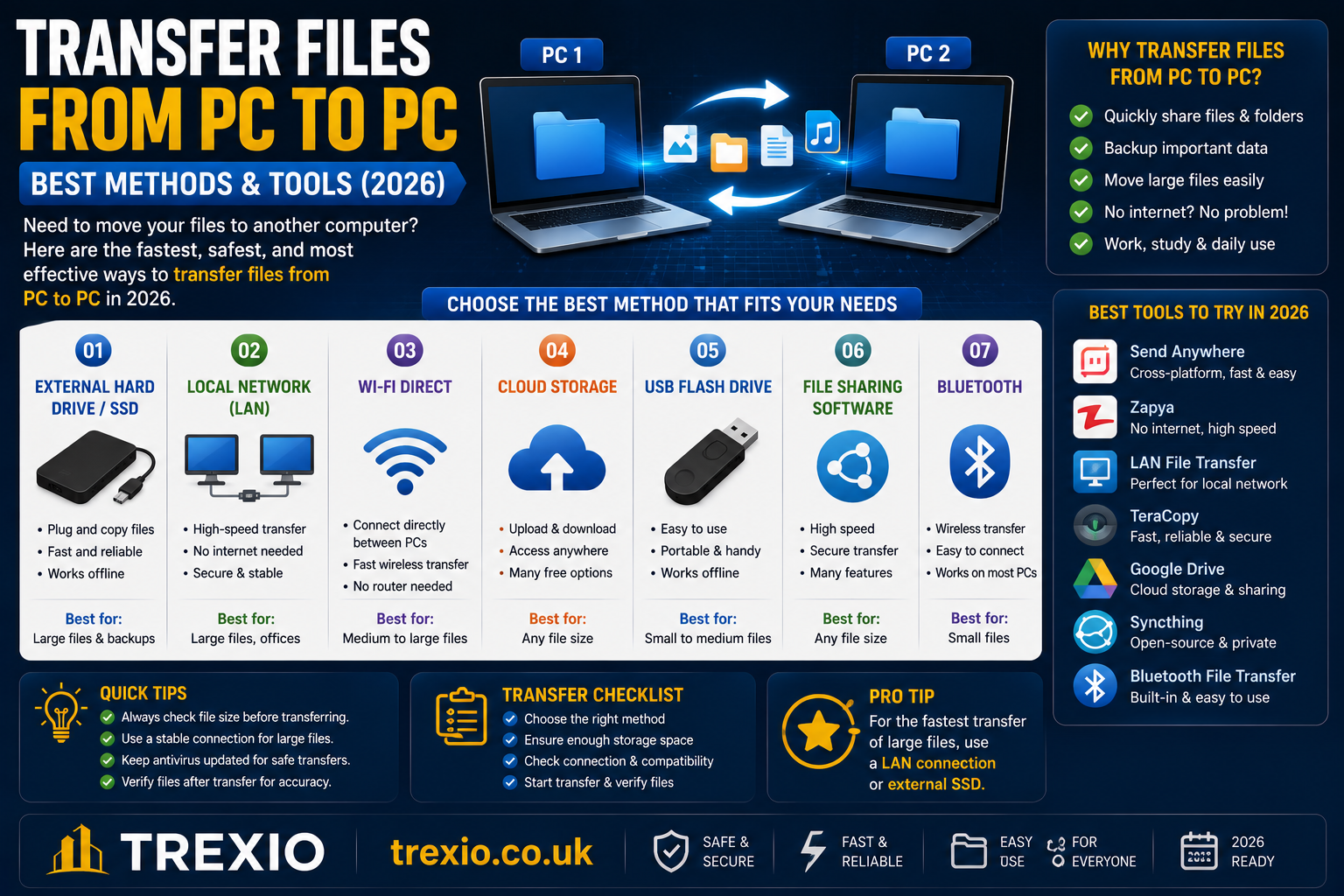
If you’ve recently purchased a new computer or need to move important documents, photos, videos, or applications, knowing how to transfer files from PC to PC can save you hours of work. Whether you’re upgrading to Windows 11, replacing an old laptop, or simply sharing large folders between computers, there are multiple ways to complete the process quickly and securely.
The best method to transfer files from PC to PC depends on your file size, internet speed, available hardware, and whether the computers are connected to the same network. Some users prefer USB flash drives, while others rely on cloud storage, LAN transfers, or professional migration software.
In this guide, you’ll discover every practical method to transfer files from PC to PC, compare popular software, understand the advantages and disadvantages of each option, and learn how to choose the best solution for your needs.
Quick Summary
- Multiple methods exist to transfer files from PC to PC.
- Windows includes built-in sharing tools.
- External SSDs and USB drives are fast for offline transfers.
- Cloud storage allows access from anywhere.
- Migration software automates large transfers.
- Local network transfers work well for nearby computers.
- Choosing the right method depends on speed, security, and file size.
Why You May Need to Transfer Files From PC to PC
There are many situations where users need to transfer files from PC to PC. Upgrading to a newer computer is one of the most common reasons. Instead of manually downloading everything again, transferring your existing files saves valuable time.
Businesses also regularly transfer files from PC to PC when replacing office computers or backing up important company documents. Students, gamers, photographers, and video editors often need reliable transfer methods for very large files.
Common Reasons
- Buying a new computer
- Reinstalling Windows
- Creating backups
- Sharing large projects
- Office computer upgrades
- Moving personal documents
- Transferring photos and videos
Different Ways to Transfer Files From PC to PC
There isn’t one universal solution to transfer files from PC to PC. Instead, Windows users can choose from several proven methods depending on convenience and speed.
Some methods require internet access, while others work completely offline.
Popular Methods
- External USB drive
- External SSD
- Cloud storage
- Local network sharing
- Ethernet cable
- Wi-Fi transfer
- Migration software
- Nearby Sharing
- NAS storage
Each approach has different advantages regarding speed, security, and ease of use.
Things to Do Before You Transfer Files From PC to PC
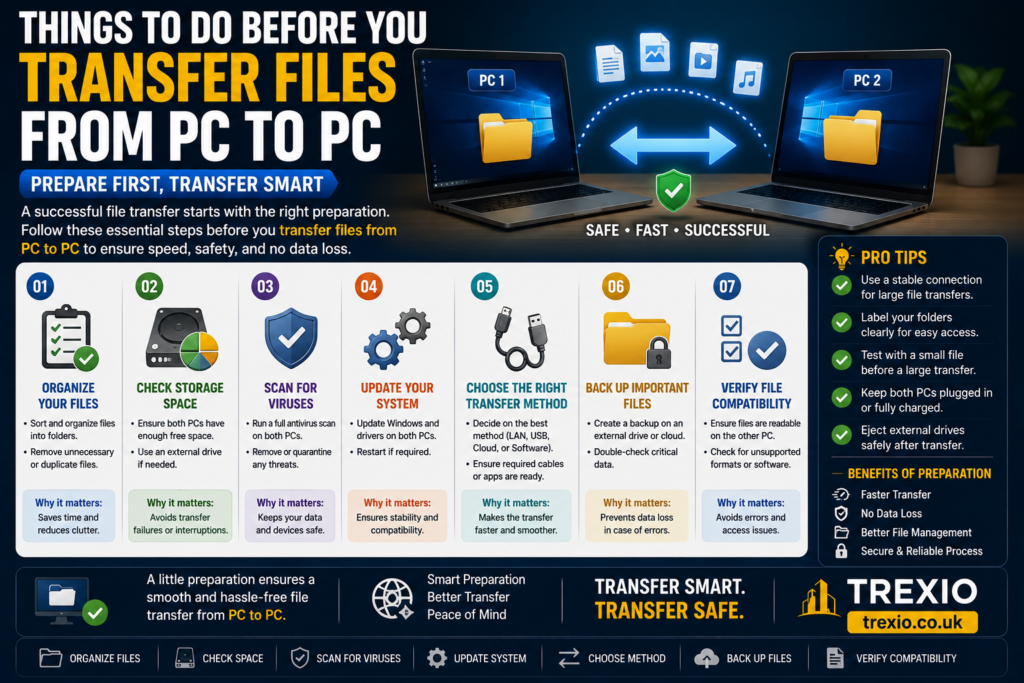
Before you transfer files from PC to PC, spending a few minutes preparing both systems can prevent errors and data loss.
Always organize important folders first. Delete temporary files you no longer need, and create a backup of critical documents. Ensure both computers have enough available storage space before starting the transfer.
Preparation Checklist
- Update Windows
- Scan for malware
- Backup important files
- Charge laptops
- Connect to reliable internet if using cloud storage
- Check available disk space
- Organize folders
Best Software to Transfer Files From PC to PC
Below are some of the most trusted tools available today.
Software Comparison Table
| Software | Best For | Key Features | Free Version | Starting Price |
|---|---|---|---|---|
| EaseUS Todo PCTrans | Full PC migration | Transfers files, user accounts, applications, and settings between PCs with a guided wizard. Ideal for users upgrading to a new Windows computer. | Yes | Paid plans available |
| Laplink PCmover | Professional migrations | Automatically moves files, profiles, settings, and many installed programs with minimal manual setup. | Trial | Paid |
| AOMEI Backupper | Backup and restore | Creates complete system backups and restores files to another PC. Suitable for long-term protection and migration. | Yes | Paid upgrades |
| Macrium Reflect | Disk imaging | Uses disk cloning and image backups to move data between drives or computers while preserving system integrity. | Limited | Paid editions |
| MiniTool ShadowMaker | Home backups | Supports file synchronization, scheduled backups, and recovery for transferring important folders safely. | Yes | Paid plans |
| Software | Best For | Key Features | Free Version | Starting Price |
|---|---|---|---|---|
| TeraCopy | Fast file copying | Optimizes file transfers, verifies copied files, resumes interrupted transfers, and handles large files more efficiently than the default Windows copy utility. | Yes | Paid Pro version available |
| Google Drive | Cloud file transfers | Uploads files to the cloud for easy access on another PC. Supports file sharing, synchronization, and collaboration across devices. | Yes (15 GB) | Paid storage plans |
| Microsoft OneDrive | Windows integration | Built into Windows, automatically syncs Desktop, Documents, and Pictures folders while enabling seamless file access on multiple PCs. | Yes (5 GB) | Microsoft 365 plans |
| Dropbox | Cross-platform sharing | Syncs files quickly across Windows, macOS, mobile devices, and the web. Includes version history and file recovery features. | Yes | Paid plans |
| Resilio Sync | Peer-to-peer transfers | Transfers files directly between computers without relying on cloud servers, making it ideal for large files and private transfers. | Limited | Paid Pro license |
Feature Comparison Table
| Feature | EaseUS Todo PCTrans | Laplink PCmover | AOMEI Backupper | Macrium Reflect | MiniTool ShadowMaker | TeraCopy | Google Drive | OneDrive | Dropbox | Resilio Sync |
| File Transfer | ✔ | ✔ | ✔ | ✔ | ✔ | ✔ | ✔ | ✔ | ✔ | ✔ |
| Transfer Applications | ✔ | ✔ | ✖ | ✖ | ✖ | ✖ | ✖ | ✖ | ✖ | ✖ |
| Backup Support | Limited | Limited | ✔ | ✔ | ✔ | ✖ | Cloud | Cloud | Cloud | Limited |
| Cloud Storage | ✖ | ✖ | ✖ | ✖ | ✖ | ✖ | ✔ | ✔ | ✔ | ✖ |
| Network Transfer | ✔ | ✔ | ✔ | ✔ | ✔ | ✔ | Internet | Internet | Internet | ✔ |
| Scheduled Sync | Limited | ✖ | ✔ | ✔ | ✔ | ✖ | ✔ | ✔ | ✔ | ✔ |
| Beginner Friendly | High | High | Medium | Medium | High | High | High | High | High | Medium |
Pricing Comparison Table
| Software | Free Version | Paid Version |
| EaseUS Todo PCTrans | Yes | Starts around $49.95 |
| Laplink PCmover | Trial | Starts around $59.95 |
| AOMEI Backupper | Yes | Starts around $39.95 |
| Macrium Reflect | Limited | Subscription or perpetual license available |
| MiniTool ShadowMaker | Yes | Starts around $39 |
| TeraCopy | Yes | Pro version around $29.95 |
| Google Drive | 15 GB Free | Google One storage plans |
| Microsoft OneDrive | 5 GB Free | Microsoft 365 subscription |
| Dropbox | Basic Free | Paid monthly plans |
| Resilio Sync | Limited | One-time Pro license |
How to Choose the Best Way to Transfer Files From PC to PC
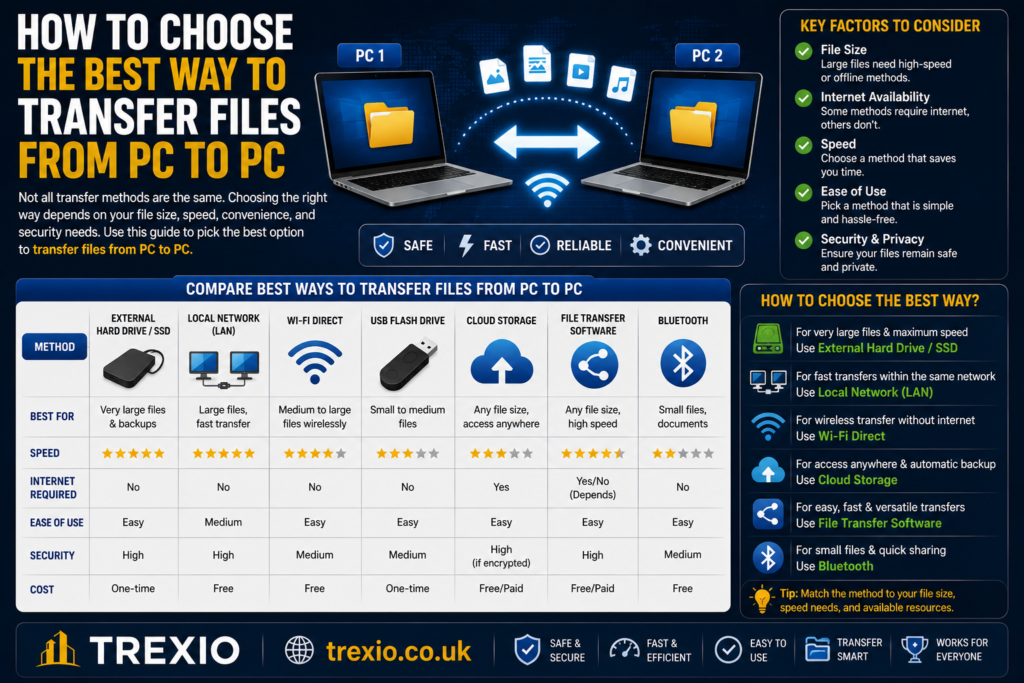
Choosing the best way to transfer files from PC to PC depends on your situation.
If you’re replacing an old computer with a new Windows PC, migration software like EaseUS Todo PCTrans or Laplink PCmover can move files, settings, and even supported applications with minimal effort.
For users transferring only documents, photos, or videos, cloud services such as OneDrive, Google Drive, or Dropbox are simple and convenient. They also provide backup and remote access.
If you regularly move very large files without relying on the internet, an external SSD, TeraCopy, or Resilio Sync offers excellent speed and reliability.
Businesses should prioritize solutions with backup, encryption, and scheduling capabilities to protect important company data during migration.
Our Recommendation
For most home users, the easiest way to transfer files from PC to PC is Microsoft’s built-in OneDrive because it integrates directly with Windows and automatically synchronizes important folders.
If you’re migrating to a completely new computer and want to move files, settings, and supported applications together, EaseUS Todo PCTrans is one of the most user-friendly choices.
For professionals working with massive files, combining an external SSD with TeraCopy provides excellent transfer speeds while avoiding internet limitations.
Ultimately, the right solution depends on your file size, available hardware, budget, and whether you need one-time migration or continuous synchronization.
Conclusion
Learning how to transfer files from PC to PC doesn’t have to be difficult. Modern Windows computers provide several reliable methods, including cloud storage, local network sharing, USB drives, and dedicated migration software.
The best choice depends on your specific needs. Cloud services are ideal for convenience, migration software simplifies upgrades to a new computer, and external storage devices remain the fastest offline option for large amounts of data.
By selecting the appropriate method and preparing both computers beforehand, you can safely move your important files with minimal downtime and avoid unnecessary data loss.
Frequently Asked Questions
1. What is the fastest way to transfer files from PC to PC?
An external SSD or a direct Ethernet connection is generally the fastest option for transferring large amounts of data.
2. Can I transfer files from PC to PC without the internet?
Yes. You can use USB drives, external SSDs, LAN sharing, Nearby Sharing, or an Ethernet cable.
3. Does Windows have a built-in file transfer tool?
Yes. Windows includes Nearby Sharing, File Sharing over a network, and OneDrive integration.
4. Can I transfer installed programs to another PC?
Some migration software can transfer supported applications, but not every installed program will work after migration.
5. Is OneDrive good for transferring files?
Yes. OneDrive works well for documents, photos, and everyday files, especially within the Windows ecosystem.
6. Which software is best for transferring everything to a new computer?
EaseUS Todo PCTrans and Laplink PCmover are among the most popular options for complete PC migration.
7. Is cloud storage secure for file transfers?
Major cloud providers use encryption and security features, but enabling multi-factor authentication is recommended for additional protection.
8. Can I transfer files between Windows 10 and Windows 11?
Yes. All of the methods discussed in this guide work between Windows 10 and Windows 11 computers.
Quick Bio
Trexio is dedicated to creating practical technology guides, software comparisons, Windows tutorials, and digital productivity resources. Our mission is to help readers solve technical problems with easy-to-follow, accurate, and up-to-date content, making technology more accessible for everyone.