
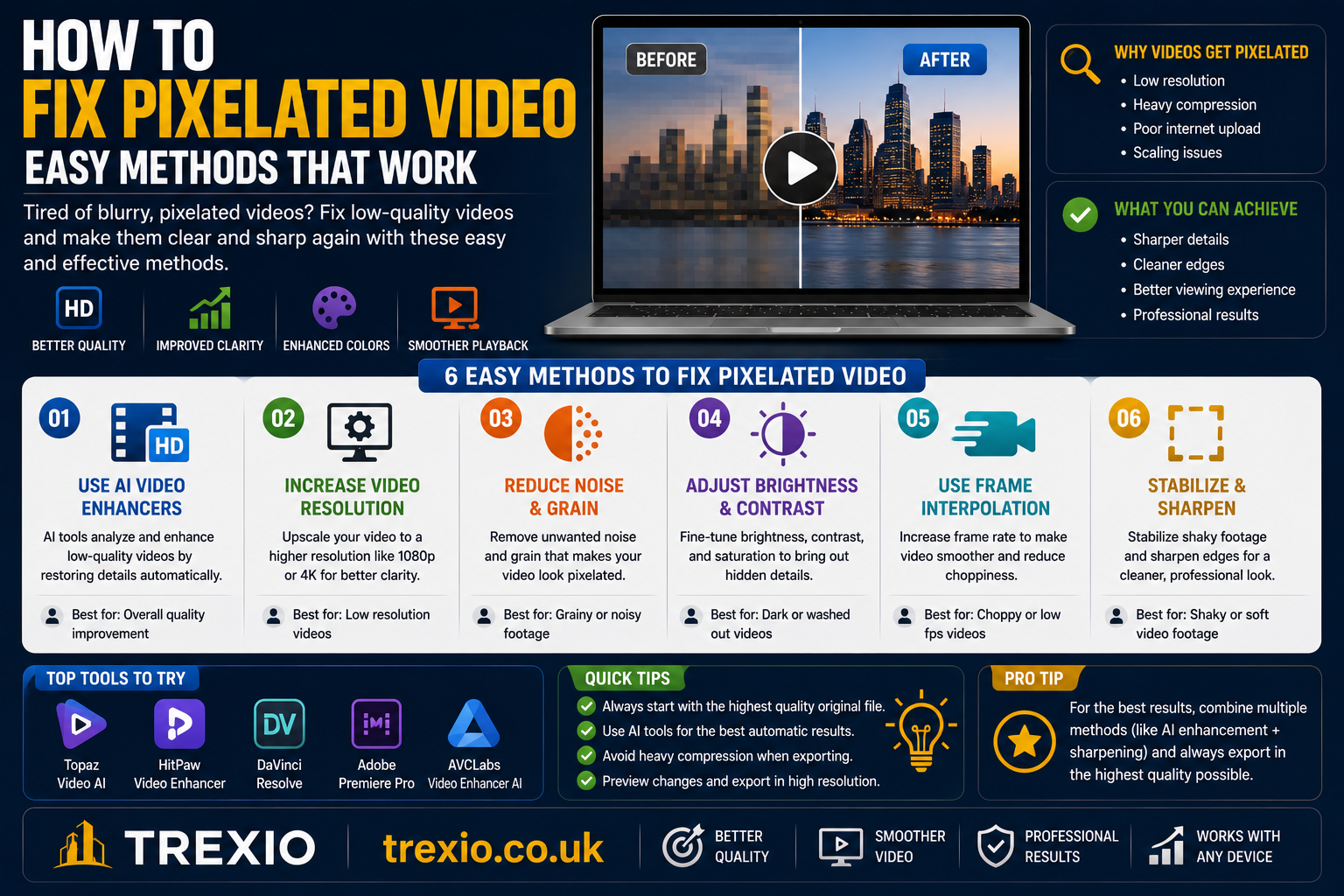
Watching a blurry or blocky clip can be frustrating, especially when the footage contains valuable memories or important content. If you’ve been searching for how to fix pixelated video, you’re not alone. Pixelation can happen because of low resolution, excessive video compression, recording issues, poor internet streaming, or corrupted files. The good news is that many of these problems can be improved with the right software and techniques.
This guide explains how to fix pixelated video step by step, helping beginners and professionals understand the causes of pixelation and the best solutions available today. Whether you’re restoring old videos, improving downloaded clips, or enhancing recorded footage, you’ll discover practical methods that actually work.
Quick Summary
- Learn how to fix pixelated video using AI enhancement software.
- Understand why videos become pixelated.
- Discover common causes of blurry and blocky footage.
- Compare the top video enhancement software.
- Learn when pixelated videos can and cannot be repaired.
- Find tips to prevent pixelation in future recordings.
How to Fix Pixelated Video
Learning how to fix pixelated video starts with understanding what causes the problem. Pixelation occurs when there isn’t enough image information to display clear details. Instead of smooth images, you see visible squares or blurry blocks.
Modern AI technology has made how to fix pixelated video much easier than it was a few years ago. Advanced video enhancement software can reconstruct missing details, increase resolution, reduce compression artifacts, and sharpen blurry footage.
While no software can perfectly recreate information that never existed, today’s tools can significantly improve the appearance of many videos.
What Is a Pixelated Video?
A pixelated video displays large visible pixels instead of smooth images. This usually happens when:
- Video resolution is too low
- File compression is excessive
- Recording quality is poor
- Video has been resized too much
- File corruption occurs
- Streaming quality drops
Understanding these causes is the first step in learning how to fix pixelated video effectively.
Common Reasons Videos Become Pixelated
Low Resolution
Videos recorded at 240p or 360p often appear pixelated on modern HD or 4K displays.
Heavy Compression
Messaging apps and social media platforms compress videos to reduce file size, often decreasing image quality.
Poor Recording Conditions
Low lighting, digital zoom, and inexpensive cameras frequently produce noisy and pixelated footage.
Video Corruption
Damaged files can introduce blocky artifacts that make videos difficult to watch.
Upscaling Without Enhancement
Simply enlarging a video stretches existing pixels rather than creating new detail, leading many people to search for how to fix pixelated video.
Can Pixelated Videos Really Be Fixed?
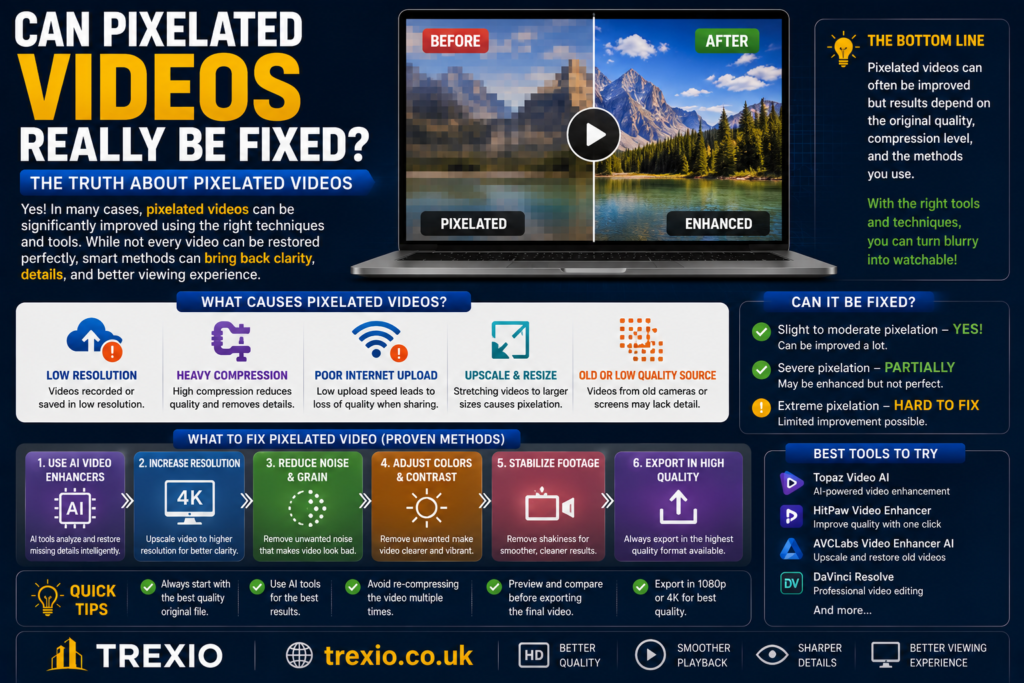
Many users wonder whether how to fix pixelated video is actually possible.
The answer depends on the cause.
If pixelation comes from compression, AI enhancement often produces impressive improvements.
If the original recording was extremely low quality, results may be limited because missing visual information cannot be perfectly recreated.
Modern AI software works by predicting missing details instead of merely enlarging pixels.
Ways to Fix Pixelated Video
Use AI Video Enhancement
Artificial intelligence analyzes each frame and intelligently reconstructs missing details.
Increase Video Resolution
Upscaling from SD to HD or HD to 4K can improve viewing quality when combined with AI enhancement.
Reduce Compression Artifacts
Many video repair tools specifically target blocky compression artifacts.
Sharpen Video Carefully
Moderate sharpening restores detail without creating excessive noise.
Repair Corrupted Video Files
Some software repairs damaged video headers before enhancement begins.
These techniques are among the most effective methods for how to fix pixelated video.
Comparison Table Best Software to Fix Pixelated Video
| Software | Best For | Key Features | Platform | Free Version |
|---|---|---|---|---|
| Topaz Video AI | Professional AI enhancement | AI upscaling, denoise, frame interpolation | Windows, Mac | No |
| AVCLabs Video Enhancer AI | Beginners | AI sharpening, face enhancement, upscaling | Windows, Mac | Trial |
| HitPaw VikPea | Easy video enhancement | AI repair, resolution increase, noise reduction | Windows, Mac | Trial |
| Wondershare Repairit | Corrupted videos | Video repair, artifact removal, restoration | Windows, Mac | Trial |
| Adobe Premiere Pro | Professional editing | Manual sharpening, effects, color correction | Windows, Mac | Trial |
| Software | Best For | Key Features | Platform | Free Version |
|---|---|---|---|---|
| VideoProc Converter AI | AI upscaling and video processing | AI Super Resolution, frame interpolation, denoise, stabilization | Windows, Mac | Trial |
| DVDFab Video Enhancer AI | Restoring old videos | AI resolution enhancement, noise reduction, color improvement | Windows | Trial |
| CapCut Desktop | Social media creators | AI video enhancement, sharpening, filters, export presets | Windows, Mac | Yes |
| PowerDirector 365 | Video editing with AI tools | AI denoise, video enhancement, stabilization, color correction | Windows, Mac | Trial |
| Pixop | Cloud-based enhancement | AI upscaling, deinterlacing, denoising, artifact removal | Web | Pay-as-you-go |
Feature Comparison Table
| Feature | Topaz Video AI | AVCLabs | HitPaw VikPea | Repairit | Premiere Pro | VideoProc AI | DVDFab AI | CapCut | PowerDirector | Pixop |
|---|---|---|---|---|---|---|---|---|---|---|
| AI Upscaling | ✔ | ✔ | ✔ | Limited | Partial | ✔ | ✔ | ✔ | ✔ | ✔ |
| Noise Reduction | ✔ | ✔ | ✔ | ✔ | ✔ | ✔ | ✔ | ✔ | ✔ | ✔ |
| Video Repair | Limited | No | Limited | ✔ | No | No | Limited | No | Limited | No |
| Frame Interpolation | ✔ | No | No | No | Plugin | ✔ | No | No | No | ✔ |
| Color Enhancement | ✔ | ✔ | ✔ | Limited | ✔ | ✔ | ✔ | ✔ | ✔ | ✔ |
| Beginner Friendly | Moderate | Excellent | Excellent | Excellent | Moderate | Excellent | Moderate | Excellent | Good | Good |
| Batch Processing | ✔ | ✔ | ✔ | ✔ | ✔ | ✔ | ✔ | Limited | ✔ | ✔ |
Pricing Comparison Table
| Software | Free Plan | Trial | Starting Price | Best For |
|---|---|---|---|---|
| Topaz Video AI | No | Yes | Around $299 (one-time) | Professionals |
| AVCLabs Video Enhancer AI | No | Yes | Around $39.95/month | AI enhancement |
| HitPaw VikPea | No | Yes | Around $42.99/month | Beginners |
| Wondershare Repairit | No | Yes | Around $49.99/year | Video repair |
| Adobe Premiere Pro | No | Yes | Around $22.99/month | Professional editing |
| VideoProc Converter AI | No | Yes | Around $45.95/year | AI upscaling |
| DVDFab Video Enhancer AI | No | Yes | Around $99.99/year | Old video restoration |
| CapCut Desktop | Yes | Yes | Free (Premium optional) | Casual creators |
| PowerDirector 365 | No | Yes | Around $54.99/year | Content creators |
| Pixop | No | No | Pay per processed minute | Cloud enhancement |
Note: Prices may change over time depending on promotions, subscriptions, or licensing options.
How to Choose the Best Software
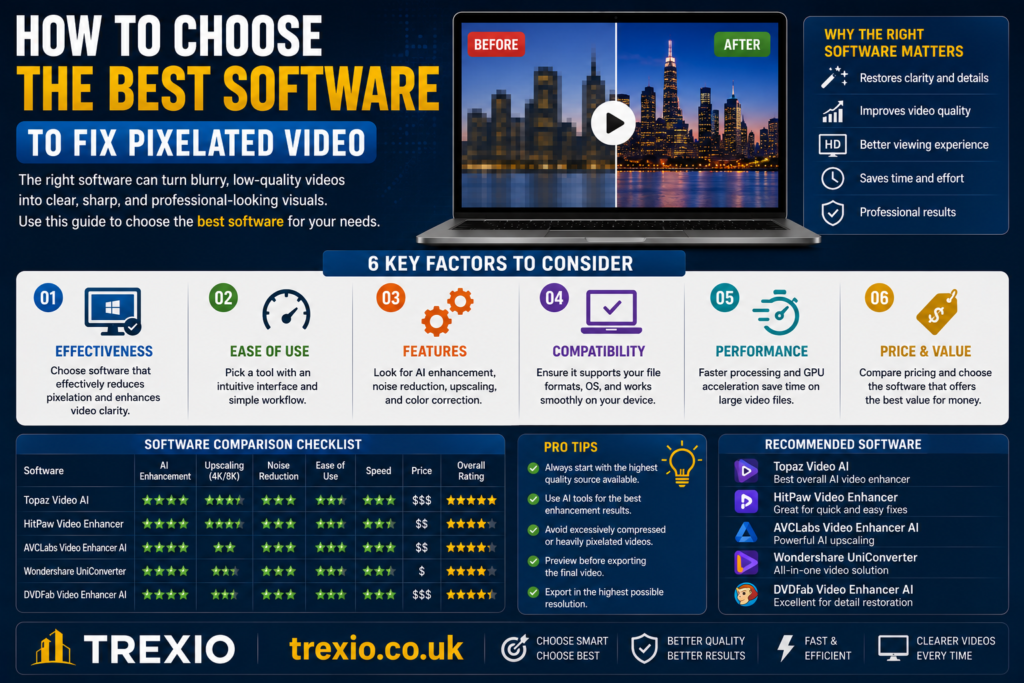
Choosing the right software depends on your needs, budget, and the condition of your footage. Keep these factors in mind:
AI Enhancement Quality
If image quality is your highest priority, choose software with advanced AI upscaling and artifact removal.
Ease of Use
Beginners may prefer applications with one-click enhancement, while professionals may want manual editing controls.
Repair Features
If your video is corrupted as well as pixelated, look for software that includes dedicated repair tools.
Supported Formats
Ensure the software supports common formats such as MP4, MOV, AVI, MKV, and WMV.
Speed
Some AI enhancement tools use GPU acceleration to process videos much faster than CPU-only solutions.
Budget
Free tools can improve lightly pixelated videos, while premium AI software generally delivers better results for heavily compressed or low-resolution footage.
Our Recommendation
If you’re looking for the best overall solution for how to fix pixelated video, here are our recommendations:
- Best Overall: Topaz Video AI for exceptional AI-powered enhancement and upscaling.
- Best for Beginners: HitPaw VikPea thanks to its simple interface and quick results.
- Best Free Option: CapCut Desktop for basic enhancement without an upfront cost.
- Best for Repairing Damaged Files: Wondershare Repairit.
- Best Cloud Solution: Pixop for users who prefer browser-based processing.
Choose the tool that matches your experience level, budget, and video restoration needs.
Conclusion
Learning how to fix pixelated video is easier than ever with today’s AI-powered software. Whether pixelation is caused by heavy compression, low resolution, or minor file corruption, modern enhancement tools can noticeably improve video clarity.
While no application can perfectly recreate details that were never captured, AI upscaling, noise reduction, and artifact removal can make old or blurry footage look significantly better. Selecting the right software depends on your workflow, budget, and the type of video you want to restore.
By recording in higher resolutions, avoiding excessive compression, and using reliable enhancement software when needed, you can minimize pixelation and enjoy clearer, sharper videos in the future.
Frequently Asked Questions
1. Can pixelated videos be fixed completely?
Not always. AI software can greatly improve quality, but it cannot perfectly restore details that were never recorded.
2. Why does my video become pixelated after sending it?
Many messaging apps compress videos to reduce file size, which often lowers image quality.
3. Is AI video enhancement worth it?
Yes. Modern AI tools generally provide much better results than traditional sharpening or resizing methods.
4. Can I fix pixelated videos for free?
Yes. Free tools such as CapCut Desktop can improve some videos, though premium software often offers superior results.
5. Does increasing resolution remove pixelation?
Only when combined with AI enhancement. Simply enlarging a video without AI usually makes pixelation more noticeable.
6. Which video format maintains the best quality?
Formats like MP4 (with a high bitrate), MOV, and ProRes generally preserve better image quality than heavily compressed files.
7. Can corrupted videos also be repaired?
Yes. Dedicated repair software can restore many damaged video files before enhancement.
8. How can I prevent pixelated videos?
Record at a higher resolution, use adequate lighting, avoid excessive digital zoom, and save videos with minimal compression.
Quick Bio
About the Author
This guide was created by a technology writer specializing in video editing, AI-powered media enhancement, and digital content creation. The goal is to provide practical, up-to-date, and beginner-friendly tutorials that help readers solve common video quality problems using trusted software and proven techniques.