
How to Zoom In on PC
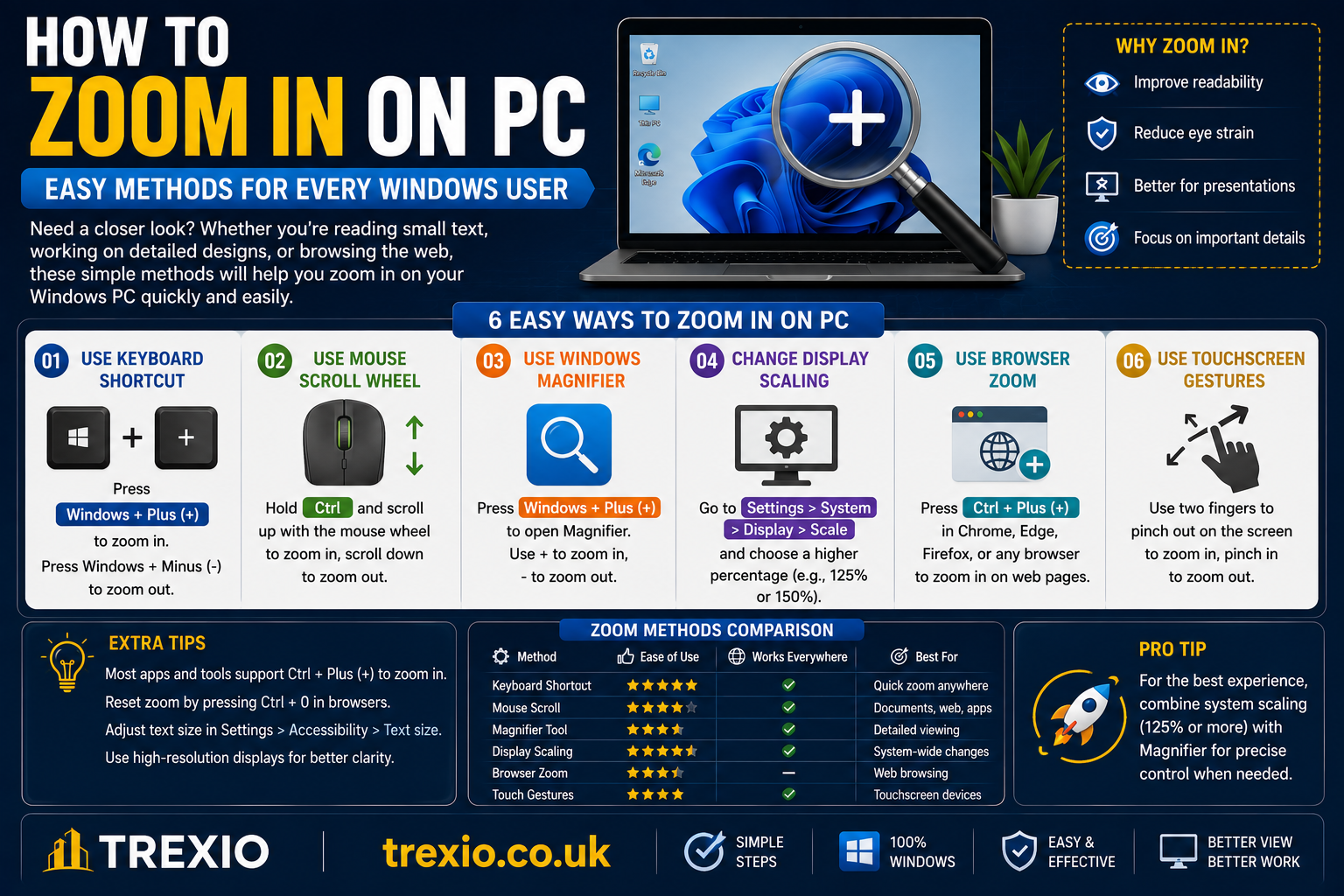
If you’ve ever struggled to read small text, view tiny images, or work on a high-resolution monitor, learning how to zoom in on PC can make your computer much easier to use. Whether you’re using Windows 10 or Windows 11, there are several quick and simple ways to zoom in without changing your display permanently.
This guide explains how to zoom in on PC step by step using keyboard shortcuts, the Magnifier tool, browsers, touchpad gestures, and display settings. By the end of this article, you’ll know exactly how to zoom in on PC for work, school, gaming, and everyday browsing. No technical experience is required.
Quick Summary
- Learn how to zoom in on PC using keyboard shortcuts.
- Use Windows Magnifier for full-screen zoom.
- Zoom in web browsers like Chrome, Edge, and Firefox.
- Change display scaling for permanent larger text.
- Use touchpad gestures on supported laptops.
- Find the best method based on your needs.
- Comparison of popular zoom software included below.
Comparison Table Top PC Zoom Software
| Software | Best For | Key Features | Free Version | Platform | Rating |
|---|---|---|---|---|---|
| Microsoft Magnifier | Windows accessibility | Full-screen zoom, Lens mode, Docked mode | Yes | Windows | ⭐⭐⭐⭐⭐ |
| ZoomIt | Presentations | Screen zoom, annotations, drawing tools | Yes | Windows | ⭐⭐⭐⭐⭐ |
| Virtual Magnifying Glass | Basic magnification | Lightweight, customizable zoom | Yes | Windows | ⭐⭐⭐⭐☆ |
| Magnifixer | Floating zoom window | Real-time magnification, color adjustments | Trial | Windows | ⭐⭐⭐⭐☆ |
| OneLoupe | Quick desktop zoom | Portable, simple interface, customizable zoom | Yes | Windows | ⭐⭐⭐⭐☆ |
Why Learn How to Zoom In on PC?
Knowing how to zoom in on PC helps reduce eye strain and improves productivity. Many modern monitors have very high resolutions, making icons, menus, and text appear smaller than expected. Instead of leaning closer to the screen, you can simply zoom in.
Whether you’re reading documents, editing photos, attending online meetings, or browsing websites, understanding how to zoom in on PC makes everyday computing much more comfortable.
Different Ways to Zoom In on PC
Windows provides several methods for how to zoom in on PC, depending on what you want to enlarge.
Temporary Zoom
Perfect for reading websites, PDFs, or viewing images.
- Browser zoom
- Magnifier
- Keyboard shortcuts
Permanent Zoom
Ideal if everything appears too small.
- Display scaling
- Screen resolution adjustments
- Larger text settings
How to Zoom In on PC Using Keyboard Shortcuts
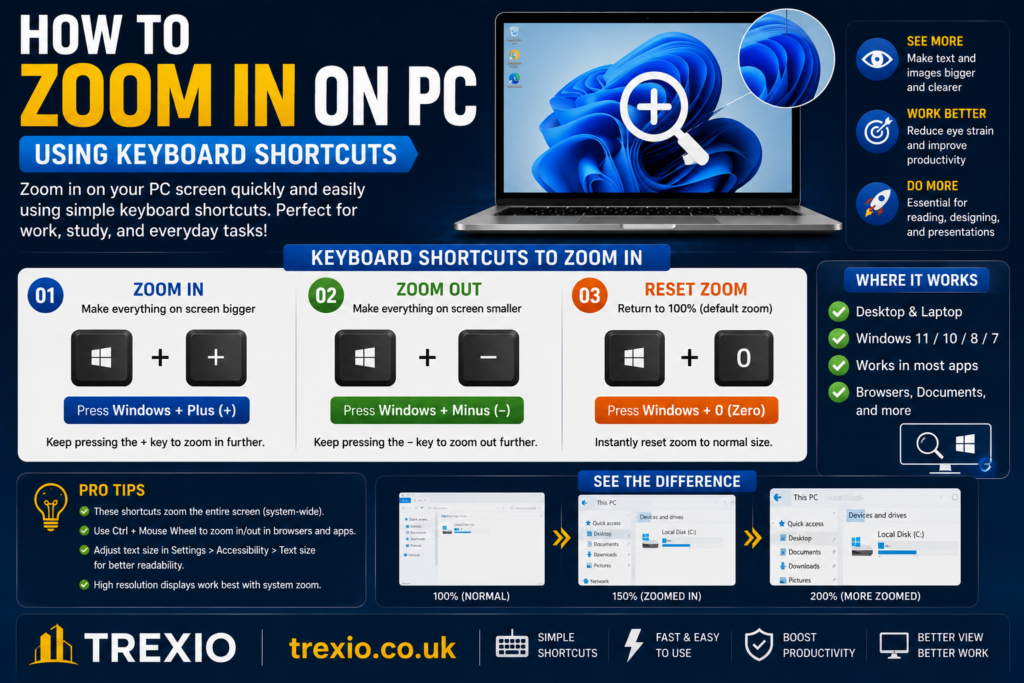
The fastest method for how to zoom in on PC is using keyboard shortcuts.
Browser Zoom
Press:
Ctrl + Plus (+)
This zooms into:
- Google Chrome
- Microsoft Edge
- Mozilla Firefox
- Opera
- Brave
To zoom out:
Ctrl + Minus (-)
Reset:
Ctrl + 0
This is one of the easiest ways to learn how to zoom in on PC while browsing the internet.
How to Zoom In on PC with Windows Magnifier
Windows includes a free accessibility feature called Magnifier.
Open Magnifier
Press:
Windows + Plus (+)
Windows immediately opens Magnifier and enlarges the screen.
Useful shortcuts include:
| Shortcut | Action |
|---|---|
| Windows + Plus | Zoom In |
| Windows + Minus | Zoom Out |
| Windows + Esc | Exit Magnifier |
Magnifier is one of the best built-in solutions for how to zoom in on PC because it works across every application.
Magnifier Viewing Modes
Magnifier offers multiple viewing options.
Full Screen Mode
Zooms the entire desktop.
Best for:
- Reading
- Accessibility
- Watching presentations
Lens Mode
Creates a movable magnifying lens around the cursor.
Useful for:
- Image editing
- Spreadsheet work
- Precision tasks
Docked Mode
Places a zoom panel at the top of your screen while leaving the rest of the desktop unchanged.
Many users prefer this option when learning how to zoom in on PC without losing context.
How to Zoom In on PC Using Touchpad Gestures
If you’re using a Windows laptop with a Precision Touchpad, you can easily zoom in on PC using gestures.
Simply place two fingers on the touchpad and spread them apart to zoom in. Pinch inward with two fingers to zoom out.
This gesture works in many applications including:
- Web browsers
- Photos
- Maps
- PDF readers
Touchpad gestures make how to zoom in on PC feel natural and convenient, especially on laptops.
How to Zoom In on PC in Web Browsers
Every major browser includes built-in zoom controls.
Google Chrome
- Click the three-dot menu.
- Find the Zoom option.
- Click + to enlarge the page.
Microsoft Edge
Open the menu and adjust Zoom to your preferred percentage.
Mozilla Firefox
Firefox allows zoom levels from very small to very large while maintaining page readability.
Browser zoom is one of the most commonly used methods for how to zoom in on PC, especially when reading articles or viewing detailed webpages.
| Software | Best For | Key Features | Free Version | Platform | Rating |
|---|---|---|---|---|---|
| PowerToys Screen Ruler & Utilities | Productivity users | Helpful screen utilities, measurement tools, integrates well with Windows | Yes | Windows | ⭐⭐⭐⭐☆ |
| Glassbrick | Users with visual impairments | Adjustable magnification, color filters, accessibility-focused interface | Yes | Windows | ⭐⭐⭐⭐☆ |
| SuperNova Magnifier | Professional accessibility | High-quality screen magnification, speech support, customization | Trial | Windows | ⭐⭐⭐⭐⭐ |
| LunarPlus Magnifier | Low-vision users | High zoom levels, cursor enhancements, customizable display | Trial | Windows | ⭐⭐⭐⭐☆ |
| Dolphin EasyReader with Magnification | Reading digital documents | Magnification support, accessible reading tools, audiobook compatibility | Limited | Windows | ⭐⭐⭐⭐☆ |
Feature Comparison Table
| Feature | Windows Magnifier | ZoomIt | Virtual Magnifying Glass | Magnifixer | OneLoupe | SuperNova |
|---|---|---|---|---|---|---|
| Free Version | ✅ | ✅ | ✅ | Trial | ✅ | Trial |
| Full Screen Zoom | ✅ | ✅ | ✅ | ❌ | ✅ | ✅ |
| Lens Mode | ✅ | ❌ | ✅ | ✅ | ❌ | ✅ |
| Annotation Tools | ❌ | ✅ | ❌ | ❌ | ❌ | ❌ |
| Portable | ❌ | ✅ | ✅ | ❌ | ✅ | ❌ |
| Accessibility Features | ⭐⭐⭐⭐⭐ | ⭐⭐⭐ | ⭐⭐⭐ | ⭐⭐⭐ | ⭐⭐⭐ | ⭐⭐⭐⭐⭐ |
| Beginner Friendly | ⭐⭐⭐⭐⭐ | ⭐⭐⭐⭐ | ⭐⭐⭐⭐ | ⭐⭐⭐ | ⭐⭐⭐⭐⭐ | ⭐⭐⭐⭐ |
Pricing Comparison Table
| Software | Free Plan | Paid Version | Starting Price |
|---|---|---|---|
| Microsoft Magnifier | Yes | No | Free |
| ZoomIt | Yes | No | Free |
| Virtual Magnifying Glass | Yes | No | Free |
| Magnifixer | Trial | Yes | Approximately $29 |
| OneLoupe | Yes | No | Free |
| PowerToys | Yes | No | Free |
| Glassbrick | Yes | No | Free |
| SuperNova Magnifier | Trial | Yes | Custom Pricing |
| LunarPlus Magnifier | Trial | Yes | Custom Pricing |
| Dolphin EasyReader | Limited | Yes | Varies by License |
How to Choose the Best Zoom Tool
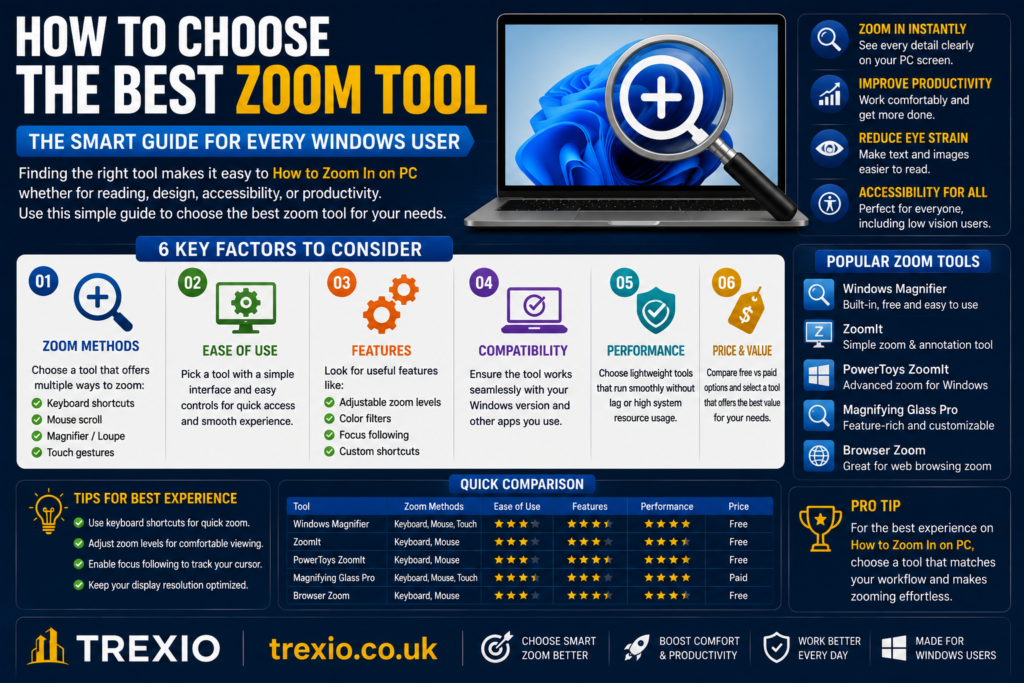
Choosing the right tool depends on how you plan to use how to zoom in on PC features.
For Everyday Users
Windows Magnifier is the easiest option because it is already installed on every Windows computer. It provides full-screen, lens, and docked viewing modes without requiring any downloads.
For Presentations
ZoomIt is an excellent choice for teachers, trainers, and presenters. It includes screen zooming along with annotation tools that allow you to highlight important areas during demonstrations.
For Reading Small Text
Virtual Magnifying Glass and OneLoupe are lightweight applications that make reading documents and webpages much easier without consuming many system resources.
For Accessibility
Users with low vision who need advanced magnification should consider SuperNova Magnifier or LunarPlus Magnifier. These programs include additional accessibility features such as enhanced cursor tracking, customizable color options, and higher zoom levels.
For Permanent Larger Display
If everything on your computer appears too small, increasing Windows display scaling may be a better solution than using temporary zoom tools. This changes the size of text, icons, and interface elements across the entire operating system.
Our Recommendation
If you’re searching for the easiest way to learn how to zoom in on PC, start with Windows Magnifier. It is free, built into Windows, and suitable for almost every user.
For professionals who frequently give presentations, ZoomIt offers additional annotation features that make explaining content much easier.
If accessibility is your primary concern, SuperNova Magnifier provides one of the most comprehensive solutions available, though it comes at a higher cost.
Overall, Windows Magnifier remains the best choice for most users because it combines simplicity, reliability, and excellent accessibility without requiring any installation.
Conclusion
Learning how to zoom in on PC is one of the simplest ways to improve your computing experience. Whether you’re reading small text, browsing websites, editing photos, or presenting information, Windows offers several built-in methods to enlarge your screen quickly and efficiently.
From keyboard shortcuts and browser zoom controls to the Windows Magnifier and display scaling settings, there is a solution for every situation. Third-party tools can provide additional functionality, but most users will find that the built-in Windows features meet their daily needs.
By understanding how to zoom in on PC, you can reduce eye strain, increase productivity, and make your computer much more comfortable to use.
Frequently Asked Questions (FAQs)
1. How do I zoom in on a Windows PC quickly?
Press Windows + Plus (+) to open Magnifier instantly or Ctrl + Plus (+) to zoom in within most web browsers.
2. How do I zoom out after zooming in?
Use Windows + Minus (-) with Magnifier or Ctrl + Minus (-) in web browsers.
3. Is Windows Magnifier free?
Yes. Windows Magnifier is included free with Windows 10 and Windows 11.
4. Can I zoom only one application instead of the whole screen?
Yes. Most browsers, PDF readers, and office applications have their own built-in zoom controls.
5. Does zooming affect screen resolution?
No. Temporary zoom enlarges content without changing your monitor’s native resolution.
6. How can I make everything permanently larger?
Go to Settings → System → Display → Scale and increase the scaling percentage.
7. Can laptop touchpads zoom in?
Yes. Many Windows laptops support pinch-to-zoom gestures using Precision Touchpads.
8. Which software is best for accessibility?
Windows Magnifier is ideal for most users, while SuperNova Magnifier offers advanced accessibility tools for users with more specialized needs.
Quick Bio
Author: Trexio Editorial Team
The Trexio Editorial Team creates practical technology guides, Windows tutorials, software comparisons, and digital productivity content. Every article is researched to provide accurate, beginner-friendly instructions that help readers solve common PC problems with confidence.